LucidPulse is a watchOS application designed to provide periodic haptic feedback reminders. Users can configure the time interval between reminders and choose from several distinct haptic patterns. The goal is to provide a subtle, configurable "reality check" or mindful moment prompt directly on the Apple Watch.
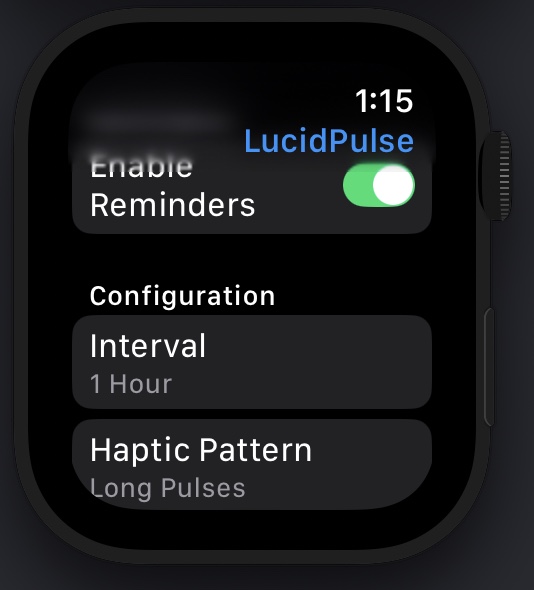
- Configurable Intervals: Set reminders for every 15 minutes, 30 minutes, 1 hour, or 2 hours.
- Multiple Haptic Patterns: Choose from different haptic patterns:
- Long Pulses: Five long notification haptics
- Short Pulses: Eight short success haptics
- Pulse, Pause, Pulse: Two long notification haptics with pause
- On/Off Toggle: Easily enable or disable the reminders from the main interface.
- Background Operation: Utilizes watchOS background tasks (
BGTaskScheduler) to ensure haptics are delivered reliably even when the app isn't in the foreground. - SwiftUI Interface: Modern UI built with SwiftUI for watchOS.
- Settings Persistence: User preferences (interval, pattern, on/off state) are saved using
UserDefaults. - Telemetry Placeholder: Includes a basic logging function (
logReminderTriggered) as a hook for future analytics integration. - Unit Tests: Basic unit tests for the
SettingsViewModelare included in theLucidPulse Watch AppTeststarget.
- Clone the Repository:
git clone <repository-url>
cd LucidPulse
- Open in Xcode: Open the
LucidPulse.xcodeprojfile in Xcode. - Configure Bundle Identifier:
- In the project settings, select each target (
LucidPulse,LucidPulse Watch App). - Go to the Signing & Capabilities tab.
- Update the Bundle Identifier to a unique value using your own reverse domain name (e.g.,
com.yourcompany.LucidPulse). Ensure the Watch App's identifier has the main app's identifier as a prefix.
- In the project settings, select each target (
- Configure Background Task Identifier:
- The background task identifier is currently set to
com.yourappdomain.LucidPulse.reminderTaskinLucidPulseApp.swift. - IMPORTANT: Replace
com.yourappdomainwith the same reverse domain name used for your Bundle ID. - In the Xcode project settings for the
LucidPulse Watch Apptarget:- Go to the Info tab.
- Find the key
BGTaskSchedulerPermittedIdentifiers(or "Permitted background task scheduler identifiers"). - Make sure the value in
Item 0exactly matches the identifier you set inLucidPulseApp.swift.
- The background task identifier is currently set to
- Enable Background Modes:
- In the Xcode project settings for the
LucidPulse Watch Apptarget:- Go to the Signing & Capabilities tab.
- Click + Capability and add Background Modes.
- Check the Background processing option.
- In the Xcode project settings for the
- Build and Run: Select the
LucidPulse Watch Appscheme and run on a physical Apple Watch or the simulator.
- UI (
ContentView.swift): Provides toggles and pickers bound to theSettingsViewModel. - State Management (
SettingsViewModel.swift): AnObservableObjectthat holds the current settings (isReminderActive,selectedInterval,selectedPattern), saves them toUserDefaults, and contains the logic to play haptic patterns (playSelectedHaptic). - App Lifecycle & Scheduling (
LucidPulseApp.swift): The main app struct initializes theSettingsViewModeland passes it to theContentView. It uses@Environment(\.scenePhase)and the@Publishedproperties of the ViewModel to detect when to schedule or cancel background tasks viaBGTaskScheduler.shared.submit()andBGTaskScheduler.shared.cancel(). It also registers a handler (.backgroundTask(.appRefresh(...))) that the system calls to execute the background task. - Background Task Handling: When the background task runs, the handler in
LucidPulseApp.swiftcallsscheduleAppRefresh()again to queue the next reminder and then callssettingsViewModel.playSelectedHaptic()to trigger the vibration. - Haptics: The
playSelectedHapticfunction inSettingsViewModelusesWKInterfaceDevice.current().play()combined withTask.sleepto create custom haptic sequences.
- Ensure all Bundle Identifiers are unique and correctly configured.
- Set up App Store Connect record, provisioning profiles, and certificates.
- Use Xcode's Product > Archive menu.
- Upload the archive using Xcode's Organizer.
- Unit Tests: Run the tests in the
LucidPulse Watch AppTeststarget using Product > Test in Xcode. - Manual Testing: Run the app on a device/simulator. Test toggling reminders on/off, changing intervals/patterns, and background functionality (set a short interval like 15 min, send the app to the background, and wait).
This Python script generates all required icon sizes for a watchOS app from a single 1024x1024 source image.
- Python 3.6 or higher
- Pillow library
- Install the required dependencies:
pip install -r requirements.txtRun the script with your 1024x1024 source image:
python generate_watch_icons.py path/to/your/icon.pngBy default, the generated icons will be saved in a watch_icons directory. You can specify a different output directory using the --output-dir option:
python generate_watch_icons.py path/to/your/icon.png --output-dir my_iconsThe script generates the following icon sizes:
- 1024x1024
- 108x108 (49mm)
- 97x97 (45mm)
- 94x94 (44mm)
- 86x86 (41mm)
- 80x80 (38mm)
- 100x100 (49mm)
- 92x92 (45mm)
- 88x88 (44mm)
- 66x66 (45mm)
- 58x58 (41mm)
- 87x87 (@3x)
- 48x48
- 55x55
- 66x66
- 58x58
- 87x87
- 80x80
- 88x88
- 92x92
- 100x100
- 102x102
- 108x108
- 172x172
- 196x196
- 216x216
- 234x234
- 258x258
The generated icons will be named with the pattern: original_name-widthxheight.png
Example: If your source image is named app_icon.png, the generated files will be:
app_icon-1024x1024.pngapp_icon-108x108.pngapp_icon-97x97.pngetc.