
A fuzzy, recency-sorted interactive branch switcher for Git.
- Interactive UI to view and switch between branches and worktrees
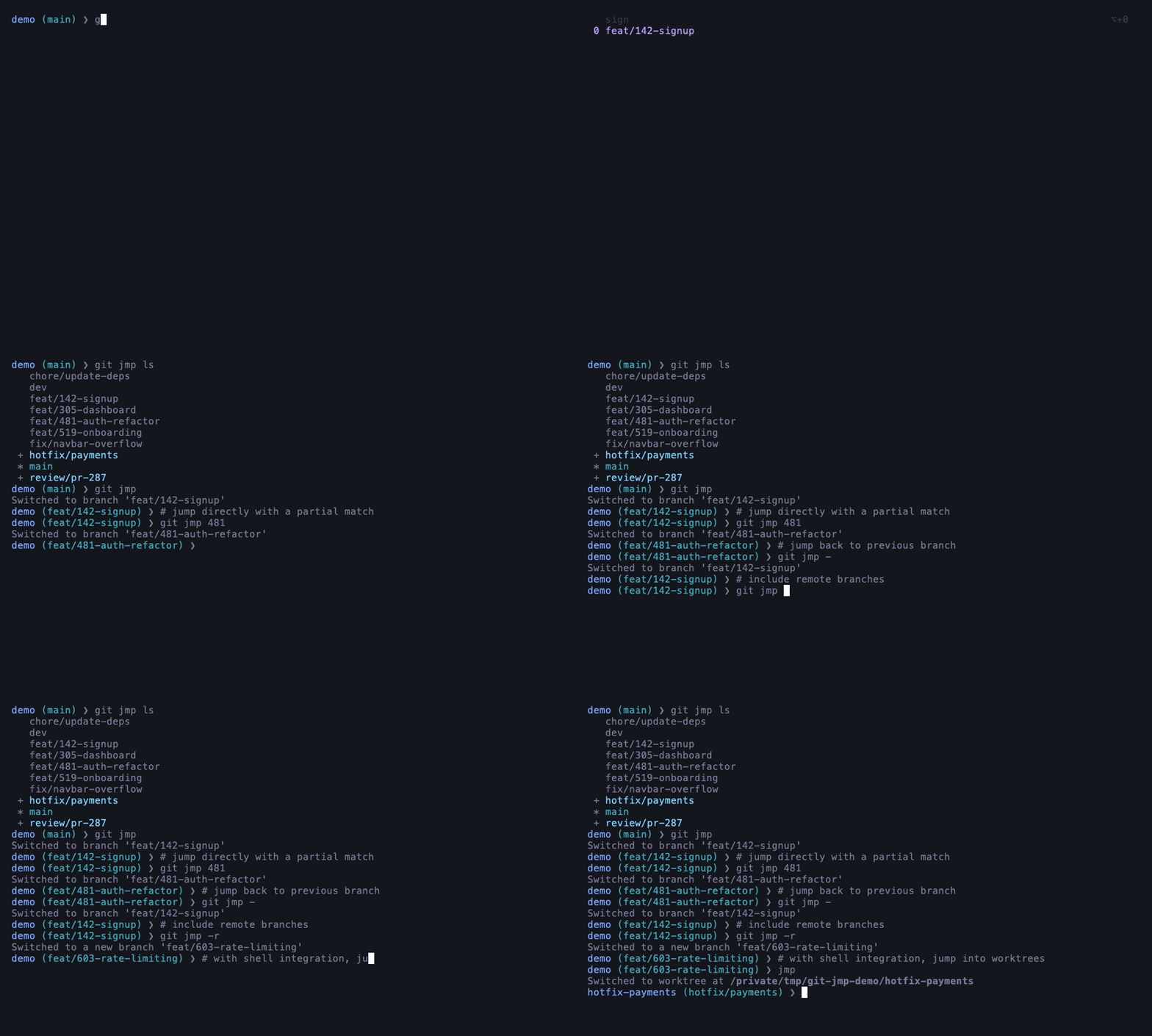
- Recency sorting: your most recently used branches float to the top
- Fuzzy jump:
jmp 481→git switch feat/issue-481-auth-refactor - Quick select: jump to any of your top 10 branches with a single keystroke
- Vim mode: optional vim-style navigation for the interactive list
- Worktree navigation: with shell integration, selecting a worktree drops you straight into its directory
- Tab completions: branch name completions for bash, zsh, and fish via shell integration
brew install pkitazos/tap/git-jmpcargo install git-jmpcurl --proto '=https' --tlsv1.2 -LsSf https://github.com/pkitazos/git-jmp/releases/latest/download/git-jmp-installer.sh | shSee the releases page for other options including Windows.
Once installed, git jmp works everywhere with no further setup. However to get even nicer worktree navigation, you need to set up shell integration so that selecting a worktree entry actually moves you into the chosen directory. You can use the init subcommand to generate a jmp command that wraps git jmp and performs the cd for you when selecting a worktree.
jmp does everything git jmp does, so if you want the worktree navigation, you can just use jmp right from the start.
# zsh
echo 'eval "$(git-jmp init zsh)"' >> ~/.zshrc

# bash
echo 'eval "$(git-jmp init bash)"' >> ~/.bashrc

# fish
echo 'git-jmp init fish | source' >> ~/.config/fish/config.fish
Restart your shell (or re-source the file) and jmp is ready.
jmp is a thin wrapper around git jmp that adds worktree cd and tab completions. git jmp keeps working exactly as before, so you can skip this step if you prefer, you just won't get completions or automatic directory switching.
All examples below use
jmp(the shell wrapper). You can substitutegit jmpeverywhere if you prefer not to set up shell integration, you just won't get worktreecdor tab completions.
Run without arguments to launch the interactive UI:
jmp [--vim-mode] [-r]- When you first start using
jmpbranches are sorted alphabetically, but as you switch around your jump history is tracked and the list is sorted with the most recently jumped-to branches near the top. - Navigate with arrow keys or, if vim mode is enabled, with vim-style motions (
j/k, count prefixes like3j,g/Gto jump to top/bottom). Hit enter to switch to the selected branch. - Start typing to filter the list with a fuzzy search. You don't have to be precise, just type enough to narrow it down.
- Selecting a worktree shows you where it lives on disk. With shell integration set up,
jmptakes you there directly instead. - Quick-jump to any of your top 10 most recently visited branches using Option+<number> (or Alt+<number> on Linux). You may need to configure your terminal for this to work, see terminal configuration.
Jump to a branch without opening the interactive UI. You can use the exact name or a partial match. jmp checks for an exact match first, then falls back to the best fuzzy match.
jmp <branch name or fuzzy match>If you use feature branches with unique issue numbers, this makes switching between them very quick:
jmp 481     # switches to feat/issue-481-auth-refactor
jmp signup # switches to feat/user-signup-flowjmp new <branch name>Creates and switches to a new branch (git switch --create under the hood) and records it as the most recently visited branch.
jmp mv [<old name>] <new name>Renames a branch (git branch --move under the hood) and updates the jump data. Omit <old name> to rename the current branch.
jmp rm [-f] <branch name> [<branch name>, ...]Deletes one or more branches (git branch -d under the hood) and removes them from the jump data. Pass -f or --force for branches that haven't been fully merged (equivalent to git branch -D).
jmp ls [-r]Lists all local branches with the same markers as git branch (* for current, + for worktree branches). The only difference is that when piped, the output is plain branch names with no prefixes (unlike git branch), just one branch per line, ready for scripting!
Pass -r or --include-remotes to also list remote branches. This queries your remotes directly rather than relying on your local cache (unlike git branch -r).
git jmp init <shell>Prints the shell integration script for the given shell (bash, zsh, or fish). You don't usually run this directly, you eval it from your shell config, see Shell Integration.
You can configure git-jmp globally, per-project, or with CLI flags. Configuration is written in TOML:
[general]
auto_check_updates = true
vim_mode = false

[appearance]
quick_select_hint = "full" # or "compact" or "hidden"auto_check_updates- whethergit-jmpchecks for new versions on startup. Disable this if you'd rather skip the network trip.vim_mode- splits the interactive list intoNormalmode (navigate) andInputmode (type to search) with vim-style motions.quick_select_hint- controls the hint shown on the search input line:"full"is the verbose default,"compact"shows just the modifier key and number,"hidden"shows nothing.
Global config location depends on your OS:
| OS | Path |
|---|---|
| Linux | ~/.config/git-jmp/config.toml (or $XDG_CONFIG_HOME/git-jmp/config.toml) |
| macOS | ~/Library/Application Support/git-jmp/config.toml |
| Windows | %APPDATA%\git-jmp\config.toml |
Local config goes in .jump/config.toml at the root of your repository. Local values override global ones field by field, so you don't need to specify every field every time.
If you previously used mykolaharmash/git-jump or the @pkitazos/git-jump ts fork, you can install git-jmp and drop it into any existing project and your jump data will be carried over automatically.
The subcommand names have changed: rename → mv, delete → rm, --list → ls.
git-jmp is a ground-up Rust rewrite. Beyond the port itself, it includes:
- Worktree-aware interactive UI and branch listing
- Worktree directory navigation via shell integration
- Per-project and global TOML configuration
- Vim mode for the interactive list
- Configurable quick-select hints
- Remote branch listing via
ls -r - Tab completions for branch names (bash, zsh, fish)
- Full cursor navigation in the search input (word jump, Home/End, kill line)