Electron desktop application for displaying the locations of geotagged photos on a Google map.
- Photo locations are displayed using Google Maps
- Photo locations are saved to a database for fast reading - the photos only need to be read once to get their location
- Clustering of map markers for improved performance when displaying the locations of large numbers of photos
- Lightbox with a gallery for viewing the mapped photos
- Filtering of photos on the map by the date they were taken
On Windows, you must have the Visual C++ build tools installed to build a project dependency:
- Download and run the Microsft Visual Studio installer
- Choose the specific components of the Visual Studio Build Tools to install, and select the
Visual C++ build toolsworkload and both the optionalWindows 8.1 SDK and UCRT SDKandVC++ toolset for dekstop(The current version as of this writing isVC++ 2015.3 v14.00 (v140)). You do not have to install Visual Studio itself. - Create the environment variable
VCTargetsPathwith the value being the directory containing theMicrosoft.cpp.*files. The default path for version 14 of the build tools should beC:\Program Files (x86)\MSBuild\Microsoft.Cpp\v4.0\v140.
- Install
nodejs - Install
npm - Install dependencies using using the command
npm install <repository_location>. - Build the
sqlite3package by running the commandnpm run rebuildin the root directory. On Windows, if you get an error likeThe build tools for <version> (Platform Toolset = <version>) cannot be found, you will need to use the--msvs_versionflag to specify the version of the build tools you have installed. - Compile the TypeScript files:
npx tsc - Run the application using the command
/<repository_location>/node_modules/.bin/electron <repository_location>
Currently, the map works without a Google Maps API key. If this ever changes in the future, you will have to sign up for a Google Maps API key and then create the file google_maps.key in the repository's root directory, and then add your key to the file.
Unit tests for the application are written using Mocha.
Run the tests with the command:
npm test
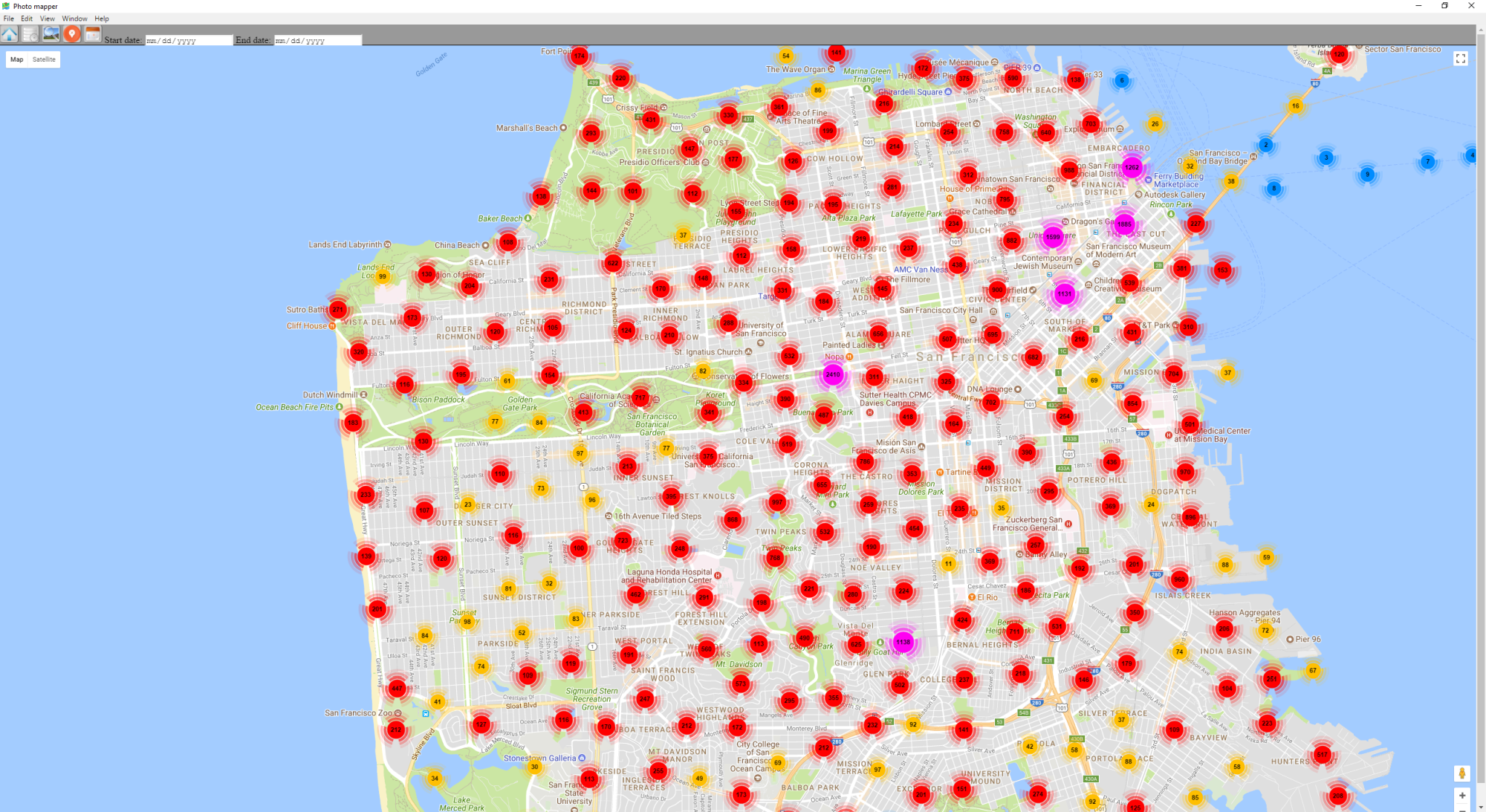 Map view, showing clustering of photos
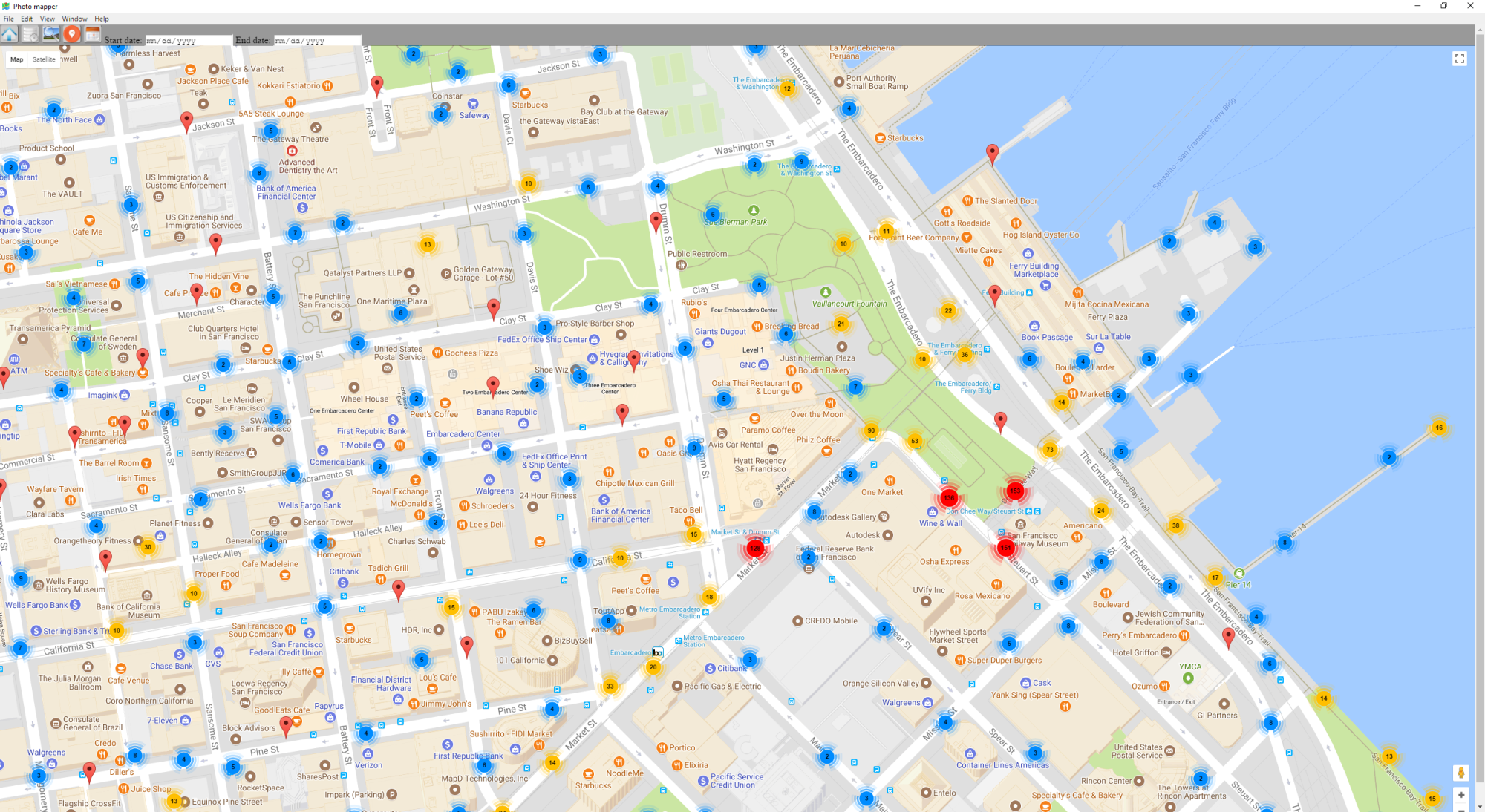 Zoomed in view
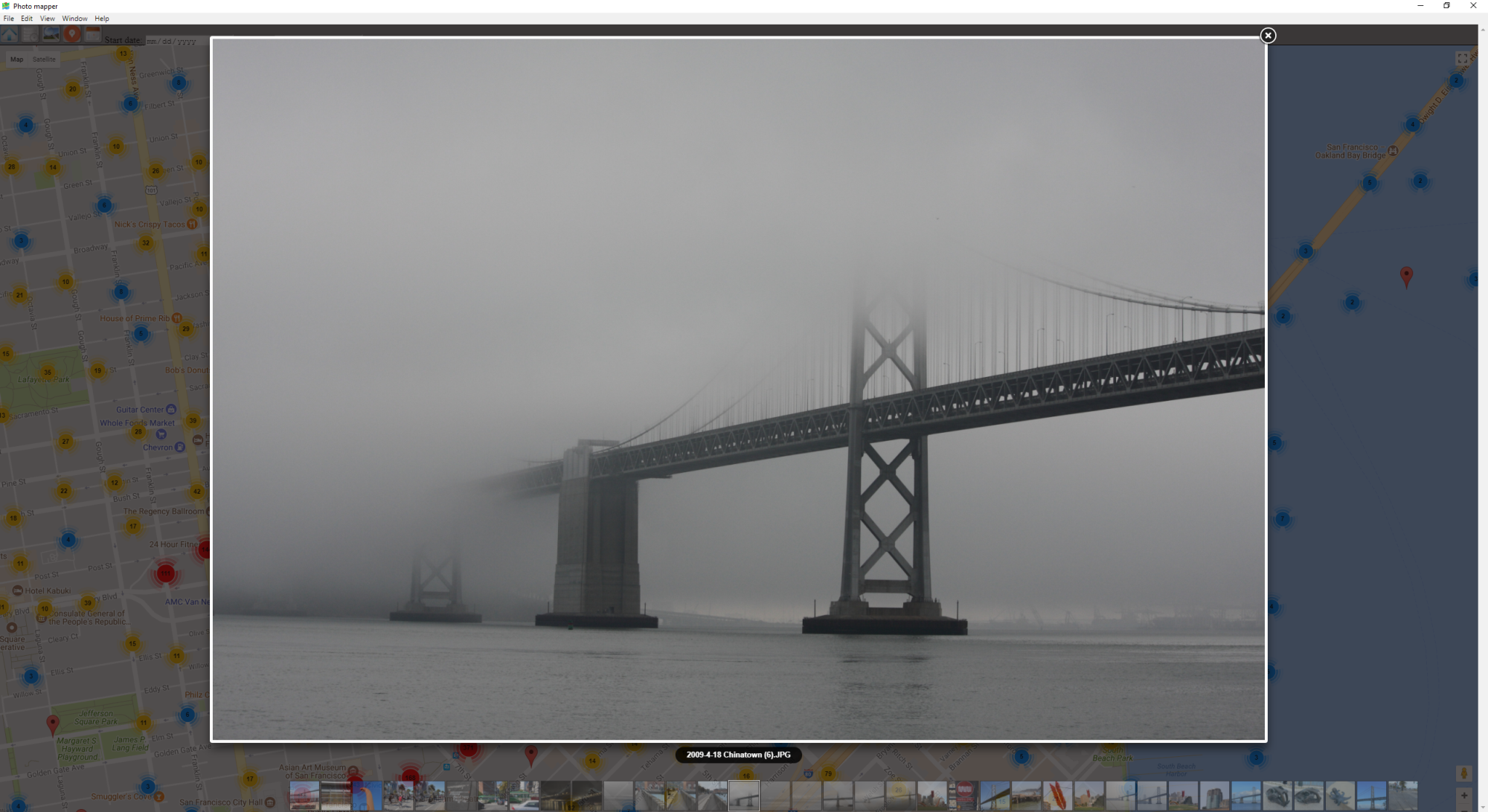 Lightbox view
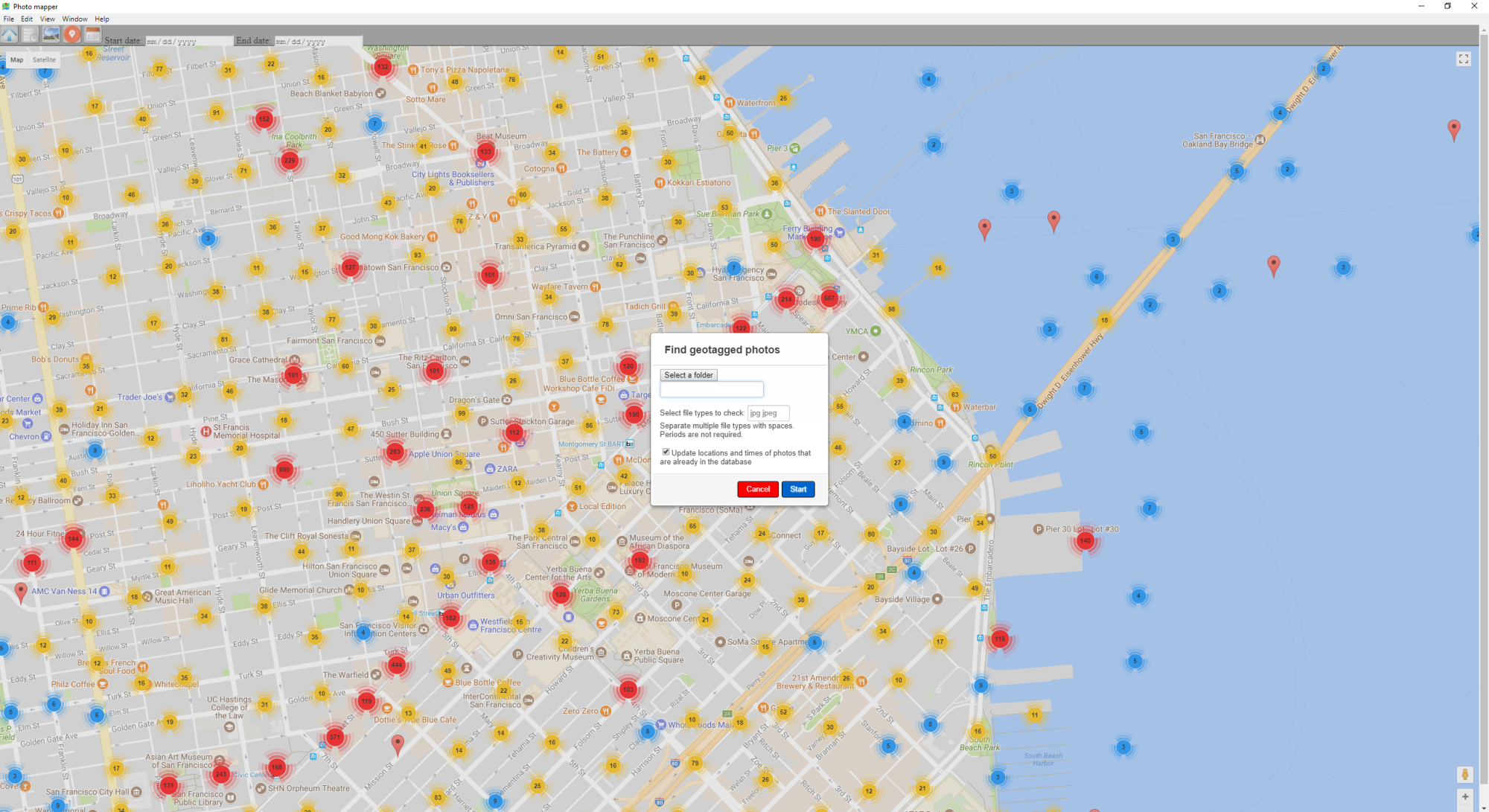 Modal to search for geotagged photos