



Behavior-first screen infrastructure for React Native.
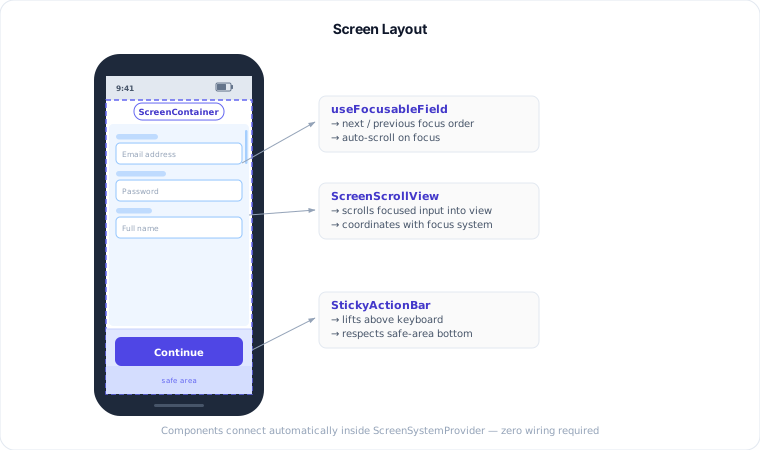
Stop rewriting keyboard, focus, safe-area, and sticky-action logic on every screen. react-native-screen-system gives your team a set of small, composable primitives that wire together automatically — so you ship screens faster and keep them consistent.
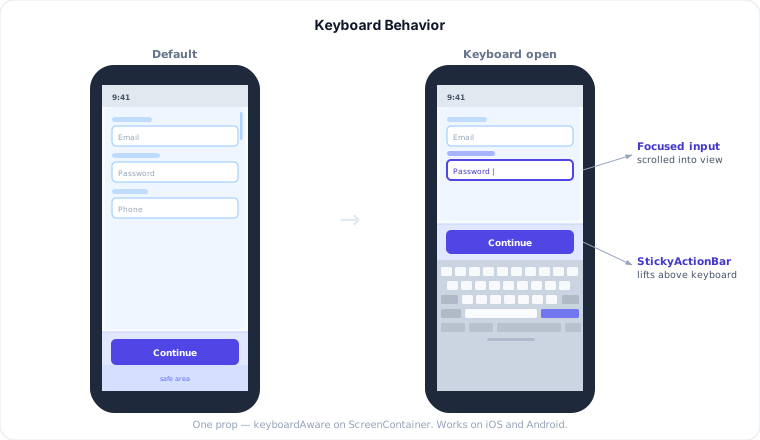
Your keyboard will never hide a CTA button again.
Tab to the next field. Every time. No exceptions.
Safe area padding: set it once, forget it exists.
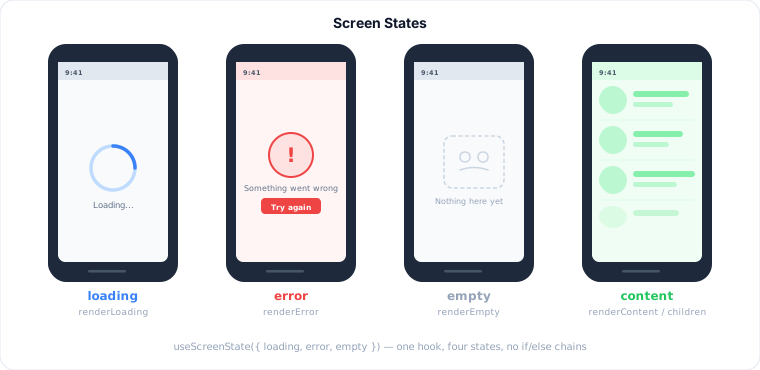
Loading · error · empty — three lessifstatements per screen.
- Why Use It
- Install
- Setup
- Quick Example
- Architecture
- API Reference
- Customization
- Examples
- Contributing
- License
Use this package when your app keeps running into problems like:
- inputs getting hidden behind the keyboard
- form fields needing reliable next and previous focus behavior
- bottom CTA bars needing to stay reachable on small devices
- long forms needing to scroll the focused input into view
- screen state handling repeating across loading, error, empty, and content flows
- safe-area padding being manually reimplemented on every screen
This package is not a design system or navigation framework. It focuses on the interaction layer underneath your UI:
- keyboard-aware screen layout
- safe-area-aware spacing
- focus order and input submit behavior
- scroll-to-focused-input behavior
- sticky bottom actions
- screen state orchestration
- Sign in, sign up, OTP, forgot password, and recovery flows
- Checkout, shipping, billing, payment, and address entry screens
- Profile edit and account settings screens
- Onboarding and multi-step form flows
- Support and feedback forms
- Internal tools with many input-heavy screens
- Search, filter, and results screens with loading, empty, and error states
npm install react-native-screen-system react-native-safe-area-contextPeer dependencies required:
| Package | Version |
|---|---|
react |
>=18.0.0 |
react-native |
>=0.72.0 |
react-native-safe-area-context |
>=4.0.0 |
Wrap your app once at the root. ScreenSystemProvider sets up shared context for all screens below it.
import { SafeAreaProvider } from 'react-native-safe-area-context';
import { ScreenSystemProvider } from 'react-native-screen-system';

export function App() {
  return (
    <SafeAreaProvider>
      <ScreenSystemProvider>
        <RootApp />
      </ScreenSystemProvider>
    </SafeAreaProvider>
  );
}A complete login screen — keyboard-aware layout, focus order, and sticky CTA — in under 40 lines:
import { Button, TextInput } from 'react-native';
import {
  ScreenContainer,
  ScreenScrollView,
  StickyActionBar,
  useFocusableField,
} from 'react-native-screen-system';

export function LoginScreen() {
  const email = useFocusableField({ id: 'email', order: 1, submitBehavior: 'next' });
  const password = useFocusableField({ id: 'password', order: 2, submitBehavior: 'blur' });

  return (
    <ScreenContainer keyboardAware includeBottomInset>
      <ScreenScrollView contentContainerStyle={{ padding: 16 }}>
        <TextInput
          ref={email.ref}
          placeholder="Email"
          onFocus={email.onFocus}
          onSubmitEditing={email.onSubmitEditing}
        />
        <TextInput
          ref={password.ref}
          placeholder="Password"
          secureTextEntry
          onFocus={password.onFocus}
          onSubmitEditing={password.onSubmitEditing}
        />
      </ScreenScrollView>

      <StickyActionBar divider>
        <Button title="Continue" onPress={() => {}} />
      </StickyActionBar>
    </ScreenContainer>
  );
}
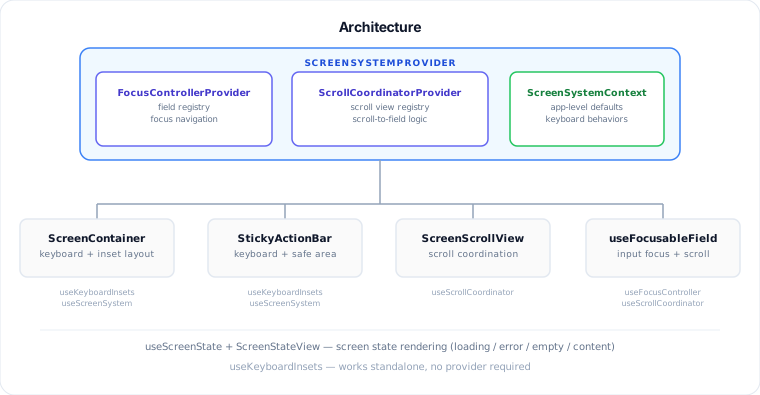
ScreenSystemProvider sets up three contexts internally — FocusControllerProvider, ScrollCoordinatorProvider, and ScreenSystemContext — so every component and hook shares the same state without any manual wiring.
useKeyboardInsets works standalone and does not require the provider.
App-level defaults. Override these once instead of repeating per screen.
| Prop | Type | Default | Description |
|---|---|---|---|
keyboardVerticalOffset |
number |
0 |
Base offset subtracted from keyboard spacing across the app |
actionBarBottomGap |
number |
12 |
Default extra bottom gap for sticky action bars |
defaultKeyboardBehavior |
'padding' | 'margin' | 'none' |
'padding' |
Default keyboard behavior for ScreenContainer |
defaultActionBarKeyboardBehavior |
'padding' | 'margin' | 'none' |
'padding' |
Default keyboard behavior for StickyActionBar |
Screen wrapper with keyboard and inset-aware spacing. Renders a View with flex: 1.
| Prop | Type | Default | Description |
|---|---|---|---|
keyboardAware |
boolean |
false |
Turns on keyboard-aware bottom spacing |
keyboardBehavior |
'padding' | 'margin' | 'none' |
'padding' |
Controls how keyboard space is applied |
keyboardVerticalOffset |
number |
— | Per-screen keyboard offset override |
keyboardInsetOverride |
number |
— | Manual keyboard inset override |
keyboardInsetAdjustment |
number |
0 |
Fine-tunes the computed keyboard inset |
includeTopInset |
boolean |
false |
Adds safe area top inset |
includeBottomInset |
boolean |
true |
Adds safe area bottom inset |
topInsetOverride |
number |
— | Manual top inset override |
bottomInsetOverride |
number |
— | Manual bottom inset override |
extraTopInset |
number |
0 |
Adds extra top spacing on top of inset |
extraBottomInset |
number |
0 |
Adds extra bottom spacing on top of inset |
Accepts all ViewProps.
A ScrollView wrapper that registers with the scroll coordinator so focused inputs are scrolled into view automatically.
| Prop | Type | Default | Description |
|---|---|---|---|
scrollSystemId |
string |
'default-scroll-view' |
Unique id for the registered scroll view |
autoRegister |
boolean |
true |
Automatically registers with the scroll coordinator |
enabled |
boolean |
true |
Enables or disables scroll-to-field for this view |
scrollToFocusedInputOffset |
number |
24 |
Extra space left above the focused input |
preventNegativeScrollOffset |
boolean |
true |
Prevents scroll overshoot above the top |
fallbackTopInset |
number |
0 |
Extra top inset for the manual scroll fallback |
Accepts all ScrollViewProps. Supports forwardRef.
Bottom action area that stays visible above the keyboard and respects safe area.
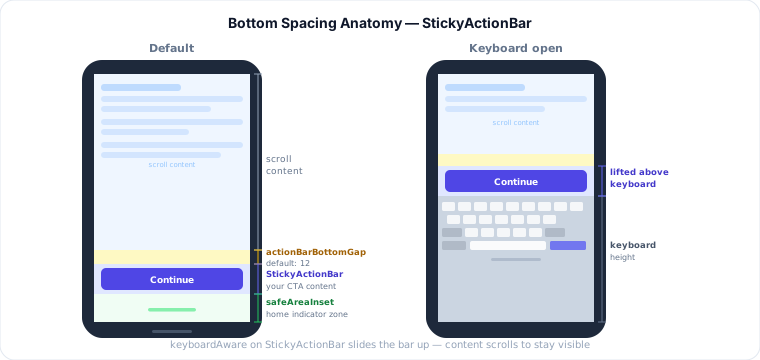
| Prop | Type | Default | Description |
|---|---|---|---|
keyboardAware |
boolean |
true |
Moves the action bar above the keyboard |
keyboardBehavior |
'padding' | 'margin' | 'none' |
'padding' |
Controls how keyboard space is applied |
safeAreaAware |
boolean |
true |
Includes bottom safe area spacing |
keyboardVerticalOffset |
number |
— | Per-bar keyboard offset override |
keyboardInsetOverride |
number |
— | Manual keyboard inset override |
safeAreaInsetOverride |
number |
— | Manual bottom safe area override |
bottomOffset |
number |
12 |
Extra bottom gap under the action bar content |
divider |
boolean |
false |
Shows a hairline divider above the action bar |
dividerColor |
string |
'#D1D5DB' |
Custom divider color |
Accepts all ViewProps.
Renders different content based on screen state. Accepts either an explicit state prop or individual boolean flags.
| Prop | Type | Default | Description |
|---|---|---|---|
state |
ScreenStatus |
— | Explicit state override ('loading' | 'error' | 'empty' | 'content') |
loading |
boolean |
false |
Loading flag (ignored when state is set) |
error |
unknown | null |
null |
Error value (ignored when state is set) |
empty |
boolean |
false |
Empty flag (ignored when state is set) |
renderLoading |
() => ReactNode |
— | Custom loading renderer |
renderError |
(error) => ReactNode |
— | Custom error renderer |
renderEmpty |
() => ReactNode |
— | Custom empty renderer |
renderContent |
() => ReactNode |
— | Custom content renderer (falls back to children) |
children |
ReactNode |
— | Default content, used when no renderContent is provided |
Wires a TextInput into the focus system. Returns a ref, event handlers, and imperative focus helpers.
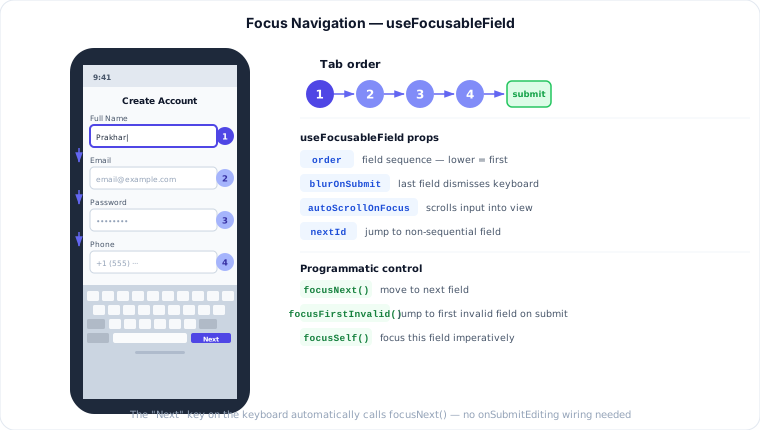
Options:
| Option | Type | Default | Description |
|---|---|---|---|
id |
string |
— | Required. Stable field id used by the focus system |
order |
number |
— | Required. Order used for next / previous navigation |
nextId |
string |
— | Explicit next field id |
previousId |
string |
— | Explicit previous field id |
targetId |
string |
— | Explicit submit target field id |
disabled |
boolean |
false |
Excludes the field from navigation when true |
submitBehavior |
'next' | 'previous' | 'target' | 'blur' | 'none' |
auto-detected | What happens when the user submits the field |
blurOnSubmit |
boolean |
false |
Blur the field on submit (used in auto-detection fallback) |
autoScrollOnFocus |
boolean |
true |
Scrolls the field into view when it receives focus |
scrollToFocusedInputOffset |
number |
— | Extra space above the focused field during scroll |
preventNegativeScrollOffset |
boolean |
— | Prevents scroll overshoot above the top |
onFocus |
() => void |
— | Called when the field receives focus |
onSubmitEditing |
(event) => void |
— | Called when the field's submit button is tapped |
submitBehavior auto-detection (when not explicitly set):
- Has
targetIdornextId→'target' - Has
previousId→'previous' blurOnSubmitistrue→'blur'- Otherwise →
'next'
Returns:
| Field | Type | Description |
|---|---|---|
ref |
RefObject<TextInput | null> |
Attach to the TextInput |
onFocus |
() => void |
Attach to TextInput.onFocus |
onSubmitEditing |
(event) => void |
Attach to TextInput.onSubmitEditing |
focusNext |
() => boolean |
Imperatively focuses the next field |
focusPrevious |
() => boolean |
Imperatively focuses the previous field |
focusSelf |
() => boolean |
Imperatively focuses this field |
Imperative focus controller. Useful for form validation (focus first invalid field) and custom UI interactions.
| Field | Type | Description |
|---|---|---|
registerField |
(field) => () => void |
Registers a field manually; returns an unregister function |
focusField |
(id) => boolean |
Focuses a field by id |
focusNext |
(currentId) => boolean |
Focuses the next registered field after currentId |
focusPrevious |
(currentId) => boolean |
Focuses the previous registered field before currentId |
focusFirstInvalid |
(invalidIds) => boolean |
Focuses the first focusable field in invalidIds |
Must be used inside ScreenSystemProvider.
Converts boolean flags into a single ScreenStatus string. Priority: loading → error → empty → content.
Options:
| Option | Type | Default | Description |
|---|---|---|---|
loading |
boolean |
false |
Signals loading state |
error |
unknown | null |
null |
Signals error state when truthy |
empty |
boolean |
false |
Signals empty state |
Returns: 'loading' | 'error' | 'empty' | 'content'
Tracks keyboard visibility and height. Works standalone — no provider needed.
| Field | Type | Description |
|---|---|---|
visible |
boolean |
Whether the keyboard is currently visible |
keyboardHeight |
number |
Raw keyboard height from native events |
bottom |
number |
Keyboard bottom inset after safe area adjustment |
animationDuration |
number |
Keyboard animation duration (iOS only) |
Uses keyboardWillShow / keyboardWillHide on iOS and keyboardDidShow / keyboardDidHide on Android.
Set once at the app root. All screens inherit these automatically.
<ScreenSystemProvider
  keyboardVerticalOffset={44}
  actionBarBottomGap={0}
  defaultKeyboardBehavior="padding"
  defaultActionBarKeyboardBehavior="padding"
>
  <RootApp />
</ScreenSystemProvider>
keyboardVerticalOffset is useful when your navigation header contributes extra height that affects keyboard offset calculations.
Each screen can override the global defaults:
<ScreenContainer
  keyboardAware
  keyboardBehavior="margin"
  keyboardVerticalOffset={60}
>
  {/* ... */}
</ScreenContainer>
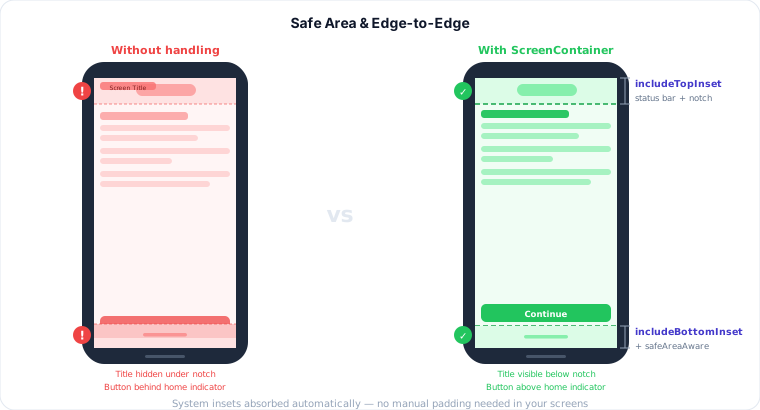
Use overrides when you manage safe area outside the component:
<ScreenContainer
  includeTopInset={false}
  includeBottomInset={false}
  topInsetOverride={0}
  bottomInsetOverride={0}
>
  {/* ... */}
</ScreenContainer>
Add extra spacing on top of the computed inset:
<ScreenContainer
  includeTopInset
  extraTopInset={8}
  includeBottomInset
  extraBottomInset={16}
>
  {/* ... */}
</ScreenContainer>Leave gaps in the order sequence so you can insert fields later without renumbering:
const firstName = useFocusableField({ id: 'firstName', order: 10 });
const lastName  = useFocusableField({ id: 'lastName',  order: 20 });
const email     = useFocusableField({ id: 'email',     order: 30 });
const phone = useFocusableField({ id: 'phone', order: 40, submitBehavior: 'blur' });Mark a field as disabled to skip it in focus navigation without unmounting:
const altEmail = useFocusableField({
  id: 'altEmail',
  order: 35,
  disabled: !showAltEmail, // skipped when the field is hidden
});Override the global scroll offset for a specific field that needs more breathing room:
const longAnswer = useFocusableField({
  id: 'longAnswer',
  order: 50,
  scrollToFocusedInput
  Offset: 48,
});Use useFocusController to drive form validation UX:
const { focusFirstInvalid } = useFocusController();

function handleSubmit() {
  const invalid = validate(); // returns string[] of invalid field ids
  if (invalid.length > 0) {
    focusFirstInvalid(invalid);
    return;
  }
  submit();
}Wire loading / error / empty states without if-else chains:
function ProductScreen() {
  const { data, isLoading, error } = useProduct(id);

  return (
    <ScreenStateView
      loading={isLoading}
      error={error}
      empty={data?.items.length === 0}
      renderLoading={() => <Spinner />}
      renderError={(err) => <ErrorView error={err} />}
      renderEmpty={() => <EmptyState />}
    >
      <ProductList items={data.items} />
    </ScreenStateView>
  );
}Full runnable examples are in example/:
| File | What it shows |
|---|---|
ProviderAndLayoutExample.tsx |
Provider setup and layout defaults |
FormFlowExample.tsx |
Multi-step keyboard-aware form |
FocusControllerExample.tsx |
Imperative focus control |
ScrollCoordinatorExample.tsx |
Scroll coordinator with multiple inputs |
ScreenStatesExample.tsx |
Loading / error / empty / content states |
KeyboardInsetsExample.tsx |
Live keyboard inset inspection |
See example/README.md for the full breakdown.
Contributions are welcome.
Suggested workflow:
- Fork the repository or create a feature branch.
- Make focused changes.
- Run
npm run buildandnpm run typecheck. - Update docs or examples when behavior changes.
- Open a pull request with a clear summary of the change.
See CONTRIBUTING.md for more detail.
See PLAN.md.
MIT. See LICENSE.