Repository navigation
Tracing redirects
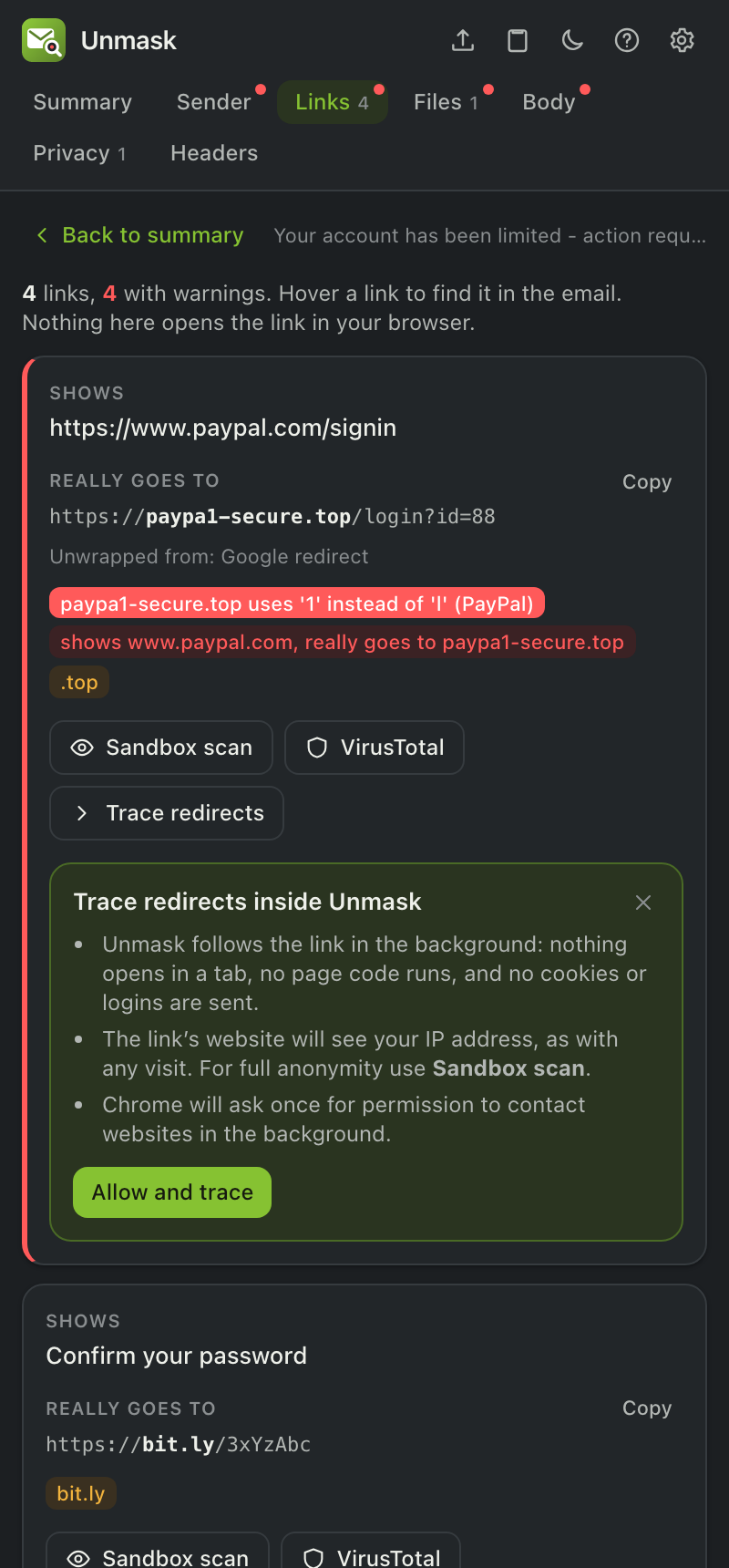
Links in emails often bounce through several addresses (bit.ly → tracker → final page). Trace redirects shows every step and where the link really ends, without opening it.
- In the Links tab, click Trace redirects on any link.
- The first time, Unmask explains what will happen. Click Allow and trace, then Allow in Chrome's prompt. You only do this once.
- The redirect chain appears in the card: each address, its status code, and how it redirected (HTTP, a
<meta refresh>or JavaScript).
What happens behind the scenes: Unmask's background worker requests the link without cookies or logins, never opens it in a tab, and never runs its code. It reads only the first part of each page to spot meta or JavaScript redirects. Links pointing at your own network (your router, localhost, 192.168.x.x) are refused.
Privacy note: the link's website sees your IP address, just as if you'd visited it. If you'd rather it didn't, use Sandbox scan (urlscan.io visits it for you), or set up your own trace server under Settings → Advanced → Redirect tracing → My own server (see BACKEND.md).
Why does Chrome ask for permission? Tracing needs to contact any website the link might lead to. The permission is optional and requested only when you first use it, so installing Unmask doesn't ask for it. You can remove it any time from chrome://extensions → Unmask → Details → Site access.
This page is generated from docs/USER_GUIDE.md. Edit it there, not in the wiki.