Step by step tutorial
The commands below are tested for Ubuntu 20.04
-
Node version 16 or above
Task Command To check version of node node -vTo install node sudo apt install nodejsTo upgrade node to latest version 1. Remove current version
sudo rm -rf /usr/local/bin/npm /usr/local/share/man/man1/node* ~/.npmsudo rm -rf /usr/local/lib/node*sudo rm -rf /usr/local/bin/node*sudo rm -rf /usr/local/include/node*sudo apt-get purge nodejs npmsudo apt autoremove
2. Download NodeJS version 16 or above from https://nodejs.org/en/download/
3. Install it
Do note to change the command according to the nodeJS version you have downloadedtar -xf node-v16.14.2-linux-x64.tar.xzsudo mv node-v16.14.2-linux-x64/bin/* /usr/local/bin/sudo mv node-v16.14.2-linux-x64/lib/node_modules/ /usr/local/lib/ -
Npm version 8.5.2 or above
Task Command To check version of npm npm -vTo install npm sudo apt install npmTo upgrade npm to latest version sudo npm install npm -g
-
Install Metamask for the browser (e.g. Firefox) from Metamask installation link
-
Click on the MetaMask extension and follow Metamask account creation tutorial to setup Metamask account
-
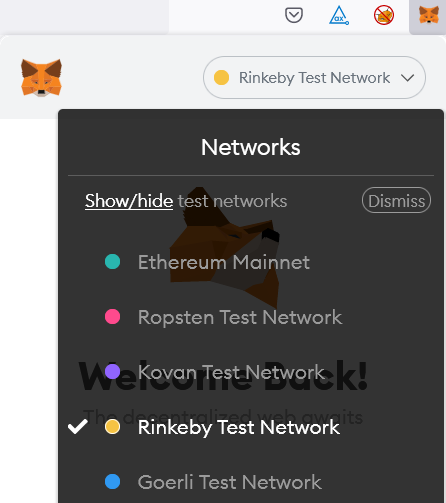
After setting up Metamask, ensure that it is connected to Rinkeby network
-
Now you can request free Ethereum for Rinkeby network from Faucets
-
Note down the Metamask private key. You will need it when editing the .env file.
- Click "Account details"
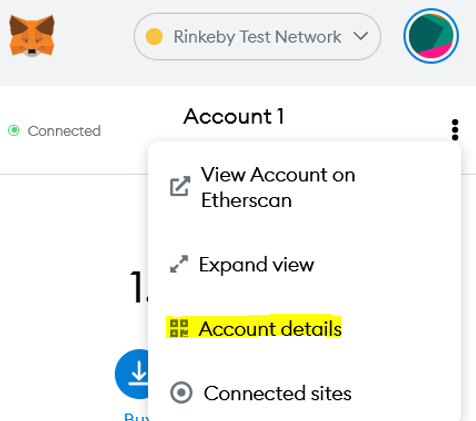
- Next, click "Export Private Key". You will be prompted to key in your Metamask password. After keying in the password, you will see the private key.
- Click "Account details"
-
Browse to Alchemy and create an account for it.
-
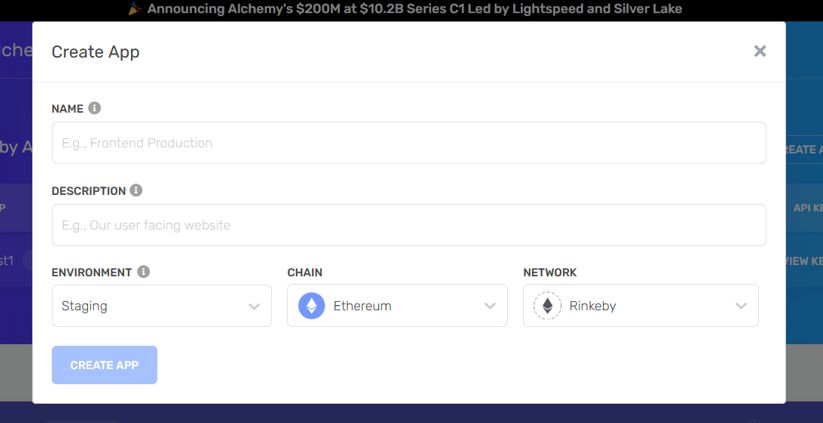
After logging into Alchemy, you will see the "+CREATE APP" button on your right, click it.
Fill in the details as shown below.- Name: any value
- Description: any value
- Environment: Staging
- Chain: Ethereum
- Network: Rinkeby
-
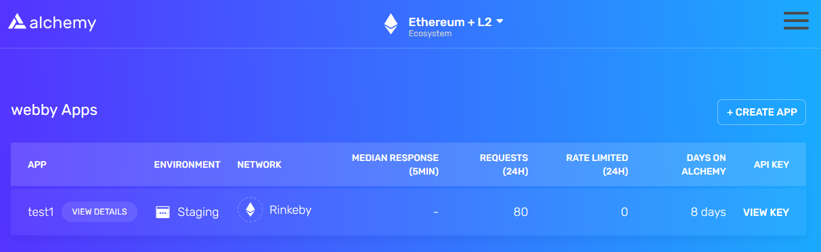
You will see the app is created successfully. In this example the app created is called "test1". Click the "VIEW DETAILS" button.
-
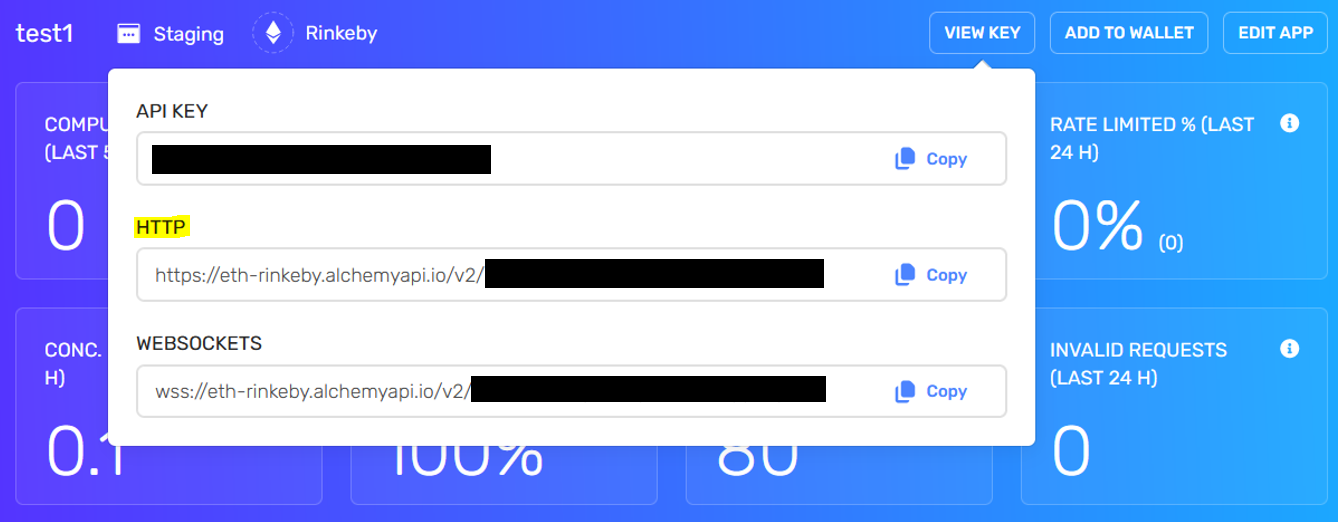
Click the "VIEW KEY" button and you will see the HTTP URL for your app. Note down the HTTP URL as you will need it when editing the .env file.
- Browse to Etherscan and create an account for it https://etherscan.io/myapikey
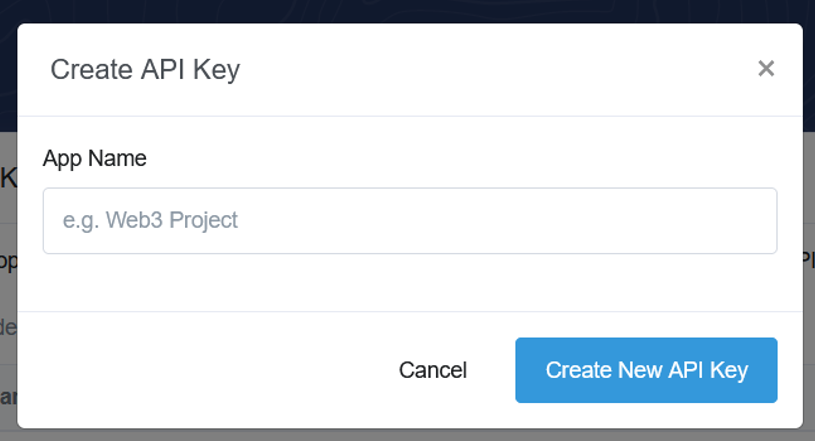
- After logging into Etherscan, browse to API Key and create your API key by clicking "+Add" for "My API keys". You can give any name to this key.
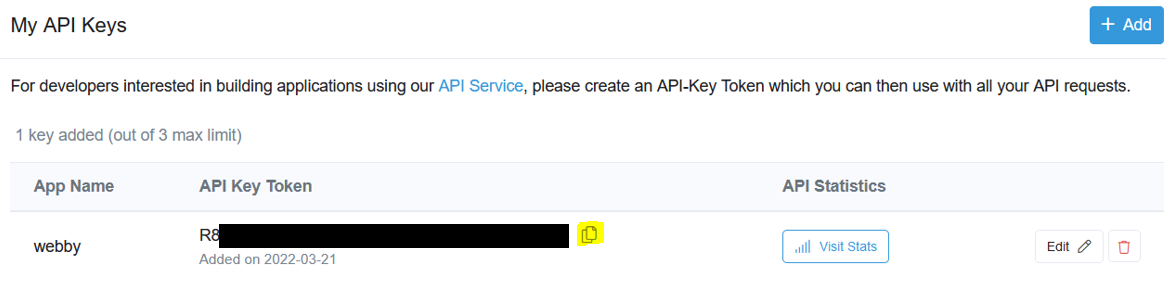
- You will see the key is created successfully. Note down the API key token as you will need it when editing the .env file.
Create account for Rarible, NFTrade, Opensea, and Looksrare with your Metamask.
Browse to Pinata and create an account for it.
API_URL="your HTTP URL for Alchemy app"
PRIVATE_KEY="your Metamask private key"
ETHERSCAN_API_KEY="your Etherscan API key token"
Leave the IPFS and MINT_NUM blank.
-
cd into uploadContract folder
-
Install dependencies
sudo apt-get install python3-bs4sudo apt-get install python3-coloramanpm install dotenv --savenpm install @openzeppelin/contractsnpm install --save-dev hardhatImportant note:
Before runningnpm install --save-dev hardhat, please temporarily delete the hardhat.config.js file from uploadContract folder. It is because the npm will skip the installation if detected the preconfigured hardhat.config.js exists.
After running the command successfully, please put back the hardhat.config.js file before continuing with the the rest of the steps.npm install @nomiclabs/hardhat-etherscannpm install @nomiclabs/hardhat-waffle
python3 main.py
After uploading NFT with smart contract and verify that smart contract is deployed successfully, you verify whether the NFT is auto-uploaded to
| Platform | Speed for auto-upload |
|---|---|
| Rarible | Fast |
| NFTrade | Fast |
| Opensea | Very slow |
| Looksrare | Depends on Opeansea because it retrieves from listing on Opensea |