Cross-platform CLI for managing AI skills, commands, agents, and other Artifacts. Maintain a library in centralized Vaults and import them into any project or tool config for use with AI coding assistants.
- 💻 All you need is a terminal.
- 🏠 Local-first. No network functionality at all (aside from an optional update command).
- 🧰 Extensible. Easily add support for your coding agent with a simple yaml configuration.
- 📦 Portable. Cross-platform support (Linux/Mac/Win).
- ✔️ Simple. Easy to install, easy to export your artifacts/configuration.
- 🧠 Conventional. Command syntax attempts to feel familiar by aligning with existing conventions.
- 🤖 Scriptable. Every action automatable.
Installation • Quickstart • The Essentials • Extended Usage
AI coding agents accumulate a bunch of configs. And they're usually project-local. Starting a new repo often means rebuilding your environment from scratch, manually copy-pasting skills, etc.
I develop mostly in cloud VMs via ssh and tmux for security purposes. I got tired of rebuilding my setup every time and desperately wanted a terminal-centric solution. Lo-and-behold: Artifactr
It takes inspiration from local-first note-taking applications like Obsidian and Logseq. No external connections are made. Your vaults contain YOUR files.
Vaults are where you store Artifacts. "Artifact" is a shorter way of saying "a file or folder used with LLM tools." Currently, artifactr supports standard Skills, Commands, and Agents.
TOC
- Why?
- Installation
- Quickstart
- The Essentials
- Extended Usage
- Managing Vaults
- Vault Export & Import
- Shell Navigation
- Managing Tools
- Listing Vault Contents
- Removing Vault Artifacts
- Importing Artifacts (Project)
- Managing Project Artifacts
- Importing Artifacts (Global Config)
- Managing Global Config Artifacts
- Linking & Unlinking Artifacts
- Import with Linking
- Multi-Vault -V Flag
- Tool Discovery with --all
- Link State Display
- Creating Artifacts
- Editing Artifacts
- Listing Artifact Files
- Reading Artifact Content
- Inspecting Artifacts
- Exporting Artifacts
- Copying Artifacts
- Discovering Artifacts
- Storing Artifacts
Requires Python 3.10+
One-liners will attempt to install artifactr via pipx, otherwise, they will create a new venv, install the program there, and add it to your $PATH.
Install artifactr with a single command on Linux or macOS:
curl -fsSL https://raw.githubusercontent.com/reg1z/artifactr/main/install.sh | bashTo skip all confirmation prompts (useful for scripts or dotfiles):
curl -fsSL https://raw.githubusercontent.com/reg1z/artifactr/main/install.sh | bash -s -- --yesTo uninstall:
curl -fsSL https://raw.githubusercontent.com/reg1z/artifactr/main/install.sh | bash -s -- --uninstallInstall with a single command in PowerShell:
powershell -ExecutionPolicy ByPass -c "irm https://raw.githubusercontent.com/reg1z/artifactr/main/install.ps1 | iex"To skip all confirmation prompts, download install.ps1 and run:
.\install.ps1 -YesTo uninstall, run:
.\install.ps1 -UninstallIt's easiest to globally install artifactr via pipx, which auto-configures a separate python virtual environment (venv) for you:
pipx install artifactrOtherwise, you can install via pip, though it's recommended to use a non-system venv.
pip install artifactrTo use a non-system venv, find a good folder to put the new environment in, cd into it, and:
- (NOTE: You will have to
sourcethis venv whenever you want to useartifactr)
python -m venv .venv # <-- creates a venv in a new folder named ".venv"
source .venv/bin/activate # <-- use this python env for all `python` execution
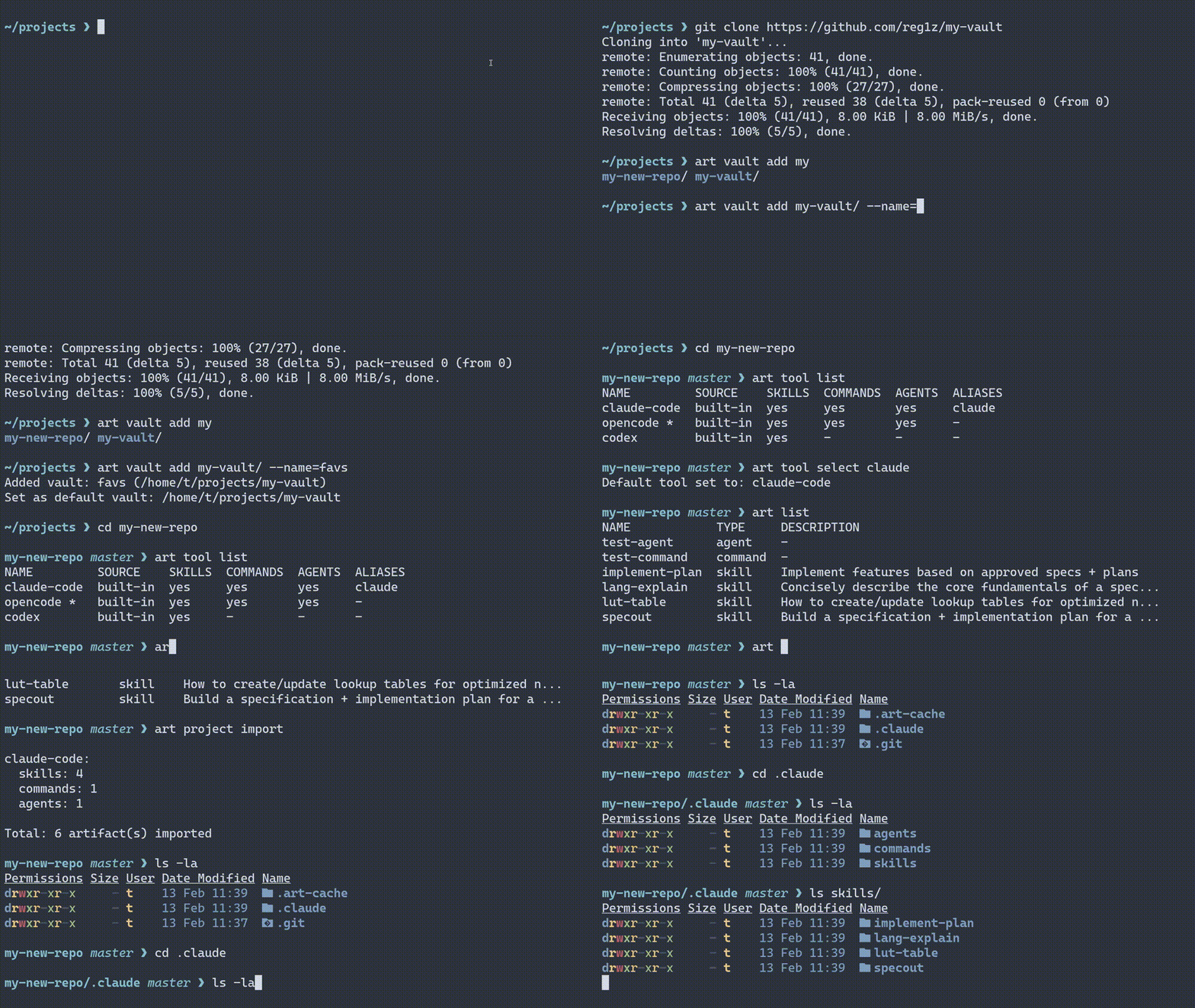
pip install artifactrart vault init ~/my-new-vault --name favorites # Scaffold a new vault
art store ~/repos/existing-project # Store any existing skills/commands/agents from a repo (AKA artifacts) into your new vault
art tool select claude # Select your choice of agentic tool (opencode/claude/codex || or add your own with `art tool add`)
art project import ~/repos/new-project --link # Import artifacts into your project, using symlinks for automatic syncing
art config import --link # Import artifacts into your selected tool's global configs, using symlinks for automatic syncingCreate a vault with:
art vault init /path/to/your/vaultIf the target folder does not exist, the program will make it for you.
If you have no other vault at this point, the program will automatically assign this vault as your default.
If you have an existing vault, simply run:
# (Adding a shorthand name is convenient!)
art vault add /path/to/your/vault --name favs
If you have no other vault at this point, the program will automatically assign this vault as your default.
Choose your preferred default vault with:
art vault select {vault_name || path/to/your/vault} # You can use a vault's name or its filepath for vault operationsChoose your preferred coding agent tool with:
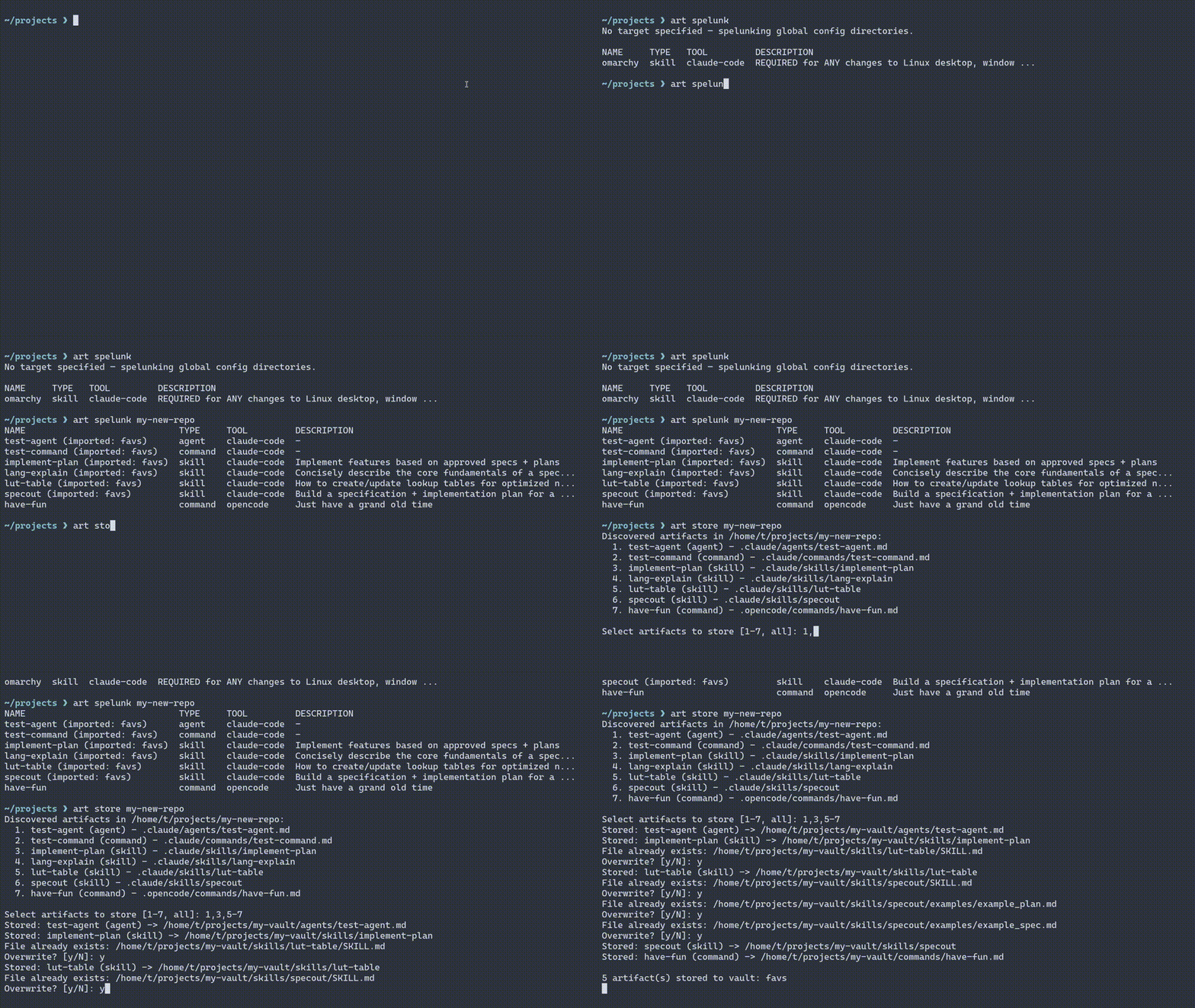
art tool select {tool_name} # You can add support for more tools with `art tool add` (see below)You can discover new artifacts with art spelunk.
Without any target specified, it will list artifacts found in all tool-specific global config directories.
When given a target directory, it will for search for config folders of all supported tools (.claude, .opencode, .agents, etc.) and the artifacts they contain.
spelunk can also explore the contents of other vaults.
You can art store what you discover into your vault(s). If a target artifact's name conflicts with an existing one in your vault(s), a confirmation prompt will appear:
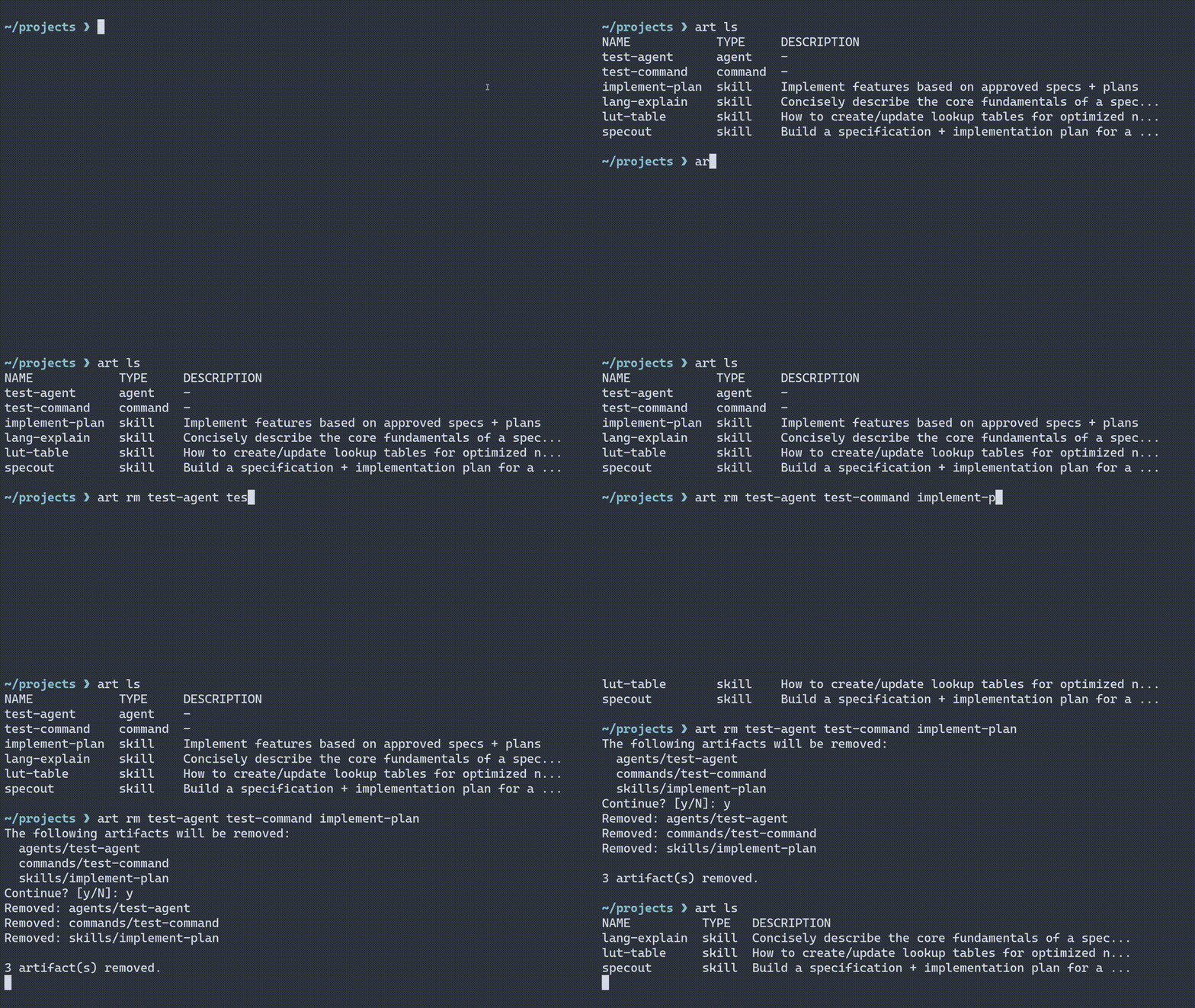
You can remove any number of artifacts from a vault with a single art rm command:
To get your skills, agents, and commands into a project or tool config, you import them:
art project import {optional/target/path} # Without a target path, defaults to the current working directory.art config import # Same syntax, different location. Defaults to the global user config location of your currently selected coding agent. You can specify specific tools to import to with the `--tools` flag.If you'd like your skill/command/agent definitions to update automatically while editing the contents of a vault, just use the --link / -l flag when importing artifacts into a project or tool config.
Rather than a direct copy-paste, this creates a symbolic link between vault content and the import target. Whenever you update an artifact in your vault, those changes will instantly be reflected wherever you imported them using --link.
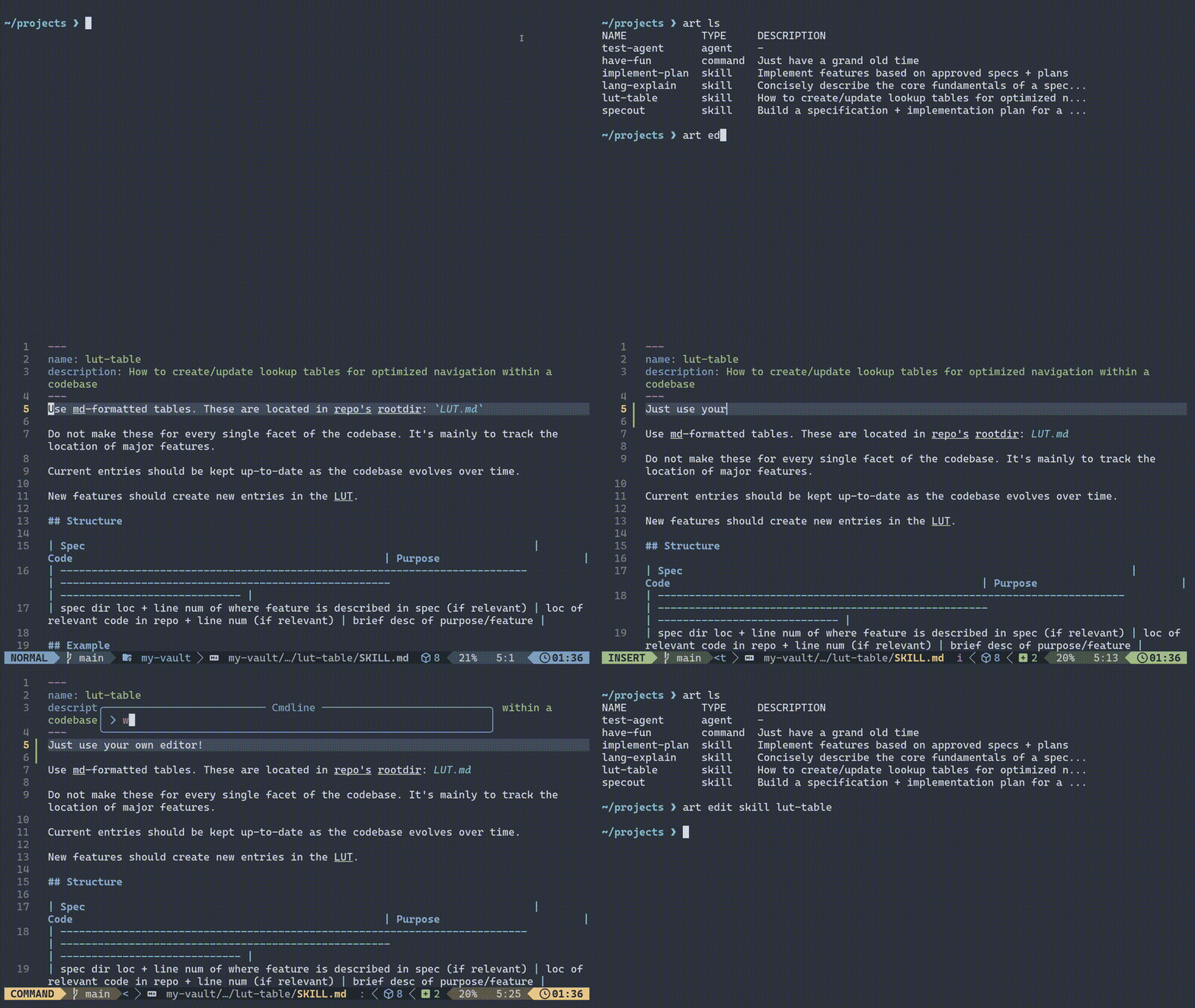
art project import --linkart config import --linkart edit <artifact-type> <name>
Opens artifacts in your default editor. Uses environment variables to determine your editor. Includes some common editors as fallbacks in case none are defined:
$VISUAL > $EDITOR > nano > neovim > vim > vi ( > edit > notepad.exe | Windows Only )
art edit skill <name> opens a skill's SKILL.md file. Support for managing all files/folders within a skill is a high priority on the roadmap.
There are convenient short-hand aliases for many commands:
art ed s my-skill # --> art edit skill my-skill
art ed a my-agent # --> art edit agent my-agent
art ed c my-command # --> art edit command my-commandCreate skill, agent, and command definitions with art create. You can add as much custom frontmatter as you'd like with the --field / -D flag.
Skills, agents, and commands all require a description field in frontmatter. Therefore, --description / -d is required.
Unless the --vault flag is used, artifacts are created in the currently selected default vault.
Skills are directories with a SKILL.md and optional misc. files/folders for added context. Currently, artifactr only supports creating a skill's folder and its SKILL.md. Support for managing all files within a single skill is a high priority item on the roadmap.
Skills require a name and description. artifactr will always name the folder and fill the name field of SKILL.md with the same provided argument, unless overridden with the --name / -n flag.
The --name / -n flag only applies to frontmatter in SKILL.md. This is usually what coding agents parse as the de facto name for slash commands.
# "code-review" will be the name of the skill's folder AND its "name" frontmatter unless overridden with --name / -n
art create skill code-review \
  --description 'For assessing code quality & syntax' \
  --field disable-model-invocation=true \
  --field allowed-tools='Read, Grep' \
  --field argument-hint=[filename] \
  --content 'To the best of your ability, grade my code like the most insufferable pedant you can imagine.' \
  --vault 'claude-vault' \
  --name 'nitpick'
# --name overrides the frontmatter name field. Usually this is what defines a skill's slash command name in tools like claudeYou can also use short-hand aliases the command provides:
art cr s code-review \
  -n 'nitpick' \
  -d 'For assessing code quality & syntax' \
  -D disable-model-invocation=true \
  -D allowed-tools='Read, Grep' \
  -D argument-hint=[filename] \
  -c 'To the best of your ability, grade my code like the most insufferable pedant you can imagine.' \
--vault 'claude-vault'Both of the above commands will produce a SKILL.md file at /claude-vault/skills/code-review/SKILL.md that reads:
---
name: nitpick
description: For assessing code quality & syntax
disable-model-invocation: 'true'
allowed-tools: Read, Grep
argument-hint: '[filename]'
---
To the best of your ability, grade my code like the most insufferable pedant you can imagine.Uses the same syntax as above. Commands do not require a name field in frontmatter. The name of the file is the name of the slash command. Thus, the --name flag is not supported. If desired, you can still add a name field with the --field / -D flag.
art create command <name> --description 'a command' --content 'crucial context'

# or the shorthand:
art cr c <name> -d 'a command' -c 'crucial context'Uses the same syntax as above. The name field in frontmatter is supported by agent definitions, thus the --name / -n flag is supported.
art create agent <name> --description 'an agent' --content 'vital context'

# or the shorthand:
art cr a <name> -d 'an agent' -c 'vital context'Currently, artifactr supports claude-code, codex, and opencode. However, you can easily add support for as many tools as you'd like. Codex itself does not support markdown-based agent and command definitions, just skills.
You can add any number of custom coding agent tools to artifactr.
By default, these will be added to the global artifactr config at ~/.config/artifactr/config.yaml on Linux.
🌠 You can configure tools per-vault using the --vault flag. These are added to the config at /your-vault/vault.yaml.
art tool add cursor \
  --skills .cursor/skills \
  --commands .cursor/commands \
  --agents .cursor/agents \
  --global-skills ~/.cursor/skills \
  --global-commands ~/.cursor/commands \
  --global-agents ~/.cursor/agents \
  --alias cur,c
# You can add any number of aliases to a custom tool.
# --vault your-vault <-- add vault-scoped tool support to `/your-vault/vault.yaml`vault/
├── vault.yaml # Optional: portable vault name and tool definitions
├── skills/
│ └── skill-name/
│ ├── SKILL.md
│ └── (supporting files...)
├── agents/
│ └── agent-name.md
└── commands/
└── command-name.md
The optional vault.yaml file stores a portable vault name and vault-scoped tool definitions. When present, its name takes precedence over the name stored in the global config. Tool definitions in vault.yaml travel with the vault when shared.
Artifacts are copied (or symlinked with --link) to tool-specific directories in the target repo (e.g., .claude/skills/, .opencode/agents/) and automatically excluded from git tracking.
# Initialize a new vault (creates directory with skills/, agents/, commands/ scaffolding)
art vault init ~/my-vault

# Initialize with a name and set as default
art vault init ~/my-vault --name=favorites --set-default

# Add an existing directory as a vault (auto-named as llm-vault-1, llm-vault-2, etc.)
art vault add ~/my-vault

# Add a vault with an explicit name
art vault add ~/my-vault --name=favorites

# Add and set as default in one step
art vault add ~/my-vault --name=favorites --set-default

# Name or rename an existing vault
art vault name ~/my-vault favorites

# List all vaults
art vault list

# List all vaults with full artifact hierarchy
art vault list --all

# Set default vault (by name or path)
art vault select favorites

# Remove a vault (by name or path)
art vault rm favorites

# Copy a vault (copies skills/, commands/, agents/, vault.yaml only)
art vault copy my-vault new-vault-name

# Copy a vault to an explicit path
art vault copy my-vault /path/to/new-vault

# Copy everything except .git/
art vault copy my-vault new-vault-name --all

# Alias: vault cp
art vault cp my-vault new-vault-name
Vaults added without --name are automatically assigned names using the llm-vault-N pattern. Vault names can be used in place of full directory paths in any command that accepts a vault identifier, including --vault on art import.
Bundle vaults into portable .zip archives to share or back up your artifact library:
# Export a vault to a zip archive
art vault export my-vault /path/to/bundle.zip

# Export multiple vaults (comma-separated)
art vault export vault-1,vault-2 /path/to/bundle.zip

# Export all registered vaults
art vault export --all /path/to/bundle.zip

# Export vaults matching a glob pattern
art vault export "claude-*" /path/to/bundle.zip

# Import from a zip archive (lists vaults and prompts for confirmation)
art vault import bundle.zip

# Import with auto-confirmation
art vault import bundle.zip --yes

# Import to a specific destination directory
art vault import bundle.zip /path/to/dest/
Archives include a manifest.yaml at the root. On import, vaults are extracted as subdirectories of the destination and automatically registered in your config.
art nav lets you jump to vault directories from your shell. The art shell setup command installs a shell wrapper that makes navigation work like cd:
# Install the shell wrapper into your rc file (bash/zsh/fish/etc.)
art shell setup

# Skip confirmation prompts
art shell setup --yes
After sourcing your rc file, art nav changes your working directory directly:
# Navigate to the default vault root
art nav

# Navigate to a type subdirectory in the default vault
art nav skills
art nav commands
art nav agents

# Navigate to a specific vault
art nav my-vault

# Navigate to a type subdirectory within a named vault
art nav my-vault/skills
Output mode flags (useful before installing the wrapper, or for scripting):
art nav skills --print   # print resolved path to stdout
art nav skills --spawn   # open a subshell in the target directory
art nav skills --window  # open a new terminal window at the target
Set nav_mode: wrapper (or spawn/window/print) in your config to make a mode the default when no flag is passed.
# List supported tools — shows artifact support, source, and aliases
art tool list

# Set default tool (defaults to opencode)
art tool select claude-code

# Aliases work anywhere a tool name is accepted
art tool select claude  # resolves to claude-code

# Show details for a specific tool
art tool show codex

# Add a custom tool (e.g., Cursor IDE)
art tool add cursor --skills .cursor/skills --commands .cursor/commands \
  --global-skills '$HOME/.cursor/skills' --alias cur

# Add a tool scoped to a specific vault
art tool add my-tool --skills .my-tool/skills --vault=team-vault

# Remove a custom tool
art tool rm cursor# List all artifacts in the default vault
art list
# List from a specific vault
art list --vault=favorites
# Filter by type
art list -S # skills only
art list -S -C # skills and commands
art list -S foo,bar # only skills named foo and bar# Remove an artifact from the default vault
art rm my-skill
# Use type prefix for disambiguation
art rm skills/my-skill
# Remove without confirmation
art rm my-skill -f# Import into current directory (cwd default)
art proj import
# Import into a specific project
art proj import ~/repos/my-project
# Import from a specific vault
art proj import -V favorites
# Import from multiple vaults
art proj import -V vault1,vault2
# Import for specific tools
art proj import --tools=claude-code,opencode
# Import only skills
art proj import -S
# Symlink instead of copying
art proj import --link
# Import only specific artifacts by name
art proj import --artifacts=helping-hand,code-review
# Don't add artifacts to .git/info/exclude
art proj import --no-exclude# List imported artifacts in current project
art proj list
# Remove specific imported artifacts
art proj rm my-skill
# Wipe all imported artifacts
art proj wipe
# Filter by type or tool
art proj list -S --tools=claude-code
art proj wipe -S -f# Import into global config directories
art conf import
# Import from a specific vault
art conf import -V favorites
# Import only skills for claude-code
art conf import --tools=claude-code -S# List globally imported artifacts
art conf list
# Remove globally imported artifacts
art conf rm my-skill
# Wipe all globally imported artifacts
art conf wipe -fImported artifacts are tracked in .art-cache/imported (project) and ~/.config/artifactr/.art-cache-global/imported (global), recording which vault and tool each artifact came from.
Replace imported copies with symlinks pointing to vault sources, or convert symlinks back to copies:
# Link specific artifacts in current project
art proj link my-skill

# Link all imported artifacts
art proj link --all

# Link with auto-backup on diff (no prompts)
art proj link --all --force

# Link only artifacts from a specific vault
art proj link --all -V favorites

# Unlink (replace symlinks with copies)
art proj unlink my-skill
art proj unlink --all

# Same for global config artifacts
art conf link --all
art conf unlink my-skillUse --link to create symlinks instead of copies during import. The import summary shows the link state:
art proj import --link
# Output:
# claude-code:
#   skills: 3 (linked)
#   commands: 1 (linked)

art proj import
# Output:
# claude-code:
# skills: 3 (copied)Most commands support targeting multiple vaults with -V. Values can be comma-separated or the flag can be repeated:
# Import from multiple vaults
art proj import -V vault1,vault2
art proj import -V vault1 -V vault2   # equivalent

# List artifacts from multiple vaults (adds VAULT column)
art ls -V vault1,vault2

# Store into multiple vaults
art store ./dir -V vault1,vault2

# Create in multiple vaults
art create skill my-skill -d "desc" -V vault1,vault2

# Filter project/config lists by vault
art proj ls -V favorites
art conf ls -V vault1,vault2

# Filter removal by vault
art proj rm my-skill -V favorites
art proj wipe -V favorites# List tools from all catalog vaults and global config
art tool ls --all
# Show all tool definitions from all sources
art tool info --all
# --all and -V are mutually exclusive
art tool ls --all -V favorites # Errorart proj ls and art conf ls display a STATE column showing whether each artifact is linked or copied:
NAME               TYPE      TOOL         VAULT       STATE
helping-hand  →    skill     claude-code  favorites   linked
code-review        skill     claude-code  favorites   copied
deploy-prod   ⇒    command   opencode     favorites   hardlinked
Arrow indicators: → = symlinked, ⇒ = hardlinked. Legacy entries (no suffix) display as copied.
Create skills, commands, and agents directly from the CLI:
# Create a skill (directory-based, with SKILL.md)
art create skill my-skill -d "A helpful skill" -c "Instructions here"

# Create a command (flat .md file, filename is the name)
art create command deploy-prod -d "Run production deployment"

# Create an agent (flat .md file, name in frontmatter)
art create agent code-reviewer -d "Reviews code changes"

# Add extra frontmatter fields
art create agent my-agent -d "desc" -D model=sonnet -D version=1.0

# Create in a specific vault
art create skill my-skill -d "desc" --vault=favorites

# Create in the current project instead of a vault
art create command my-cmd -d "desc" --here
art create skill my-skill -d "desc" --here --tools=claude-code,opencode
All artifact types require --description / -d. Skills are created as directories with a SKILL.md file; commands and agents are created as flat .md files.
Open an artifact in your terminal editor:
# Edit by name (type auto-detected from default vault)
art edit my-skill

# Edit with explicit type/name specifier
art edit skill/my-skill
art edit command/deploy-prod

# Old two-positional form still works
art edit skill my-skill
art edit command deploy-prod
art edit agent code-reviewer

# Edit in a specific vault
art edit skill my-skill --vault=favorites

# Edit a project-local artifact
art edit skill my-skill --here

# Open a specific file within a skill
art edit skill/my-skill/refs/examples.md

# Create and edit a new file within a skill
art edit my-skill --new-file refs/examples.md

# Open main SKILL.md directly, skipping the file picker
art edit my-skill --main

# Force interactive file picker (even if only SKILL.md exists)
art edit my-skill --interactive
When a skill has multiple files, art edit shows a numbered file picker unless -m is passed. The picker supports creating new files (n), importing a file from your filesystem (i), and deleting files (d). The picker is skipped when stdin is not a TTY (piped input).
The editor is resolved from $VISUAL, then $EDITOR, then the first available of nano, nvim, vim, vi, (and edit or notepad.exe on Windows).
Names can be resolved by YAML frontmatter name: field if no filename/dirname match is found — this applies to art edit, art copy, and all other artifact name-matching commands.
View the files within a directory-based artifact (skill):
# List files in a skill from the default vault
art ls my-skill

# Disambiguate with type prefix
art ls skill/my-skill

# List from a specific vault
art ls my-skill --vault=favorites
Output labels SKILL.md as the main file and lists all other files with their relative paths.
Print the content of an artifact's primary file to stdout:
# Print SKILL.md for a skill
art cat my-skill

# Print a command or agent file
art cat command/deploy-prod
art cat agent/code-reviewer

# Print a specific file within a skill
art cat skill/my-skill/refs/examples.md

# Read from a specific vault
art cat my-skill --vault=favorites

# Read a project-local artifact
art cat my-skill --hereDisplay the YAML frontmatter and file tree of an artifact:
# Inspect a skill
art inspect my-skill

# Inspect with type prefix
art inspect command/deploy-prod

# Inspect from a specific vault
art inspect my-skill --vault=favorites
Example output for a skill:
Frontmatter:
  name: my-skill
  description: A helpful skill
  version: 1.0

Files:
  SKILL.md (main)
  refs/examples.md
  refs/context.md
Package an artifact as a portable .zip archive:
# Export a skill (default: <cwd>/<name>.zip)
art export my-skill

# Export with explicit output path
art export my-skill -o ~/backups/my-skill.zip

# Export with type prefix
art export skill/my-skill
art export command/deploy-prod

# Export from a specific vault
art export my-skill --vault=favorites
Skill zips contain all files under <artifact-name>/ at the archive root. Command and agent zips contain <artifact-name>/<artifact-name>.md. The exported zip can be re-imported with art store ./my-skill.zip.
Copy artifacts within a vault or across vaults with art copy (alias: art cp):
# Copy an artifact to another vault (trailing slash = destination vault)
art copy my-skill vault-2/

# Disambiguate by type
art copy skill/my-skill vault-2/

# Source from a specific vault
art copy vault-1/my-skill vault-2/

# Fully-qualified source (vault/type/name)
art copy vault-1/skill/my-skill vault-2/

# Duplicate within the same vault (new name, not a registered vault)
art copy my-skill my-skill-v2

# Copy to another vault with an explicit destination name
art copy my-skill vault-2/my-skill-renamed

# Copy all artifacts to another vault
art copy '*' vault-2/

# Copy all skills to another vault
art copy 'skills/*' vault-2/

# Copy agents matching a pattern
art copy 'agents/*-runner' vault-6/
The artifact type travels with the copy — a skill always lands in skills/, a command in commands/, etc. Frontmatter name: fields are used as a fallback when no filename match exists.
Scan directories, vaults, or global configs for existing artifacts:
# Discover artifacts in a project
art spelunk ~/repos/my-project

# Spelunk global config (default when no target)
art spelunk

# Explicit global flag
art spelunk -g

# Filter by tool or type
art spelunk ~/repos/my-project --tools=claude-code
art spelunk -S

# Include DESCRIPTION column
art spelunk --verbose

# Structured output formats
art spelunk --output=json
art spelunk --output=yaml
art spelunk --output=md
Example output:
NAME                              TYPE      LOCATION
helping-hand (imported: favs)     skill     skills/helping-hand
utility-tool                      skill     skills/utility-tool
reviewer                          agent     agents/reviewer.md
deploy                            command   .opencode/commands/deploy.md
The (imported: ...) marker appears when an artifact was previously imported via art import, showing which vault it came from. Global spelunk paths are collapsed to ~/. Use --verbose to add a DESCRIPTION column.
Collect artifacts from a project directory and store them into a vault:
# Store artifacts into default vault
art store ~/repos/my-project

# Store into a specific vault
art store ~/repos/my-project --vault=favorites

# Import from a zip archive (single artifact or vault bundle)
art store ./my-skill.zip
art store ./bundle.zip --vault=favorites
You'll be presented with a numbered list of discovered artifacts and can select which ones to store using individual numbers (1), ranges (1-3), comma-separated (1,3,5), combinations (1,3-5), or all.
When the input path ends in .zip, artifactr auto-detects the archive type:
- Single artifact (skill directory or
.mdfile at zip root): stored directly, no selection modal. - Vault bundle: extracted and passed through the normal selection flow.