Appearance
The Appearance tab controls everything about how the dancer display looks — transitions, colors, background image, and fonts.
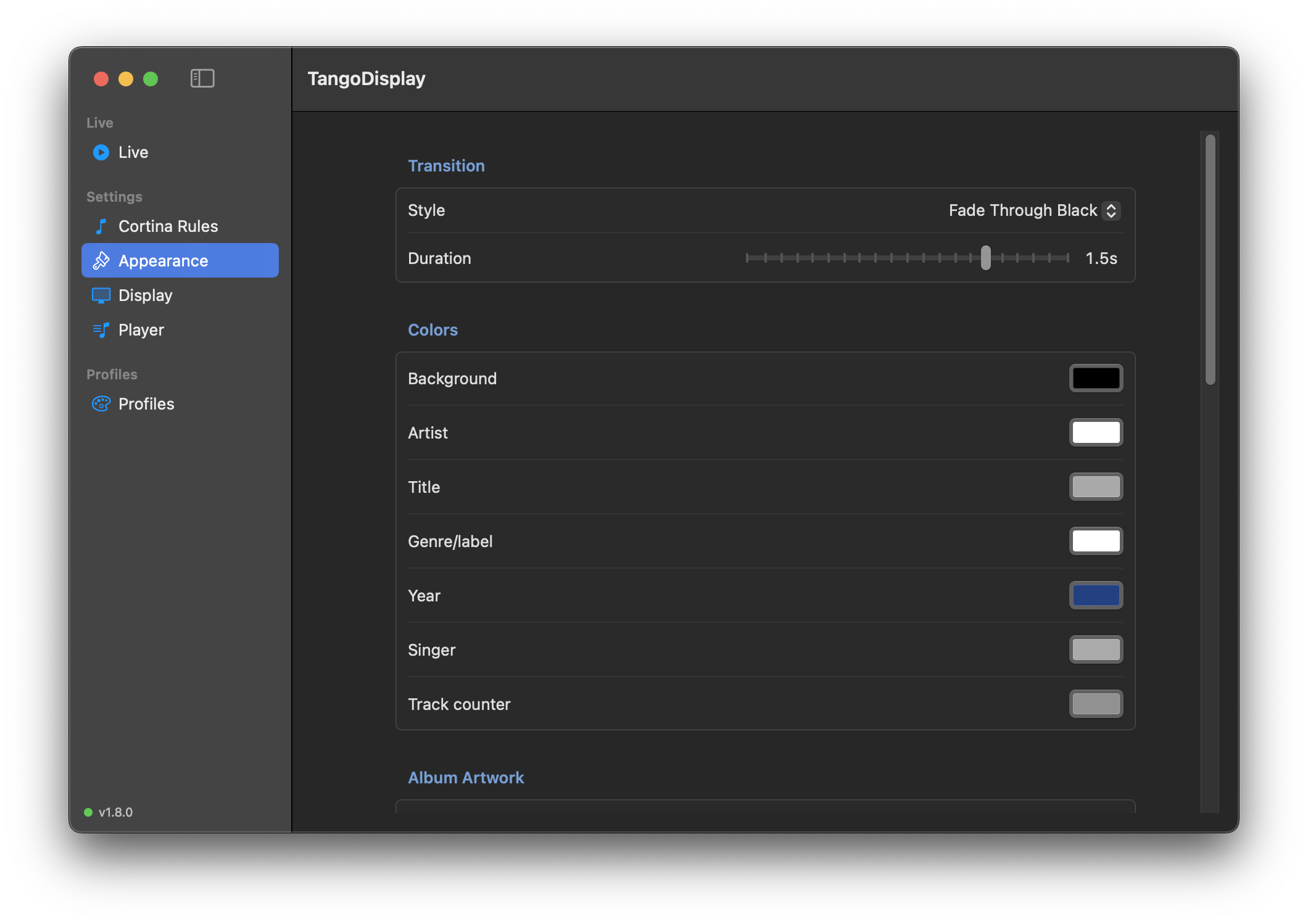
| Setting | Description |
|---|---|
| Style | How the display transitions between tracks. Options include Fade Through Black, Cross-Fade, and Cut. |
| Duration | Length of the transition in seconds (drag the slider). |
Set the color of each element on the dancer display:
| Element | What it colors |
|---|---|
| Background | The solid background fill (used when no background image is set, or behind a semi-transparent image) |
| Artist | The large artist/orchestra name text |
| Title | The track title text |
| Genre/label | The smaller genre or record label line |
| Year | The recording year (e.g. 1952) — only shown when Show Year is enabled |
| Track counter | The "Track X of X" text in the corner |
| Singer | The vocalist/singer line (only shown when Include comments as singer is enabled) |
Click any color swatch to open the macOS color picker.
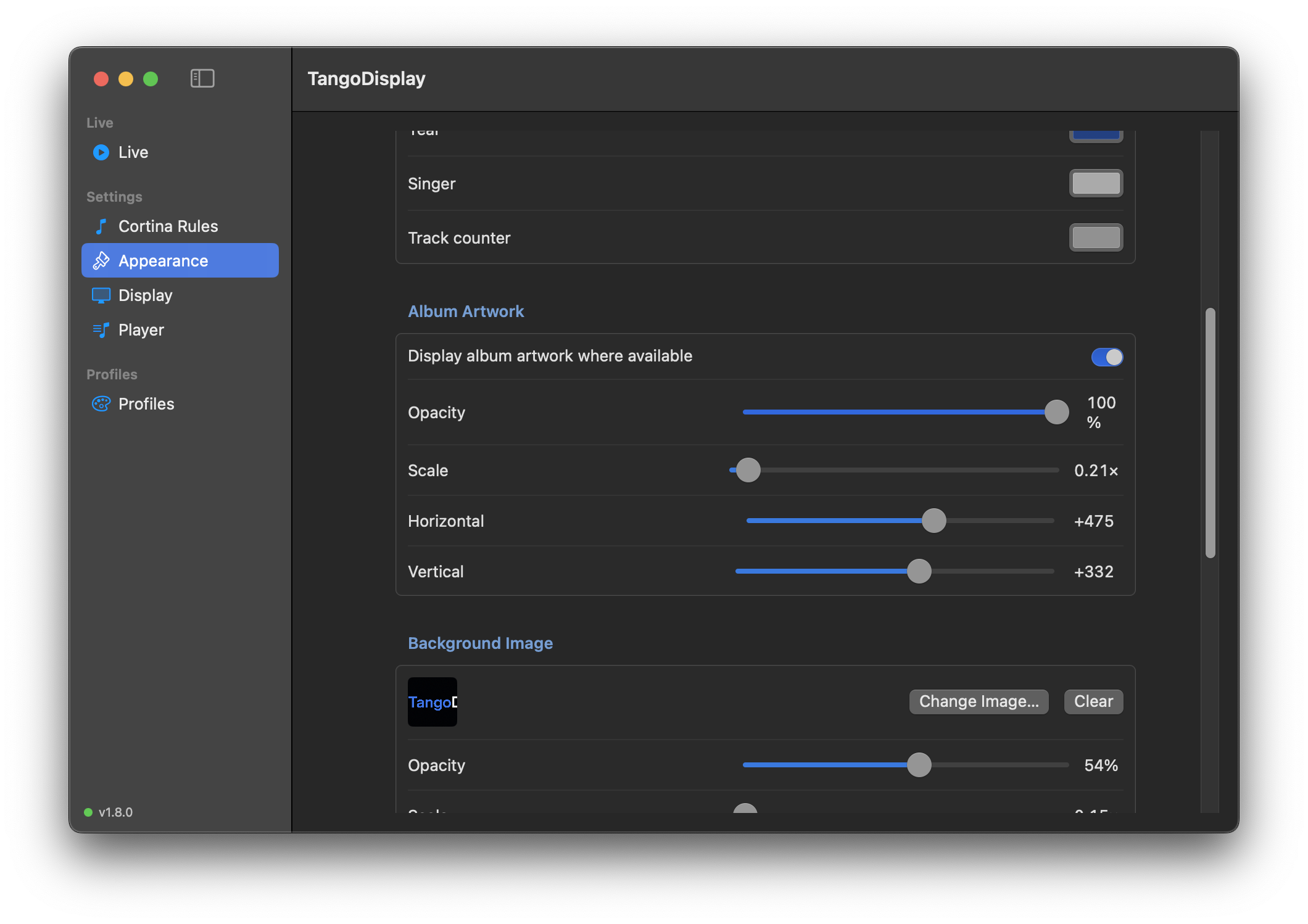
| Control | Description |
|---|---|
| Change Image… | Opens a file picker to select any image file |
| Clear | Removes the background image |
| Opacity | 0 % = fully transparent (solid background color shows), 100 % = fully opaque |
| Scale | Zoom the image in or out (1× = original size, higher = zoomed in) |
| Horizontal | Pan the image left or right |
| Vertical | Pan the image up or down |
Use Scale + Horizontal + Vertical to frame exactly the part of the image you want behind the text.
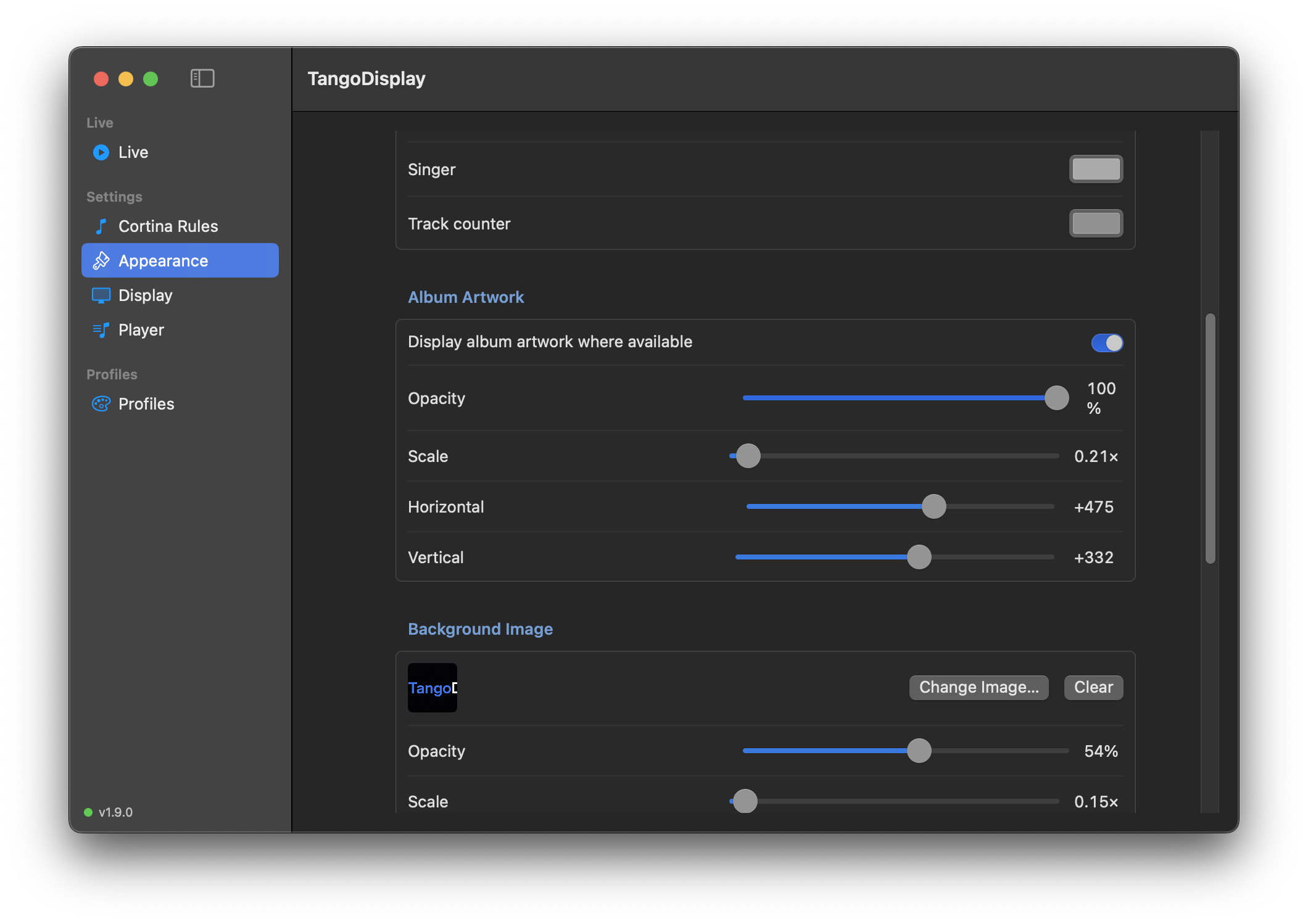
| Control | Description |
|---|---|
| Display album artwork where available | Toggle artwork display on/off |
| Opacity | 0 % = invisible, 100 % = fully opaque |
| Scale | 1× = natural size; increase to fill more of the screen |
| Horizontal offset | Move the artwork left (negative) or right (positive) |
| Vertical offset | Move the artwork up (negative) or down (positive) |
Artwork is fetched automatically from the playing track for all three player sources — Music.app, Swinsian, and Embrace. It fades in and out in sync with track transitions using the same transition style and duration configured above. When no artwork is available the display falls back gracefully (nothing is shown in that layer).
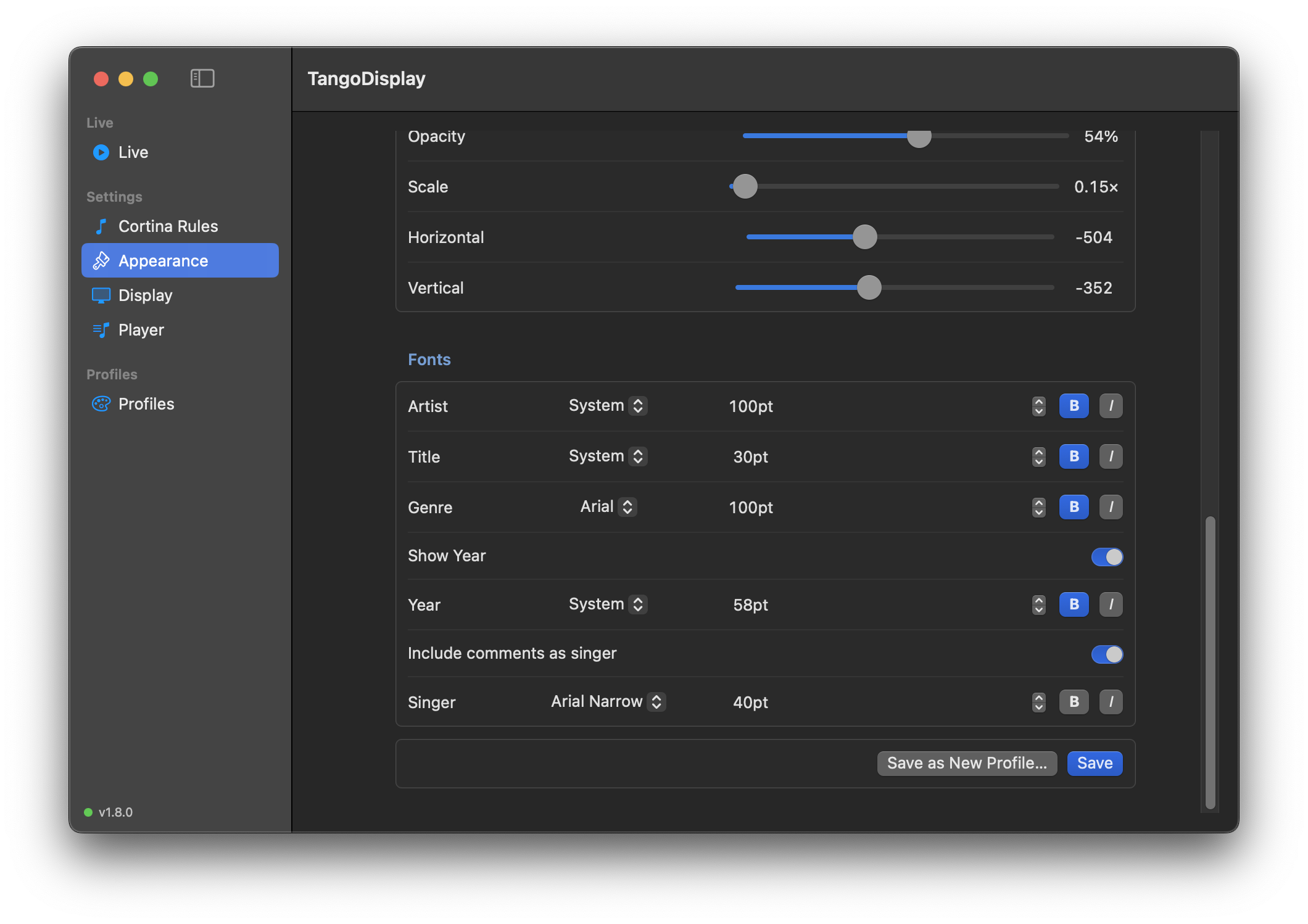
Enable Include comments as singer to display the vocalist name on the dancer screen, directly below the track title. The name is read from the track's Comments field in your music library.
| Control | Description |
|---|---|
| Include comments as singer | Toggle the singer line on/off |
| Font name | Choose from installed system fonts |
| Size | Point size of the singer text |
| B | Bold |
| I | Italic |
The singer line color is set in the Colors section above. Supported for all three player sources — Music.app, Swinsian, and Embrace.
Configure the typeface, size, and style for each text element:
| Column | What you set |
|---|---|
| Font name | Choose from installed system fonts |
| Size | Point size of the text |
| Up/Down arrows | Fine-tune the point size |
| B | Bold |
| I | Italic |
The rows are Artist, Title, Genre, Year, and Singer. Year only appears when Show Year is enabled — toggle it on with the Show Year switch above the Year row. Singer only appears when Include comments as singer is enabled — toggle it on in the same section.
- Save — updates the currently active profile with the new settings
- Save as New Profile… — creates a new named profile (see Profiles)
Changes take effect on the dancer display immediately.