Appearance
The Appearance tab controls everything about how the dancer display looks — transitions, colors, background image, and fonts.
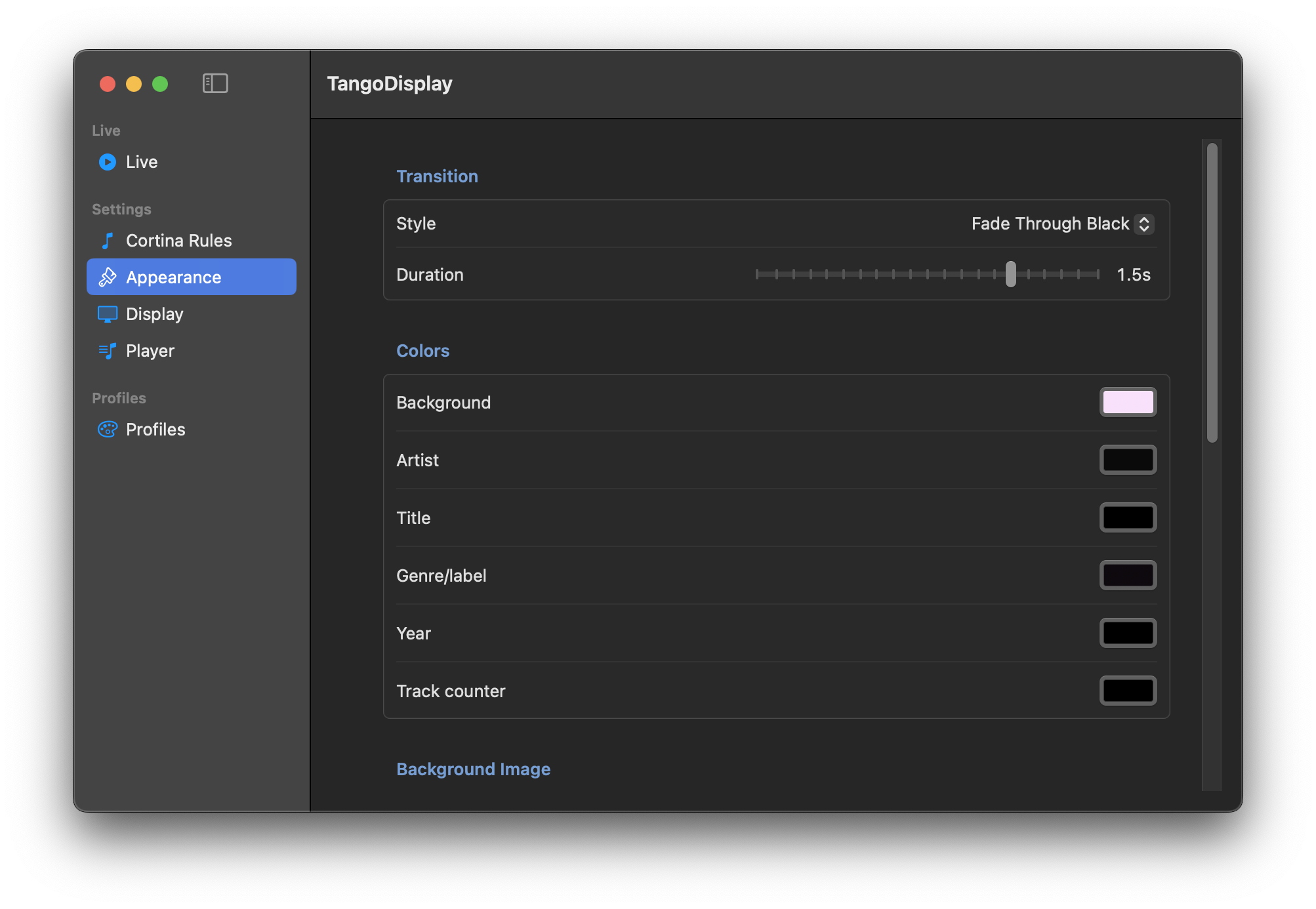
| Setting | Description |
|---|---|
| Style | How the display transitions between tracks. Options include Fade Through Black, Cross-Fade, and Cut. |
| Duration | Length of the transition in seconds (drag the slider). |
Set the color of each element on the dancer display:
| Element | What it colors |
|---|---|
| Background | The solid background fill (used when no background image is set, or behind a semi-transparent image) |
| Artist | The large artist/orchestra name text |
| Title | The track title text |
| Genre/label | The smaller genre or record label line |
| Track counter | The "Track X of X" text in the corner |
Click any color swatch to open the macOS color picker.
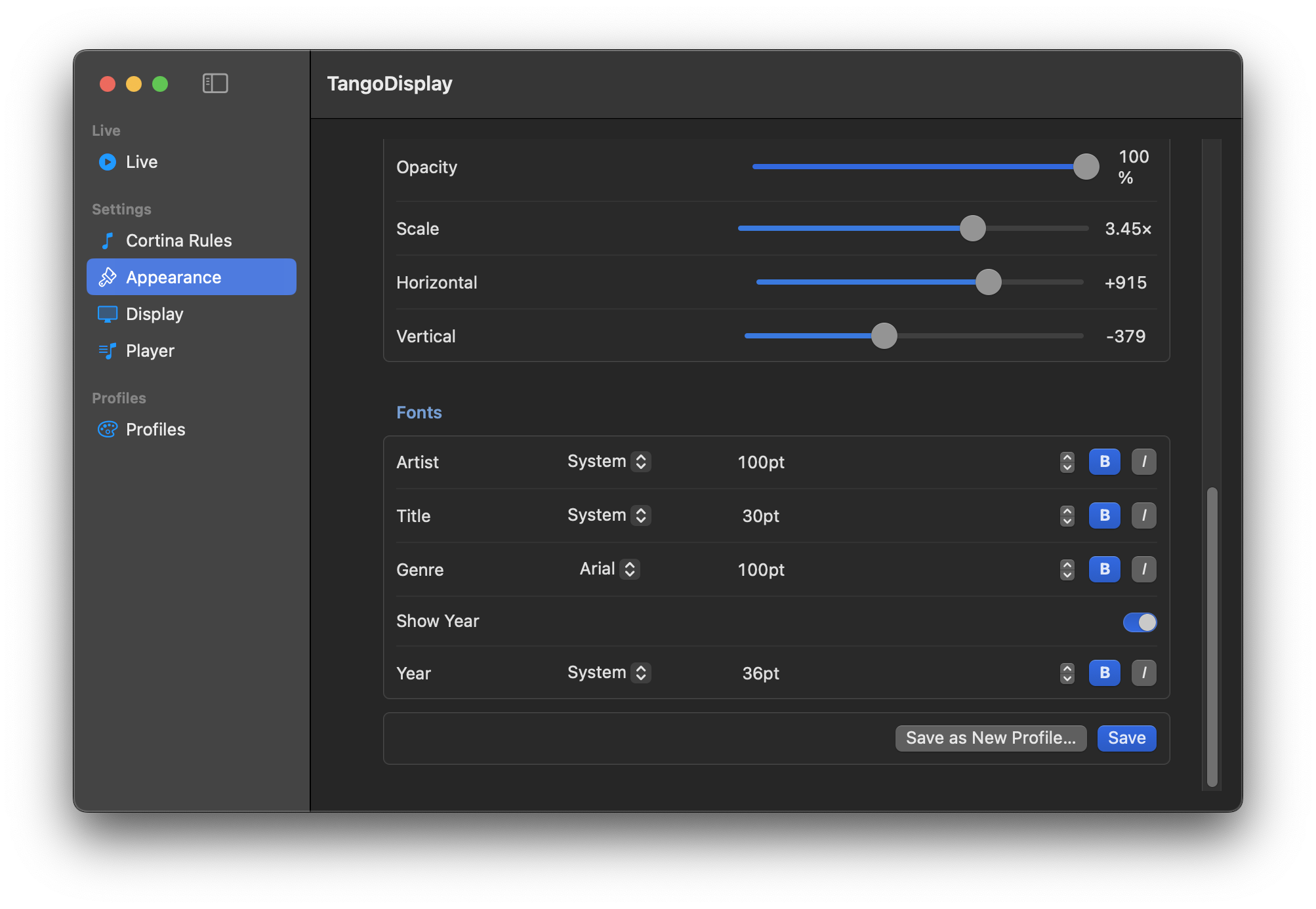
| Control | Description |
|---|---|
| Change Image… | Opens a file picker to select any image file |
| Clear | Removes the background image |
| Opacity | 0 % = fully transparent (solid background color shows), 100 % = fully opaque |
| Scale | Zoom the image in or out (1× = original size, higher = zoomed in) |
| Horizontal | Pan the image left or right |
| Vertical | Pan the image up or down |
Use Scale + Horizontal + Vertical to frame exactly the part of the image you want behind the text.
Configure the typeface, size, and style for each text element:
| Column | What you set |
|---|---|
| Font name | Choose from installed system fonts |
| Size | Point size of the text |
| Up/Down arrows | Fine-tune the point size |
| B | Bold |
| I | Italic |
The three rows are Artist, Title, and Genre.
- Save — updates the currently active profile with the new settings
- Save as New Profile… — creates a new named profile (see Profiles)
Changes take effect on the dancer display immediately.