In this project we will use dbt togheter with synapse to load the SAP Bikes Sales sample data to create tables and views in Synapse dedicated SQL server.
- Setup Azure Synapse
- Load the data from the data lake using Synapse Pipelines
- Run dbt to create views of the Sales data, more specifically group the sales orders table, join it with products table and calculate the total weight sold.

In this project I am currently using github to version control both the dbt project and the synapse workspace.
- main: Synapse code base
- workspace_publish: Synapse ARM templates
- main_dbt: dbt source code
-
Fork the repository so that you can connect your own Synaps instance to your own git repostitory. https://docs.microsoft.com/en-us/azure/synapse-analytics/cicd/source-control
-
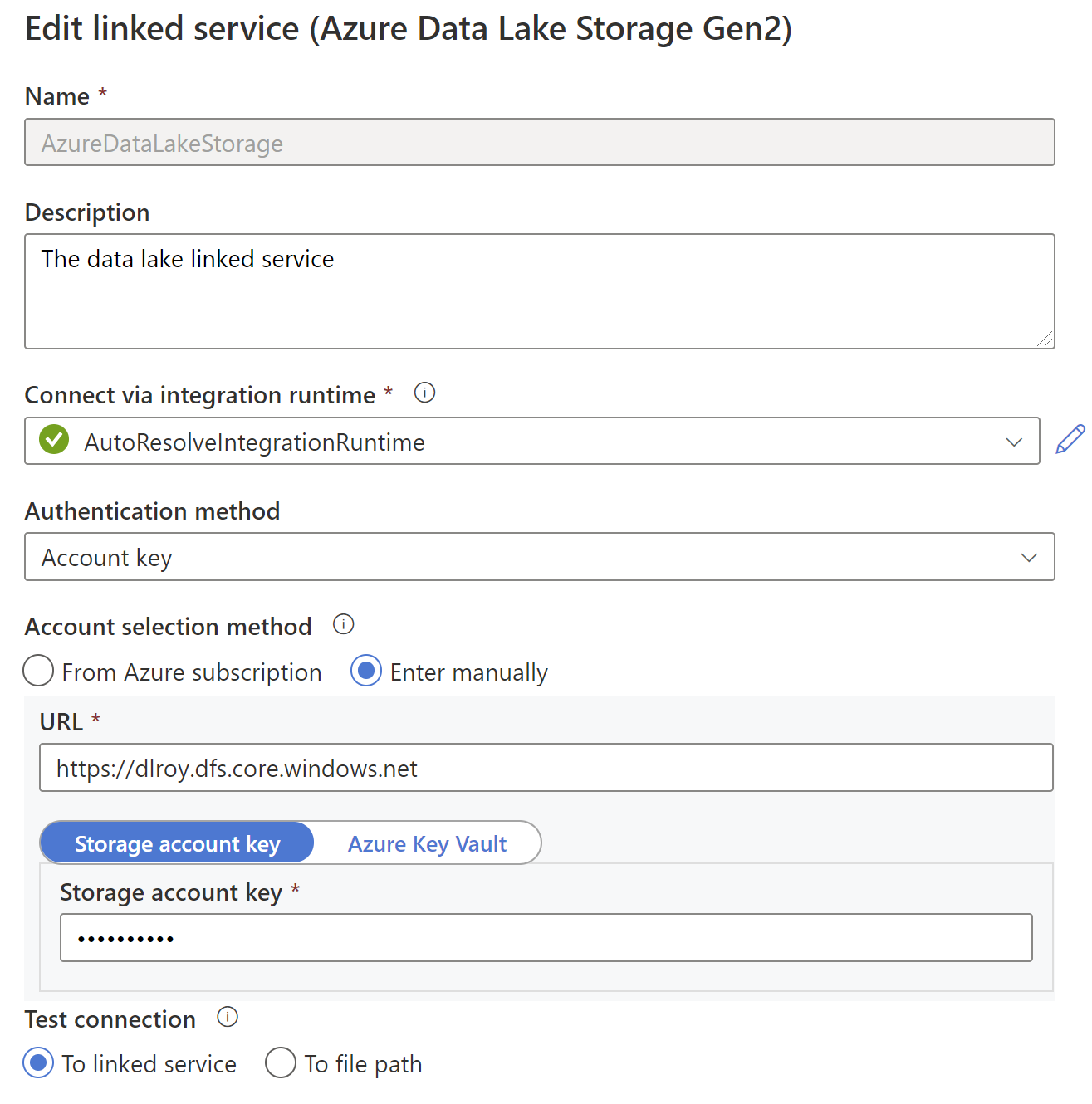
Setup is the data lake linked service to your own data lake inside azure. Go to Manage -> Linked Services --> AzureDataLakeStorage
-
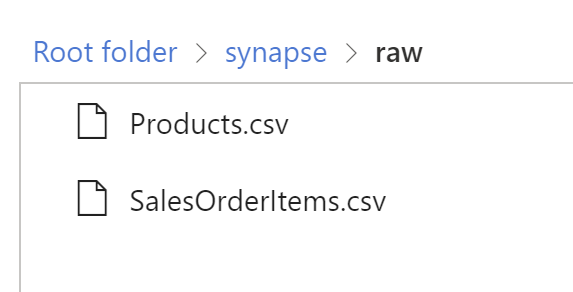
In this example we will use the SAP Bikes Sales sample data. Download the SalesOrderItems.csv and Products.csv and place them inside your own data lake, in a container called synapse and then in a folder called raw. (or change the endpoint inside the integration dataset dl_csv_dataset)
The etl pipelines consists of two activities. To simplify things, we are using the data lake as the data source and the Synapse SQL dedicated SQL pool as the sink. Check out the pipeline dl_to_stage.
Run the pipeline, this should create two tables inside your Synapse dedicated SQL service:

Clone the repository and change branch to dbt_vault (you can also clone your forked version of the repository).
git clone https://github.com/robertoooo/synapse_dbt.git
git checkout dbt_vaultpython -m venv venv
source venv/scripts/activate #For windows using bashInstall dbt.
pip install dbtTo ensure that dbt is installed run the following command:
dbt --versionYour root folder should now look like this:
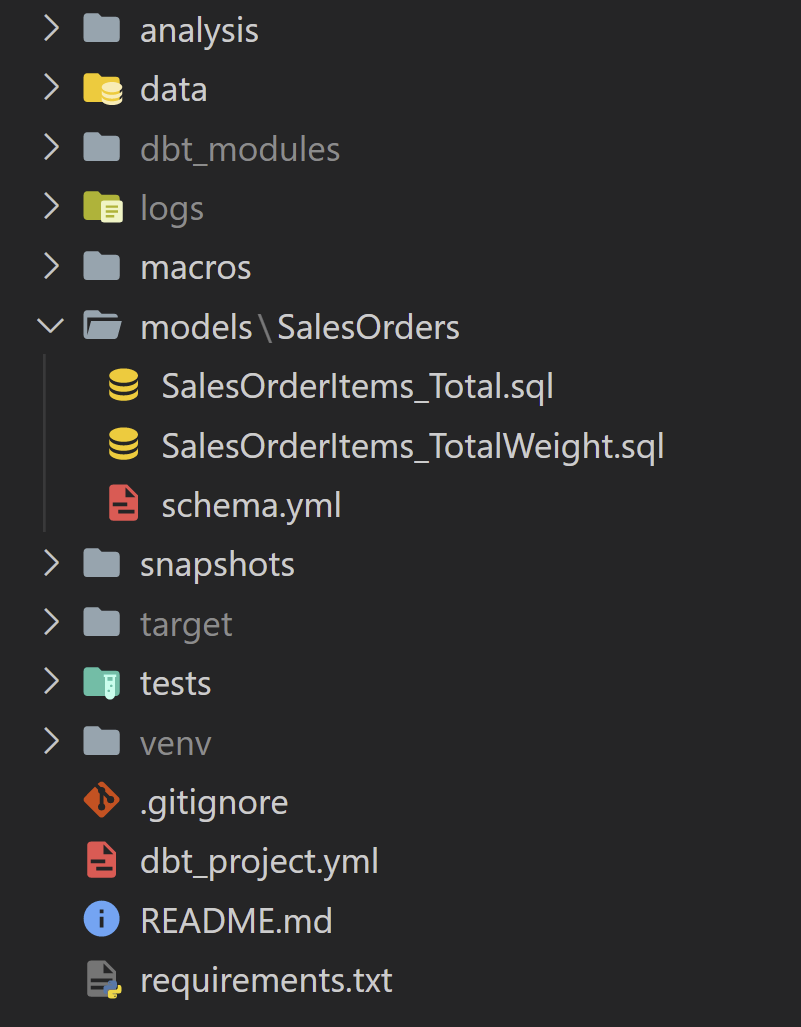
Establish a connection to Synapase. In order to manage connection settings we need to find the profiles.yml file where we set up the connection to your Synapse SQL instance.
dbt debug --config-dirFollow these instructions to setup your connection: https://docs.getdbt.com/reference/warehouse-profiles/azuresynapse-profile
Test your connection running:
dbt debugIn the models folder there are two models and one schema file.
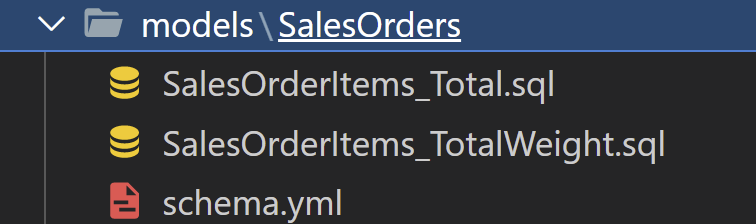
In the Schema.yml we have two models and two sources defined.
- The sources are stage tables already ingested into the warehouse (using the Synapse Pipelines).
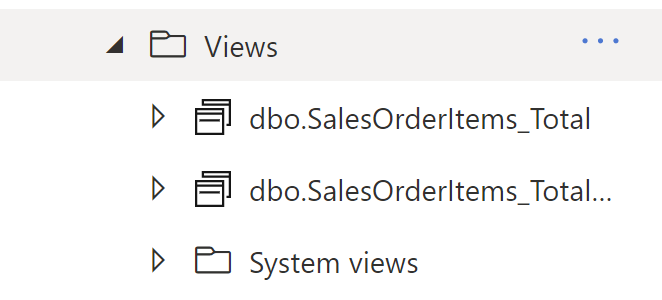
- The models are used to create the views SalesOrderItems_Total and SalesOrderItems_TotalWeight. ** Under models you also find Tests, they are also triggered with every run. Failing the tests if there are duplicates or null values.
The two models SalesOrderItems_Total.sql and SalesOrderItems_TotalWeight.sql contain the logic for the views that will be created inside the Synapse warehouse.
The tables will have the same name in Synapse as the name of the sql file:
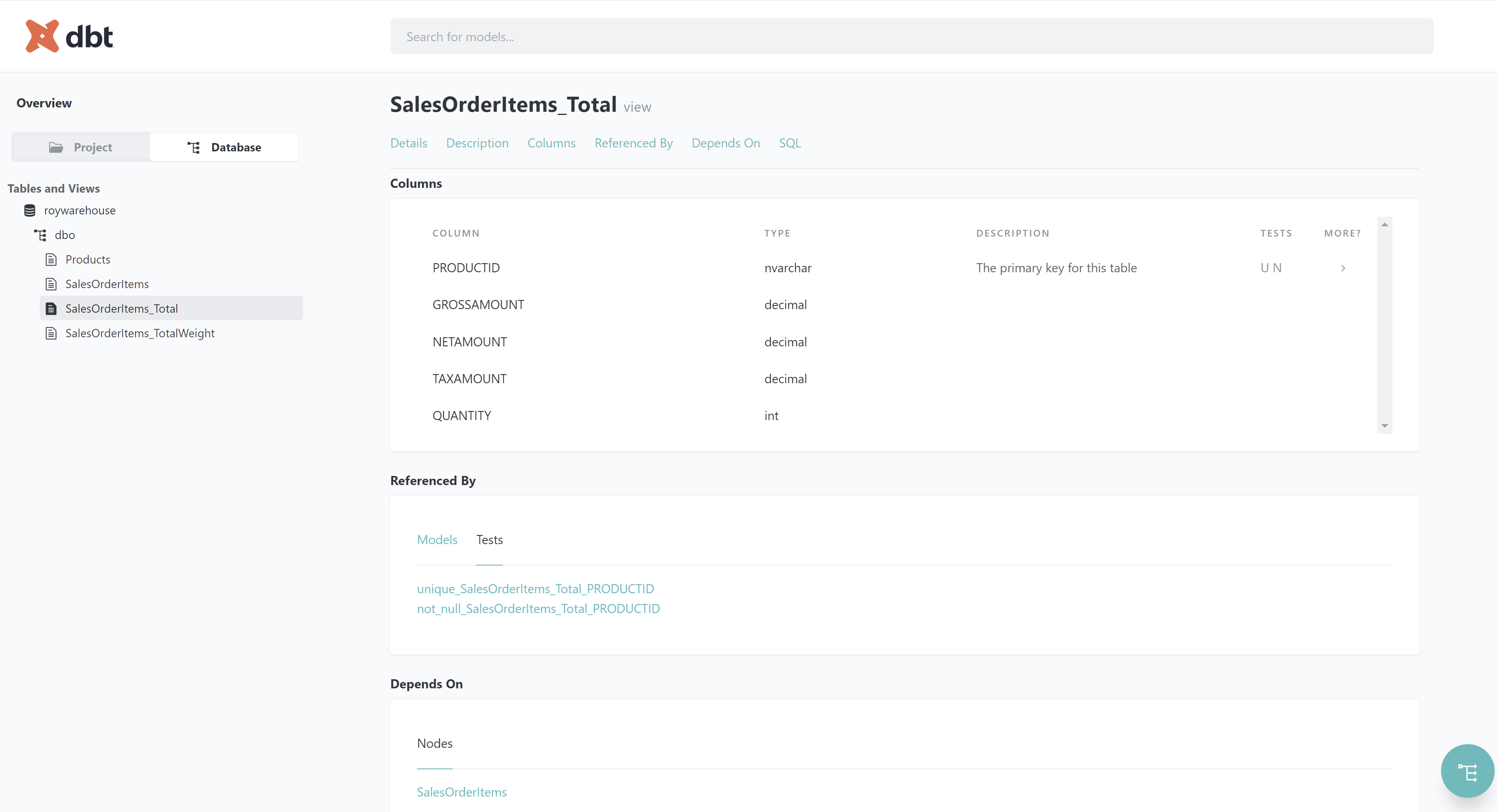
One very nice feature with dbt is the possibility to generate documentation. Run the following commands:
dbt docs generate
dbt docs serve
The serve command will host a local website on your computer where you can see the whole project such as table details and data lineage:

Also check out my medium article on how to build a dbt vault using Google BigQuery https://medium.com/d-one/building-a-data-vault-using-dbtvault-with-google-big-query-9b69428d79e7