Repository navigation
Releases: S-Urchin/obsidian-storyteller
Releases · S-Urchin/obsidian-storyteller
Release list
0.6.3

0.6.2
- New name: Storyteller: Comic Drafter. Only the name you see in Obsidian changes. Updates install over the old version as usual, and your scripts, settings and projects stay as they are.
Needs Obsidian 1.5.7 or newer.
0.6.1
- Verified downloads. Releases are now built by GitHub Actions straight from the source code and come with signed build attestations. Check any file with
gh attestation verify main.js --repo S-Urchin/obsidian-storyteller. - Smoother long comments. Folded comments fade out with a gradient that works on every supported Obsidian version.
- Tidier styles. Clears the review warnings about
!important, CSS masks and a duplicate property.
Nothing changes in how the plugin works. Needs Obsidian 1.5.7 or newer.
0.6.0

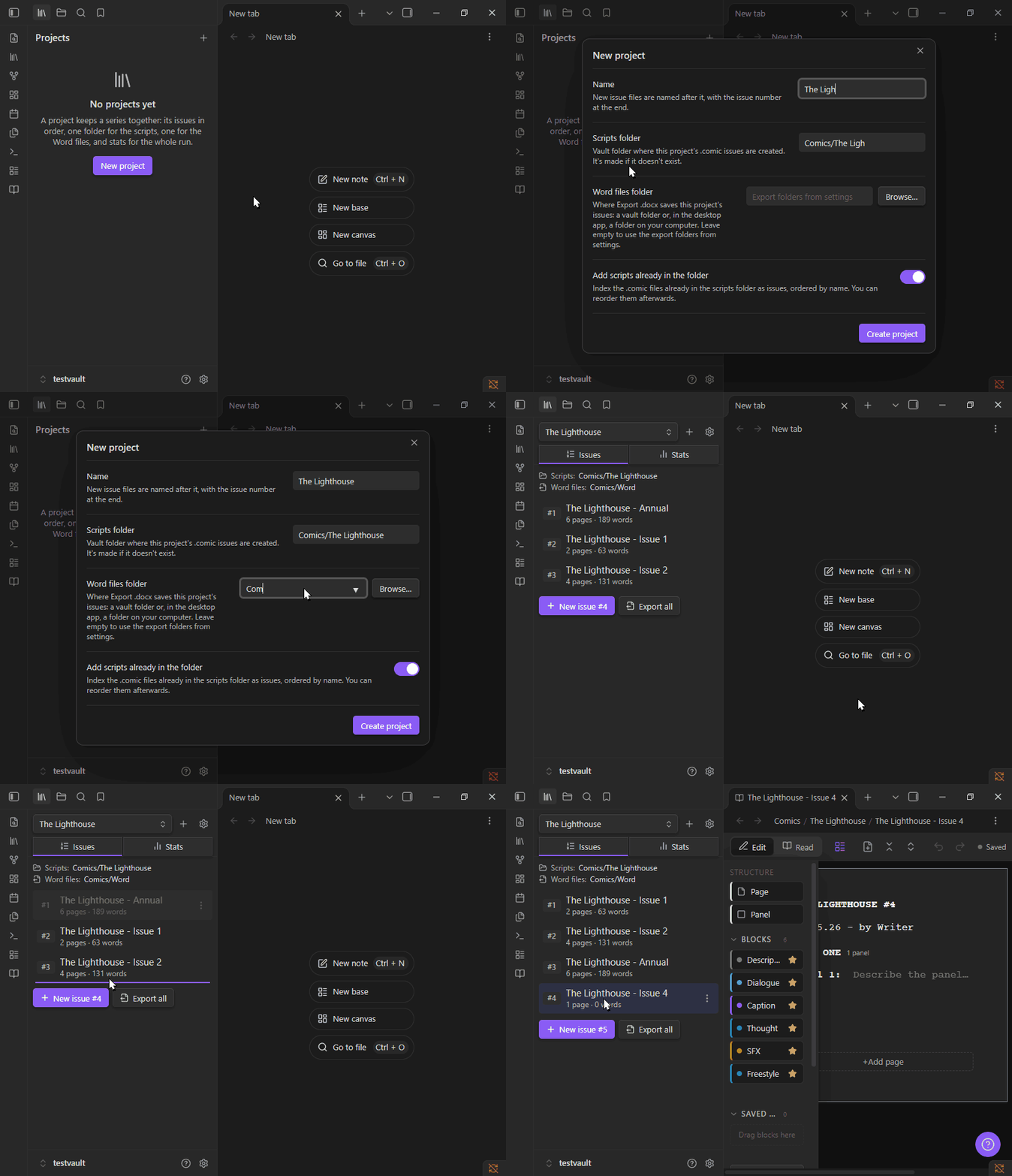
- Projects. A new sidebar tab (the library icon in the ribbon) keeps a series together, like Longform but simpler. Give a project a scripts folder and a Word files folder, and its issues stay numbered in reading order.
- Works with the scripts you already have. Point a project at a folder and its
.comicfiles become issues, numbered by file name. Drag to reorder, or right-click → Change issue number…. - New issue creates the next one in the project's folder and opens it. Each issue belongs to one project, and renaming or moving it in Obsidian keeps its number.
- Word files go where the project says. Export .docx on an issue saves to the project's Word folder, and Export all writes every issue in one go.
- Stats. Issues, pages, panels and words; averages per issue, page and panel; the most crowded panel; pages and words per issue; and the cast by number of balloons. Stats update as you write.
- Add any script to a project from its right-click menu.
- README reorganised with a quick start and new GIFs.
Your existing scripts and settings work as before; nothing needs converting. Needs Obsidian 1.5.7 or newer.
0.5.0
- Formatting you see as you type. Bold, italic, underline and highlights now look the way they'll print while you write. There are no more
**or==markers on screen to type, see or accidentally delete. - Styles combine. Words can be bold and highlighted (or any mix), from the formatting bar or the shortcuts.
- Typing works like a word processor. Press Ctrl+B / I / U with nothing selected and what you type next is styled. Typing at the end of bold words carries on in bold. Typing
*,_or=gives you that character. - Copy and paste. Copying gives plain text for other apps; pasting from one block to another keeps the formatting.
- Fixes: Ctrl+Shift+Z redoes on Windows, formatting changes are their own undo step, and ← / → never stop on hidden markers.
- Long scripts are quicker to redraw than before.
Your scripts are saved in the same format as before, so nothing needs converting.
Needs Obsidian 1.5.7 or newer (from early 2024). On an older Obsidian you'll stay on 0.4.0 until you update the app.
0.4.0
- Comment on words. Select some words and press Ctrl+Alt+M, or click the new comment button on the formatting bar (or right-click → Comment on selected words). Just those words get a tint and an underline, and the comment card lines up beside them, like in Word. Typing inside the words keeps them commented; typing next to them doesn't. Clicking the words brings their comment forward.
- Reply to comments. Click a comment to open a Reply field under it. Replies show up as a thread, and you can type
[[to link a note. Hover a reply to delete it. - Long comments fold. Comments and replies longer than four lines are cut short with a Show more link.
- Coloured highlights. The highlighter on the formatting bar now has yellow, green, blue, pink and orange, and it colours only the selected words.
- Word export: comments on words wrap just those words, and replies are included inside each comment.
0.3.0
- Choose what appears under each panel. The "+ …" row under a panel used to list every block type, so it kept growing as you added more to the palette. Now it shows only the blocks you star. Hover a block in the palette and click the ☆, or right-click it and pick Star. Saved blocks can be starred too. The row follows your palette order.
- Block types you already had start out starred, so nothing disappears until you unstar it. New block types start unstarred.
0.2.1
- Fixed: dragging a panel left its "Panel N:" label behind. The line with the panel label showed two grips, and the inner one moved only the description. That line now has just the panel grip, so the whole panel moves together. To move that description on its own, right-click it.
0.2.0
- Export folder menu. The Export .docx button now has a ▾ arrow listing all your export folders. The button exports to the one you picked last.
- Multiple export folders. Add vault folders, "next to the script", or any folder on your computer (desktop only) under Settings → Word export → Export folders. Your existing export folder carries over.
- Script folders. Choose where new
.comicscripts are created under Settings → New scripts. With several, you're asked each time. - Page drop line. Dragging a page shows a line in the Pages list with the page number it will become ("Becomes page 3"), or "No change". The list scrolls when you drag near its edges.
- README rewritten with screenshots.
0.1.3
- Fixed: character names in dialogue blocks could be cut off (for example "URCH" instead of "URCHIN"), especially after picking a name from the autocomplete list. The browser's hidden dropdown arrow was taking up space inside the field.
- While you type a speaker, the field now makes room for the longest matching name in your character list, so suggestions show in full. It shrinks back to fit when you leave it.