Real-time telemetry dashboard for any device with SSH access. No agents, no SNMP polling infrastructure, no vendor lock-in. One SSH session, one WebSocket, one HTML page — plus an embedded terminal so you never leave the glass.
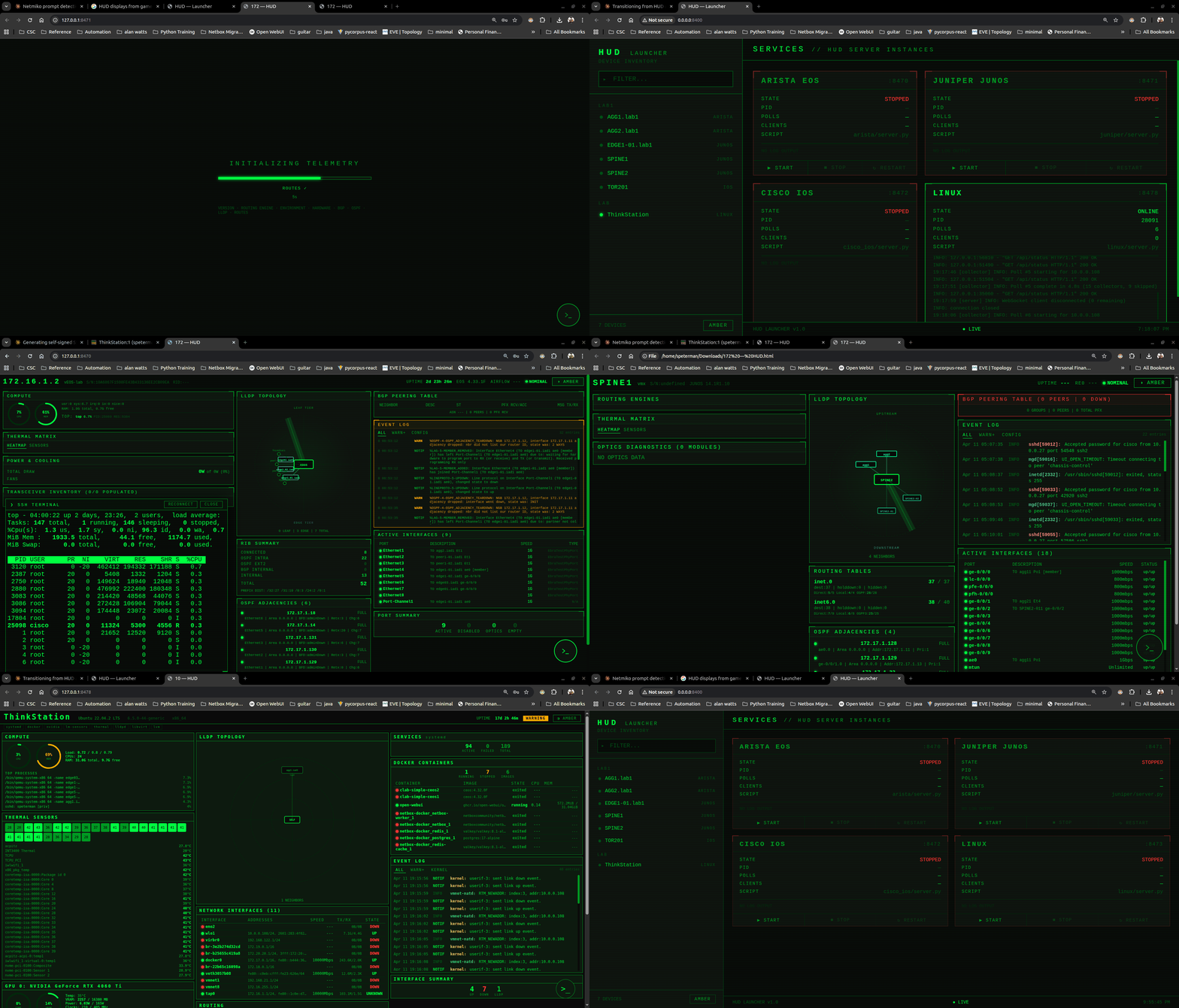
Incident response and lab work. The 90-second "what is this box actually doing right now" view. Click from an alert, a topology node, or a chat message and you're on the glass. When the incident is resolved, close the tab.
What this isn't for. Fleet-wide trending, historical analytics, or NOC wall-mount dashboards. Use LibreNMS, Grafana, or your observability platform for that. NetHUDs is the tool you reach for after the alert fires, not the tool that generates the alert.
Deployment. NetHUDs is designed to run as a Docker stack on a jump host, inheriting the same access controls as the rest of your jump-host infrastructure. The included launch.py is a convenience wrapper for local testing and demos — not the recommended production deployment.
Every HUD instance is three files, an optional parser module, and one static HTML page:
vendor/
├── collector.py       # Persistent SSH session → structured data
├── parsers.py         # (optional) text → dict when CLI has no JSON mode
├── server.py          # FastAPI app, session management, WebSocket push, terminal proxy
├── config.yaml        # server settings + optional default device
└── static/
    └── index.html     # HUD frontend (vanilla JS, xterm.js for terminal)
Data flow:
                          SSH / Netmiko              WebSocket
┌──────────────┐  show commands  ┌──────────────┐  /ws?session=  ┌─────────────────┐
│ Network Box  │◄───────────────►│  collector.py │──────────────►│  index.html     │
│ (any vendor) │  (persistent)   │  + parsers.py │  progress +   │  HUD frontend   │
└──────────────┘                 └──────┬───────┘  telemetry     │                 │
       ▲                                │                        │  ┌───────────┐  │
       │          SSH / paramiko        │  server.py             │  │ xterm.js  │  │
       └────────────────────────────────┤  FastAPI               │  │ terminal  │  │
           /ws/terminal?session=        │  Session Manager       │  └───────────┘  │
                                        └────────────────────────└─────────────────┘
Each browser connection creates a server-side session via /api/connect. The session owns a collector instance with a persistent SSH connection, a background poll task, and a set of WebSocket clients. Multiple tabs can share a session; the session reaper cleans up after SESSION_TTL (300s) with no connected clients.
Browser                          Server
  │                                │
  ├── POST /api/connect ──────────►│  Create Session(collector, poll_task)
  │◄── { session_id: "abc123" } ──│  Test SSH, start polling
  │                                │
  ├── WS /ws?session=abc123 ──────►│  Add to session.clients
  │◄── { _progress: {...} } ──────│  Per-command progress (start/done)
  │◄── { version: {...}, ... } ───│  Full telemetry payload
  │                                │
  ├── WS /ws/terminal?session= ──►│  paramiko invoke_shell via session config
  │                                │
Two WebSocket paths: /ws?session= pushes progress events and telemetry on the poll interval, /ws/terminal?session= bridges an interactive shell through xterm.js. The terminal uses paramiko (not Netmiko) for a raw invoke-shell channel with PTY resize support.
The collector holds a single Netmiko connection open across poll cycles. On each cycle it checks is_alive() and only reconnects if the session has dropped. This eliminates the 2-4 second key exchange overhead per poll and stops syslog flooding with sshd: Accepted entries.
The prompt is captured once on connect and compiled into a regex that's passed as expect_string to every command. This prevents Netmiko's prompt detection from drifting after large command output shifts the buffer — a failure mode observed in production on dense interface tables.
Pagination is disabled once per session at the terminal level (terminal length 0, set cli screen-length 0, etc.) immediately after connect, before any data commands run.
During collection, the frontend shows a loading overlay with a progress bar, the current collector name, and a client-side elapsed timer. The collector fires a callback before each collector ("start" phase — shows "COLLECTING DOCKER...") and after ("done" phase — shows "DOCKER ✓" and advances the bar). Progress messages cross the thread-to-async boundary via asyncio.Queue and are pushed to WebSocket clients in real time. The overlay is removed from the DOM after the first full data payload arrives — subsequent poll cycles render silently.
The network device HUDs (Arista, Juniper, Cisco) run a fixed set of commands. The Linux HUD is architecturally different — it probes the host on first connect, builds a capability fingerprint, and only runs collectors whose gates are satisfied.
Probe. On first connection (or after reconnect), _probe() reads /etc/os-release for distro identity, then fires a single compound shell command with ~20 command -v and test -f checks batched into one SSH round-trip:
command -v systemctl >/dev/null 2>&1 && echo CAP:has_systemd ;
command -v docker >/dev/null 2>&1 && echo CAP:has_docker ;
command -v nvidia-smi >/dev/null 2>&1 && echo CAP:has_nvidia ;
test -f /etc/pve/local/pve-ssl.pem && echo CAP:has_proxmox ;
The result is a caps dict included in every telemetry push:
{
  "caps": {
    "distro_family": "debian",
    "distro_name": "Ubuntu 22.04.2 LTS",
    "has_systemd": true,
    "has_docker": true,
    "has_nvidia": true,
    "has_lm_sensors": true,
    "has_lldpd": true,
    "has_frr": false,
    "has_proxmox": false
  }
}
Registry. Collectors are defined as (data_key, method_name, gate) tuples. The gate is a capability name — if the probe didn't find it, the collector doesn't run, no SSH round-trip is wasted, and no empty panel is rendered:
| Gate | Collector | Data Source |
|---|---|---|
| (always) | system, cpu, memory, storage, interfaces, routes, connections, logging | /proc, /sys, ip, ss, journalctl |
has_thermal |
thermal | /sys/class/thermal, sensors -j |
has_lldpd |
lldp | lldpctl -f json |
has_systemd |
services | systemctl list-units |
has_openrc |
services_rc | rc-status --all |
has_docker |
docker | docker ps -a, docker stats --no-stream |
has_podman |
podman | podman ps -a |
has_nvidia |
gpu_nvidia | nvidia-smi --query-gpu, --query-compute-apps |
has_amdgpu |
gpu_amd | /sys/class/drm/card*/device/ sysfs |
has_frr |
frr | vtysh -c 'show bgp summary json', OSPF, route summary |
has_bird |
bird | birdc show protocols all |
has_proxmox |
proxmox | pvesh get /nodes/localhost/qemu|lxc|status |
has_libvirt |
libvirt | virsh list --all |
has_zfs |
zfs | zpool list, zpool status -x |
has_lvm |
lvm | vgs, lvs |
has_smartctl |
smart | smartctl -H -A --json |
Distro families. The probe classifies the host into a family derived from ID and ID_LIKE in /etc/os-release: debian (Ubuntu, Mint, Kali, Raspbian), rhel (Rocky, Alma, CentOS, Fedora, Amazon Linux), alpine, arch (Manjaro, EndeavourOS), suse, cumulus, vyos. Cumulus auto-sets has_frr = True.
Frontend adaptation. The frontend receives the caps dict and renders only the panels for detected capabilities. The header shows capability tags (small badges: systemd docker nvidia lm-sensors). The three-column layout assigns panels by category: left for hardware (compute, thermal, GPU, storage), center for network (LLDP, interfaces, routing, FRR/BIRD), right for operational (services, containers, event log). Empty columns simply have fewer panels — no blank boxes.
What this means in practice:
| Host | Caps Detected | Panels Rendered |
|---|---|---|
| Ubuntu server (ThinkStation) | systemd, docker, nvidia, lm-sensors, thermal, lldpd, libvirt, lvm | Compute, Thermal, GPU, Storage, LVM, LLDP, Interfaces, Routing, Connections, Services, Docker, Event Log |
| Cumulus switch | systemd, frr, lldpd | Compute, Storage, LLDP, Interfaces, Routing, FRR BGP, FRR OSPF, Services, Event Log |
| Alpine container | openrc | Compute, Storage, Interfaces, Routing, Connections, OpenRC Services, Event Log |
| Proxmox hypervisor | systemd, proxmox, zfs, lvm, thermal | Compute, Thermal, Storage, ZFS, LVM, Interfaces, Routing, Services, Proxmox VMs, Event Log |
Per-collector timing is recorded in meta.collector_timing and displayed in the footer, making it easy to identify which collectors are expensive.
| Platform | Focus | Default Port | CLI Output | Terminal Mode |
|---|---|---|---|---|
| Arista EOS | L3 aggregation switches | 8470 | Native JSON (| json) |
SSH (paramiko) |
| Juniper JUNOS | Edge/core routers | 8471 | Wrapped JSON (| display json + jval()) |
SSH (paramiko) |
| Cisco IOS | L2/L3 access switches | 8472 | None — 12 text parsers | SSH (paramiko) |
| Linux | Any Linux host — distro-aware | 8473 | /proc, /sys, iproute2 JSON, tool-specific |
Local PTY or SSH |
The network device implementations (Arista, Juniper, Cisco) use a fixed command set. The Linux implementation is fundamentally different — it probes the host on first connect, detects what's installed, and adapts its collection and panel layout to match. A Cumulus switch renders BGP peers; an Ubuntu server renders Docker containers and GPU stats; an Alpine container renders OpenRC services. Same HUD, different host, different panels.
The project ships a single Dockerfile shared by all vendor HUDs and a docker-compose.yaml that runs all services.
Project layout on the deployment host:
hud/
├── Dockerfile
├── docker-compose.yaml
├── arista/
│   ├── config.yaml
│   ├── collector.py
│   ├── parsers.py
│   ├── server.py
│   └── static/index.html
├── juniper/
│   ├── config.yaml
│   ├── collector.py
│   ├── server.py
│   └── static/index.html
├── cisco_ios/
│   ├── config.yaml
│   ├── collector.py
│   ├── parsers.py
│   ├── server.py
│   └── static/index.html
└── linux/
    ├── config.yaml
    ├── collector.py
    ├── server.py
    └── static/index.html
Dockerfile:
FROM python:3.12-slim
WORKDIR /app
RUN pip install --no-cache-dir netmiko uvicorn[standard] fastapi pyyaml
COPY . .
CMD ["python", "server.py"]
The uvicorn[standard] extra is required — it pulls in websockets, without which uvicorn will reject WebSocket upgrade requests.
docker-compose.yaml:
services:
  hud-arista:
    build:
      context: ./arista
      dockerfile: ../Dockerfile
    container_name: hud-arista
    network_mode: host
    volumes:
      - ./arista/config.yaml:/app/config.yaml
      - /path/to/secrets/cert.pem:/app/certs/cert.pem:ro
      - /path/to/secrets/key.pem:/app/certs/key.pem:ro
    restart: unless-stopped

  hud-juniper:
    build:
      context: ./juniper
      dockerfile: ../Dockerfile
    container_name: hud-juniper
    network_mode: host
    volumes:
      - ./juniper/config.yaml:/app/config.yaml
      - /path/to/secrets/cert.pem:/app/certs/cert.pem:ro
      - /path/to/secrets/key.pem:/app/certs/key.pem:ro
    restart: unless-stopped

  hud-cisco:
    build:
      context: ./cisco_ios
      dockerfile: ../Dockerfile
    container_name: hud-cisco
    network_mode: host
    volumes:
      - ./cisco_ios/config.yaml:/app/config.yaml
      - /path/to/secrets/cert.pem:/app/certs/cert.pem:ro
      - /path/to/secrets/key.pem:/app/certs/key.pem:ro
    restart: unless-stopped

  hud-linux:
    build:
      context: ./linux
      dockerfile: ../Dockerfile
    container_name: hud-linux
    network_mode: host
    volumes:
      - ./linux/config.yaml:/app/config.yaml
      - /path/to/secrets/cert.pem:/app/certs/cert.pem:ro
      - /path/to/secrets/key.pem:/app/certs/key.pem:ro
    restart: unless-stopped
Build and run:
cd ~/hud
sudo docker compose up -d --build
If docker compose isn't available as a plugin:
# Install compose plugin for current user
mkdir -p ~/.docker/cli-plugins
curl -SL https://github.com/docker/compose/releases/latest/download/docker-compose-linux-x86_64 -o ~/.docker/cli-plugins/docker-compose
chmod +x ~/.docker/cli-plugins/docker-compose

# If running with sudo, install where root can find it
sudo mkdir -p /usr/local/lib/docker/cli-plugins
sudo cp ~/.docker/cli-plugins/docker-compose /usr/local/lib/docker/cli-plugins/Host networking (network_mode: host) is the recommended mode for production. The containers bind directly to the host's network stack — no NAT, no port mapping, direct L3 connectivity to all managed devices. This matches how tools like NetAudit typically run on jump hosts.
Bridge networking with port mapping works for local development:
# Replace network_mode: host with:
ports:
  - "8470:8470"
When using bridge networking, the containers need a route to the device management subnets. If devices are on a VPN or non-routable network, host networking is the only option.
For local development on macOS with Docker Desktop, use port mapping (host networking is not supported on Docker Desktop):
# docker-compose_localdev.yaml
services:
  hud-arista:
    build:
      context: ./arista
      dockerfile: ../Dockerfile
    container_name: hud-arista
    ports:
      - "8470:8470"
    volumes:
      - ./arista/config.yaml:/app/config.yaml
      - ~/.ssh/id_rsa:/root/.ssh/id_rsa:ro
    restart: unless-stopped
Access the HUDs at http://localhost:8470, http://localhost:8471, http://localhost:8472. Always use localhost — never 0.0.0.0 — in the browser, as WebSocket connections to 0.0.0.0 will fail.
The HUD servers support TLS natively through uvicorn. Mount your certificate and key into the container and reference them in config.yaml:
config.yaml:
server:
  port: 8471
  ssl_certfile: /app/certs/cert.pem
  ssl_keyfile: /app/certs/key.pem
Self-signed certificates for testing:
mkdir -p ./data/secrets
openssl req -x509 -newkey rsa:2048 \
  -keyout ./data/secrets/key.pem \
  -out ./data/secrets/cert.pem \
  -days 365 -nodes -subj "/CN=localhost"
The server.py __main__ block passes these to uvicorn:
uvicorn.run(
    "server:app",
    host=srv.get("host", "0.0.0.0"),
    port=srv.get("port", 8471),
    ssl_certfile=srv.get("ssl_certfile"),
    ssl_keyfile=srv.get("ssl_keyfile"),
)
The frontend auto-detects the protocol and uses wss:// for WebSocket connections when served over HTTPS:
const WS_BASE = `${location.protocol === 'https:' ? 'wss' : 'ws'}://${location.host}`;Both the telemetry WebSocket (/ws?session=) and the terminal WebSocket (/ws/terminal?session=) use this protocol-aware base URL.
The HUD supports two authentication modes for connecting to devices.
When no default device is configured, the HUD presents a login modal. Users provide:
- Host, username, device type
- SSH private key (file upload) or password
- Legacy SSH toggle for older devices
The uploaded key is read as text in the browser, sent to /api/connect as key_text in the POST body, written to a 0600 temp file on the server for the Netmiko session, and cleaned up when the session is reaped. The key is never persisted to disk beyond the life of the session.
// Frontend: read key file and send as text
const keyInput = document.getElementById('lf-keyfile');
if (keyInput.files && keyInput.files.length > 0) {
  const keyText = await keyInput.files[0].text();
  body.key_text = keyText;
}
# Backend: write to secure temp file
key_text = body.get("key_text")
if key_text:
tmp = tempfile.NamedTemporaryFile(mode="w", suffix=".pem", prefix="hud_key_", delete=False)
tmp.write(key_text)
tmp.close()
os.chmod(tmp.name, 0o600)
new_dev["key_file"] = tmp.name
elif body.get("password"):
new_dev["use_keys"] = False
new_dev.pop("key_file", None)The frontend stores the session ID in sessionStorage. On page refresh, LoginModal.init() checks /api/status?session= to verify the session is still alive. If valid, it reconnects the WebSocket and resumes telemetry without re-authenticating. Closing the tab clears sessionStorage; the server reaper cleans up the backend session after SESSION_TTL.
For integration with other tools (topology viewers, monitoring systems, ChatOps), the HUD can connect automatically using a pre-mounted service account key. Mount the key into the container:
volumes:
  - /path/to/secrets/id_rsa:/root/.ssh/id_rsa:ro
External systems open the HUD with query parameters including autoconnect=true:
https://hud-host:8471/?host=10.1.1.1&username=oxidize&device_type=juniper_junos&key_file=/root/.ssh/id_rsa&autoconnect=true
The login modal is bypassed and polling starts immediately.
The HUD is a standalone HTTPS endpoint. Any system that knows a device's IP and vendor can open a HUD session by constructing a URL with query parameters.
https://{hud_host}:{port}/?host={device_ip}&username={user}&device_type={driver}&legacy_ssh={bool}&autoconnect={bool}
| Parameter | Required | Description |
|---|---|---|
host |
Yes | Device IP or hostname |
username |
Yes | SSH username |
device_type |
Yes | Netmiko driver string (see table below) |
key_file |
No | Path to SSH key inside the container |
legacy_ssh |
No | true for devices requiring legacy SSH algorithms |
autoconnect |
No | true to skip the login modal and connect immediately |
| Vendor | Port | device_type |
|---|---|---|
| Arista EOS | 8470 | arista_eos |
| Juniper JUNOS | 8471 | juniper_junos |
| Cisco IOS | 8472 | cisco_ios |
| Linux | 8473 | linux |
| Your vendor | 8474+ | See Netmiko platforms |
| Endpoint | Method | Auth | Description |
|---|---|---|---|
/ |
GET | — | Serve the HUD frontend |
/api/defaults |
GET | — | Config.yaml defaults for login modal |
/api/connect |
POST | — | Create session, test SSH, return session_id |
/api/status?session= |
GET | session | Session health check (used for resumption) |
/api/data?session= |
GET | session | Current poll result (JSON) |
/ws?session= |
WebSocket | session | Real-time progress + telemetry push |
/ws/terminal?session= |
WebSocket | session | Interactive SSH terminal proxy |
All session-scoped endpoints return {"error": "invalid or missing session"} if the session ID is missing or expired.
NetAudit Topology Viewer — click-to-HUD from the topology map. The topology page maps vendor detection to the correct HUD port and constructs the URL:
var HUD_CONFIG = {
  arista:  { port: 8470, device_type: 'arista_eos' },
  juniper: { port: 8471, device_type: 'juniper_junos' },
  cisco:   { port: 8472, device_type: 'cisco_ios' },
  linux:   { port: 8473, device_type: 'linux' },
};

function openHUD(nodeData) {
  var cfg = HUD_CONFIG[vendor];
  var params = new URLSearchParams({
    host: nodeData.ip,
    username: HUD_USERNAME,
    device_type: cfg.device_type,
    key_file: '/root/.ssh/id_rsa',
    legacy_ssh: String(needsLegacy),
    autoconnect: 'true',
  });
  window.open('https://' + HUD_BASE + ':' + cfg.port + '/?' + params);
}
Grafana Alert Links — add HUD URLs to alert notification templates:
https://jump01.example.com:8470/?host={{ .Labels.instance }}&username=oxidize&device_type=arista_eos&autoconnect=true
Slack / ChatOps — a bot can respond with a HUD link when a user asks about a device:
Here's the live HUD for edge1-02: https://jump01:8471/?host=10.1.1.1&username=oxidize&device_type=juniper_junos&autoconnect=true
NetBox Custom Links — add a HUD button to device pages:
https://jump01:{{ device.platform.slug == 'arista-eos' ? '8470' : '8471' }}/?host={{ device.primary_ip4.address.ip }}&username=oxidize&device_type={{ device.platform.napalm_driver }}&autoconnect=true
Bookmarks / Runbooks — direct links to specific devices for change windows:
https://jump01:8471/?host=border1&username=speterman&device_type=juniper_junos&autoconnect=true
Any system that can produce an <a href> or window.open() can launch a HUD session.
When no device block is present, the server starts but creates no sessions. The HUD presents the login modal and waits for a user to connect via /api/connect. This is the recommended configuration for shared deployments.
server:
  port: 8471
  ssl_certfile: /app/certs/cert.pem
  ssl_keyfile: /app/certs/key.pem

poll_interval: 15device:
host: "switch.example.com"
username: "admin"
device_type: "arista_eos"
use_keys: true
key_file: "/root/.ssh/id_rsa"
# password: "secret"
# secret: "enable_secret" # Cisco IOS enable mode
# legacy_ssh: true
timeout: 45
session_timeout: 60
poll_interval: 15
server:
host: "0.0.0.0"
port: 8470
ssl_certfile: /app/certs/cert.pem
ssl_keyfile: /app/certs/key.pemThe Linux HUD always starts clean and waits for the login modal — the device block provides defaults for pre-populating modal fields, not an auto-connect target.
device:
  host: "thinkstation.local"
  username: "speterman"
  device_type: "linux"
  use_keys: true
  key_file: "~/.ssh/id_rsa"

poll_interval: 15

server:
  host: "0.0.0.0"
  port: 8473
  ssl_certfile: /app/certs/cert.pem
  ssl_keyfile: /app/certs/key.pem
The collector probes host capabilities after the first connection — no additional configuration is needed to tell it what to collect. A single Linux HUD instance can connect to any Linux host: a Cumulus switch, an Ubuntu server, an Alpine container, a Proxmox hypervisor. The probe detects what's available and the frontend adapts.
Some older devices (EOS on OpenSSH 6.6.1, older JunOS, IOS 12.x) don't support rsa-sha2-256/512 pubkey auth. Set legacy_ssh: true in the config or pass it as a query parameter to disable those algorithms and fall back to ssh-rsa (SHA-1).
The Cisco IOS implementation goes further for IOS 12.x — it forces legacy KEX algorithms (diffie-hellman-group14-sha1, diffie-hellman-group1-sha1) and ciphers (aes128-cbc, aes256-cbc, 3des-cbc) on the paramiko Transport, and uses vt100 instead of xterm-256color for the terminal.
The Netmiko-based implementations (Arista, Juniper, Cisco) share a common session architecture. A detailed implementation guide covering every layer of the stack is available at HUD_DEVICE_IMPLEMENTATION_GUIDE.md.
The Linux implementation follows a different pattern — probe-and-gate instead of fixed command maps — documented in README_linux_collector_rewrite.md. If you're building a HUD for a new network device, start from the Arista or Cisco collector. If you're extending the Linux HUD with new capability-gated collectors, follow the Linux guide.
The short version for network devices:
SSH into the device. Run every show command you care about. For each one, determine whether it supports a JSON output modifier (| json, | display json). If not, save the text output to a file.
One function per command. Test against saved sample files. Get the common format working first, then harden.
Copy the Arista collector as a starting point (cleanest JSON path) or the Cisco IOS collector (most instructive for text-only platforms). The collector skeleton is the same across all Netmiko platforms: _ensure_connected() for persistent sessions, _send() for cached prompt detection, collect(on_progress=) for the progress overlay.
from collector import YourCollector
c = YourCollector({"host": "switch", "username": "admin", "device_type": "..."})
import json
print(json.dumps(c.collect(), indent=2))The server is vendor-agnostic. Copy one, update the collector import, change the FastAPI title and default port. Session management, progress queue, reaper, and terminal proxy work as-is.
Start with the header and one panel. The session management, progress overlay, theme system, terminal manager, and login modal are identical across implementations — copy them verbatim. The render() function is the only part that changes per device type.
No changes needed — the shared Dockerfile works for any vendor. Add a new service to docker-compose.yaml with the next port number.
Universal panels (every implementation):
| Panel | Data Source | Notes |
|---|---|---|
| Header bar | show version / /etc/os-release |
Hostname, OS, uptime, health badge |
| Compute | CPU/memory | Arc gauges |
| Interface summary | show interfaces status / /sys/class/net |
Port counts by state |
| Routing summary | show ip route summary / ip route |
Protocol breakdown |
| Event log | show logging / journalctl |
Filterable, severity tabs (ALL / WARN+ / KERNEL) |
Network device panels (Arista, Juniper, Cisco):
| Panel | Data Source | Notes |
|---|---|---|
| BGP peering table | show ip bgp summary |
Neighbor, ASN, state, prefixes, uptime |
| OSPF adjacencies | show ip ospf neighbor |
Neighbor ID, area, state, interface |
| LLDP topology | show lldp neighbors |
Radar-style neighbor map |
| Thermal sensors | show system environment |
Heatmap grid, color by threshold |
| Optics diagnostics | show interfaces transceiver |
DOM readings per optic |
| Port map | show interfaces status |
Grid layout, VLAN distribution, STP state |
| MAC address table | show mac address-table |
Dynamic/static counts |
Linux panels (capability-gated — only rendered when detected):
| Panel | Gate | Notes |
|---|---|---|
| Thermal sensors | has_thermal |
Heatmap grid from /sys/class/thermal + lm-sensors |
| LLDP topology | has_lldpd |
Same radar view as network HUDs |
| Systemd services | has_systemd |
Active/failed/total counts, failed service list |
| OpenRC services | has_openrc |
Same layout, Alpine/Gentoo |
| Docker containers | has_docker |
Container list with live CPU/mem/net stats from docker stats |
| Podman containers | has_podman |
Container list |
| NVIDIA GPU | has_nvidia |
Core/VRAM arc gauges, temp, power, clocks, GPU process list |
| AMD GPU | has_amdgpu |
Utilization and temp from sysfs |
| FRR BGP | has_frr |
Same peering table layout as Arista BGP panel |
| FRR OSPF | has_frr |
Same adjacency layout as Arista OSPF panel |
| BIRD routing | has_bird |
Protocol table with state and route count |
| Proxmox VMs/CTs | has_proxmox |
QEMU VM and LXC container tables from pvesh |
| KVM domains | has_libvirt |
virsh list domain table |
| ZFS pools | has_zfs |
Usage bars, health badges, fragmentation |
| LVM | has_lvm |
Volume group and logical volume tables |
| Disk health | has_smartctl |
SMART pass/fail, temperature, power-on hours |
| Storage | (always) | df filesystem bars |
| Connections | (always) | TCP established/listen, UDP, listener table from ss |
Every HUD ships with green (default) and amber (night mode) themes, toggled via a button in the header. All colors are CSS custom properties — the theme switch updates data-theme on <html> and re-renders. The xterm.js terminal theme also adapts to match.
On first connect, a full-screen overlay shows collection progress. Collectors appear in sequence with start/done phases, a progress bar, and a client-side elapsed timer that ticks independently of server messages. Completed collectors are listed as a trail at the bottom of the overlay (SYSTEM · CPU · MEMORY · DOCKER · ...). The overlay is removed from the DOM when the first full data payload arrives — subsequent poll cycles update the HUD silently.
When a connection fails mid-cycle, the collector returns the last successful dataset with meta.error set and meta.stale = true. The frontend keeps rendering — stale data with a visible error badge beats a blank screen.
- No multi-device aggregation. This is a single-device deep-dive tool. Fleet views are a different problem — though the Linux collector's
capsdict is a structured host fingerprint that could feed one. - No database. Data is ephemeral. The value is real-time situational awareness, not historical trending.
- No SNMP. CLI-native. The device tells you what it knows in the format it already speaks.
- No agents. The Linux HUD collects everything over SSH — no daemon to install, no package to manage, no ports to open beyond sshd.
- Python 3.10+
netmiko,paramiko,fastapi,uvicorn[standard],pyyaml- SSH access to the target device
- Docker (for containerized deployment)
- A browser
MIT
