

This is a SuperPowerShell, you can use this to do a lot of things
這是一個 Windows Kernel-Mode Driver 搭配 User-Mode Controller 的教學範例。
專案目標是示範 如何透過 IOCTL 與 Kernel Driver 溝通,並操作目標 Process 的 Token 權限。
-
MyDriver.sys
- 一個簡單的 Kernel Driver
- 提供 IOCTL 介面,讓 User-mode 傳入目標 PID
- 透過
PsLookupProcessByProcessId找到目標EPROCESS - 調整
_SEP_TOKEN_PRIVILEGES權限位元 → 讓目標 Process 擁有 SYSTEM 級別的權限
-
Controller.exe
- User-mode 應用程式
- 建立一個目標進程(例如 PowerShell),但先以 暫停模式 啟動
- 呼叫
DeviceIoControl把 PID 丟給驅動 - 驅動修改權限後,再恢復執行進程 → 直接變成 SYSTEM 權限
- 使用 Visual Studio + WDK (Windows Driver Kit) 建立 Kernel Driver 專案
- 將
MyDriver.c加入專案 - 設定目標平台為 x64 (Release)
- 編譯後輸出
MyDriver.sys
- 使用 Visual Studio (任意 C/C++ 專案即可)
- 將
Controller.c加入專案 - 編譯後輸出
Controller.exe
Windows 64 位元系統禁止未簽章的驅動載入,因此我們需要自簽憑證來簽署測試驅動。這裡示範 PowerShell 方式:
 $cert = New-SelfSignedCertificate `
     -Type CodeSigningCert `
     -Subject "CN=MyDriverCert" `
     -KeyUsage DigitalSignature `
     -CertStoreLocation "Cert:\LocalMachine\My"
這會在 本機 My 憑證存放區 建立一個測試用憑證。
$pwd = ConvertTo-SecureString -String "輸入你的密碼" -Force -AsPlainText
Export-PfxCertificate -Cert $cert -FilePath "C:\Path\To\MyDriver.pfx" -Password $pwd
注意:密碼請自己設定,不要放在 GitHub 上。
將剛剛建立的 PFX 憑證匯入到:
受信任的根憑證授權單位 (Trusted Root Certification Authorities)
受信任的發行者 (Trusted Publishers)
可以用 PowerShell 或 certmgr.msc GUI 完成。
signtool sign /v /f C:\Path\To\MyDriver.pfx /p "你的密碼" /tr http://timestamp.digicert.com /td sha256 /fd sha256 MyDriver.sys
signtool verify /kp /v MyDriver.sys
如果顯示 Successfully verified 就代表簽章完成,可以在測試模式下載入驅動。
- 安裝並啟動測試模式(僅限教育用途!)
bcdedit /set testsigning on
shutdown /r /t 0
- 載入驅動
sc create MyDriver type= kernel binPath= C:\Path\To\MyDriver.sys
sc start MyDriver
- 執行 Controller
Controller.exe
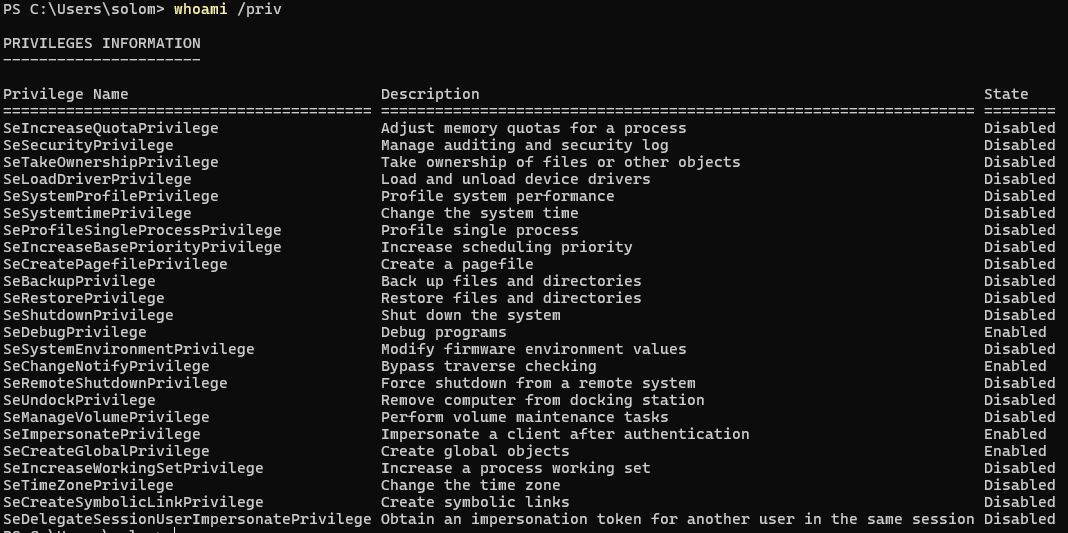
這個是一般以Administrator權限時開啟powershell的權限。
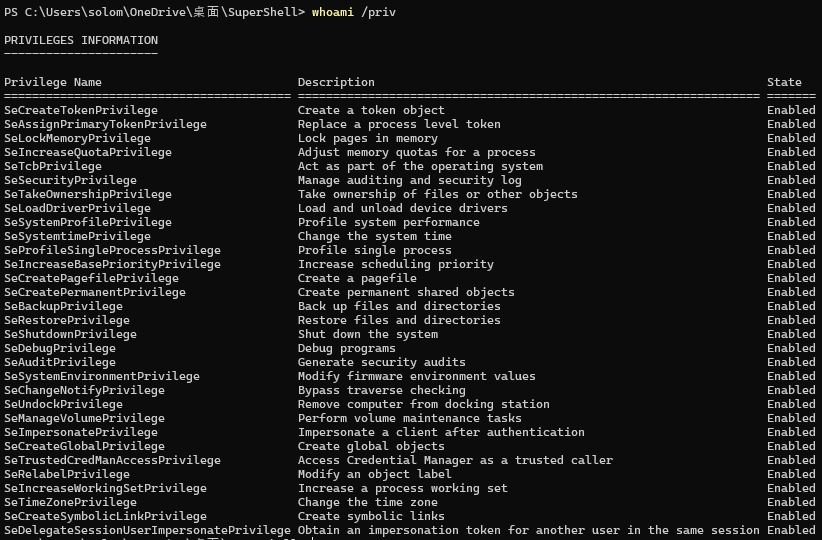
這個是我們的supershell所得到的權限,大部分都是Enabled。
本專案 僅限教育與研究用途,請勿用於實際攻擊行為。
驅動程式中的 Token 偏移 (0x248, 0x40) 與 Windows 版本有關,版本不符可能導致 BSOD 藍屏。
在正式環境,Windows 會強制要求簽章並通過 Microsoft 驗證,否則無法載入。
This is a SuperShell, you can use this to do a lot of things
This is an educational example demonstrating a Windows Kernel-Mode Driver combined with a User-Mode Controller.
The goal of this project is to show how to communicate with a Kernel Driver via IOCTL and manipulate a target process's Token privileges.
-
MyDriver.sys
- A simple Kernel Driver
- Provides an IOCTL interface for a User-mode app to pass a target PID
- Uses
PsLookupProcessByProcessIdto locate the targetEPROCESS - Modifies the
_SEP_TOKEN_PRIVILEGESbits → gives the target process SYSTEM-level privileges
-
Controller.exe
- User-mode application
- Creates a target process (e.g., PowerShell) in suspended mode
- Sends the PID to the driver via
DeviceIoControl - The driver modifies privileges, then resumes the thread → target process runs as SYSTEM
- Use Visual Studio + WDK (Windows Driver Kit) to create a Kernel Driver project
- Add
MyDriver.cto the project - Set the target platform to x64 (Release)
- Build to produce
MyDriver.sys
- Use Visual Studio (any C/C++ project)
- Add
Controller.cto the project - Build to produce
Controller.exe
Windows 64-bit requires signed drivers. We can use a self-signed certificate for testing.
$cert = New-SelfSignedCertificate `
    -Type CodeSigningCert `
    -Subject "CN=MyDriverCert" `
    -KeyUsage DigitalSignature `
    -CertStoreLocation "Cert:\LocalMachine\My"
This creates a test certificate in the local My certificate store.
Set your own secure password:
$pwd = ConvertTo-SecureString -String "YourPasswordHere" -Force -AsPlainTextExport the PFX:
Export-PfxCertificate -Cert $cert -FilePath "C:\Path\To\MyDriver.pfx" -Password $pwdNote: Do not commit your password to GitHub.
Import the PFX into:
- Trusted Root Certification Authorities
- Trusted Publishers
You can do this via PowerShell or certmgr.msc GUI.
signtool sign /v /f C:\Path\To\MyDriver.pfx /p "YourPasswordHere" /tr http://timestamp.digicert.com /td sha256 /fd sha256 MyDriver.syssigntool verify /kp /v MyDriver.sysIf it says Successfully verified, the driver is properly signed and can be loaded in test mode.
- Enable Test Mode (for educational purposes only)
bcdedit /set testsigning on
shutdown /r /t 0- Load the Driver
sc create MyDriver type= kernel binPath= C:\Path\To\MyDriver.sys
sc start MyDriver- Run Controller
Controller.exeThis shows the privileges when opening PowerShell with normal Administrator rights.
This shows the privileges obtained by our SuperShell, where most privileges are Enabled.
- This project is for educational and research purposes only. Do not use it for real attacks.
- Token offsets (0x248, 0x40) depend on the Windows version; incorrect offsets may cause BSOD.
- On production systems, Windows requires a proper driver signature verified by Microsoft; unsigned drivers cannot be loaded.