Repository navigation
Settings
Settings is one page of cards, in this order: Theme and Accent together, then Monitoring, Test Results, Window and Updates. Changes apply immediately and to every open window at once. There is no Save button.
Settings are stored under %PROGRAMDATA%\Diskoria and survive upgrades.
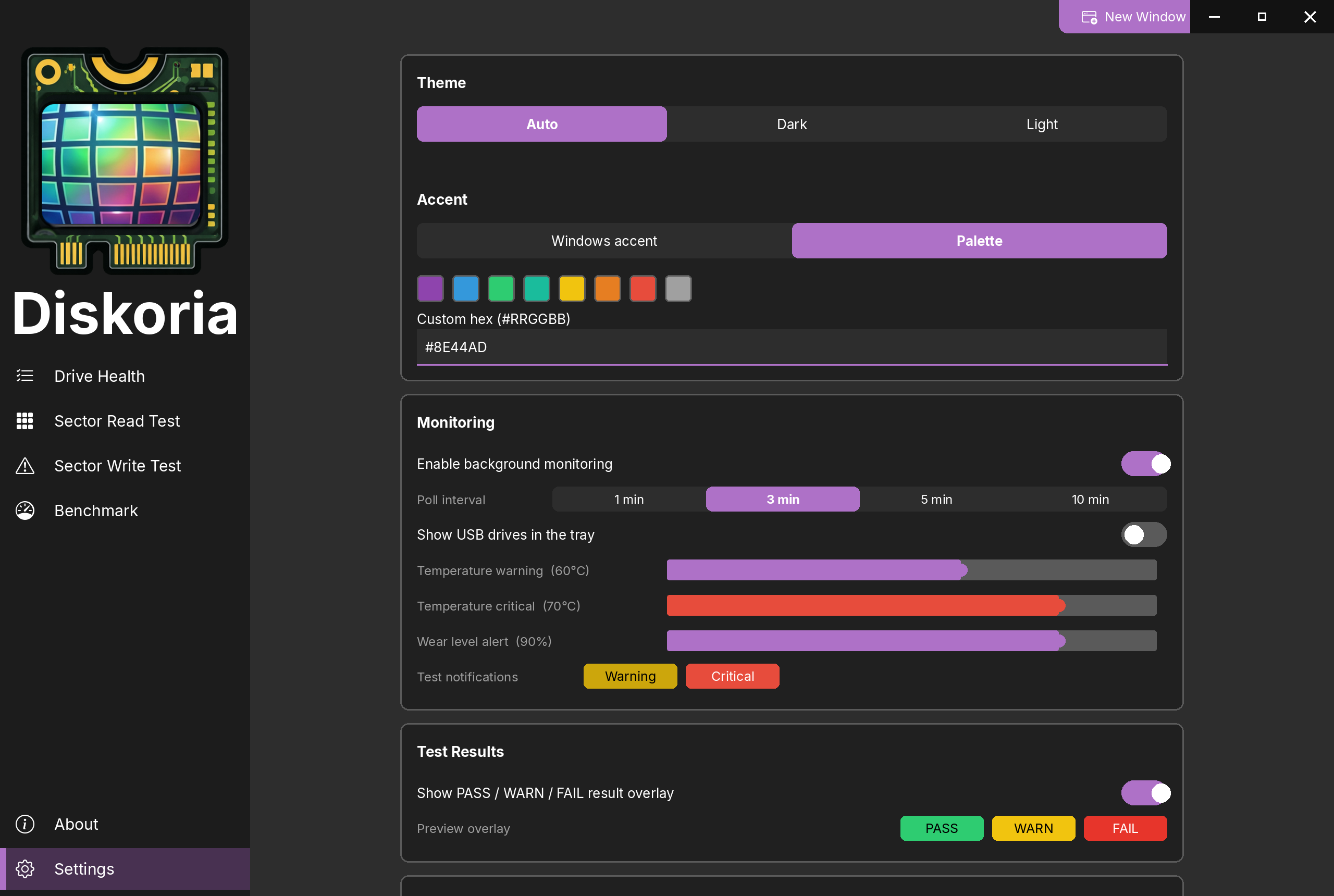
Theme and Accent share one card, with a heading each.
Theme is Auto, Dark or Light. Auto follows Windows.
Accent comes from one of three places:
- Windows accent -- follows the colour Windows is using, and updates live if you change it.
- Palette -- eight built-in colours with dance names: Waltz, Foxtrot, Samba, Bossa Nova, Cha-Cha, Flamenco, Tango and Quickstep. Waltz is the default.
- Custom hex (#RRGGBB) -- type your own.
Selecting a palette swatch while the source is set to Windows does nothing until you switch; the app says so:
Switch to Palette to choose colors.
Worth trying once: pick Cha-Cha (yellow) or Quickstep (light grey) and look at the New Window button in the title bar. Its caption turns black. Anything Diskoria draws on top of an accent fill picks white or black automatically, so a pale accent stays readable instead of vanishing into its own background.
The accent is shaded to the theme (1.7.3 and later). Diskoria does not paint your accent exactly as stored: on the dark theme it lightens it, on the light theme it darkens it, and only as far as it needs to stay readable against the surface behind it. A colour picked to read against white is muddy against near-black, which is why Windows keeps lighter and darker shades of its own accent and uses them the same way. The hue is untouched, so it is still the colour you chose. The swatches and the hex field always show what you selected -- if you switch themes and the two look slightly different, that is the shading, not a changed setting. Most of the palette is left alone on the light theme.
"Show PASS / WARN / FAIL result overlay" controls the full-window word at the end of a sector? test. "Preview overlay" shows you what it looks like without running a test.
Turning it off does not change what the tests do. They still run, the map still shows every bad and slow block?, and the counters still add up -- you simply do not get the big word across the window. See Sector Read Test.
- "Enable background monitoring" -- the master switch. On by default.
- "Poll interval" -- how often to check. Default 3 minutes.
- "Show USB drives in the tray" -- off by default. See below.
- Temperature warning and Temperature critical -- default 60 degC and 70 degC.
- Wear level alert -- default 90%.
- "Test notifications" -- Warning and Critical buttons that fire a real alert now.
What all of this actually does is on its own page: Monitoring and Alerts. Use "Test notifications" once before relying on any of it.
"Show USB drives in the tray" does two things, and has to. It gives external drives a tray icon and adds them to the background poll. They are the same switch because separating them would only get you an icon with no reading behind it. Off by default: external drives come and go, and an icon appearing in the notification area? every time you plug something in is not what most people want.
Like the poll interval, it stays visible when monitoring is switched off -- it says which drives are watched, not how closely.
"Close to system tray" decides what closing the last window does. The two states are spelled out under the toggle:
Closing the last window keeps Diskoria monitoring from the tray
Closing the last window quits Diskoria and stops monitoring
The default differs by build -- on for installed copies, off for the portable exe. A portable app run from a USB stick should not keep running after you close it.
"Launch at startup" and "Start minimized to the system tray at logon" together give you monitoring from login with nothing on screen.
One thing worth knowing about that toggle: the scheduled task? is the setting. Nothing is written to the settings file. Diskoria reads Windows to decide whether the switch is on, so if you remove the task in Task Scheduler, the toggle turns itself off. It reflects the operating system rather than remembering its own opinion.
"Check for updates automatically", described as:
On launch. Updates install when you close Diskoria
A check on launch stays silent unless it finds something. If it does, the download happens in the background and you choose whether to apply it now or on exit. Manual checks live on the About page.
On a portable build the whole section is unavailable:
Unavailable -- updates are handled by the installer
The reason is simple: what the updater downloads is the installer. Running it would silently convert your portable copy into an installed one, so Diskoria does not offer. To update a portable copy, download the new one.
- Monitoring and Alerts -- what the monitoring settings control.
- Tray and Flyout -- what "close to tray" feels like in practice.
- About -- installed versus portable, and manual update checks.