This document provides an overview of the custom projector system in Unity, along with installation and usage instructions.

This package includes a custom projector component that allows for advanced projection effects in Unity. It is designed to be easily integrated into existing projects and provides configurable parameters for customization.
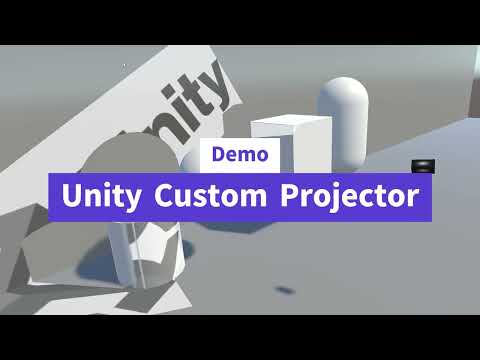
- Import the provided
.unitypackageinto your Unity project. - Attach the
ProjectorRayscript to a GameObject.
- Assign the
ProjectorRayVertexComputeShader.computeto theComputeShaderfield in the component. - Assign a
Materialto theRendering Materialfield in the component. - Configure the necessary parameters in the Inspector:
- Texture Width & Height: Specifies the texture size for the projector camera. Higher values improve quality but increase processing load.
- Depth Cam Near/Far/FoV: Defines the near and far clipping planes and the field of view of the projector camera.
- Layer Mask: Specifies which objects are considered by the projector camera.
- Rendering Material: The material projected by the projector.
- Depth Continuity Threshold: Sets the maximum depth difference where the mesh will be placed.
- Run the scene to see the projection effect in action.
- Increasing the texture resolution will increase the computational load. Adjust the resolution to balance quality and performance.
- If optimization is needed, consider using Unity's Decals system as an alternative.
This package is distributed under the MIT License.