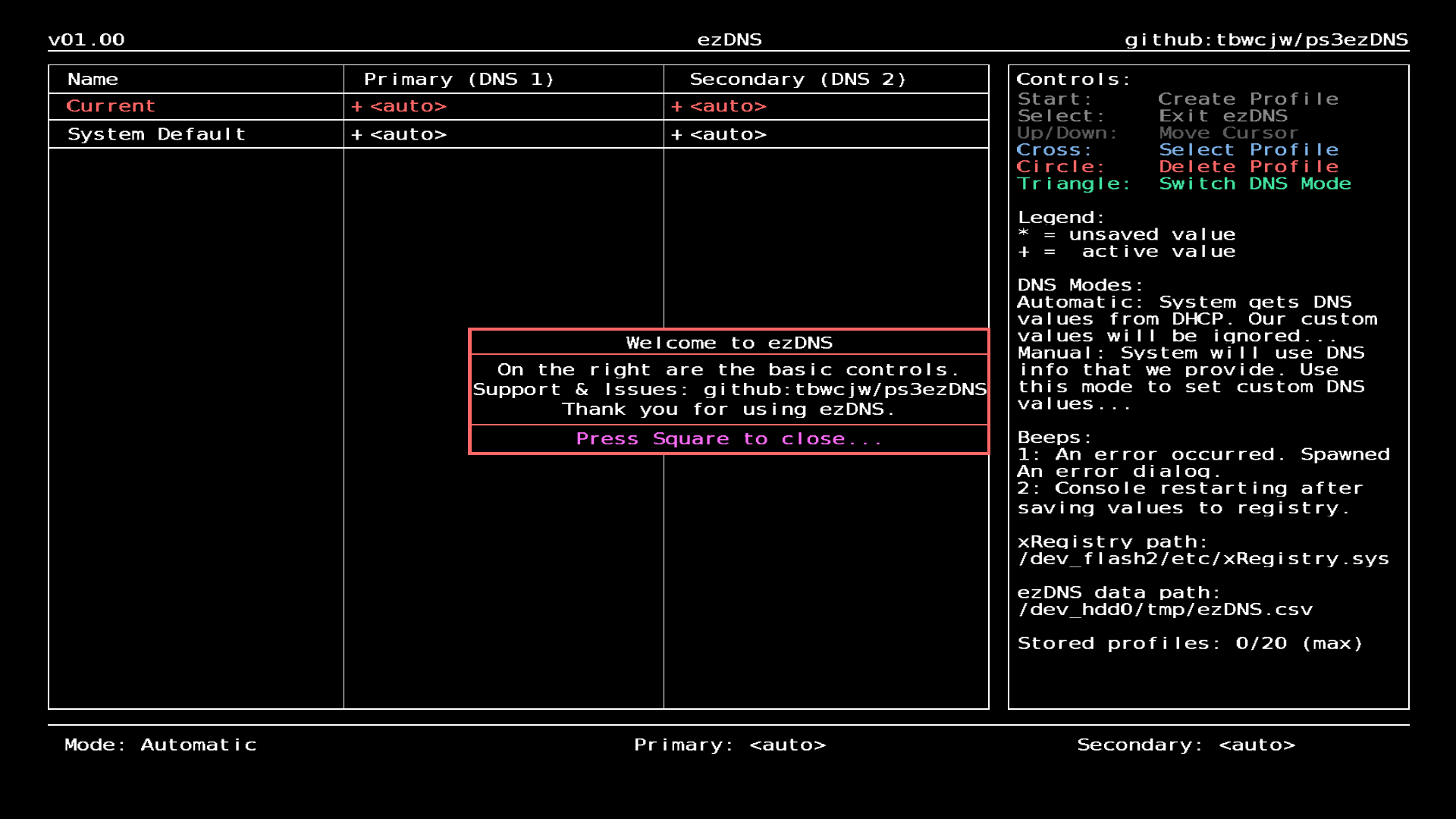
First Run
Upon first run a welcome message will be displayed, it can be closed with Square.
All control labels are colored to match their corresponding buttons.
On the right hand side of ezDNS we display the specific controls.
- Start: Create Profile
- Select: Exit ezDNS.
- It is recommended that you exit ezDNS in this manner, to avoid losing unsaved changes.
- Up/Down: Move the selector 'cursor' in the table.
- Cross: Select profile (this will bring up the activation confirmation dialog).
- Circle: Delete profile (this will bring up the deletion confirmation dialog).
- Triangle: Switch DNS mode (switches DNS mode between Automatic and Manual).
Also displayed is the "Legend", these symbols will appear in the table, and the bottom of the screen.
- Asterisk: unsaved value
- Plus Sign: active value.
The values on the bottom of the screen display the settings used, or will be used.
Below this are simple explainations of DNS modes, "Beeps" the application uses for alerts, the path to the xRegistry.sys file that is being modified, as well as the path to ezDNS.csv (where profiles are stored).
ezDNS has a limit of 20 unique profiles.
The main section of ezDNS is a table. By default, it shows the "Current" DNS settings used by the system and a "System Default" profile, which uses the Automatic DNS mode and parameters for primary and secondary DNS addresses.