BBOXQueryForm Plugin
In order to use the BBOXQueryForm plugin in MapStore you need to be sure that the files below are included in the buildjs.cfg file:
openlayers-ext/lib/OpenLayers/Control/SetBox.jsgxp/src/script/widgets/form/BBOXFieldset.jsgxp/src/script/widgets/FilterBuilder.jsgxp/src/script/plugins/QueryForm.js
NOTE: In the default configuration this is already done.
##Plugin Description
The BBOX Query Form plugins for performing queries on feature layers. Using this plugin you can create alphanumeric queries on feature attributes and / or spatial query on a specific region of interest.
##Configuration Example
Besides the plugin configuration, the following script import must be uncommented in the composer.html file:
<!-- Externals OpenLayers libraries to manage WPS processes  -->
<script type="text/javascript" src="script/OpenLayersExt.js"></script>
Then you have to specify a valid plugin configuration, such as:
{
		"ptype": "gxp_bboxqueryform",
		"featureManager": "featuremanager",
		"outputTarget": "east",
		"actions": null,
                    "id": "bboxquery",
                    "outputConfig":{
		 "outputSRS": "EPSG:900913",
                     "selectStyle":{
                        "strokeColor": "#FF0000",
                        "handlerFillColor": "#FFFFFF",
                        "fillColor": "#FFFFFF",
                        "fillOpacity":0,
                        "strokeWidth":2
                    },
                    "spatialFilterOptions": {
                        "lonMax": null,
                        "lonMin": null,
                        "latMax": null,
                        "latMin": null
		}
                    }
	}
-
ptype: ptype of the plugin -
featureManager: The id of the :class:gxp.plugins.FeatureManagerto use with this tool -
outputTarget: URL of the WPS service -
actions: By default, this tool creates a "Query" action to trigger the output of this tool's form. Set to null if you want to include the form permanently in your layout. -
outputConfig: specific configuration for the BBOXFieldSet widget -
geostorePassword: the corresponding user password -
geostoreProxy: The proxy to use for Ajax cross domain requests.
##Send WPS Execute request In order to send an Execute Request with the WPSManager plugin you have to use the execute method:
wpsManager.execute(processName,executeRequest,callback);
The processName is the WPS Process name.
The executeRequest can be an Object which contains the request properties or a String which contains directly the WPS Execute request. To parse the WPS Execute request, the OpenlayersExt.Format.WPSExecuteRequest object is used; this defines an object with the request properties. This object properties are:
-
storeExecuteResponse:
BooleanOptional. Indicates if the execute response document shall be stored (if true Asynchronous instance). -
lineage:
BooleanOptional. Indicates if the Execute operation response shall include the DataInputs and OutputDefinitions elements. -
status:
BooleanOptional. Indicates if the stored execute response document shall be updated to provide ongoing reports on the status of execution. -
type:
StringOptional. Type of output ("data" or "raw") -
inputs:
ObjectMandatory. The inputs for the process, keyed by input identifier.The data input types currently supported are: OpenLayers.WPSProcess.LiteralData, OpenLayers.WPSProcess.ComplexData, OpenLayers.WPSProcess.BoundingBoxData, OpenLayers.WPSProcess.ReferenceData. -
outputs:
ArrayMandatory. Array of OpenLayers.WPSProcess.Output Object
The optional callback is a function to call when the execute response is retrieved.
##WPS Execute Synchronous request An example of sending a WPS Execute synchronous request is the following:
wpsManager.execute('JTS:isValid',{
   "inputs": {
            geom: new OpenLayers.WPSProcess.ComplexData({
                  value: "POINT(6 40)",
                  mimeType: "application/wkt"
             })
   },
   "outputs": [{
        "identifier": "result",
        "mimeType" : "text/xml"
   }]
 });
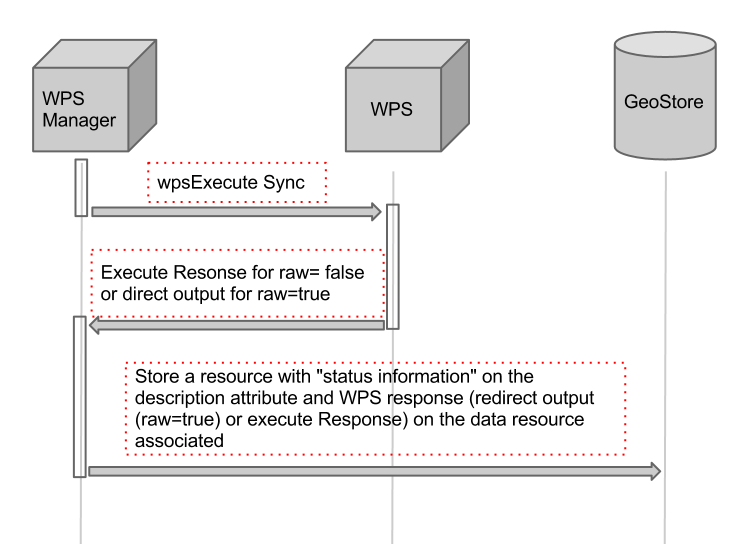
The sequence of interactions is described on the following figure:
##WPS Execute Asynchronous request An example of sending a WPS Execute asynchronous request is the following:
wpsManager.execute('JTS:isValid',{
   "storeExecuteResponse": true,
   "lineage": true,
   "status": true,
   "inputs": {
            geom: new OpenLayers.WPSProcess.ComplexData({
                  value: "POINT(6 40)",
                  mimeType: "application/wkt"
             })
   },
   "outputs": [{
        "identifier": "result",
        "mimeType" : "text/xml"
   }]
 });
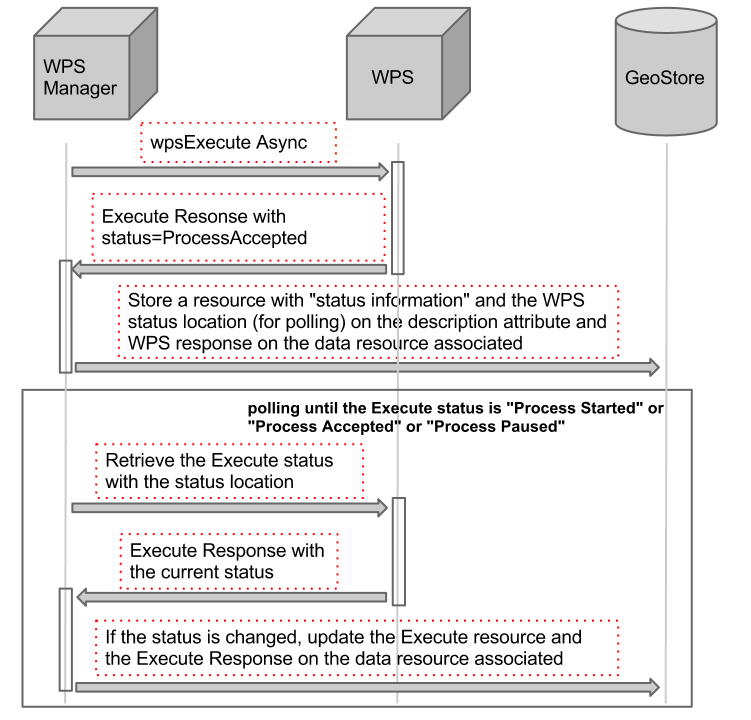
The sequence of interactions is described on the following figure: