Manual AccountSetup
When starting K-9 Mail for the first time you are greeted with a welcome screen. Click "Next" to start the account creation wizard.
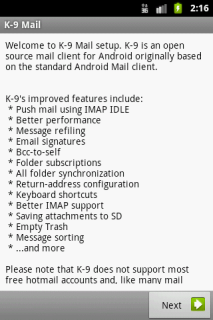
If you already set up K-9 Mail and want to create another account, press the menu button and select "Add account"

First you are asked for your email address and password.
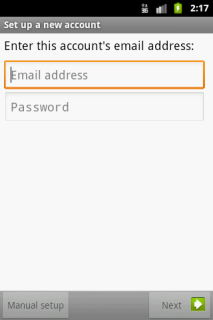
The buttons "Manual setup" and "Next" become only activated after a correctly formatted email address and a password have been typed in.
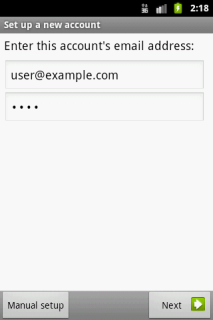
If you choose "Next" and the domain part of your email address is known to K-9 Mail, the connection settings for the incoming and outgoing server are automatically set up for you. This is the case for some large email providers, e.g. Gmail, Hotmail, and Yahoo!
If the domain is unknown to K-9 Mail or the "Manual setup" button is used, you have to manually enter your server settings. But first you are asked for the account type. Available options are POP3, IMAP, and WebDAV (supported by Exchange versions up to 2007).
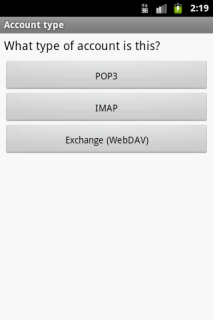
All of these are names of protocols to access your mailbox. If your email provider supports it, we strongly recommend you use IMAP. It is superior to the others and well supported by K-9 Mail.
The following chapters describe the steps necessary to set up an account using the given protocol.
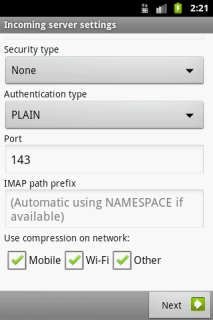
The following two images show all the IMAP related settings. Later we describe them in detail.

Username: This is the username that's needed to authenticate to the IMAP server. The field is initialized with the user part of your email address. But often the username you have to use is equal to your email address.
Password: Here you enter the password to access your emails. The password you entered at the first step of the account creation process is pre-entered here. So you shouldn't need to change it.
IMAP server: This is the hostname or IP address of your IMAP server.
Security type: This is the method of encryption that should be used when connecting to your IMAP server. Available options are:
- None: This doesn't use any transport security at all.
- SSL (if available): SSL/TLS is used but the certificate isn't checked.
- SSL (always): SSL/TLS is used and it's checked if the certificate is valid.
- TLS (if available): The STARTTLS method is used if available; the certificate isn't checked. If STARTTLS is not available, no encryption is used at all.
- TLS (always): The STARTTLS method is used and the certificate is checked for validity.
Note: Avoid using the options "None", "SSL (if available)", and "TLS (if available)" if you can. Check the chapter Security for more information on this.
Authentication type: This specifies which authentication method to use. Available options are:
- PLAIN: This is the default method. You shouldn't need to change this.
- CRAM_MD5: Use this if your server doesn't support transport security but supports the CRAM_MD5 authentication method.
Port: This is the port number the IMAP server is listening on. Most of the time you don't want to change this.
IMAP path prefix: The content of this field is prepended to IMAP folder names before use. The main usage is to manually select which IMAP namespace to use. Usually, you don't need to change this.
Use compression on network: If your server supports compression (DEFLATE) it is used on the selected networks to minimize the amount of data transferred. Selecting this, even if your server doesn't support compression, doesn't cause problems. So there should be no need to change this.
After clicking "Next" K-9 Mail tries to connect to the server to verify the settings. This means you need to have a working network connection to continue the setup.
Continue with the chapter Configuring the outgoing server.
...
...
...
...
...