Repository navigation
Releases
v2.4.0

Z2M Device Tracker 2.4.0 can read more than one source at once. Zigbee2MQTT and ZHA now run side by side, and Matter devices can be tracked too, over Thread or Wi-Fi. Each source shows as its own network, with the same history, alerts, learned rhythm and device pages as your Zigbee devices. Matter support is new and marked beta, and ZHA keeps its beta label, so please report anything that looks wrong.
About the new name. 2.3.0 said the app would become Zigbee Device Tracker. With Matter in, that name is wrong too, so the rename waits until a name that fits is settled. Nothing changes in this release, and you won't need to set anything up again when it happens.
Fixed
- The ⋮ menu on the last row in Health is no longer cut off (#71). The card it sits in clipped it, so on the bottom row only part of Snooze 7 days and Ignore showed. The menu now opens in full over whatever is below the card.
Added
-
Matter devices (beta) (#71). Turn on the new
matteroption and restart the app. It reads Home Assistant's Matter integration and adds a network called Matter next to your Zigbee ones. Each Matter device gets its history (added, removed, renamed), when it last reported, online and offline alerts, battery level and forecasts, the learned rhythm with Stopped reporting, the Health inbox and its own full-width page.With Home Assistant's Matter Server app 9 or newer, the app also reads each device's role (router, sleepy end device) and, for Thread, the links between devices for the map. With an older Matter server you still get availability, battery and last reported. The app is read-only for Matter: it never sends anything to your devices.
Each Matter device links to its Home Assistant device page, and picks up its area, its name, Battery Notes and Used by (the automations, scripts and scenes that use it), just like a Zigbee device. Zigbee2MQTT's tools (firmware updates, reporting settings, pairing, bindings, reconfigure) don't apply to Matter and are left out of its page.
matter: true # default false
-
Zigbee2MQTT and ZHA side by side (#71). The single
zigbee_stackchoice is replaced by two switches,zigbee2mqttandzha, and both can be on. Each ZHA network shows as its own network next to your Zigbee2MQTT ones. The Zigbee2MQTT-only tools (firmware updates, reporting settings, pairing, bindings and the broker pages) stay available for the Zigbee2MQTT devices instead of disappearing as soon as ZHA is on.zigbee2mqtt: true # default zha: true # default false matter: true # default false
-
The integration's actions can pick ZHA and Matter devices (#71). Battery replaced, Mute device and Add note now list ZHA and Matter devices in their device picker. Reconfigure and Firmware update still list only Zigbee2MQTT devices, and a call for any other device answers "Only for Zigbee2MQTT devices".
Changed
- The README's ZHA section now covers ZHA and Matter (#71), with what each source gets and which tools stay with Zigbee2MQTT.
Upgrading
Update the app and the integration (HACS) as usual. Nothing needs setting up again.
-
Zigbee2MQTT users: nothing changes.
zigbee2mqttis on by default andzhaandmatterare off. -
ZHA users: an install set to
zigbee_stack: zhakeeps reading ZHA only, exactly as before, until you change one of the new switches. To move to the switches, setzha: trueandzigbee2mqtt: false. To read both, turn both on. -
Trying Matter: set
matter: trueand restart the app. You need Home Assistant's Matter integration set up already. Thread support has only been tested with recorded data so far, so reports from Thread users are especially welcome. -
Docker users: the switches go in
/data/options.json, like every other option.
Full changelog: v2.3.0...v2.4.0
v2.3.0
Z2M Device Tracker 2.3.0 learns how each of your devices normally behaves and only speaks up when something is unusual for that device. It also brings a new, simpler layout for the whole sidebar, a full-width page for every device, three new checks and summaries, and a Docker image for Home Assistant Container. Everything from 2.2.0-beta.1 is included too. ZHA support keeps its beta label for now, until more ZHA users have tried it.
Coming later: a new name. Now that the app works with ZHA as well as Zigbee2MQTT, it will be renamed Zigbee Device Tracker in a future release. Nothing changes in this release, and you won't need to set anything up again when it happens.
Fixed
- Replacing a device keeps its entity IDs (#64). Renaming the new device made Home Assistant give its entities fresh IDs with the area in front (
light.living_room_living_room_lamp_plug), so automations and dashboards lost them. After the name and area steps, the replace wizard now gives each new entity the ID that the old device's matching entity had. If the old device still holds that ID (a disabled entity, or an old device you kept), its entity moves to<id>_oldfirst.
Added
-
Learned rhythm: alerts that know each device (#64). The app records the gap between each device's messages, by time of week, and works out how often it reports and how long it normally sleeps. Stopped reporting then fires only when a silence is longer than usual for that device at that time. A sensor that reports every few minutes by day and sleeps through the night is no longer flagged at 03:00.
It goes live for a device after 7 days and 30 reports; until then your reporting profiles work as before. Only devices that report on a steady timer get a learned limit. Buttons, remotes and other devices that report only when something happens are left alone. A profile you set by hand, and a type default you changed by hand, always win. Learning never makes a type default that already applied stricter. A burst of messages a few seconds apart counts as one report.
The device page shows what was learned: Reports ("every 3–5 min"), Sleeps ("up to 11 h, usually starting between 21:00 and 00:00") and Alert ("after 17 h silent (auto)"). Set my own picks a profile, including the new Auto (learned), and Forget starts learning again.
Normal for this device on a Stopped reporting alert accepts the current silence until the device reports again, for up to 7 days, and then learns it for that time of week. After a Zigbee2MQTT or broker outage, the clock starts again from when the network came back, so one outage doesn't make every device late at once. It works with Zigbee2MQTT and ZHA; with ZHA the timing is to the nearest minute, because the app polls.
learn_rhythm: true # default; false keeps the old behaviour, and gaps keep being recorded
-
Daily summary (#64). One short message a day at the summary hour: what needs attention, what's new since yesterday and what cleared. Batteries due are added when a message goes out anyway. Nothing is sent on a day with nothing to report, and the daily summary is skipped on the day the weekly one goes out. Turn it on with Settings → Weekly summary → Send a daily summary, or try it with Send today's now. It also fires
z2m_tracker_summarywithdaily: true.daily_summary: true # default false summary_hour: 9 # shared with the weekly summary
-
Expected outages (#64). A network that goes offline at about the same time on at least 4 of the last 7 days, for under two hours, no longer alerts when it does it again. A nightly Zigbee2MQTT restart or a scheduled backup are typical causes. The outage still shows in Health as Expected outage, with its usual time and length, and it stays out of Home Assistant's Repairs. It alerts as before if it runs more than 30 minutes past its usual window, or happens at another time of day. Nothing is set by hand, and it stops applying within a week of the schedule stopping.
expected_outages: true # default; false alerts every time
-
Link quality stuck check (#64). Flags a device whose link quality has read the same value on 50 reports over two days when it used to vary. The device has probably stopped measuring it, so its signal checks can't be trusted until the value changes. Devices that always report one fixed value aren't flagged. It shows in Health without notifying; set it to Show and notify in Settings → Checks to be alerted. Works with Zigbee2MQTT and ZHA.
-
A Docker image for Home Assistant Container (#64, #62). Home Assistant Container has no App store, so the app can now run as its own container:
ghcr.io/tempus2016/z2m-device-tracker(amd64 and arm64). Give it your Home Assistant address and a long-lived token, set a password for the web UI, and start it fromdocker/compose.yaml. The integration connects with the app's address and its API token. The README has the steps.services: z2m-tracker: image: ghcr.io/tempus2016/z2m-device-tracker:2.3.0 ports: ["8099:8099"] environment: HA_URL: http://192.168.1.10:8123 HA_TOKEN: your-long-lived-token UI_PASSWORD: pick-a-password MQTT_HOST: 192.168.1.10 volumes: ["./data:/data"]
Changed
-
A new layout for the whole sidebar (#64). Four tabs instead of seven: Health, Devices, Network and Upkeep. Updates is now a section of Upkeep, Activity opens from Health, and Settings sits behind the gear at the top. On a phone the bottom bar has the same four tabs.
-
Health is one inbox (#64). There is one count, and it matches the badge. Each device gets one row with its main problem and one main action, so a low battery shows Battery replaced right there. A ⋮ menu on each row has Snooze 7 days and Ignore, and a device's other problems fold under "+1 more". Rows are grouped into New (since you last looked), Ongoing and Network. Beside them, This week sums up outages, joins, renames and batteries due, and Recent shows the latest events, with a flapping network folded into one line.
-
Every device gets its own full-width page (#64). It replaces the narrow side panel and pop-up. At the top: one status line, the facts with their units ("110 of 255 · good"), and a What to do block with the main action. Under Overview are the cards: When it alerts, Link quality (with the route through the mesh), Battery, Readings and reporting, About and Trends. Timeline starts with the logbook and folds repeats, so eleven scans through the same router are one line. The browser address links straight to the device, and Back or Esc returns to where you were in the list. The side panel and pop-up are still in Settings → Device details, and a choice you made before is kept.
-
Settings lists its sections down the left on a wide screen and hides settings that depend on a switch until it's on (#64).
-
The map's view options sit behind one Options button; zoom and Reset layout stay beside it (#64).
-
The Devices table never cuts off Last seen: it drops the Model column on narrower screens. The "devices need attention" banner is gone, since the Needs attention filter does the same job (#64).
-
A low battery shows in red everywhere, like other faults (#64).
-
Texts that pointed to a device's old Health tab now say where the setting is on the new device page (#64).
Upgrading
Update the app and the integration (HACS) as usual. Nothing needs setting up again, and no options are renamed.
-
Learned rhythm is on by default. For the first 7 days nothing changes. After that, devices without a reporting profile of their own get a learned limit, but only if they report on a steady timer. Devices that were never flagged before can then be flagged if they go quiet for much longer than they ever normally do. Set
learn_rhythm: falseto keep the old behaviour. -
Expected outages is on by default. If you want an alert every time a network drops, set
expected_outages: false. -
The device page is the new default. If you prefer the side panel or the pop-up, pick it in Settings → Device details.
-
Docker users: after the first image is published, it may take a few minutes to appear on
ghcr.io. See the README for the full setup. -
ZHA users: ZHA support is still marked beta. Please report anything that looks wrong.
Full changelog: v2.2.0-beta.1...v2.3.0
v2.2.0-beta.1
This is a beta of 2.2.0. The app can now read Home Assistant's ZHA integration instead of Zigbee2MQTT, and I need people who run ZHA to try it. It was tested on a small ZHA network only (a coordinator, a router and a battery button), so expect rough edges and please report what you find.
If you use Zigbee2MQTT, nothing changes unless you switch. You get the fix and the changes listed below.
Fixed
- Devices of a base topic you removed no longer alert forever (#61). After taking a base topic out of
base_topics, its devices went offline or silent and stayed in Health, and the only way to clear them was to remove each one. They are now frozen, as described under Changed.
Added
-
ZHA support (beta) (#61). Set the new
zigbee_stackoption tozhaand restart the app. It then reads ZHA through Home Assistant and needs no MQTT broker. It only reads: it never sends anything to ZHA or your devices. The default staysz2m.zigbee_stack: zha
-
What works with ZHA: the device list and its history (added, removed, renamed), last seen, online and offline with offline alerts, link quality with weak and dropping signal, battery level with low-battery alerts and predictions, the mesh map, the radio channel view, and matching to Home Assistant areas and names. ZHA's own timeouts decide when a device is offline (2 hours for mains devices and 6 hours for battery devices by default), and the offline alert delay applies on top.
-
Joined and left alerts with ZHA. ZHA sends no join and leave events, so a device appearing in its device list alerts as Device joined, and one going from it as Device left.
-
A mesh map from ZHA's own scans. ZHA scans its neighbours every few hours by itself. The app takes a new map when the mesh has changed and settled, or once a day, so the map can be empty for the first hours on a new network.
-
Only what applies is shown. With ZHA the parts that need Zigbee2MQTT are hidden: firmware updates, reporting settings, pairing, bindings, replacing a device, ping, renaming from the app, the Coordinator, Broker and Groups sections, the Messages tab and the MQTT sensors (
ha_entities). Settings → Checks lists only the checks that can fire with ZHA. -
Old MQTT sensors are removed for you. The first time the app starts with ZHA, it removes the sensors it made over MQTT while it read Zigbee2MQTT, so they don't stay in Home Assistant as unavailable. That is the only time it talks to the broker.
-
The integration knows ZHA devices. It finds them in Home Assistant's device list, so its cards, sensors and the services that don't need Zigbee2MQTT work with them.
Changed
-
Devices from a network the app no longer listens to are frozen (#61). That covers the other Zigbee stack after a switch, and a base topic you removed. They keep their history and show on Devices under Removed or not listened to, marked Not listened to. They get no checks, alerts, MQTT sensors or requests, and they're left out of Upkeep, the weekly summary, the Prometheus metrics and the integration's counts and cards. If the app listens to that network again, they pick up where they left off. A device you re-pair onto the other stack moves across and keeps its history.
-
The Removed chip on Devices is now "Removed or not listened to".
-
Restoring a backup keeps other networks' devices frozen. Before, they came back without a network.
Upgrading
-
Zigbee2MQTT users: update the app as usual. There is nothing to change.
-
To try ZHA: update the app to 2.2.0-beta.1, open its Configuration tab, set Zigbee stack to
zha, save and restart the app. Open Zigbee Tracker in the sidebar. Your ZHA devices should show within a minute. -
Switching back is the same option set to
z2m. Your Zigbee2MQTT devices and their history are kept while you're on ZHA, and pick up again when you switch back. -
The integration's beta only shows in HACS when you turn on beta versions for it (HACS → Z2M Device Tracker → ⋮ → Redownload → show beta versions). The ZHA work is in the app, so the stable integration works with this beta too.
-
Found a problem? Please open an issue and say which coordinator you use and roughly how many devices. The app's Documentation tab has a section on ZHA.
Full changelog: v2.1.0...v2.2.0-beta.1
v2.1.0
2.1.0 lets the Replace wizard swap any device, not only a dead one, and fixes four things in the app that reported the wrong picture: a "May go silent" warning for values a device sends anyway, filter chips that ignored the search, a battery cost estimate that could run into the hundreds, and the app calling itself 2.0.0.
The changes landed in #53 and #54. Everything is in the app. The integration's version moves to 2.1.0 so the two parts keep matching numbers, and the summary card now reports its version correctly.
Fixed
-
A missing reporting setting is no longer flagged as May go silent when the device sends that value anyway. Some plugs (Tuya TS011F and similar) have reporting set for current and voltage only, and send power in the same messages. The "no reporting set" rule flagged power on them even though it updates fine. The tracker now remembers when each measured value last changed in the device's messages. If it changed in the last 7 days, the device's reporting list on Health shows it as No reporting set, but it comes with the device's other reports, and it is not a finding. A value that never changes doesn't count, because Zigbee2MQTT's
cache_staterepeats the last value in every message. (#53) -
On Devices, the filter chip counts follow the search. The chips counted every device whatever you typed, so a search under Needs attention could show nothing with no hint that All had matches. The counts now show the matches under each chip, and an empty result offers a Show N matches in All button. The search also matches the vendor and model as the list shows them (Tuya for
_TZmanufacturers), the device type and the kind of device: bulb, plug, door and so on. (#53) -
Upkeep → Costs no longer counts one battery change several times. A change that was detected and then ticked, or logged twice, a couple of days apart counted as a two-day battery life. One thermostat with 4 AA batteries showed 730 batteries a year. Battery changes within 3 days of each other now merge into one, as the brand stats already did, for both the battery life and the last-12-months count. Nothing in your history is changed: only the sums are. (#54)
-
The app reports its real version. Since 2.0.1 the app's start-up log, its web server header, its version endpoint and its MQTT discovery device all said 2.0.0, and the summary card said 2.0.0 in the browser console. All of them now read 2.1.0, and a new test fails if a version is left behind in a future release. (#54)
Added
-
Replace… works on working devices and on another model. Until now the wizard was offered only for a dead device. You can now use it to swap any device, for example for a different brand or model. The new device takes over the old one's name, area, bindings, notes and, if you choose, battery record, and both histories are linked. For the old device there are two choices:
-
Remove the old device asks a working device to leave the network, then removes it from Zigbee2MQTT. If it doesn't answer, it is force-removed, and it stays paired until you factory-reset it. The wizard tells you when that happens. The box starts ticked for an offline or a working device, because Zigbee2MQTT won't let two devices share a name. For a silent or ghost device it starts unticked, because that device may still work.
-
Rename the old device keeps it in Zigbee2MQTT as "name (old)", numbered if that is taken, so its name is free for the new device. It keeps its maintenance tasks. Its Home Assistant entity IDs change with the name.
Bindings are fitted to the new model's endpoints, and any that don't fit are listed so you can set them up in Zigbee2MQTT. When the new device is a different model, the wizard warns that some Home Assistant entity names can change, so check the automations that use the old device. Open it from a device's pane on Devices → Replace…. (#53)
-
Upgrading
-
Update the Z2M Device Tracker app from Settings → Apps. All the fixes and the Replace wizard are in the app.
-
Updating the integration in HACS is optional. It only moves the version to 2.1.0 and corrects the version the summary card reports.
-
No settings change. Battery cost figures on Upkeep → Costs may drop after the update if a battery change had been logged twice: the new figure is the right one.
Full changelog: v2.0.2...v2.1.0
v2.0.2
2.0.2 fixes two things in the app that made it forget, or fail to forget, what you told it. Ignored alerts now stay ignored after the app restarts, and deleting a stale retained availability message now clears a device's false Offline state. Thanks to @darki79 for reporting the first and @Jilas for the detailed write-up of the second.
Both fixes landed in #49. Only the app changed; the integration's version moves to 2.0.2 so the two parts keep matching numbers.
Fixed
-
Ignored alerts are kept when the app restarts or updates. Since 1.4.0, every start of the app cleared all ignored alerts. An update restarts the app, so the usual sign was Settings → Ignored alerts coming back empty after each update and the alerts returning, but a plain app restart or a Home Assistant reboot did the same. Ignoring an alert stored it in a newer format that the app's start-up check didn't recognise, so it threw the whole list away. The check now keeps both the current and the old format, and drops only entries that are damaged. Alerts you ignored before 2.0.2 are already gone, so ignore them once more after updating; from then on they stay ignored, whether forever or for a set number of days. (#49, #48)
-
Deleting a device's retained availability message clears its stale Offline state. The tracker takes Online/Offline from Zigbee2MQTT's
zigbee2mqtt/<device>/availabilitytopic. If availability checks were turned off after being on, the last retainedofflinecan stay on the broker for good, and the tracker kept showing a working device as offline. Deleting that retained message (in MQTT Explorer, for example) did nothing: only publishingonlinecleared it. Now the tracker treats the deletion as "Zigbee2MQTT no longer reports this": the device's availability becomes unknown, any open outage is closed, and the offline alert clears on the next health check, within a minute. If Zigbee2MQTT later reports the device again, the tracker follows it as before. (#49, discussion #21)
Upgrading
-
Update the Z2M Device Tracker app from Settings → Apps. The integration has no changes, so updating it in HACS is optional, though it keeps the two version numbers matching.
-
After updating the app, re-ignore any alerts you had ignored before: open the alert on Health and choose Ignore. They are listed under Settings → Ignored alerts and now stay there.
-
To clear a device that shows Offline only because of an old retained message, delete
zigbee2mqtt/<device>/availabilityon your broker. Discussion #21 has the background.
Full changelog: v2.0.1...v2.0.2
Contributors


Assets 3
v2.0.1
2.0.1 lets you turn off the integration's calendars and to-do lists. Home Assistant adds Calendar and To-do to the sidebar as soon as any integration provides a calendar or a to-do list, so installing the tracker's integration added both, even for people who never use them. Thanks to @spry-salt for the request.
The change landed in #44. Only the integration changed; the app's version moves to 2.0.1 so the two parts keep matching numbers.
Added
-
The battery and maintenance calendars and to-do lists can be turned off. Untick Battery and maintenance calendars and to-do lists in the integration's options (Settings → Devices & services → Z2M Device Tracker → ⚙). The integration then stops setting up
calendar.z2m_tracker_batteries,calendar.z2m_tracker_maintenance,todo.z2m_tracker_batteriesandtodo.z2m_tracker_maintenance, and removes them instead of leaving them unavailable. Restart Home Assistant and the Calendar and To-do sidebar items go too, unless another integration (Local Calendar, Shopping List and so on) still provides one. Tick it again and the four entities come back with the same IDs, so dashboards and automations that used them keep working. The option is on by default, so nothing changes until you turn it off. (#44, #43) -
The README says how to hide the sidebar items without losing the lists. Long-press the Home Assistant title at the top of the sidebar to hide or reorder Calendar and To-do while keeping the entities for cards and automations. (#44, #43)
Upgrading
Update the integration from the Marketplace (HACS before Home Assistant 2026.11) and restart Home Assistant. Updating the app is optional: it has no changes. To drop the calendars and to-do lists, turn the new option off and restart Home Assistant once more. See the wiki for the integration's options.
Full changelog: v2.0.0...v2.0.1
Contributors

Assets 3
v2.0.0
Z2M Device Tracker 2.0 is the biggest release so far. The sidebar has a new seven-tab layout, there are 22 new features, two bug fixes, and one new thing that only works if you take part: community device ratings. Every Zigbee Tracker install measures how its devices really behave, including uptime, drop-outs, link quality and battery life. From 2.0 you can share that, in about a minute, so the next person choosing a door sensor or a smart plug knows which ones to buy and which to avoid.
⭐ Rate your devices: please take a minute
The ratings start empty, so the first reports matter most. Whatever you run (Aqara, IKEA, Sonoff, Tuya or anything else), your experience helps someone else.
How to rate a device:
-
Update the app to 2.0.0 and open Zigbee Tracker in the sidebar.
-
Go to Upkeep → Community. Under Rate your devices it lists every model on your network that nobody has rated yet. Health also has a line that takes you there.
-
Press Rate (or open any device and pick its Community tab), then Share your experience.
-
Pick Recommend, It's OK or Avoid. Add any tags that fit (Pairs easily, Drops off the network, Eats batteries…) and a comment if you like.
-
Leave Attach my stats on to include the uptime, drop-outs, link quality and battery life the tracker measured. Numbers make the ratings far more useful than opinions alone.
-
Press Continue on GitHub. A pre-filled issue opens in a new tab. Check it and press Create.

What is shared, and what never is: the dialog shows exactly what will be posted before you leave the app. A report holds the vendor, model, firmware, Zigbee2MQTT version, adapter type, how many of the model you have and for how long, your verdict, tags, comment and, if you chose, the stats. It never includes device names, areas, IEEE addresses or anything else about your Home Assistant. Nothing is posted until you press Create on GitHub. You need a GitHub account, which also keeps out spam. The reporter code is a one-way hash, so a newer report from you replaces your older one for the same model, and it can't be traced back to you. All reports are public under CC0.
No Zigbee Tracker yet, or just want to rate one device? Use the device rating form on GitHub directly.
What you get back: once a model has 5 reports, its Community tab shows Recommended, Mixed or Avoid, the measured numbers other people shared next to your own, the most common tags, the firmware people rate best and recent comments. Upkeep → Community also lists every other rated model with a search box, which is handy before you buy. A bot checks each report and closes the issue, and the ratings are rebuilt every week. The app downloads the newest copy once a day (community_ratings_fetch, on by default).

-
New check: Rated poorly by others. A device whose model other users rate Avoid (5 reports or more) shows under Worth a look on Health. It is low priority and never notifies unless you add
community_avoidtonotify_checks. -
Community section on the summary card. The integration's summary card can list your models that other users rate Avoid or Mixed. Turn on Show community ratings in the card editor, or in YAML:
type: custom:z2m-tracker-card
show_community: true
Fixed
-
Commands with a transition are no longer counted as missed (#37, #40). Zigbee2MQTT acts on command options such as
transition,brightness_step,effectandon_timebut never publishes them in the device state. The tracker waited for a reply that could never contain them, so every such command was counted as missed and lights got a Misses commands warning. These keys are now left out of the expected reply. -
Long routing scans no longer time out (#38, #40). A raw networkmap of a 100-device mesh can take over 20 minutes, but the tracker gave up after 10. It logged a timeout, showed the scan as finished and let a second scan or the nightly router ping start on top of it. The new option
networkmap_timeout_minutes(default 60, 5 to 240) sets the limit, the router ping waits for it, and an answer that arrives late is still saved. -
Activity names the network properly. Network events read "Main network online" instead of "Network network online".
Added
Network and broker
-
Mesh score. The top of Health shows one score from 0 to 100 for each network. It is built from devices online (40 points), average link quality (20), devices with a backup route (20) and open problems (20). Details shows each part with its change since last week and a 30-day trend. With
ha_entitieson, each network gets a sensor such assensor.zigbee2mqtt_mesh_score, and Prometheus getsz2m_tracker_network_mesh_score. -
Broker statistics on Network → Broker. It reads Mosquitto's
$SYStopics and shows connected clients, retained messages, messages dropped in the last 24 hours, uptime and messages per minute as an hourly chart. Hours with dropped messages are red, and Health's Broker line counts them. Turn it off withbroker_stats. Other brokers don't publish these topics, and the page says so. -
Stale retained messages. The broker keeps retained topics after a device is renamed or removed. An old availability topic can still say offline, and orphaned discovery configs bring back ghost entities. Network → Broker lists them by Old name, Removed device and HA discovery, with Clear and Clear all.
retained_autoclearclears a renamed device's old topics automatically. -
Retained command check. A
/setcommand retained on the broker is sent again every time the broker or Zigbee2MQTT restarts, so a light switches back on by itself. Health shows it with a Clear button, which deletes it from the broker and sends nothing to the device. -
Availability disagreement check. It flags a device Zigbee2MQTT calls offline while it keeps sending messages, or online while it has been silent far longer than usual. The cause is usually a stale retained availability topic.
-
All networks. With more than one Zigbee2MQTT, Network starts with a network picker. All networks shows a card per network with devices, online count, score and open problems. It warns when the same device name is on two networks, because Home Assistant then gives the second one's entities a
_2suffix. -
Coordinator backup copies. Zigbee2MQTT overwrites
coordinator_backup.jsonin place, so a bad backup replaces the last good one. The tracker keeps its own copies: a new one whenever devices, the network key, PAN ID or channel change, plus one a week, and the last 10 per network. Network → Coordinator shows what changed between copies and has a Download button. The network key is never shown or logged. -
Group history. Network → Groups has a history per group: members added and removed, renames and when the group was created.
Devices and data quality
-
Live messages. A device's new Messages tab shows its last 50 messages as they arrive. That covers state, availability and commands, with how long the device took to answer. Changed values are highlighted, and the tab has Pause and Copy.
-
Impossible readings check. It flags a temperature outside a range you set, humidity or battery outside 0 to 100%, or humidity stuck at exactly 0 or 100%. A failing battery or a bad contact is the usual cause. Set the limits in Settings → Limits:
impossible_temp_min: -30
impossible_temp_max: 60
humidity_stuck_hours: 6
-
Payload changes. After a firmware or converter update, a device can rename or drop a value. The tracker learns each device's keys, then logs new and missing keys in its History tab. The Sends different data check fires when a missing key's entity is still used by an automation or script.
-
Settings advice. When Zigbee2MQTT's
last_seenis off, quiet battery devices can look alive. Health says so, and Turn on sets it toISO_8601after asking you to confirm. -
Compare devices. Tick two devices in the Devices list and press Compare. It shows model, firmware, link quality, parent router and hops, battery life, uptime and messages per hour side by side, with the worse value in red.
-
Print labels. Tick devices and press Print labels to print the name, IEEE address, battery type and a QR code that opens the device. The layouts are Avery L7651 sheets and 29 mm label tape. The QR code is made in your browser.
-
Device age. Upkeep → Models → By device age lists every device oldest first, with its firmware and when that last changed. Devices 2 years or older on the same firmware are marked.
Alerts
-
Power loss in an area. Sometimes 3 or more mains devices in one Home Assistant area go offline within 11 minutes of each other while a battery device there stays online. They now arrive as one issue and one notification, "Power loss in Garage?", instead of one per device.
-
Repairs for serious problems. A critical device offline, a Zigbee2MQTT network offline...
v1.5.2
1.5.2 makes the tracker work with a Zigbee2MQTT base topic that starts or ends with a space, such as Z2MQTT . MQTT allows spaces in topic names and Zigbee2MQTT uses its base_topic exactly as written, so a stray space typed long ago keeps working there. The tracker trimmed that space when it read its options, listened on Z2MQTT/# instead of Z2MQTT /#, and never saw the network. Thanks to @AndreyGrech for the clear report.
The fix landed in #34.
Fixed
-
A base topic with a leading or trailing space now works. Base topics in
base_topicsare used exactly as written, apart from slashes at either end, soZ2MQTTsubscribes toZ2MQTT /#and every device, the bridge state and network scans are tracked. The app log shows a warning for any base topic that starts or ends with a space, so an accidental one is easy to spot. Blank and repeated entries are still dropped. (#34, #33)base_topics: - "Z2MQTT "
-
The Map tab's routing scan history and "What if it goes?" work for such a network. Home Assistant's ingress turns a space in the request into
+, which the app didn't turn back, so both answered "Unknown network". (#34, #33) -
z2m_panelsmatches a base topic with a space.Z2MQTT =45df7312_zigbee2mqttlinks the right network; entries written with stray spaces around the topic still match as before. (#34, #33) -
The integration's
run_network_scanaction accepts a base topic with a space.base_topic: "Z2MQTT "starts a scan on that network. A name that isn't a known base topic is still trimmed before it's checked, sozigbee2mqttkeeps working. (#34, #33)
Upgrading
Update the app from the app store. If your base topic has a space at the start or end, put it in base_topics on the app's Configuration tab. In the YAML editor, quote it (- "Z2MQTT "), because YAML drops unquoted trailing spaces. Updating the integration through HACS is only needed if you call run_network_scan with such a base topic. See the wiki for the app options.
Full changelog: v1.5.1...v1.5.2
Contributors

Assets 3
v1.5.1
1.5.1 fixes the router advice on the Map tab, which told you battery devices had no backup route when they almost certainly do. A battery device only ever has one parent router. When that router goes, the device looks for the strongest router it can hear and joins that. The tracker couldn't see those other routers and drew the wrong conclusion. Only the app changed; the integration's version moves to 1.5.1 to match but it behaves the same.
The fix landed in #31.
Fixed
-
Battery devices are no longer reported as having no backup route. Zigbee2MQTT's routing scan asks every device for its neighbour table, but sleepy battery devices don't answer, and a router only lists its own children. So the only link the scan ever shows for a battery device is the one to its current parent. The "What if it goes?" view on the Map tab took that to mean the device could hear no other router, and marked every battery device under the removed router in red as "No other router in range". "Where to add a router" then counted those devices as having no backup route, its strongest reason, and recommended routers for rooms that were already well covered. (#31)
-
"What if it goes?" now shows battery devices under "Will look for a new parent". They're marked amber, like devices that move, with a short note explaining that the scan can't say which router they'll pick. Routers that would be cut off from the coordinator are still shown in red, because routers do report their neighbours and the scan can judge them. (#31)
-
"Where to add a router" counts only routers as having no backup route. Battery devices still count towards an area's score for weak links, router hopping and dropouts, which the scan and history do show. Expect the list of areas to shrink or reorder after the next routing scan. (#31)
Upgrading
Update the app from the app store. Updating the integration through HACS is optional; nothing in it changed apart from the version. The Map tab uses the new rules straight away on the latest routing scan, with no new scan needed. See the wiki for the Map tab.
Full changelog: v1.5.0...v1.5.1
v1.5.0
1.5.0 is the biggest release yet: thirteen new features, all about knowing more about your Zigbee network and having less to work out yourself. When something breaks, the tracker now tells you what it affects in Home Assistant, groups a cascade of failures into one incident with a likely cause, and lets you act from the phone alert itself. It spots problems that used to be invisible: devices that answer commands slowly or not at all, reporting settings that drain batteries or flood the mesh, a network that got worse after an upgrade, and changes to Zigbee2MQTT's own settings. The map can now show what happens if a router goes and where an extra router would help most. Pairing walks you through each new device, maintenance jobs get reminders, battery brands get compared, and the numbers can go to Prometheus.
New checks show on the Health tab straight away but only notify once you turn them on under Settings → Checks, so nobody's phone starts buzzing after the update.
The work landed in #29.
Fixed
-
Just-joined devices are no longer named after the MQTT broker. When a device joins, the tracker hears about it before Zigbee2MQTT lists it, and the Home Assistant device it created had no name, so Home Assistant called it (and its entities) "Mosquitto broker", and kept that name. It now uses the device's address, the same name Zigbee2MQTT gives a new device. Devices already named this way keep their names; rename them in Home Assistant. #29
-
The sidebar no longer receives
mqtt_password. The app's options were sent to the sidebar page with the device list, including the broker password set in 1.4.0. Secrets are now left out. #29 -
Network events on the Activity tab are readable again. Events that belong to a network rather than a device ran their detail straight into the network name ("Was up 37 hMain network"). They now sit on two lines like device events. #29
Added
When something goes wrong
-
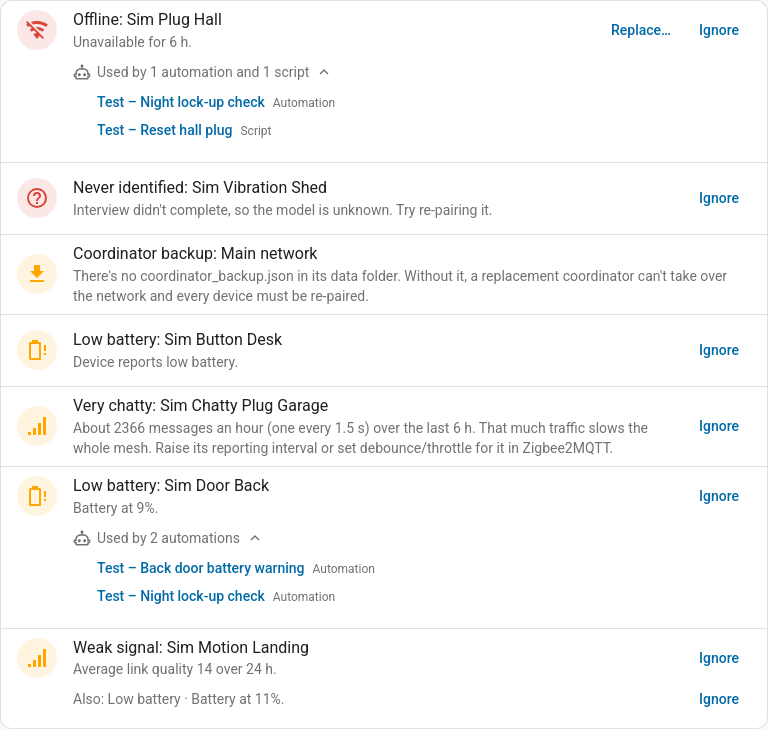
See what a problem breaks. A device with an issue lists the Home Assistant automations, scripts and scenes that use it, on the Health tab and in the device panel, and each name opens its editor. Alerts get one extra line, such as "Used by: Leak shut-off, Hall lights at night (+2 more)". The tracker looks this up for devices with an issue and for critical devices, after each registry change, and again before an alert goes out; if Home Assistant is restarting it tries again after 1, 5 and 15 minutes. #29
-
Act from the phone alert. Alerts sent through
notify_serviceto the Companion app get buttons: Mute 24 h for that check, Ping for mains devices (the answer comes back as a second notification) and Battery replaced for battery alerts. Tapping the alert opens the device in the tracker. The app listens for the button press itself, so this works without the integration. Every alert carries its own one-use code that expires after 7 days, so a replayed or made-up press is ignored. Turn the buttons off with the newalert_actionsoption if your notify service isn't the Companion app. #29notify_service: notify.mobile_app_your_phone alert_actions: true
-
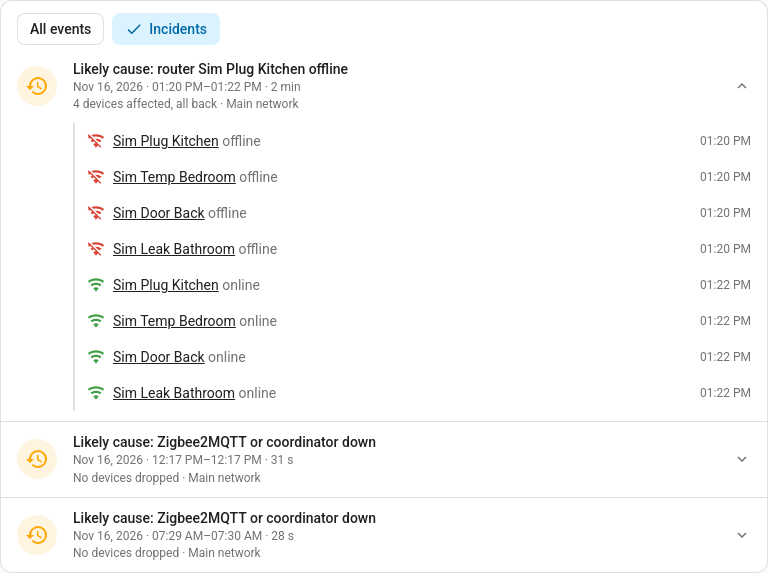
Incidents instead of a wall of events. The Activity tab has All events | Incidents chips. An incident groups the problems on one network that come within 10 minutes of each other (3 or more devices, or Zigbee2MQTT going down) and names the likely cause: Zigbee2MQTT or the coordinator down, a router that went offline before the devices behind it, or a network-wide drop through several routers. Each incident shows how long it lasted and how many devices came back, and opens to its events. All events stays the default and your choice is remembered. #29
Problems you couldn't see before
-
Slow or missed commands. Every command to a device (any
<name>/set, from Home Assistant, an automation or anything else) is timed until the device's state shows what was asked. A regular report that happens to arrive doesn't count, so a dropped command isn't hidden. Commands within 2 s of each other, like a dimmer slider, count as one. The device's Health tab shows commands, typical reply and misses over 24 hours with a 7-day chart. Two new checks: Slow to respond (typical reply over 1 s, or three times the device's usual) and Misses commands (20% or more unanswered), both from 10 commands a day. #29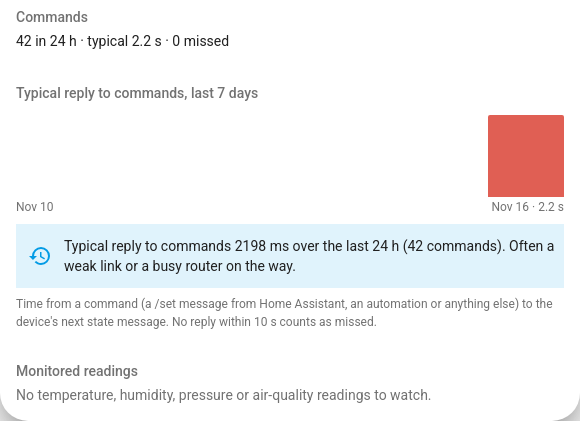
-
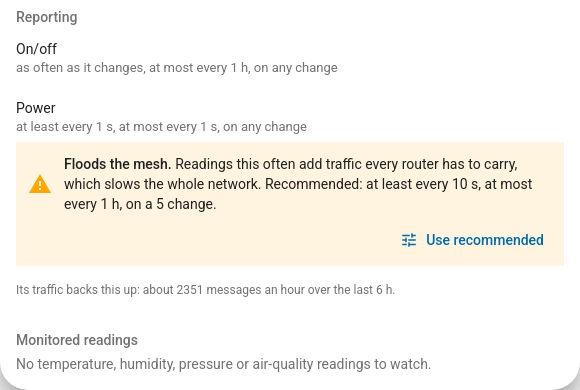
Reporting settings that drain batteries or flood the mesh. The device's Health tab lists its attribute reporting in plain words, such as "Power: at least every 1 s, at most every 1 s, on any change". Settings that drain a battery (a battery device reporting more often than every 5 minutes), flood the mesh (power or energy every 5 s or less) or may never report are flagged with the recommended values, and Use recommended sends the change to Zigbee2MQTT after a confirm. New check: Reporting settings. #29
-
The effect of an upgrade. When the Zigbee2MQTT version or coordinator firmware changes, the tracker records it and the Coordinators card (More details) compares the week before with the week after: devices going offline per day, average link quality, messages per hour, devices leaving per day and parent changes per routing scan. A measure only counts as worse when the change is clear (link quality down 10 or more, offline devices up by at least 1 a day and doubled, and so on). A worse week adds a Worse since upgrade item to Health from day 2. #29
-
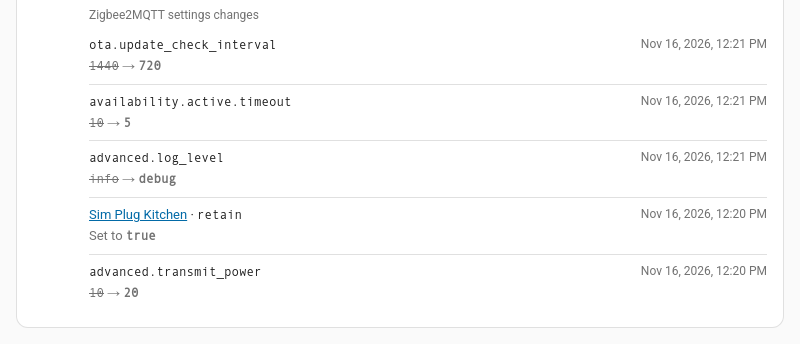
Zigbee2MQTT settings history. Changes to Zigbee2MQTT's own settings, made in its frontend, its config file or over MQTT, are listed on the Coordinators card with the old and new values and logged as events. A device's own options go on that device's logbook. Passwords, the network key, PAN ID and tokens are never stored or shown, only that they changed. #29
-
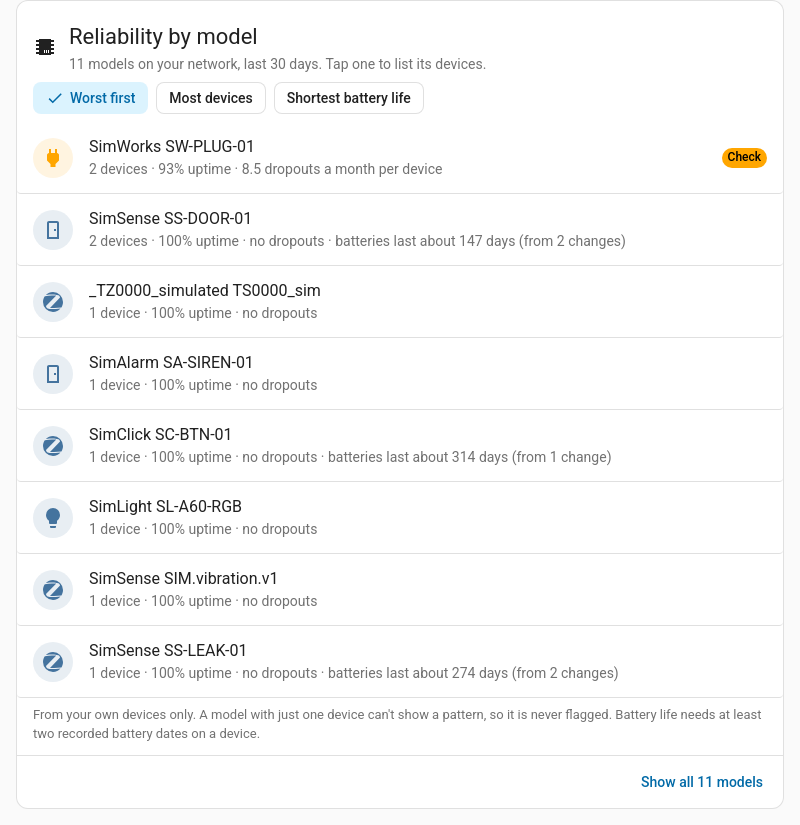
Reliability by model. A Health card groups your own devices by vendor and model with uptime, dropouts a month per device, battery life from your recorded changes, failed interviews and re-pairs, worst first. Sort by most devices or shortest battery life, and tap a model to list its devices. A model with only one device is listed but never flagged. #29
The network map
-
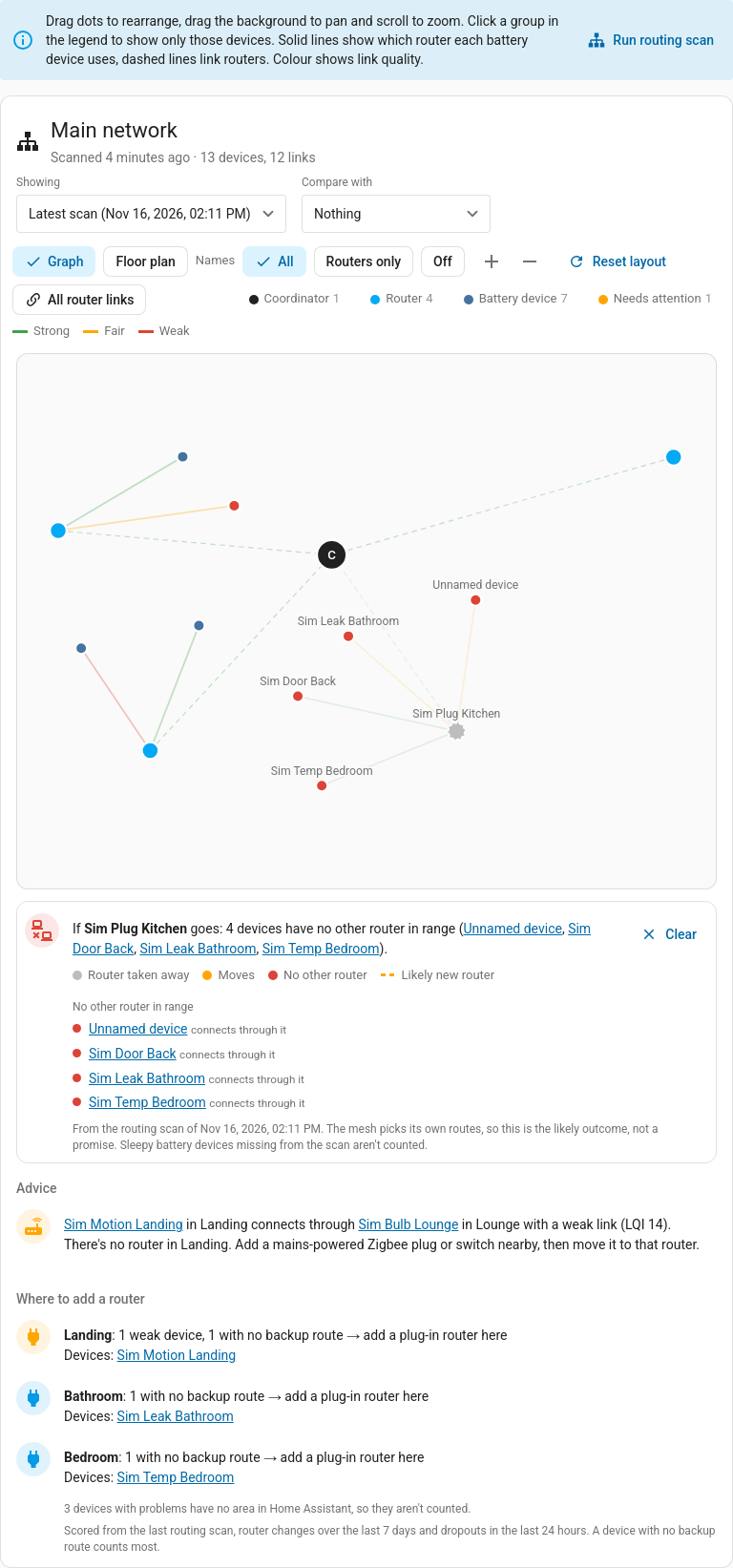
What if a router goes. Pick a router on the Map tab (or What if it goes? in its device panel) to see, from the latest routing scan, which devices would move and to which router, and which would have no other router in range. The map greys out the router, marks movers amber with a dashed line to their likely new router and the stranded devices red. #29
-
Where to add a router. The Map tab ranks your Home Assistant areas by devices with no backup route, weak links, devices that keep changing router and dropouts, and suggests the top 3 places for a plug-in router. They are also flagged on the floor plan. Devices without an area aren't counted. #29
Setting up and looking after devices
-
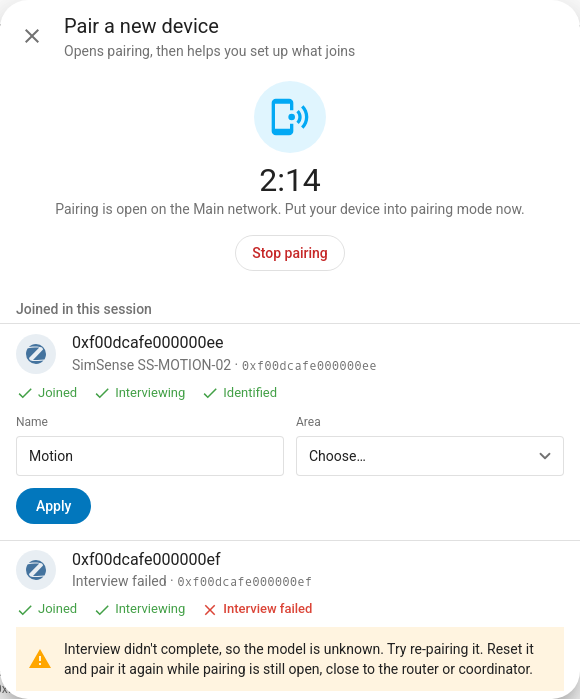
Pairing helper. The Pair device dialog follows each joining device through Joined, Interviewing and Identified (or Interview failed, with what to try). An identified device gets a name from your naming pattern and an area picker, and Apply sets both in Zigbee2MQTT and Home Assistant. Set the pattern under Settings → Device names with
{area},{type}(Motion, Door, Plug…),{model}and{n}(a number that keeps it unique). The new Naming check lists devices still named by their address or not following the pattern, and Rename to pattern on the Health tab renames them in one go after a preview. #29naming_pattern: "{area} {type}"
<img src="https://raw.githubusercontent.com/tempus2016/z2m-device-tracker/v1.5.0/docs/images/pairing.png...