Repository navigation
v1.5.0

1.5.0 is the biggest release yet: thirteen new features, all about knowing more about your Zigbee network and having less to work out yourself. When something breaks, the tracker now tells you what it affects in Home Assistant, groups a cascade of failures into one incident with a likely cause, and lets you act from the phone alert itself. It spots problems that used to be invisible: devices that answer commands slowly or not at all, reporting settings that drain batteries or flood the mesh, a network that got worse after an upgrade, and changes to Zigbee2MQTT's own settings. The map can now show what happens if a router goes and where an extra router would help most. Pairing walks you through each new device, maintenance jobs get reminders, battery brands get compared, and the numbers can go to Prometheus.
New checks show on the Health tab straight away but only notify once you turn them on under Settings → Checks, so nobody's phone starts buzzing after the update.
The work landed in #29.
Fixed
-
Just-joined devices are no longer named after the MQTT broker. When a device joins, the tracker hears about it before Zigbee2MQTT lists it, and the Home Assistant device it created had no name, so Home Assistant called it (and its entities) "Mosquitto broker", and kept that name. It now uses the device's address, the same name Zigbee2MQTT gives a new device. Devices already named this way keep their names; rename them in Home Assistant. #29
-
The sidebar no longer receives
mqtt_password. The app's options were sent to the sidebar page with the device list, including the broker password set in 1.4.0. Secrets are now left out. #29 -
Network events on the Activity tab are readable again. Events that belong to a network rather than a device ran their detail straight into the network name ("Was up 37 hMain network"). They now sit on two lines like device events. #29
Added
When something goes wrong
-
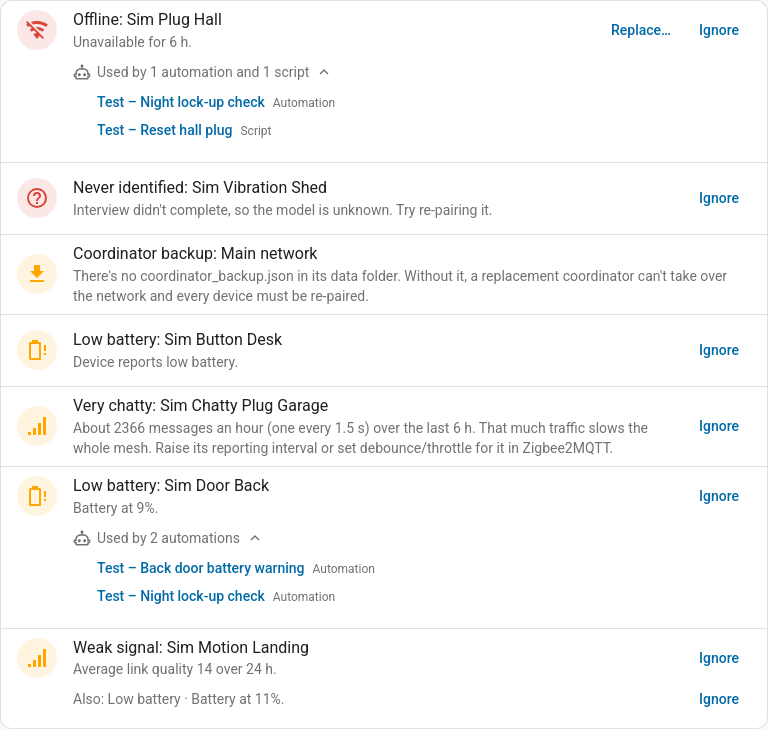
See what a problem breaks. A device with an issue lists the Home Assistant automations, scripts and scenes that use it, on the Health tab and in the device panel, and each name opens its editor. Alerts get one extra line, such as "Used by: Leak shut-off, Hall lights at night (+2 more)". The tracker looks this up for devices with an issue and for critical devices, after each registry change, and again before an alert goes out; if Home Assistant is restarting it tries again after 1, 5 and 15 minutes. #29
-
Act from the phone alert. Alerts sent through
notify_serviceto the Companion app get buttons: Mute 24 h for that check, Ping for mains devices (the answer comes back as a second notification) and Battery replaced for battery alerts. Tapping the alert opens the device in the tracker. The app listens for the button press itself, so this works without the integration. Every alert carries its own one-use code that expires after 7 days, so a replayed or made-up press is ignored. Turn the buttons off with the newalert_actionsoption if your notify service isn't the Companion app. #29notify_service: notify.mobile_app_your_phone alert_actions: true
-
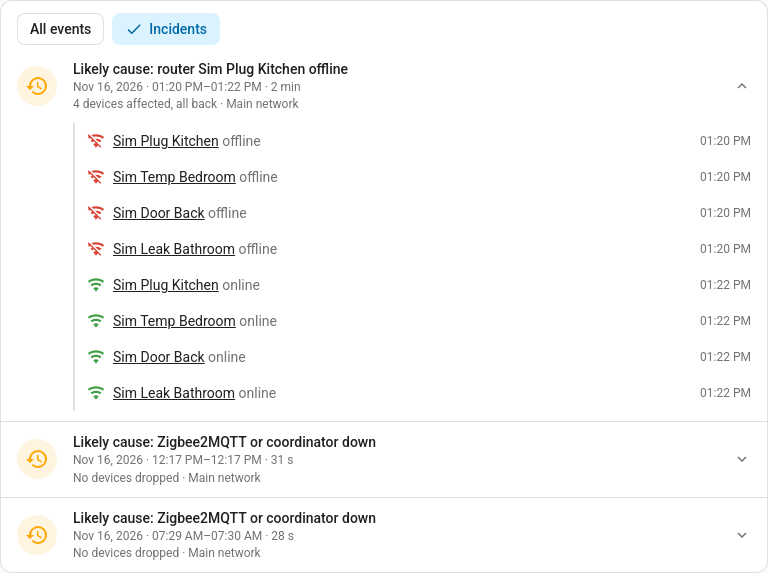
Incidents instead of a wall of events. The Activity tab has All events | Incidents chips. An incident groups the problems on one network that come within 10 minutes of each other (3 or more devices, or Zigbee2MQTT going down) and names the likely cause: Zigbee2MQTT or the coordinator down, a router that went offline before the devices behind it, or a network-wide drop through several routers. Each incident shows how long it lasted and how many devices came back, and opens to its events. All events stays the default and your choice is remembered. #29
Problems you couldn't see before
-
Slow or missed commands. Every command to a device (any
<name>/set, from Home Assistant, an automation or anything else) is timed until the device's state shows what was asked. A regular report that happens to arrive doesn't count, so a dropped command isn't hidden. Commands within 2 s of each other, like a dimmer slider, count as one. The device's Health tab shows commands, typical reply and misses over 24 hours with a 7-day chart. Two new checks: Slow to respond (typical reply over 1 s, or three times the device's usual) and Misses commands (20% or more unanswered), both from 10 commands a day. #29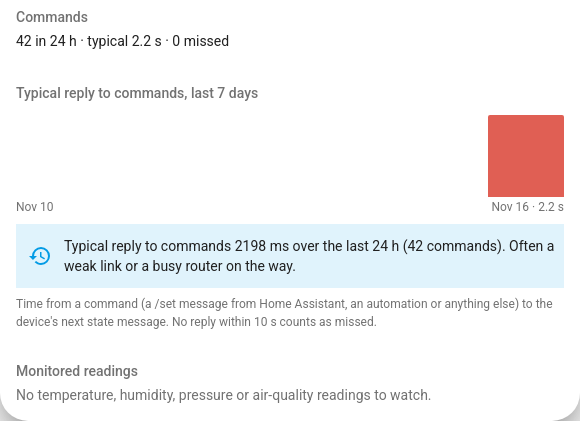
-
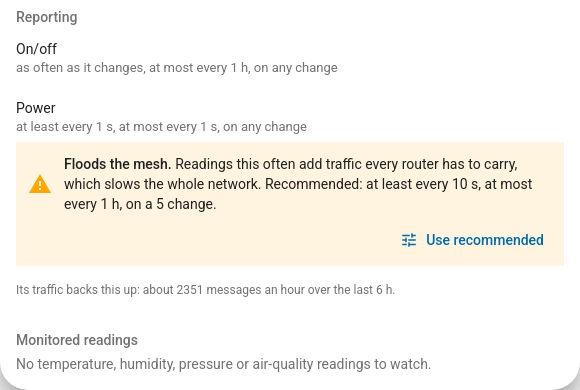
Reporting settings that drain batteries or flood the mesh. The device's Health tab lists its attribute reporting in plain words, such as "Power: at least every 1 s, at most every 1 s, on any change". Settings that drain a battery (a battery device reporting more often than every 5 minutes), flood the mesh (power or energy every 5 s or less) or may never report are flagged with the recommended values, and Use recommended sends the change to Zigbee2MQTT after a confirm. New check: Reporting settings. #29
-
The effect of an upgrade. When the Zigbee2MQTT version or coordinator firmware changes, the tracker records it and the Coordinators card (More details) compares the week before with the week after: devices going offline per day, average link quality, messages per hour, devices leaving per day and parent changes per routing scan. A measure only counts as worse when the change is clear (link quality down 10 or more, offline devices up by at least 1 a day and doubled, and so on). A worse week adds a Worse since upgrade item to Health from day 2. #29
-
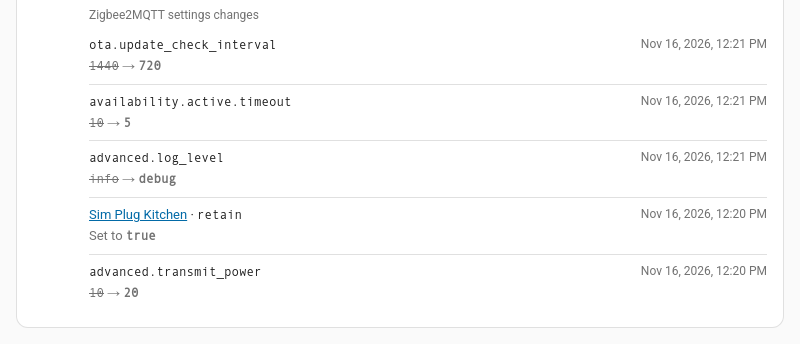
Zigbee2MQTT settings history. Changes to Zigbee2MQTT's own settings, made in its frontend, its config file or over MQTT, are listed on the Coordinators card with the old and new values and logged as events. A device's own options go on that device's logbook. Passwords, the network key, PAN ID and tokens are never stored or shown, only that they changed. #29
-
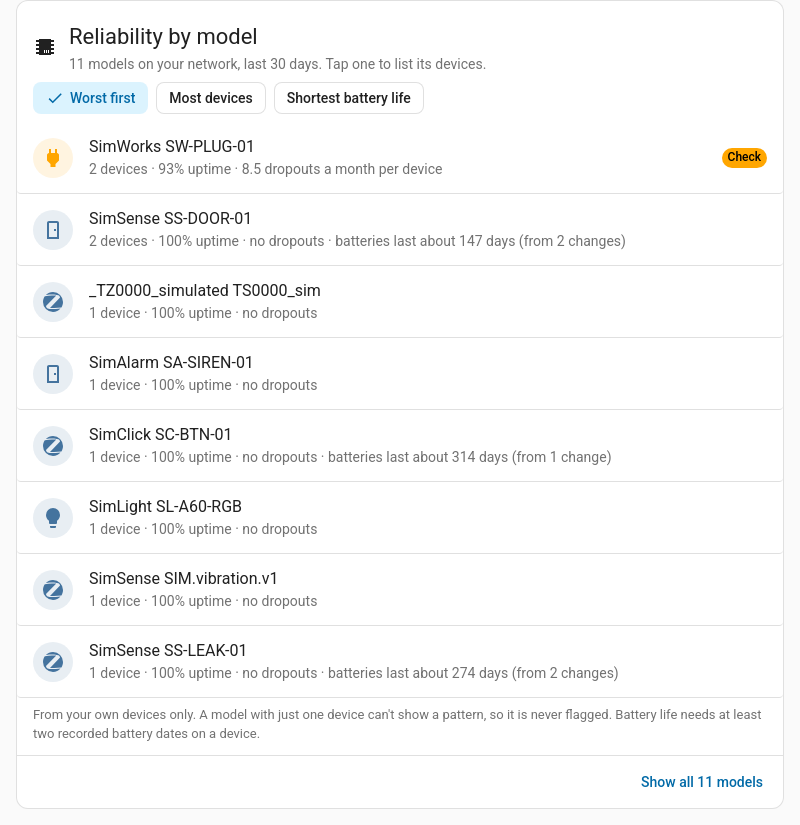
Reliability by model. A Health card groups your own devices by vendor and model with uptime, dropouts a month per device, battery life from your recorded changes, failed interviews and re-pairs, worst first. Sort by most devices or shortest battery life, and tap a model to list its devices. A model with only one device is listed but never flagged. #29
The network map
-
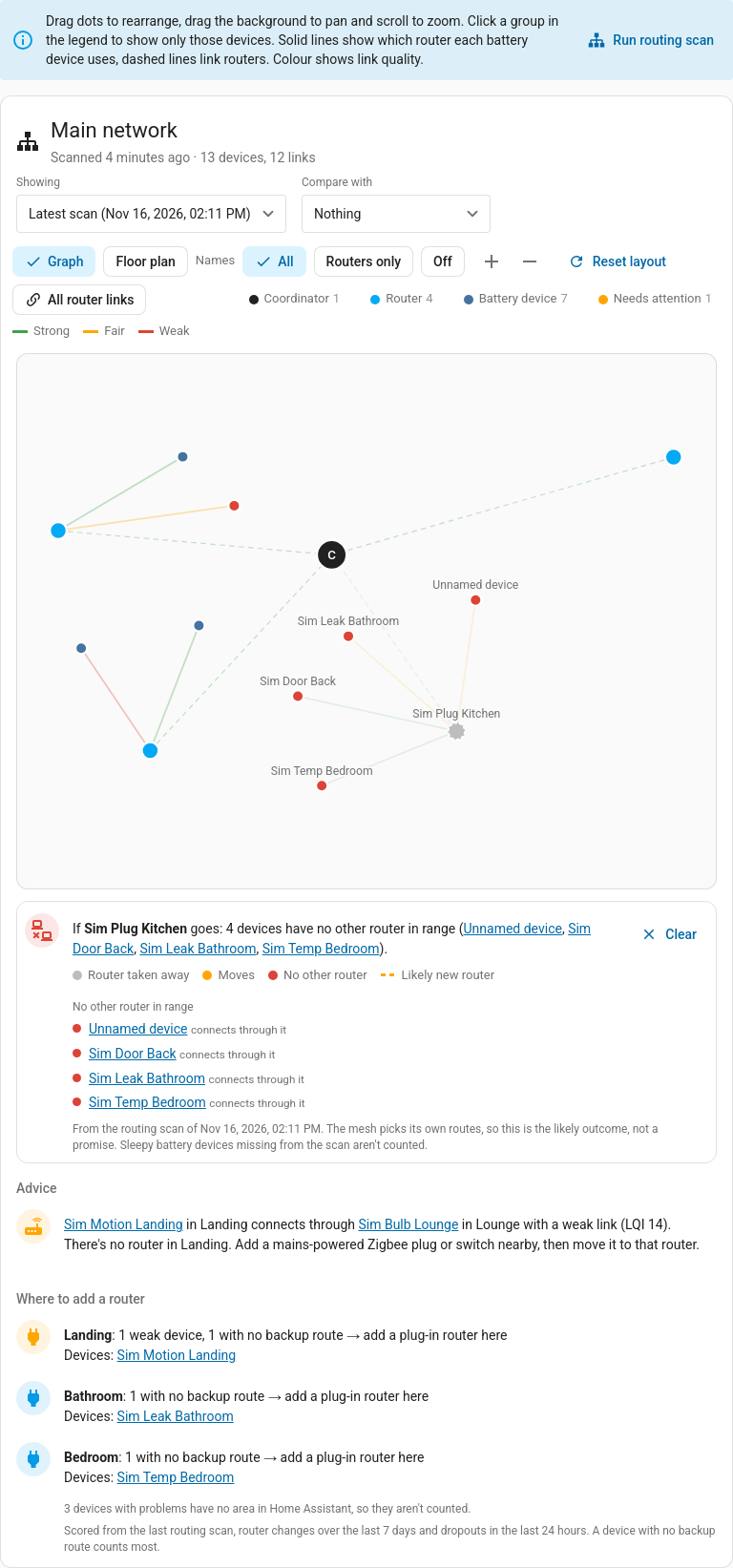
What if a router goes. Pick a router on the Map tab (or What if it goes? in its device panel) to see, from the latest routing scan, which devices would move and to which router, and which would have no other router in range. The map greys out the router, marks movers amber with a dashed line to their likely new router and the stranded devices red. #29
-
Where to add a router. The Map tab ranks your Home Assistant areas by devices with no backup route, weak links, devices that keep changing router and dropouts, and suggests the top 3 places for a plug-in router. They are also flagged on the floor plan. Devices without an area aren't counted. #29
Setting up and looking after devices
-
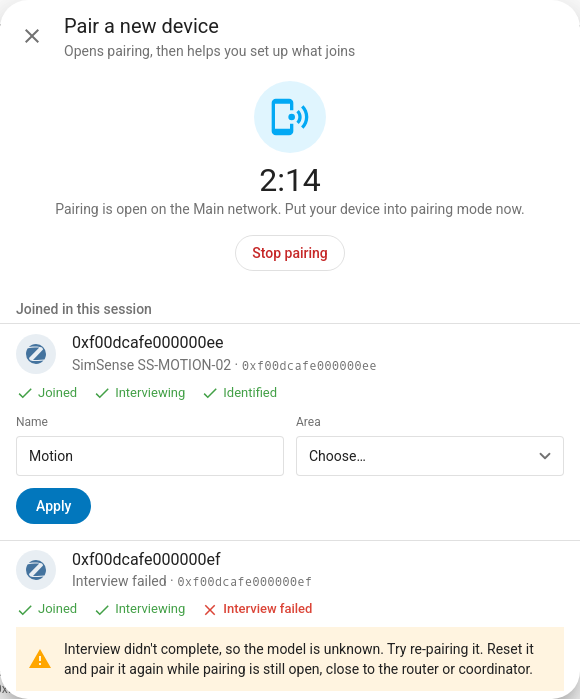
Pairing helper. The Pair device dialog follows each joining device through Joined, Interviewing and Identified (or Interview failed, with what to try). An identified device gets a name from your naming pattern and an area picker, and Apply sets both in Zigbee2MQTT and Home Assistant. Set the pattern under Settings → Device names with
{area},{type}(Motion, Door, Plug…),{model}and{n}(a number that keeps it unique). The new Naming check lists devices still named by their address or not following the pattern, and Rename to pattern on the Health tab renames them in one go after a preview. #29naming_pattern: "{area} {type}"
-
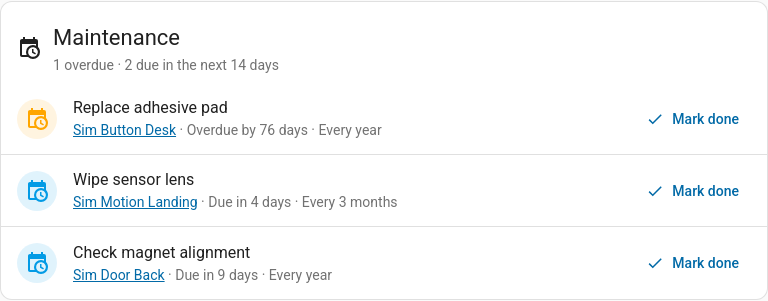
Maintenance tasks. Add recurring jobs to a device on its Notes tab, such as testing a smoke alarm every month or cleaning a leak sensor every 6 months, with quick picks for the kind of device. Mark done records it in the device's logbook. A Maintenance card on the Health tab lists what is overdue and due in the next 14 days, and overdue tasks are a new Maintenance overdue check. With the integration you also get a Zigbee maintenance to-do list (tick an item to mark it done) and a calendar of due dates. When you replace a device, its tasks move to the new one along with its notes. #29
-
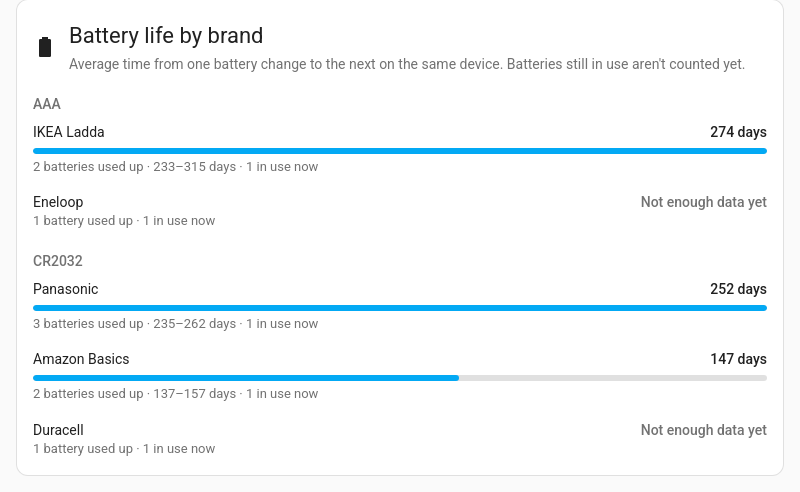
Battery brands. A battery change can record its brand, picked from a list you keep under Settings → Battery brands (it starts with brands you've used). Past changes can get a brand from the device's Battery tab. A Battery life by brand card compares how long each brand lasts per battery type, counting only batteries that have been used up, and says when there isn't enough data yet. The integration's
battery_replacedaction takes an optionalbrand, and the CSV export has abattery_brandcolumn. #29action: z2m_tracker.battery_replaced data: ieee: "0x00158d0001a2b3c4" # or device_id, picked in the action editor brand: Panasonic
For Grafana users
-
Prometheus metrics. An optional
/metricsendpoint with per-device gauges (online, link quality, battery and days left, last seen, messages, 30-day uptime, open issues, labelled by address, name and network) and network totals. It stays off until you setmetrics_token(16 characters or more) and give port9099/tcpa host port in the app's Network settings. Every request must send the token. #29scrape_configs: - job_name: z2m_tracker authorization: credentials: <your metrics_token> static_configs: - targets: ["homeassistant.local:9099"]
Upgrading
-
Update the app and the integration together. The integration's maintenance to-do list and calendar, and
brandon the battery replaced action, need the 1.5.0 app. -
Nothing new notifies until you say so. Turn on the new checks you want under Settings → Checks: Slow to respond, Misses commands, Reporting settings, Naming, Maintenance overdue and Worse since upgrade.
-
New options, all optional:
alert_actions(on),naming_pattern(empty),metrics_token(empty, endpoint off). See Configuration. -
Where to read more: Health checks, Alerts and notifications, Network map, Pairing and moving devices, Batteries and Integration and card.
Full changelog: v1.4.0...v1.5.0