Objective C (Xcode) HowTo
In this MAC Guide, you will be covering the following topics:
- Download, Install and Open Xcode 6.1.1+ (on an Apple Operating System)
- Create a project and designate a name for it
- Paste Source Code into main.m and Run
- Edit Source Code, then run new implementation
Xcode 6.1.1+ IDEs were chosen based upon the support of current iOS devices running iOS 8.0 seen in screen shot below:
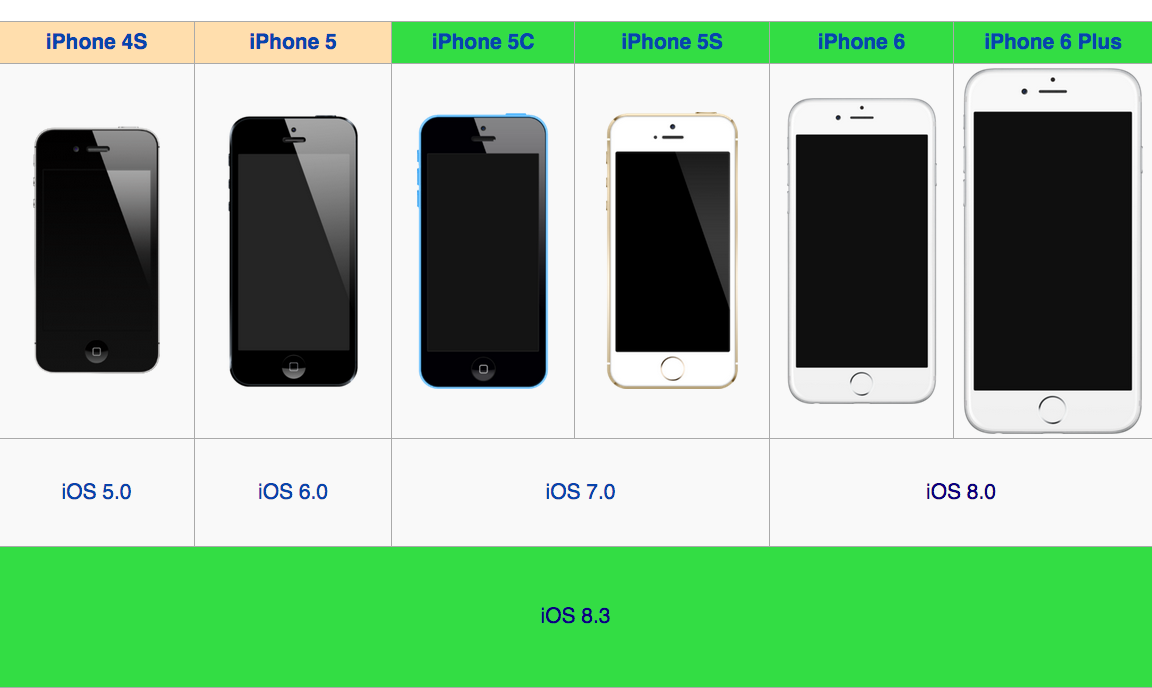
If you have an Xcode that is 6.1.1+ already you can skip to section 2, where there is a supplementary video that shows how to use an Xcode that is 6.1.1+ in action. The tutorial concludes with editing the Objective-C source code from section 2 and running with the new implementation.
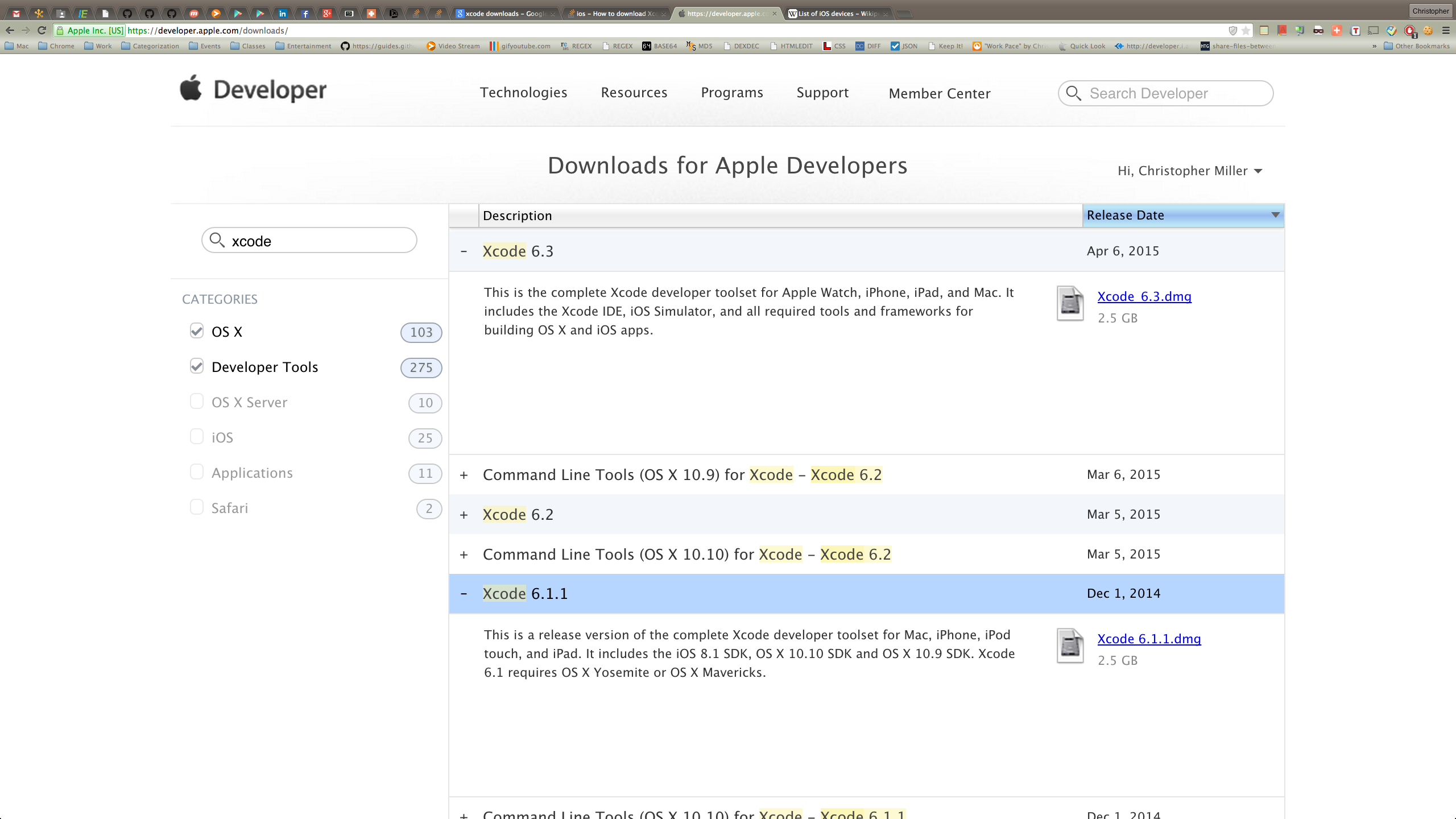
All versions of Xcode can be downloaded here. There are many other versions of Xcode available from Apple listed below (CMD + Click to open all downloads in a new window or tab).
-
If you are using Mavericks, you can use Xcode 6.1.1.
-
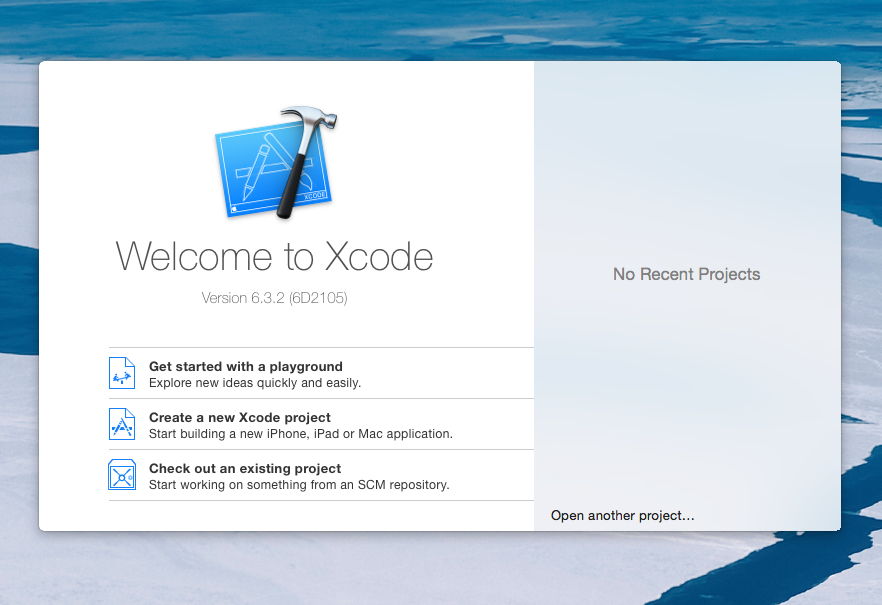
If you are using Yosemite, you can use the lastest (as of 06/04/15) Xcode 6.3.2.
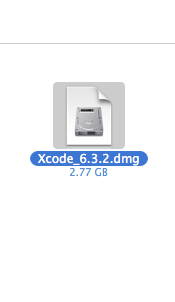
After downloading the dmg file, Install it by double clicking it.
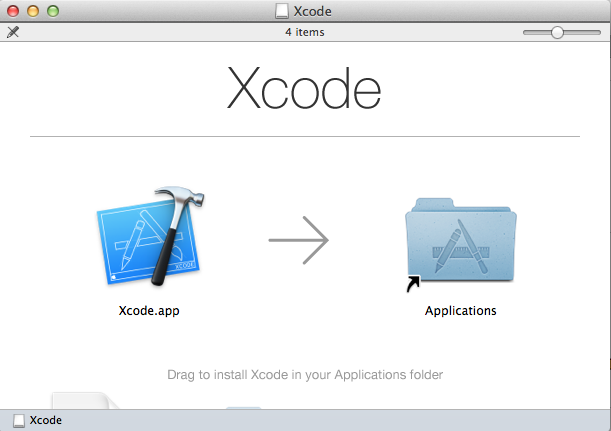
Then drag the .app file into the Applications folder.

Once you can execute the Xcode 6.1.1+ file, it will prompt you to to create/select a project.
When creating a project, keep in mind that it will hold all of your Objective-C source code.
Highlight the source code below and copy it (CMD + C or Right Click)
#import <Foundation/Foundation.h>

int main(int argc, const char * argv[]) {
    @autoreleasepool {

        NSLog(@"This program creates a yard to a specific size...\n");

        // create (length, width & area) variables for the yard and house
        double yardLength = 0.0, yardWidth = 0.0, yardArea = 0.0;

        // yardArea and houseArea calculations will be made here
        yardArea = (yardWidth * yardLength);

        // formatting for theses values will be output here
        NSLog(@"The area of the yard is %f\n", yardArea);
    }
    return 0;
}
See more on the main method in the Mac Developer Library and the iOS Developer Library.
Paste over the default source code by highlighting the source code inside of main.m, and pasting the copied content from above.

Now that you have a source code, you can now run your application. To start the Objective-C Application, select your source code by right click on it, Then select Run-As-> Objective-C Application . You should get the following result:
   This program creates a yard to a specific size...
   The area of the yard is 0.0
Adding the following changes to the existing source code and you will get an output showing a Yard Area.
double yardLength = 10.0, yardWidth = 10.0, yardArea = 0.0;
To start the Objective-C Application, select your source code by right click on it, Then select Run-As-> Objective-C Application . You should get the following result:
   This program creates a yard to a specific size...
   The area of the yard is 100.0