Repository navigation
Challenge Settings
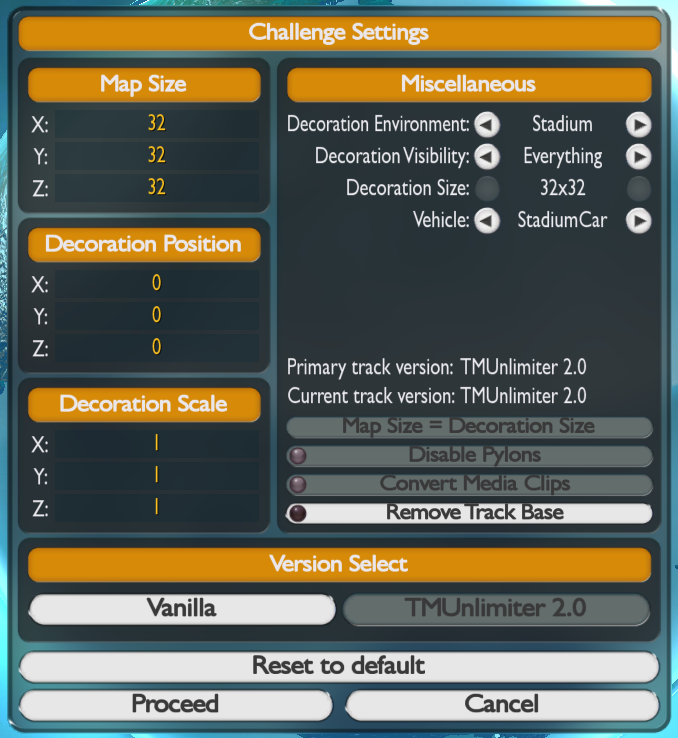 |
| The challenge settings menu. |
This menu shows up every time you are creating a new map. You can also access it like you would change mood - by holding Ctrl while clicking on the track name in the track selection menu - to edit map settings on an already created map.
From now on, when starting or editing a 2.0 map, you can select the version of TrackMania you're targeting:
- "Vanilla" corresponds to the official, unmodified version of the game. Some editor options will be unavailable.
- "Unlimiter 2.0" corresponds to the newest version of Unlimiter.
The option that is currently selected will be grayed out. You can change it at any point.
Warning
Tracks that are in the "Unlimiter 2.0" mode will NOT be able to be opened in any other game versions (including vanilla)!
If you have an older map (vanilla or pre-2.0 Unlimiter) where you want to use 2.0 features, you can convert it in this menu. The menu will change accordingly, as seen in the screenshots.
 |
 |
| Version select bars when opening a vanilla map (above) and an older Unlimiter map (below). |
Warning
Converting the map to vanilla version of the game is a lossy process. This means that:
- Any block placed outside the building area will be deleted (even those that can legally be placed there).
- Any properties exclusive to the Unlimiter version (offset, rotation, scale, etc.) will be removed.
- All custom blocks and exclusive blocks in the Unlimiter version will be deleted from the map.
- All Unlimiter exclusive resources (parameter sets, scripts, block/trigger groups, etc.) will be deleted.
- All Unlimiter exclusive tweaks (such as decoration modifications) will be deleted.
Warning
Converting the map from older versions of Unlimiter to the latest version is a lossy process. This means that:
- The block rotation is different and their conversion is prone to inaccuracies that break routes based on the engine's deterministic behaviour.
- Results of block scaling are different (zero/negative scaling or scaling a block with locally rotated collision).
- Legacy specific features of the Unlimiter such as block inversion, legacy scripting and terrain-like blocks do not exist in modern versions of the Unlimiter (>2.0) and are ignored during the conversion process.
- Not all parameter set functions can be converted and are ignored.
In the middle of the menu, there are the "Primary track version" and the "Current track version" labels, which inform you what version the challenge was originally saved in and which version you're converting the map to. This can be useful when editing the tracks from older versions of Unlimiter.
Here you can adjust:
- Map Size - the size of the field where you can place all blocks. Default will be the same size as decoration. Y is height.
- Decoration Position - position of the decoration around the map (like the stadium).
- Decoration Size - size of the decoration.
Other settings worth checking. These apply only to United maps:
- Decoration Environment - environment where the decoration around the map is taken from. If different than the original, its position may need to be adjusted.
- Decoration Visibility - Everything (like vanilla), Sky (the skybox), Background (the mesh around the map excluding the skybox) or Nothing (void).
- Decoration Size - also known as the map base. Selects between all available decorations from one environment.
- Vehicle - vehicle of the map. Vehicle names are different from the environment names.
Also here:
- Map Size = Decoration Size - clicking it will change the 3 numbers in the Map Size to match the decoration exactly.
- Disable Pylons - if the environment has automatically created pylons (like on Snow or Desert), enabling this will disable them.
- Convert Media Clips - converts old TMUnlimiter MediaTracker clips into a new format for tracks that aren’t automatically converted.
- Remove Track Base - removes the ground-level ground or sea blocks automatically.