Repository navigation
Track Editor
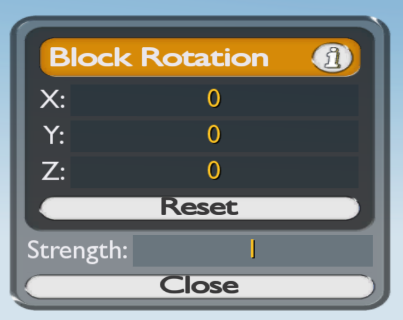
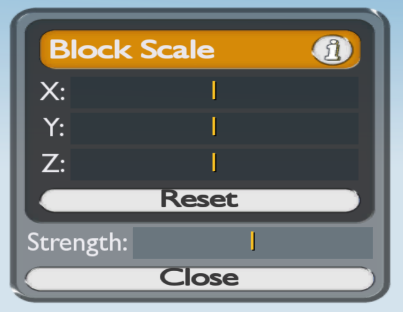
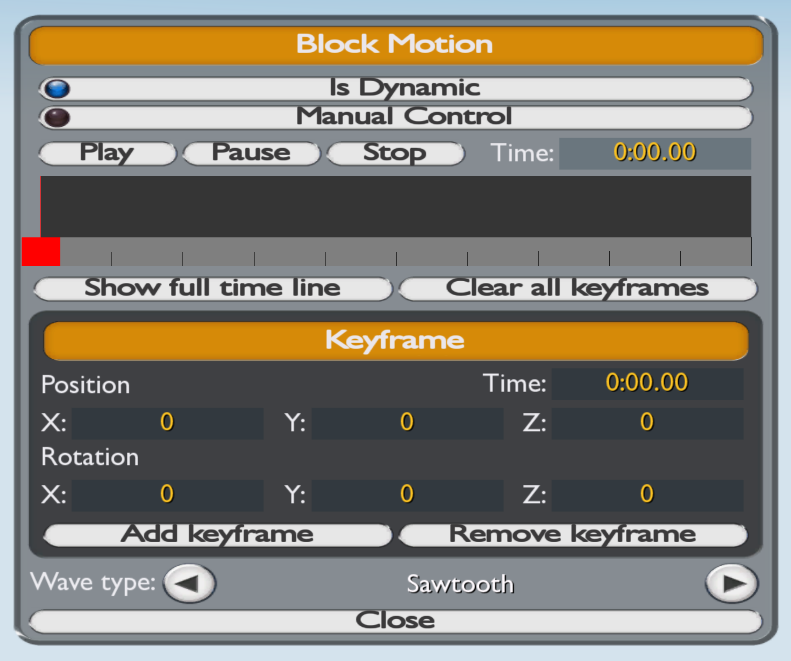
The track editor is a place where you can place blocks to build a track. The editor interface in TMUnlimiter has been completely redesigned compared to the editor interface found in the vanilla version of the game. This is because the old editor interface was too big and did not offer a sensible way to add new functionality. In the new editor interface, a sidebar has been added to the left side. The sidebar contains editor modules that serve different purposes, such as handling block offset, rotation, scaling, etc.
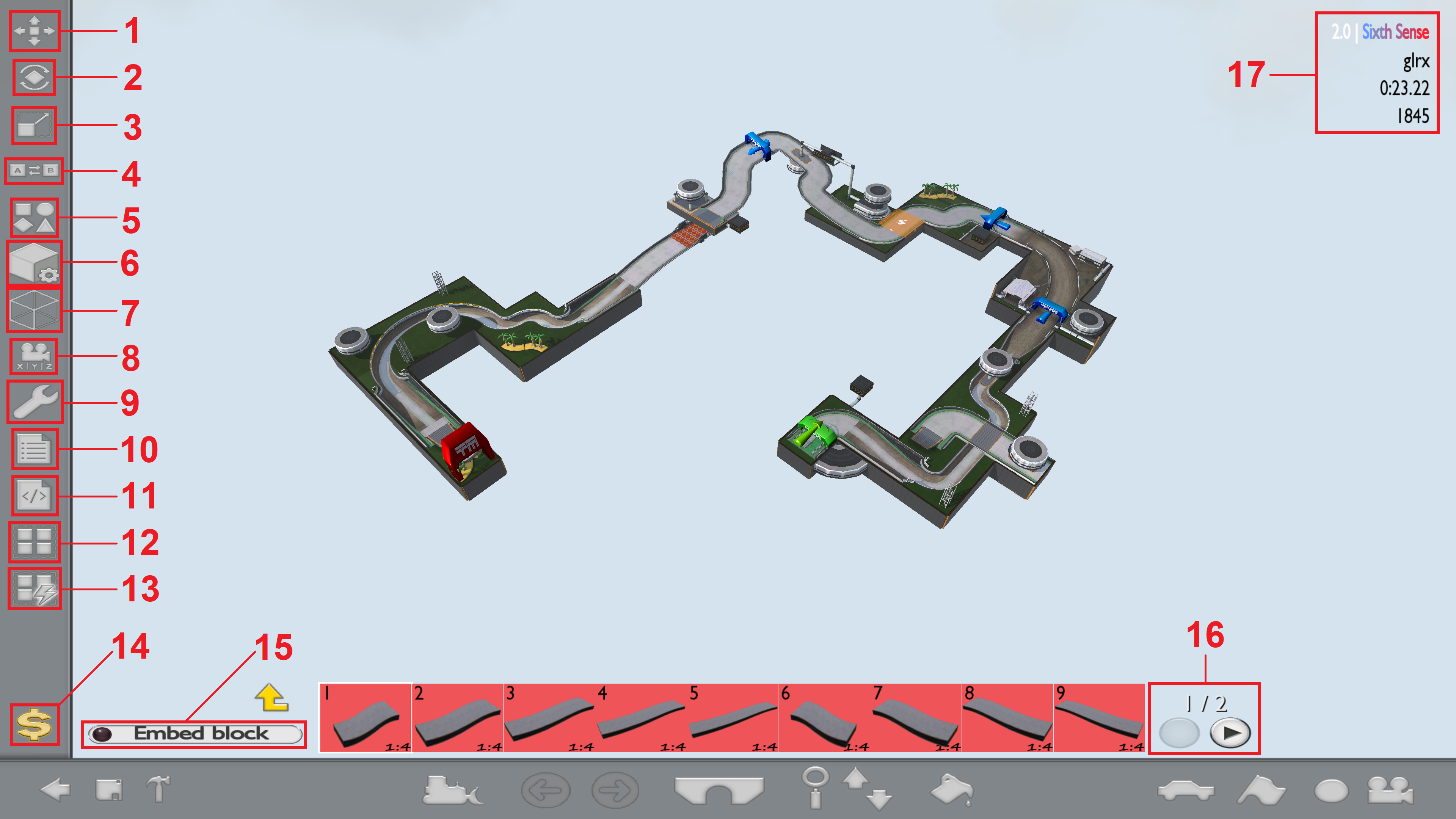 |
| The track editor interface with the labelled parts that will be described later. |
There are few new shortcuts implemented in the new track editor:
- Press
Tabto toggle cursor freeze mode. - Hold
Left Shiftkey before placing the block to activate the fill mode. - Press
Left Shift + Tab(when no script module is open) to reset all your block-related settings to default. - Press
Left Shift + (1 to 9)to open and close the editor module in order of appearance (1 is block offset, 2 is block rotation, and so on).
There are a few more shortcuts that depend on the current script module visibility. They will be introduced later in each script module section.
 |
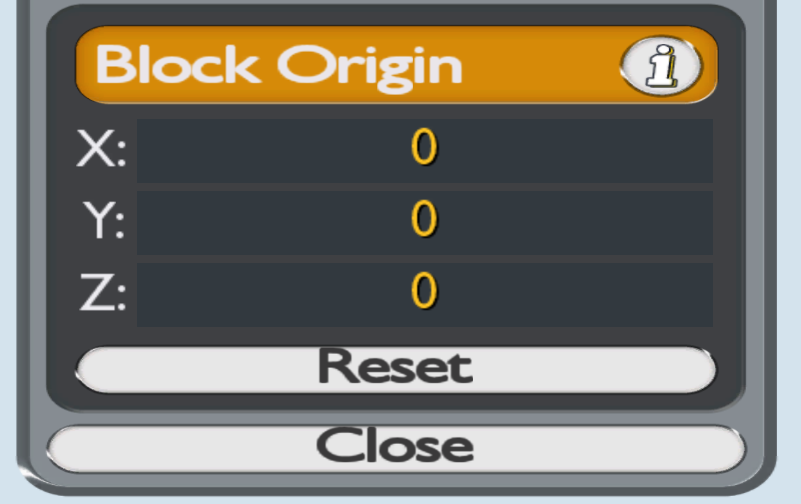 |
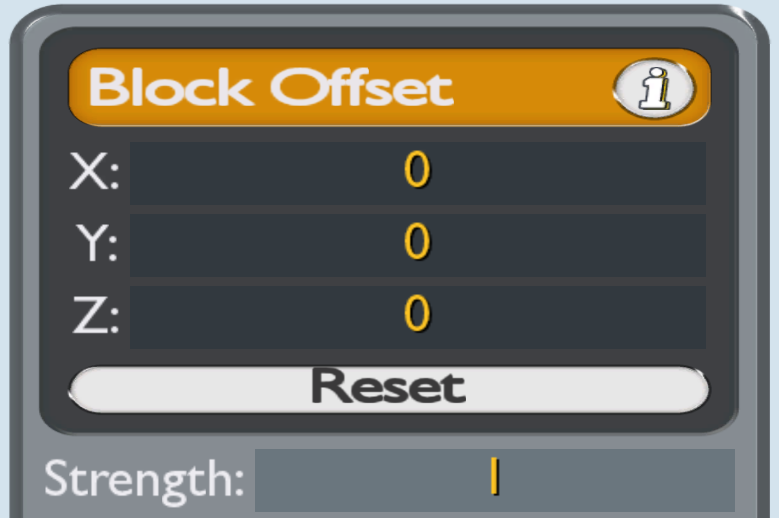
| Block offset part of the interface. | Block origin part of the interface. |
Note
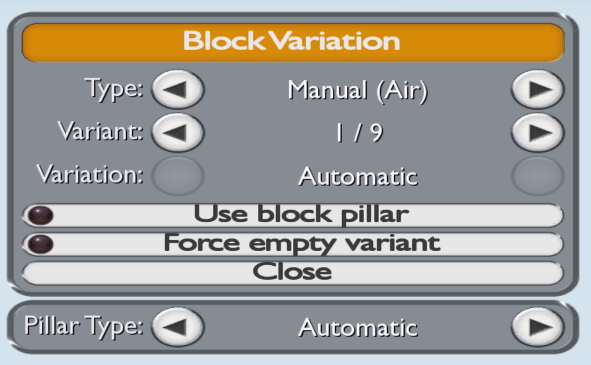
More information about this menu is available here:
Tutorial: Building with Variations & Clips → Understanding Variations

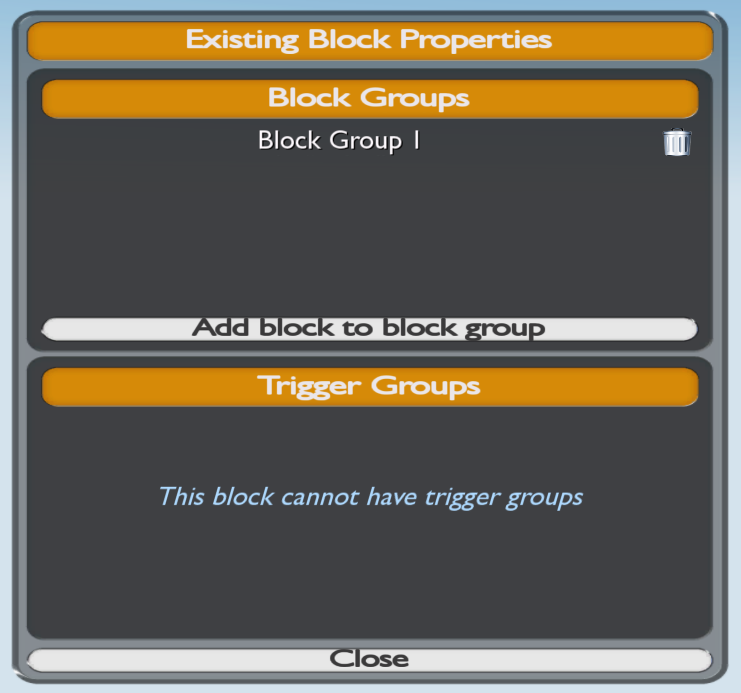
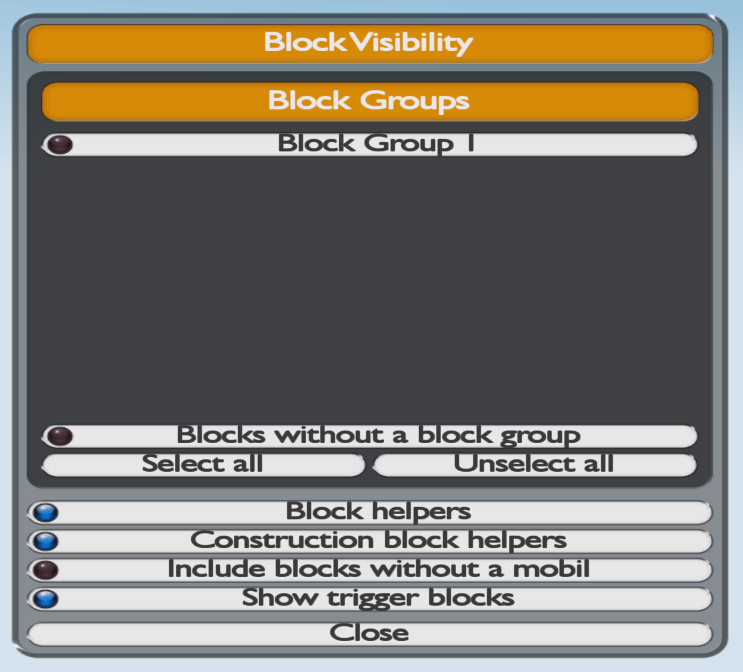
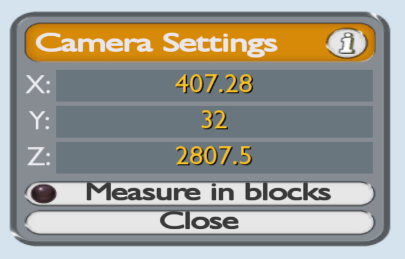 |
| The camera settings interface. |
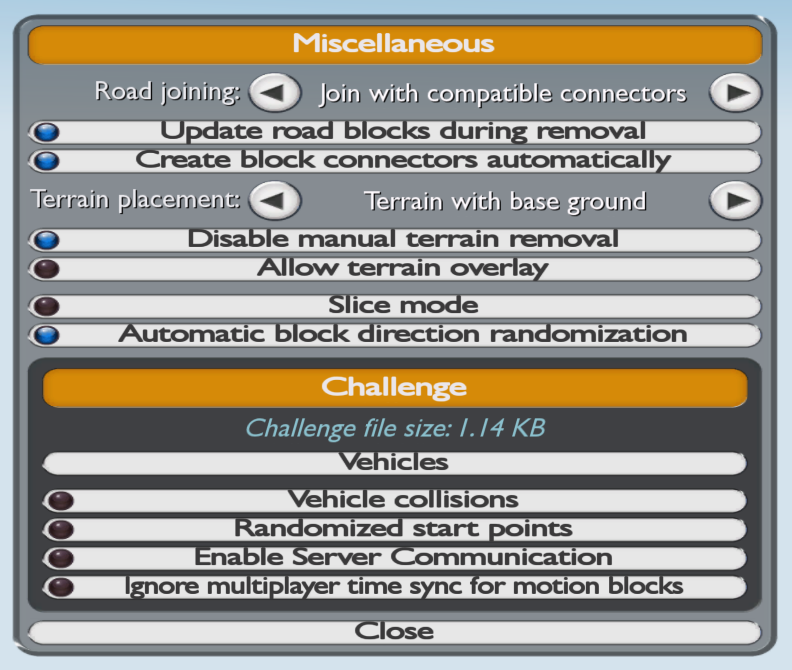
Note
More information about this menu is available here:
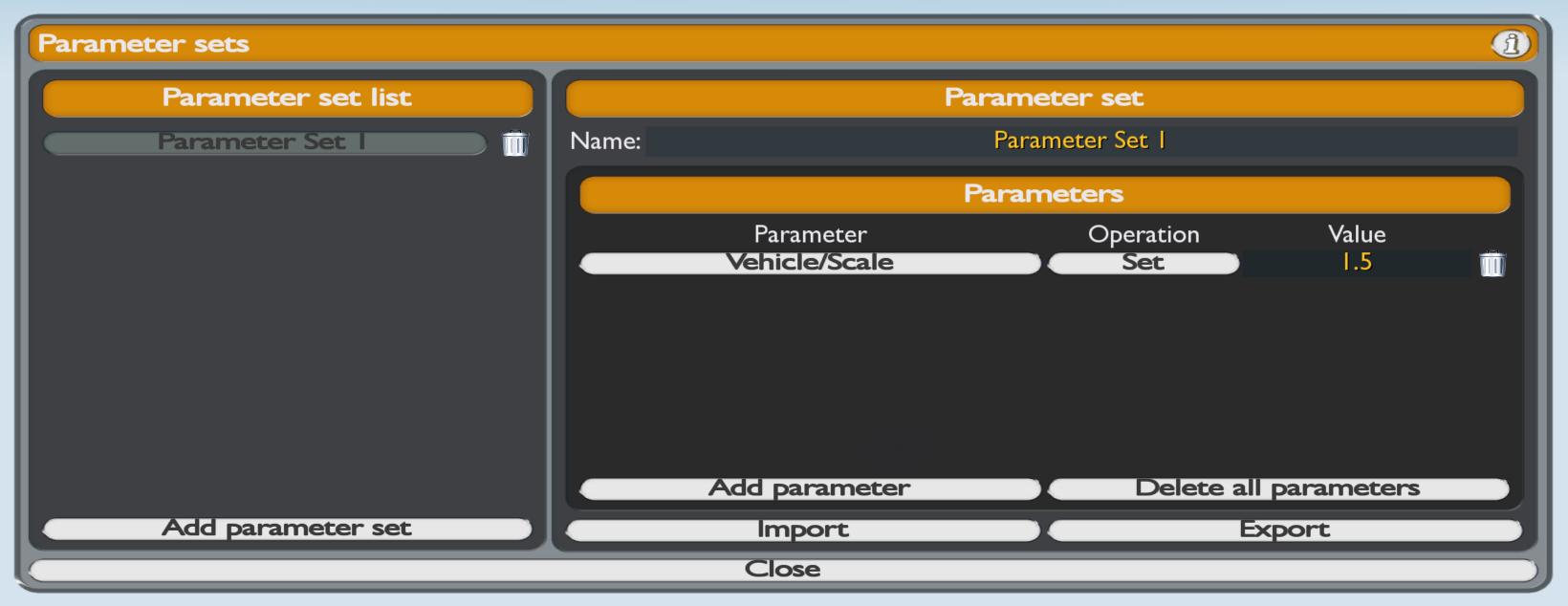
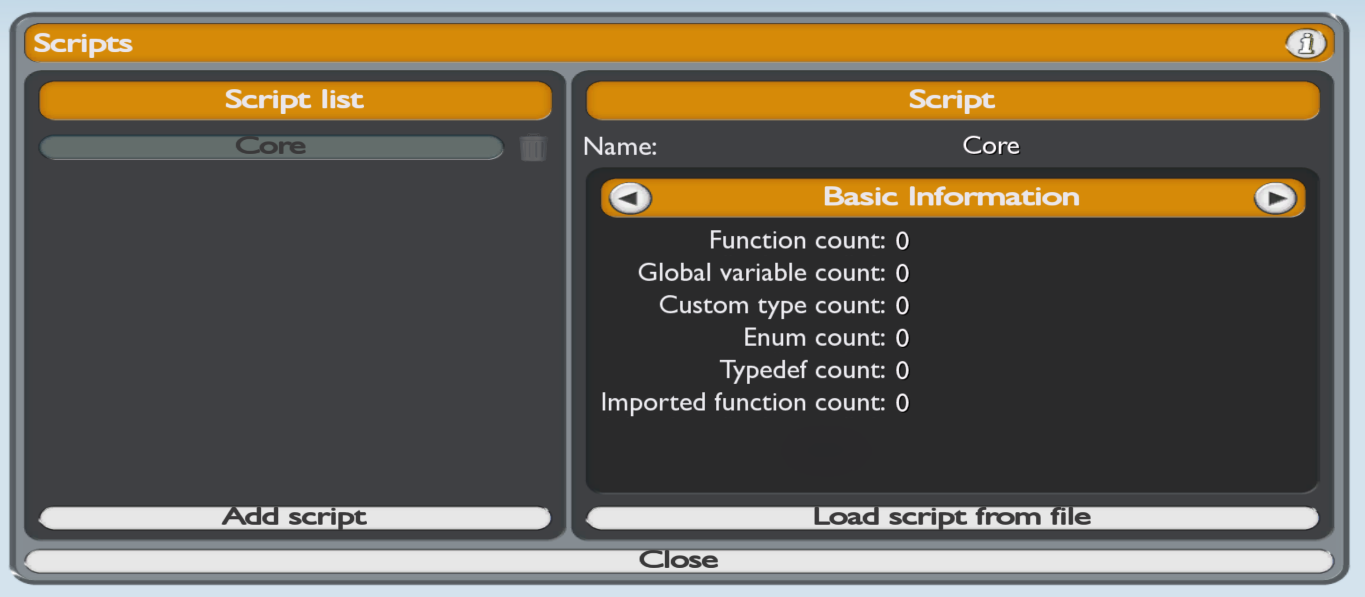
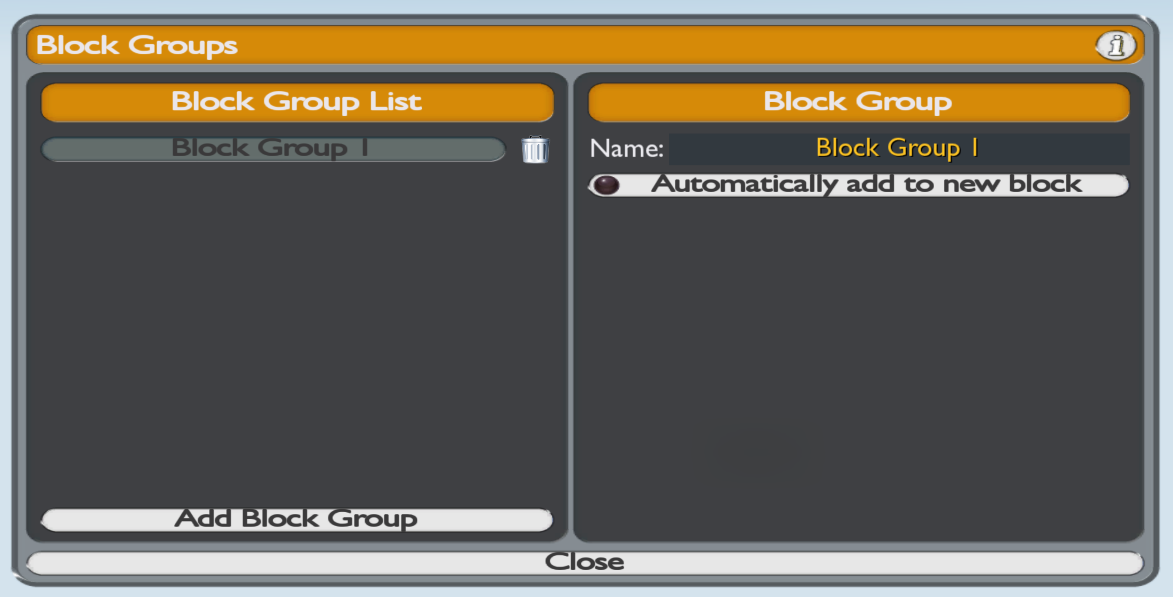
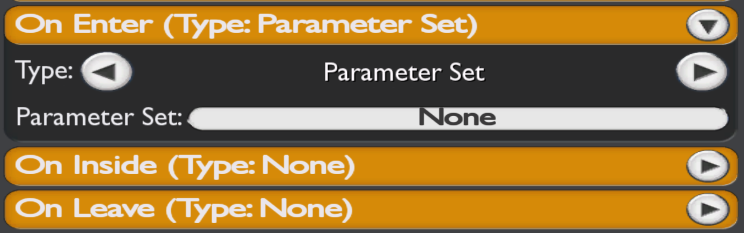
Note
More information about this menu is available here:

This button allows you to donate money to the author of TMUnlimiter.
This button allows you to embed a custom block into a track. This button appears when the user selects a custom block or a block already embedded in the track. Native blocks (such as united blocks or add-on blocks) cannot be embedded into a track. Custom blocks can only be embedded into tracks created with the TMUnlimiter 2.0 track version, otherwise the button will not appear.
The hierarchy pager appears when the current hierarchy (the level you are on) has more than 9 entries. There is no limit to the number of pages you can have.
Basic information about the track currently being edited, from top to bottom: Track name, author login, author time and track weight.
Note
More information about this block is available here:
Note
More information about this block is available here: