Repository navigation
Tutorial: Using Terrain and Terraforming
Terrain in TrackMania is, in fact, three different things behind the scenes, each representing something different. Let's break them down one-by-one.
The easiest one to understand is what we will call base ground or base terrain from now on. This is the terrain that is placed by default when you enter the editor. It aligns with the background of the environment you've chosen. You can remove it in Challenge Settings by enabling the "Remove Track Base" option.
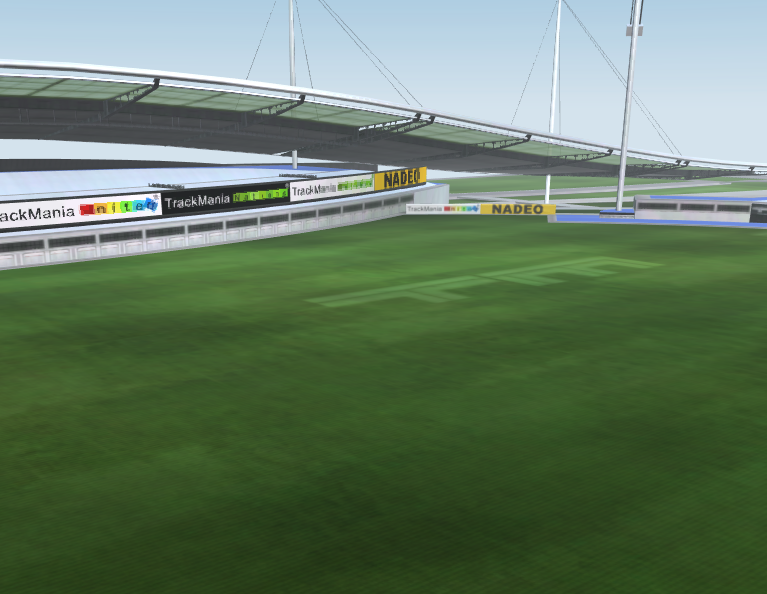 |
| Base ground on Stadium. |
The second element is the blocks themselves - every terrain block has its own entry in the array of all blocks, and these will behave in the exact same way as any other block you would place. The terrain blocks in Unlimiter 1.3, placed not by terraforming (for example in manual variant mode), worked purely like this.
 |
| Image of some dirt terrain blocks. |
Now for the part that requires more explanation, as well as the only one that is invisible to the mapper and the only one you will never see without blockmixing. The editor internally does not expect multiple terrain blocks to be placed above/below each other, and only considers the last block placed vertically. We will call this phenomenon a terrain column. You can see each terrain column by going to the "Editor Menu", accessible from the 3rd icon at the bottom left (the hammer), and clicking "Show Helpers". Every square represents one column extending up & down from that square.
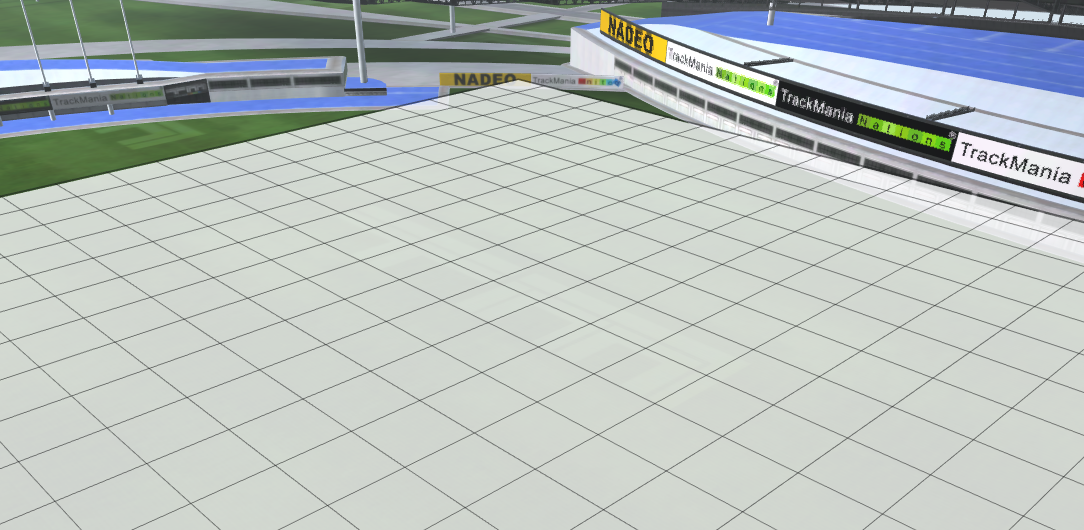 |
| The result of "Show Helpers" function, showing clearly visible columns. |
Why are columns important? Columns are game's main tool in working out where the ground currently is. Even though there may be other blocks in the same column, the game will think that currently the only piece that acts as the ground is the last one you placed in that column. Furthermore, it will not only think the ground is at the height of that block, but will also assume the ground is that block: doesn't matter what else is there, if your last piece in the column was dirt, the entire column is now dirt, and will act accordingly.
Before we get into 2.0-specific features, it's important to understand how base ground, blocks & columns interact with each other, so let's look at some examples.
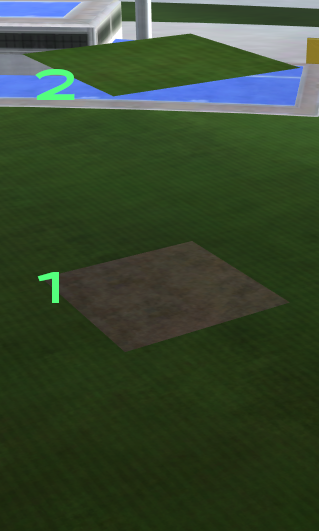 |
| Example number 1: grass base ground below dirt below grass, placed in that order. |
In this example we start from nothing, then place block 1, then place block 2, all on the same column. Here's a description of what happens during before & after placing each block:
| Current | Blocks | Column state |
| Nothing on the map: | None. | Base ground level, grass. |
| After block 1: | Dirt block. | Dirt (1) level, dirt. |
| After block 2: | Dirt & grass block. | Grass (2) level, grass. |
We can see the column changes in action if we start putting blocks on top of the terrain. Automatically, any blocks placed on where the game considers the ground to be will have ground variants, and elsewhere air variants. The game considers the ground to be at the height of every terrain block at or above the column state level. In the ending state, blocks placed on grass (2) will be ground, while others will be air - see screenshot below.
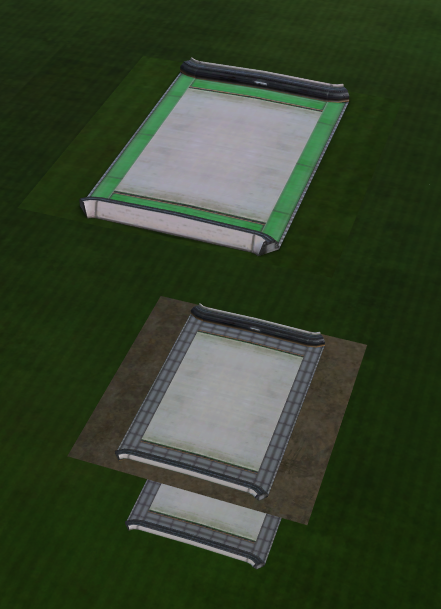 |
| Road blocks put on top of terrain from example 1. |
Here's an another example: this time we're placing a hill first, then a flat dirt block. Same as before, we will note what happens using a table.
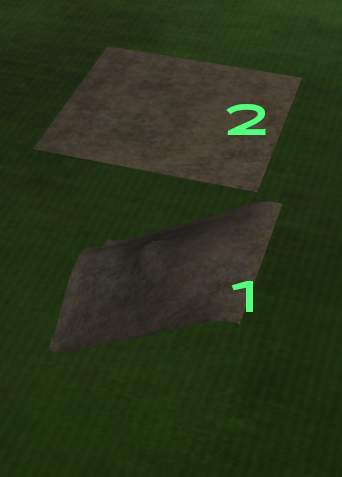 |
| Example number 2: grass base ground below dirt hill below dirt, placed in that order. |
| Current | Blocks | Column state |
| Nothing on the map: | None. | Base ground level, grass. |
| After block 1: | Dirt hill block. | Dirt hill (1) level, grass. |
| After block 2: | Dirt hill & dirt block. | Dirt (2) level, dirt. |
There are two things that happen differently here. First of all, although the dirt hill spans multiple blocks in height, it is only one height that makes the block you put turn into a ground variant. In the case of the dirt hill, only the top of the block will do this. The second difference is that hills do not change the type of ground - this hill will still keep the grass ground, despite it being dirt.
Note
In this tutorial we've been putting blocks from bottom to top, but it is obviously possible to do this the other way around. Flat dirt placed below the dirt hill block will still turn the column to dirt. The only change here is that blocks placed on the dirt hill will be automatically in a ground variant instead of air variant, as we are now above the column state level.
Warning
Beware of blocks with ground! Their ground will change according to the current column state, but not according to the block you are placing them on. This might result in ugly flickers like below. Manage your column state well when you're building terrain above other terrain to avoid that.
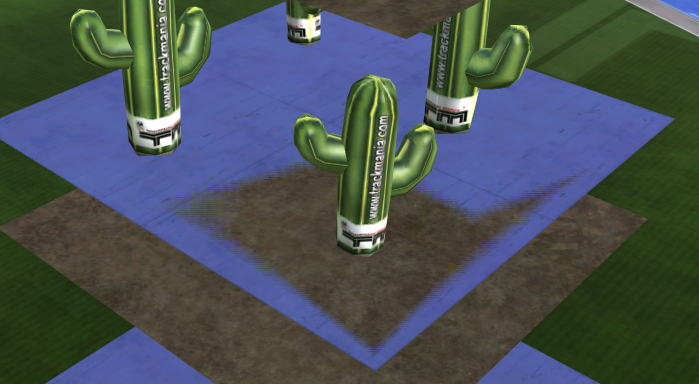 |
| Flickering from putting cacti on a flat dirt block, but when the column of that block is set to grass with blue ground. |
Note
"Blue ground" is a modifier. It still works on the same column rules, but instead it's an on-off switch that affects every grass block in the column. That means it can change already put grass blocks retrospectively.
Unlimiter 2.0 does not use vanilla terrain placing for several reasons:
- The column rules described above do not work well with vanilla terraforming, leading to frequent bugs or crashes.
- Vanilla terraforming does not work in air, only ground level.
- Terrain made before TM2 does not let you create some hill shapes, connecting adjacent hills automatically instead of only when dragged.
- Manual variants cannot be implemented in the same way as terraforming, leading to awkward and unintuitive behaviour, particularly when opening the track back in vanilla (compatibility issues, mismatches & crashes in the worst case).
[TODO]
Note
Other than the features described here, you can use all of the options described in the tutorial about variants:
[TODO]