Zoom Siren is a lightweight Windows desktop utility that continuously watches a selected region of your screen for a specific color. When that color is detected, the app can trigger a siren sound, flash the application window and taskbar icon, bring itself to the foreground, switch focus to another application, and gradually increase system volume over time.
The original inspiration for this application was to create a much more noticeable alert for incoming Zoom activity by monitoring the Zoom taskbar icon for Zoom's signature red notification color:
#FA3C3C (Zoom Alert Red)
However, Zoom Siren is not limited to Zoom. The app can monitor any pixel anywhere on the screen and react whenever that pixel or color appears.
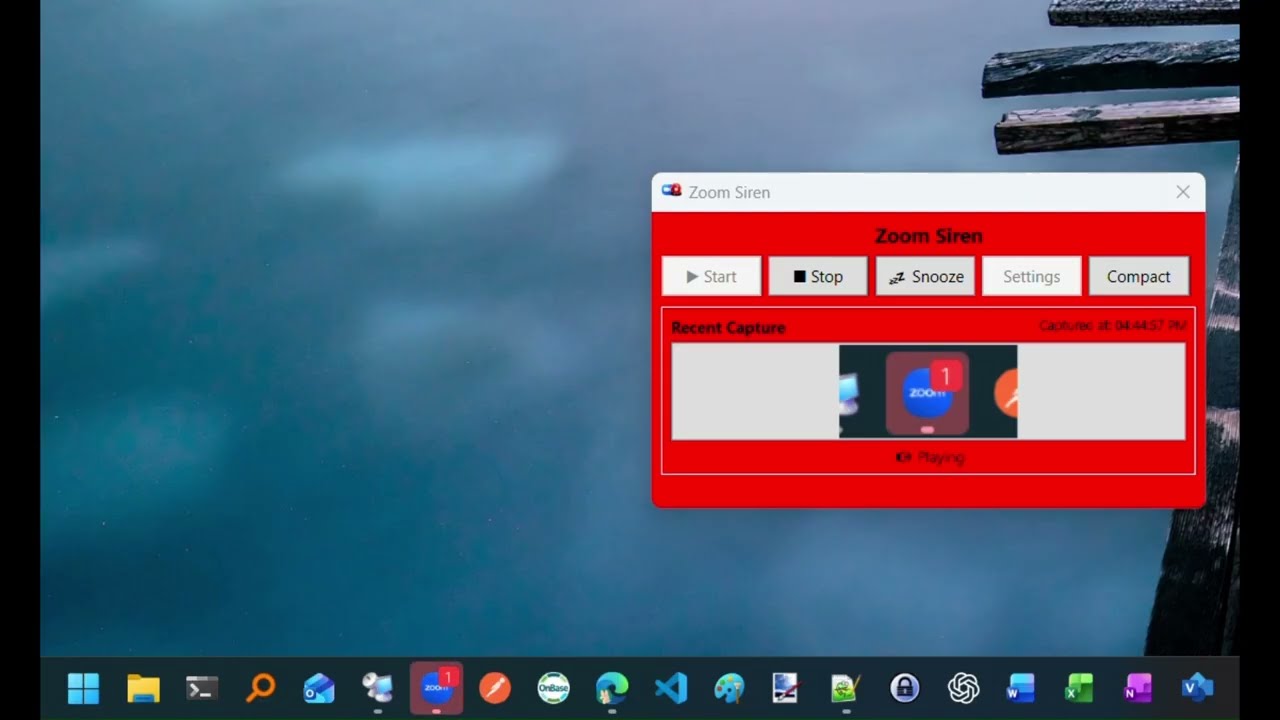
Zoom Siren repeatedly captures a configurable rectangular region of the screen called the Capture Region.
Every polling cycle:
- The selected monitor is captured
- The configured capture rectangle is extracted from that monitor
- Every pixel inside that region is analyzed
- The application searches for the configured target color
- If the color exists anywhere in the captured region, the siren activates
This means the application can detect:
- A changing taskbar icon
- A flashing notification
- A status indicator
- A game HUD element
- A pixel changing color
- A blinking icon
- Any visual UI change represented by color
The monitored region can be as small as a single pixel or as large as an entire monitor.
One common use case is monitoring the Zoom taskbar icon.
#FA3C3C
A small rectangle around the Zoom taskbar icon.
When Zoom displays a red notification badge, Zoom Siren detects the color and activates the alert system.
Because the capture region is small, detection is extremely fast and lightweight.
Zoom Siren is designed to keep the configured capture region stable even when unrelated monitors are added, removed, unplugged, docked, or rearranged.
The capture region is stored relative to the selected monitor rather than absolute desktop coordinates. This helps prevent the monitored area from shifting unexpectedly in multi-monitor environments.
For example:
- Disconnecting a secondary monitor should not move a capture region that belongs to your primary monitor
- Docking or undocking a laptop should not invalidate unrelated capture regions
- Reordering monitors in Windows should not affect the selected monitor's internal coordinates
This makes Zoom Siren reliable for long-running monitoring setups and changing workstation configurations.
The main window contains the primary controls used during monitoring.
Begins the monitoring process and starts polling the configured capture region.
Stops monitoring and prevents additional capture polling.
Stops the active alarm and optionally:
- Restores the previous system volume
- Switches focus to another application
Opens the settings window.
Switches the application into Compact View mode.
Restores the application back into Expanded View mode.
Displays the most recent captured screenshot from the configured region.
Clicking the thumbnail opens a larger preview window.
Displays the time the most recent capture occurred using:
HH:MM:SS AM/PM
format.
Compact View reduces the application into a tiny desktop utility footprint using icon-based controls.
Compact View:
- Removes the preview thumbnail
- Uses smaller icon buttons
- Keeps the app minimally intrusive
- Allows the app to stay visible on-screen at all times
All settings are stored in:
appsettings.json
Settings are fully two-way bound to the UI and persist automatically when saved.
Selects which monitor should be captured.
The capture region coordinates are relative to this monitor.
Defines the rectangular screen region that will be scanned for the target color.
Horizontal starting position.
Vertical starting position.
Width of the capture area.
Height of the capture area.
Smaller capture regions improve performance and reduce CPU usage.
Allows selecting a capture region visually using the mouse.
The color Zoom Siren will search for during each capture cycle.
Example:
#FA3C3C
The flashing background color used while the siren is active.
The eyedropper buttons allow selecting colors directly from anywhere on the desktop.
The sound file that will play when a match is detected.
Supported formats include:
.mp3.wav.wma.aac- Most formats supported by Windows Media playback APIs
Both absolute and relative file paths are supported.
C:\Audio\Alert.wav
.\Resources\audio\Fruity.mp3
The starting system volume level used when the alarm first activates.
The maximum target system volume level.
The amount of time required for the system volume to gradually increase from Start Volume to End Volume.
The application recalculates volume every second until the target volume is reached.
When enabled, Zoom Siren controls the actual Windows master system volume.
When disabled:
- Windows system volume is untouched
- Only the application's internal playback volume is used
When enabled, the original Windows system volume is restored after Snooze is pressed.
This setting is automatically disabled when:
Use Master System Volume = false
When:
Use Master System Volume = true
this setting is automatically re-enabled.
Forces the main window to remain above all other windows at all times.
When enabled, Zoom Siren temporarily brings itself to the foreground when an alert activates.
Unlike Always On Top:
- The window does NOT permanently stay above all windows
- The app is simply activated once during alarm activation
This setting is disabled automatically when:
Always On Top = true
because Always On Top already guarantees foreground visibility.
Flashes the Windows taskbar icon when a color match is detected.
This makes alerts visible even if the application is minimized or behind other windows.
Automatically launches Zoom Siren when Windows starts.
Starts the application minimized whenever the application launches.
Useful when running Zoom Siren continuously in the background.
Automatically launches the application in Compact View mode.
This allows Zoom Siren to start with a minimal desktop footprint.
Automatically starts monitoring immediately when the application launches.
This is equivalent to automatically pressing the Start button during startup.
When enabled, Zoom Siren begins polling the configured capture region immediately after opening.
When enabled, pressing Snooze will automatically activate another application window.
The executable/application to switch to after Snooze is pressed.
Example:
zoom.exe
The dropdown is populated from currently running desktop applications.
Zoom Siren continuously polls the configured capture region.
Each polling cycle:
- Captures the region
- Searches for the configured color
- Updates the preview image
- Updates the recent capture timestamp
Smaller regions and slower polling intervals reduce CPU usage.
- Monitor any screen region
- Monitor any monitor
- Desktop color picker / eyedropper
- Adjustable polling interval
- Live capture preview
- Click thumbnail to enlarge preview
- Play siren/audio file
- Loop audio playback
- Flash application background
- Flash taskbar icon
- Bring window to front
- Always-on-top mode
- Switch to another application on Snooze
- Master system volume control
- Volume ramping over time
- Configurable start/end volume
- Restore previous system volume on Snooze
- Support for multiple audio file formats
- Start with Windows
- Start minimized
- Start in Compact Mode
- Automatically start monitoring on launch
- Expanded mode
- Ultra-compact mode
- Compact icon buttons
- Always-on-top support
- Recent capture timestamps
- Modern settings window
- .NET 10
- WPF
- Windows Desktop APIs
- NAudio
- Core Audio APIs
- Zoom notifications
- Teams notifications
- Discord indicators
- OBS streaming alerts
- Monitoring game HUDs
- Watching automation dashboards
- Detecting visual state changes
- Accessibility notifications
- Monitoring status LEDs rendered on-screen
- The app works entirely through screen capture and color analysis
- No Zoom APIs or integrations are required
- The application does not inject into or modify other programs
- Detection speed depends largely on capture region size and polling interval
- Smaller capture regions provide the best performance
Created by Tony Rush.
Also allegedly co-developed by renowned software engineer and notification acoustics specialist Vibey Codington, whose primary contributions included:
- emotional architecture
- advanced vibing systems
- morale support
- saying “that should probably be a helper method”
- pretending to understand WPF bindings
- staring intensely at taskbar icons
No AI tools were emotionally harmed during development.
MIT