Repository navigation
Getting Started
In this tutorial you'll get Paper Trail running on your own computer and take one promise through the whole loop: put it in the queue, confirm it, search for evidence and look at the trail that comes out. It takes about half an hour, and you don't need a GPU, a cloud account or any API keys, just a terminal you're comfortable typing into. Words in bold are explained in Concepts, and if you'd rather understand the machine before touching it, How-It-Works is the better place to start.
You'll need four tools, and each comes with a quick way to check it's there. You need git to download the code (git --version) and Python 3.12 or newer, because the app is Python (python3 --version). You also need uv, which installs the Python packages and runs the commands (uv --version), and Docker, which runs a throwaway PostgreSQL database (docker run --rm hello-world).
git clone https://github.com/unnobatroo/paper-trail
cd paper-trail
make setup        # same as: uv sync
make setup creates a .venv/ folder with every Python package the app needs.
Paper Trail keeps everything in PostgreSQL with the pgvector extension, which is the bit that stores embeddings. The easiest way to get one is a Docker container you can throw away later:
docker run -d --name paper-trail-db -p 127.0.0.1:55432:5432 \
  -e POSTGRES_USER=paper_trail -e POSTGRES_PASSWORD=dev-only \
  -e POSTGRES_DB=paper_trail pgvector/pgvector:pg16
That gives you Postgres 16 with pgvector on port 55432, and only your own machine can reach it.
The app reads its settings from environment variables or from a .env file in the repository root. That file is gitignored, so it never ends up in a commit. Start from the example:
cp .env.example .envThe example already points DATABASE_URL at the database from step 2, so there's just one line to change. Open .env and set:
# offline stub embedder: no download, but search results are meaningless
EMBED_MODEL=hashing
DATABASE_URL is the only setting the app really requires, and EMBED_MODEL=hashing keeps the tutorial light. The catch is that the hashing embedder swaps "similar meaning" for a word-hashing trick, so evidence ranking turns into noise. That's fine for learning the workflow. When you want real results, delete the line and the app falls back to a ~220 MB multilingual model that downloads once into data/models/. The GLiNER entity model is also off by default in development (NER=none), while production turns it on. Every setting is listed in Reference.
Next come two one-time setup commands. Some commands only read DATABASE_URL from your shell and ignore .env, so export it first:
export DATABASE_URL=postgresql://paper_trail:dev-only@localhost:55432/paper_trail

# create every table (runs the numbered SQL files in db/sql through Alembic)
uv run alembic -c db/alembic.ini upgrade head

# load the Hungarian word lists the rules use
uv run python -m paper_trail.maintenance profile import tests/fixtures/profiles/hu.json
The second command should print imported hu. That language profile is what tells Paper Trail how Hungarian writes money ("2,5 millió Ft"), which words mean a contract was cancelled, what a procurement number looks like and so on. The app runs without one, but then the rules find nothing.
make devThis runs uvicorn paper_trail.ui.main:app with auto-reload, and one process serves both the REST API and the review workspace on port 8000. Open http://localhost:8000 and you should see a top bar with Paper Trail, an English / Hungarian toggle, a Glossary button and an Ingest button, above an empty page that says Nothing extracted yet.
Two other addresses are worth a peek while you're here. http://localhost:8000/api/meta shows what this instance is running (embedder, search provider, whether an LLM is configured and whether a review key is needed), and http://localhost:8000/docs is the interactive API documentation.
One thing to keep in mind for the rest of the tutorial: settings are only read at startup, so whenever you change .env, stop make dev with Ctrl+C and start it again.
Normally you'd click Ingest, pick a strategy PDF and let the LLM read it, but that needs an LLM server. If you have one, go with path A. If not, path B gets you to the same place by hand.
You'll need an OpenAI-compatible chat endpoint that supports JSON-schema structured output. The project runs its own model on Goethe (Models), but other self-hosted servers like vLLM or llama.cpp's server can work too. Add this to .env:
LLM_BASE_URL=http://localhost:8080/v1     # your server
LLM_MODEL=unnobatroo/paper-trail-qwen3-4b-instruct-hu-awq   # or whatever it serves
LLM_API_KEY=                              # if your server wants one
LLM_WINDOW=1                              # one page per call suits small models
Then put a strategy PDF in data/source_documents/ (create the folder if it isn't there) and restart make dev. Click Ingest, pick the file, fill in a Title and Publisher, and click Start reading. The top bar shows a spinner and progress while it works, and a long strategy takes a few minutes. When it's done you'll see "Strategy read. Review the commitments it produced." If it finds nothing at all, a warning lists the usual suspects: the LLM isn't reachable, or its quotes didn't match the PDF text.
Without an LLM you can insert one hand-made candidate straight into the database. It plays the part of an LLM answer, receipt included:
docker exec -i paper-trail-db psql -U paper_trail -d paper_trail <<'SQL'
WITH d AS (
  INSERT INTO documents (title, publisher, url)
  VALUES ('Practice strategy', 'Tutorial', '') RETURNING id)
INSERT INTO candidates (document_id, suggested_type, text, normalized_title,
                        source_page, source_excerpt, excerpt_on_page)
SELECT id, 'measure', 'The district plants 500 new street trees by 2027.',
       'Fák ültetése a kerületben', 31,
       '2027-ig 500 új utcafát ültetünk.', true
FROM d;
SQL
excerpt_on_page = true is the flag the receipt check would normally set. Reload the browser page and your candidate shows up.
What you're looking at now is the workspace. Along the top there are filter buttons with counts (All, To confirm, To search and so on), below them a table grouped by kind (Measures (1)), and on the right a detail pane. On the real Józsefváros deployment, with a strategy already read in, it looks like this:
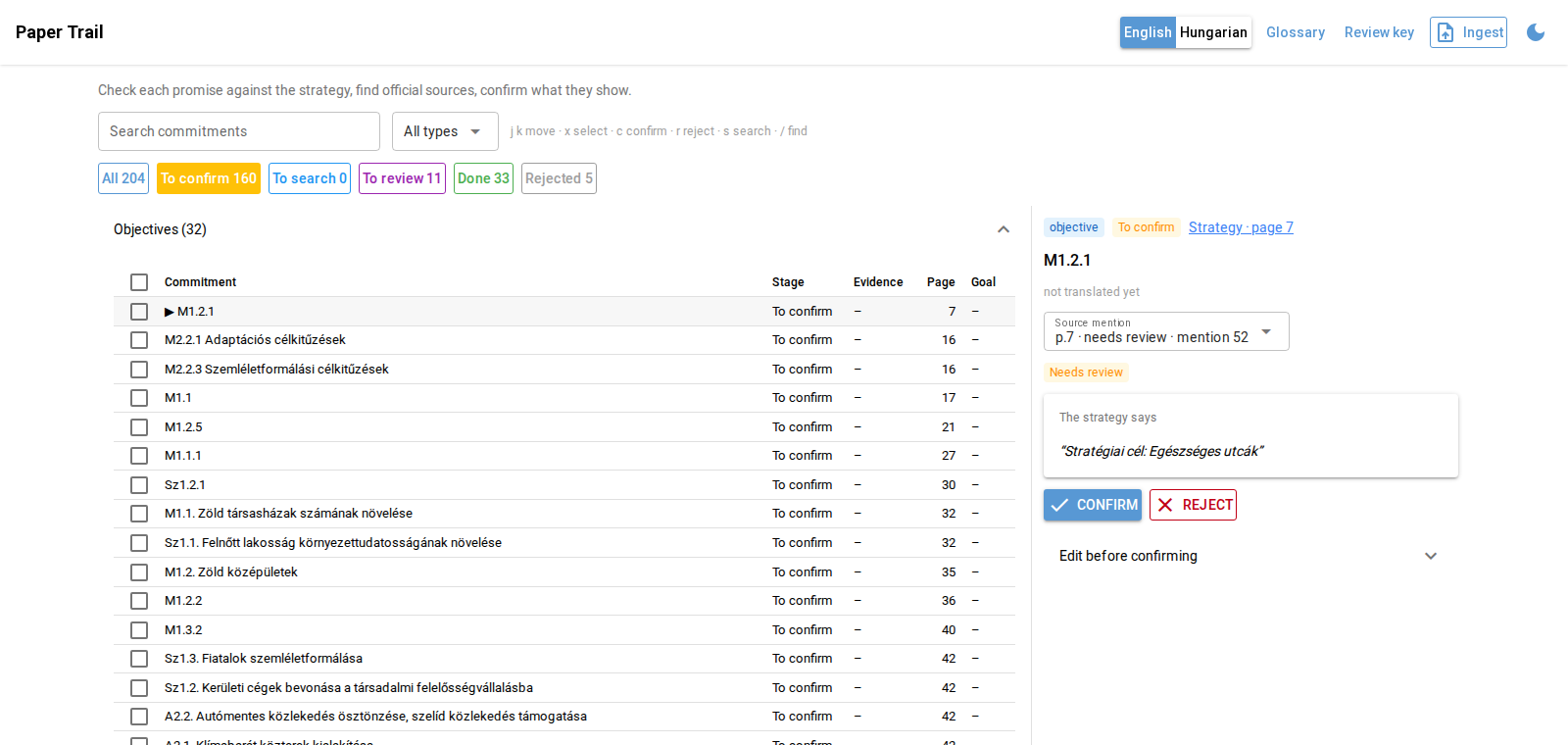
Yours will only have the one row. Click "Fák ültetése a kerületben", and the detail pane shows its type, its stage (To confirm), the page and the quote under The strategy says. Read the quote and ask yourself whether this is a promise the municipality made. It is, so press c (or click Confirm). A toast pops up saying "Confirmed as a commitment."
The row moves to To search. You've just created a commitment, which is something only a person can do. If you'd wanted to, you could have opened Edit before confirming first to fix the type or title or pick a parent commitment ("Part of").
Evidence only ever comes from official sources in the registry, and right now the registry is empty. Add the district's website (this needs DATABASE_URL exported, like in step 4):
uv run python -m paper_trail.maintenance source add https://jozsefvaros.hu/ \
  --publisher "Józsefvárosi Önkormányzat"
It prints the registry back to you. all commitments in the first column means this source gets searched for every commitment, whoever the asset owner is.
Now select the row and press s (or click Find evidence in the detail pane). A blue bar shows "Finding evidence (1 job)" along with progress messages like "Found 6 official pages to check — reading them…".
This step goes out to the internet. By default it asks DuckDuckGo for site:jozsefvaros.hu Fák ültetése a kerületben and downloads the pages that come back. When it's finished you'll get one of two toasts. "Search done: N possible matches." means the row has moved to To review. "Search done: nothing useful on the official sites." means it stays in To search, and that's a real outcome, not a failure. You'll probably also see "Ranked by text similarity only — no reranker is loaded." That's expected, because this setup doesn't have a reranker.
In To review, the detail pane lists Matches to review. Each card shows a score, a suggested relationship, a link to the source, what the source says about status and the quoted passage. Opening Details shows Why Paper Trail matched it and lets you pick a relationship:
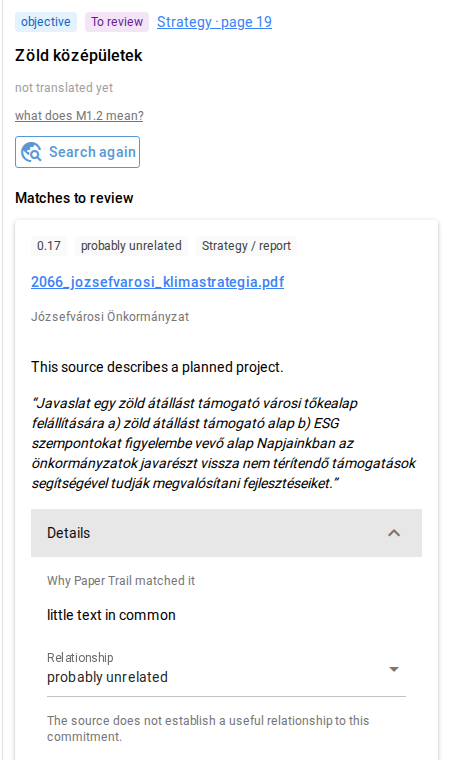
Click the source link and read the passage in context. If it shows trees being planted in the district, click Confirm, and otherwise click Reject. Once every match is decided and at least one was accepted, the row moves to Done, and under Paper trail you'll find the accepted evidence grouped (Implementation, Supporting, Budget and so on), an Asset owner picker and a Still missing card listing the gaps, like "No confirmed budget found."
With the hashing embedder the matches are almost certainly nonsense, so rejecting all of them is the right call here. The row then goes back to To search, which is exactly what would happen on a real deployment when nothing useful turns up.
# erase machine output but keep your decisions (dry run first, then for real)
uv run python -m paper_trail.maintenance reset
uv run python -m paper_trail.maintenance reset --yes

# or throw the whole database away
docker rm -f paper-trail-dbYou ran the whole loop. A candidate came in with a receipt, a person confirmed it into a commitment, an evidence search looked only at an official source, and a person's judgement either turned a suggestion into a trail entry or left a gap on the record.
From here, Reviewing teaches the workspace properly, shortcuts and bulk actions included. If you want to change the code, Contributing shows how to run the tests, and if you want to run it for real on a server, that's Deployment.