Repository navigation
Reviewing
The review workspace is the one screen where people confirm promises and judge evidence, and this page walks you through using it. You don't need a technical background. Operators who want to know what their reviewers see will find it useful too. If you've never opened the workspace before, the Getting-Started tutorial is a gentler first step, since this page assumes you've already got one open.
Here's the workspace on the Józsefváros deployment:
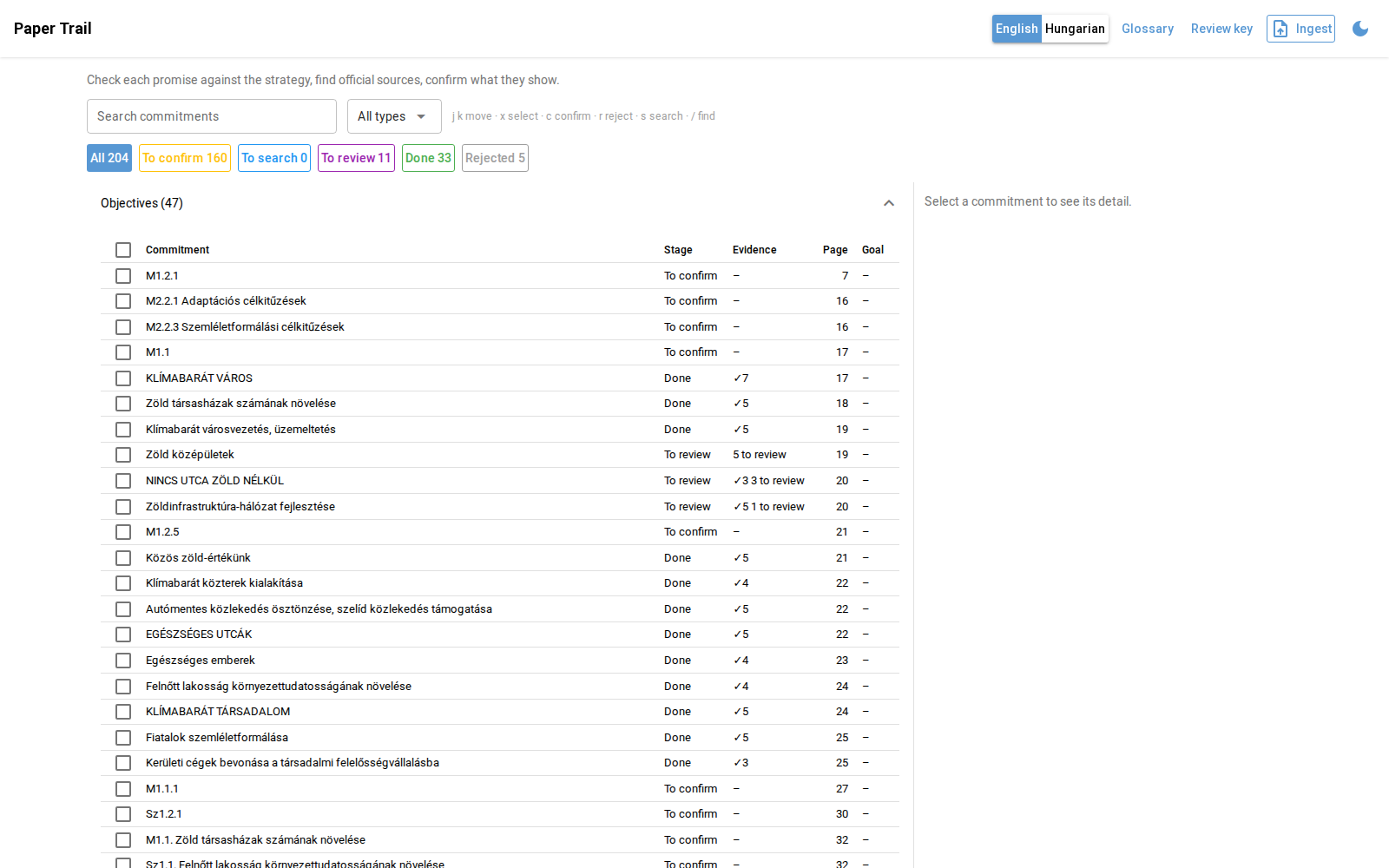
The top bar along the top has the deployment's name (if one is set), the English/Hungarian toggle, a Glossary of terms from the documents, Review key (only on deployments that need one), Ingest (which turns into a spinner while a strategy is being read) and a dark-mode switch.
Under it is a search box that matches title, text and code, a type filter for objectives, targets, measures or indicators, and a little reminder of the keyboard shortcuts. Next come the stage buttons with live counts. All shows everything except rejected rows, and clicking a stage narrows the table to just that stage. The current filter is kept in the URL (/?stage=review&type=measure), so you can bookmark a view or send it to someone.
The table has one collapsible section per kind, with columns for the Commitment, its Stage, its Evidence (a ✓ with the number of accepted sources, plus "N to review"), the Page in the strategy and the Goal (target value and deadline, like "500 fa by 2027"). A ▶ marks the row the keyboard is on. Clicking a row opens it in the detail pane on the right, and you can drag the divider to make the pane wider.
One row can actually stand for several source mentions. When the same title and type turn up on several pages, say a heading and its fact sheet, they're grouped into one row, and a Source mention picker in the detail pane lets you step through them. Confirm and reject act on whichever mention is showing.
Every row is in one stage, and your clicks move it along:
stateDiagram-v2
    state "To confirm" as Confirm
    state "To search" as Search
    state "To review" as Review
    [*] --> Confirm: extracted with a receipt
    Confirm --> Rejected: reject (r)
    Confirm --> Search: confirm (c)
    Confirm --> Done: confirm an indicator
    Search --> Review: search finds matches
    Search --> Search: search finds nothing
    Review --> Done: matches decided, one or more accepted
    Review --> Search: every match rejected
    Done --> Review: search again finds new matches
    Done --> [*]
    Rejected --> [*]
In To confirm you decide whether a candidate is a real promise. In To search you start an evidence search, and in To review you accept or reject what it suggested. Done needs nothing from you, though you can still search again or change the asset owner, and Rejected is there so decisions stay visible. Indicators skip To search entirely, because they describe how progress is measured rather than work someone did, so there's nothing to search for.
Once you get going, the keyboard is a lot faster than the mouse:
| Key | Action |
|---|---|
j / k
|
move down / up through the visible rows |
x |
select or unselect the current row (for bulk actions) |
c |
confirm the current row (in To confirm) |
r |
reject the current row (in To confirm) |
s |
start an evidence search for the current row (in To search) |
/ |
jump to the search box |
When you pick a row in To confirm, the detail pane shows its type and stage chips, a link to the strategy PDF at the right page (if the document has a URL), an optional In plain English card (more on that below) and the quote itself under The strategy says:
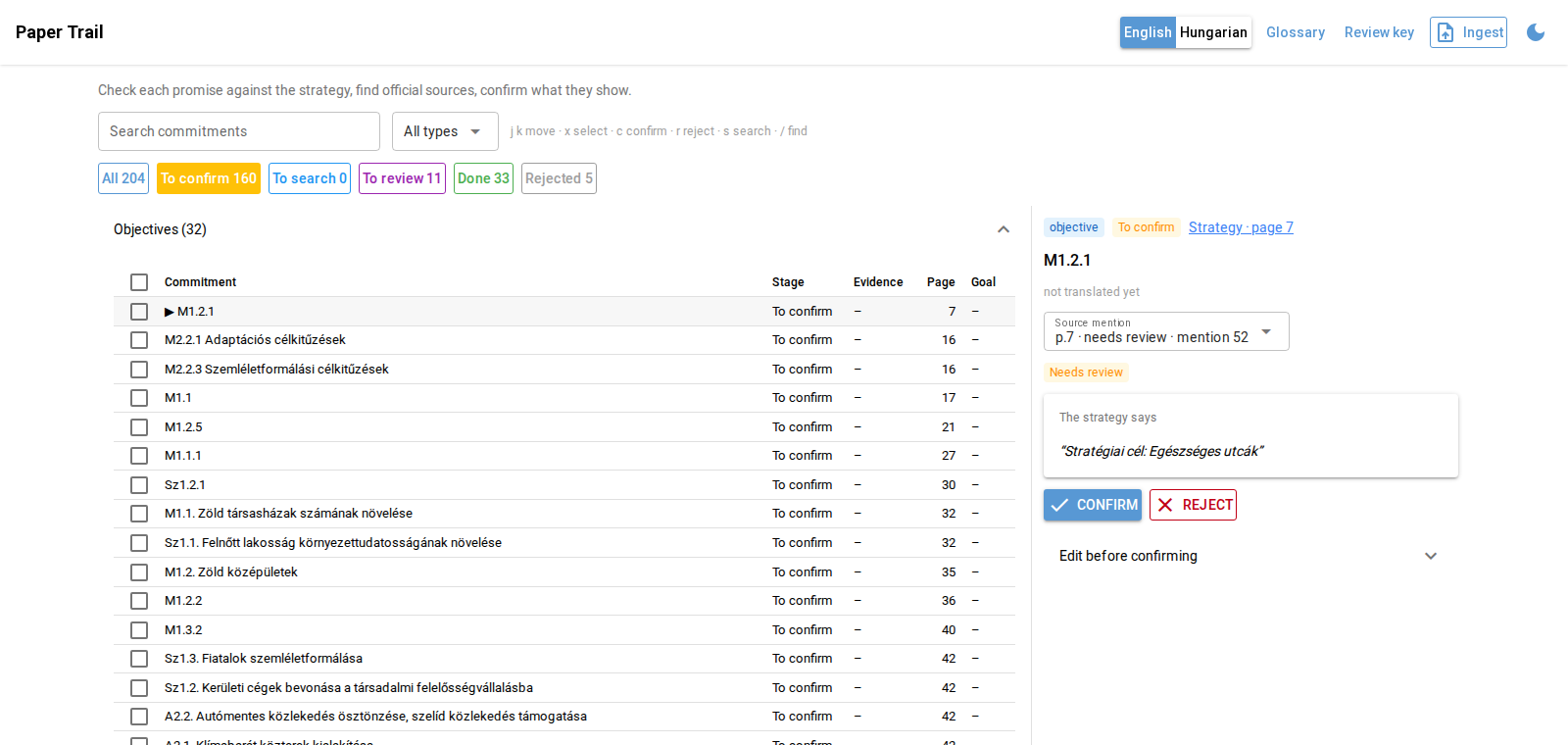
You only have to answer one question here: is this a promise this municipality made? If it's a goal, a measure, a target or an indicator, Confirm it with c. For example, "2027-ig 500 új utcafát ültetünk" ("by 2027 we'll plant 500 new street trees") is a target. Everything else gets Reject (r). That covers background facts and statistics ("a kerület lakossága 76 000 fő", "the district has 76,000 residents"), EU or national commitments the district only mentions, headings that just help you navigate the document, and duplicates of something you've already confirmed. Keep in mind that confirming says nothing about whether the work got done. That's what the evidence is for.
If the machine got the details a bit wrong, open Edit before confirming. There you can fix the Type, shorten the Title or attach the commitment to a parent (Part of), like a measure under its objective, and then click Save as commitment.
Sometimes you'll see a grey Unclear chip with "We couldn't re-find this quote on the page". That means the receipt didn't check out, and the system won't let you confirm the candidate.
In To review, each suggested match is a card, best score first:
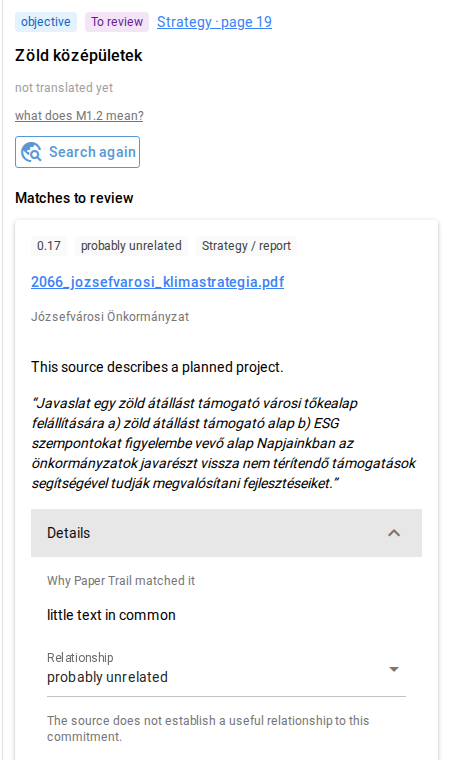
The chips at the top show the score (0 to 1), the suggested relationship ("evidence it happened", "supporting evidence", "budget information", "related, but indirect" or "probably unrelated") and the kind of source ("Strategy / report" or "Project / update"). Under them is the source's title, which links out in a new tab, with its publisher and publication date. Then comes a status sentence like "This source says the work was completed." and the quoted passage itself. Expanding Details shows Why Paper Trail matched it (for example "the text is a close match; same place: Kálvária tér"), any money figures mentioned, and a Relationship picker that explains each choice. Whatever relationship you pick there gets applied when you click Confirm.
Some cards also carry warnings in red or amber, and each one means something specific:
| Warning | Meaning |
|---|---|
| Reports a cancellation | this passage itself says a contract or project was cancelled |
| Reports an amendment | this passage itself says it was amended or rescheduled |
| Later amended or cancelled | another official source amended or cancelled the contract this passage names |
| Maybe routine maintenance | repair wording without upgrade wording, so it may not be climate action |
| grey chips | procurement or EU project ids the passage names |
Warnings never decide for you, and you can still accept a flagged passage, as long as you pick the relationship that's actually true. A budget decree line for street trees, for instance, is "budget information" and not "evidence it happened", because a money figure on its own doesn't prove anyone planted the trees.
Search again runs the search one more time, which is handy after you've changed the asset owner or someone has added sources. Anything you've already decided on for this commitment is skipped, so you'll only see new matches.
Once a commitment has accepted evidence, the detail pane shows its Paper trail:
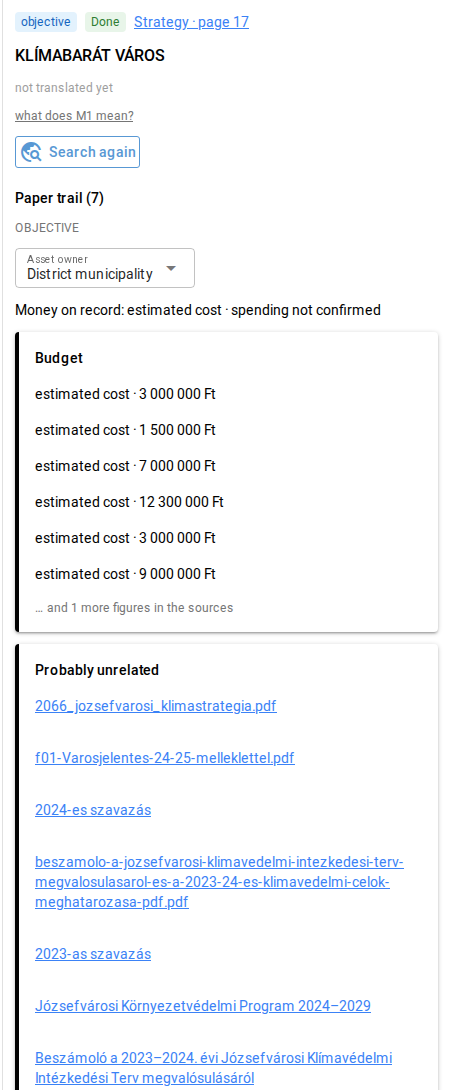
It opens with a summary line (kind, deadline, target and who's responsible) and the status the sources report, like Source says: completed, which is only ever taken from accepted "evidence it happened" sources. Then comes the Asset owner picker, where you can choose the district municipality, the city government, the water utility, district heating or the national government. Changing it changes which sites the next search covers. Money on record lists the budget states that were found and whether spending is confirmed. After that, the evidence is grouped into Implementation, Supporting, Budget and Probably unrelated. The panel finishes with Audit findings in red and Still missing in amber, which are the gaps. Accountability-Rules explains where the warnings and findings come from.
When you've read through a batch of rows, you can handle them together. Tick them with the table checkboxes or x, and a bar appears with whatever actions fit the stages you picked. For To confirm rows it offers Confirm N and Reject, which act on every open mention in those rows using the suggested type and title. Every receipt is checked before anything gets written. For To search rows, Find evidence N queues one search job per commitment. For To review rows, Confirm matches and Reject act on every pending match, each with its suggested relationship. Clear empties the selection.
Be careful with bulk confirm, since it trusts the machine's suggested type and title. It's meant for rows you've actually read, not for emptying the queue.
The toggle in the top bar switches what language the workspace's text is shown in. In English, rows that have a note show a plain-English title marked with an AI chip, with the original underneath ("ORIGINAL ..."), and rows without a note show the original with "not translated yet". Hungarian (or whatever the profile's language is) shows only the source text.
Those notes are written ahead of time by the project's own LLM (python -m paper_trail.maintenance notes generate, see Reference). A note also adds the In plain English card with a summary and "AI suggests: accept / reject / unsure". The card says it's only a suggestion and that you decide, and it really is just that.
The Glossary button and the "what does M1.2 mean?" hint under a title explain the documents' jargon (M is mitigation, A is adaptation and so on). Both come from the language profile.
On a deployment with a review key, every change (confirm, reject, search, ingest, changing the owner) needs it. Click Review key in the top bar, paste the key and click Save. It's remembered for this browser, so you only enter it once. Without it, changes fail with "this deployment requires a review key for changes", and saving an empty key clears it again. The key is one shared password for the whole team, not a personal account, so ask your operator for it.
To add a new strategy, click Ingest in the top bar. Pick a PDF from the server's document folder (you'll get a list, or a filename box if the folder is empty) and give it a Title, which is required, like "Józsefváros klímastratégia 2021". Fill in the Publisher, like "Józsefvárosi Önkormányzat", and an Official URL if you have one. The URL is optional, but it's worth adding, because then the detail pane can link straight to the right page of the PDF. Start reading queues the job and the top bar shows progress. A long strategy can take quite a few minutes, and when it's done the new candidates appear in To confirm.
Every confirm and reject also becomes training and test data for the extraction model (Models). A confirmed candidate teaches it "this is a promise", and a page where everything got rejected teaches it "there's nothing here". So the way you label really matters. Stick to the one question, whether this is a promise the municipality made, and don't let anything else sway you. Rejections are just as valuable as confirmations, because the model learns the most from its mistakes. And when you're not sure, skip the row rather than guessing, because pages nobody reviewed are simply left out of training.
Machine output can be wiped and regenerated without touching any human decisions. These commands need the database owner login in DATABASE_URL:
python -m paper_trail.maintenance reset          # dry run: prints what would go
python -m paper_trail.maintenance reset --yes    # erase generated rows
python -m paper_trail.maintenance rerun          # queue an evidence search for every commitment
reset removes unreviewed links, evidence that no decision points at (along with its money figures and contract links), unreviewed candidates that never became commitments, finished jobs, and notes on items that no longer exist. Decided links, commitments and confirmed or rejected candidates all stay. Adding --cache also drops fetched pages and passage vectors. --everything empties every table except language profiles and places, which includes the decisions and the source registry, so take a backup before you use it.
rerun puts jobs on the database queue, which only a worker process reads, and that's how production runs (Deployment). For the full list of endpoints and settings behind these buttons, see Reference.