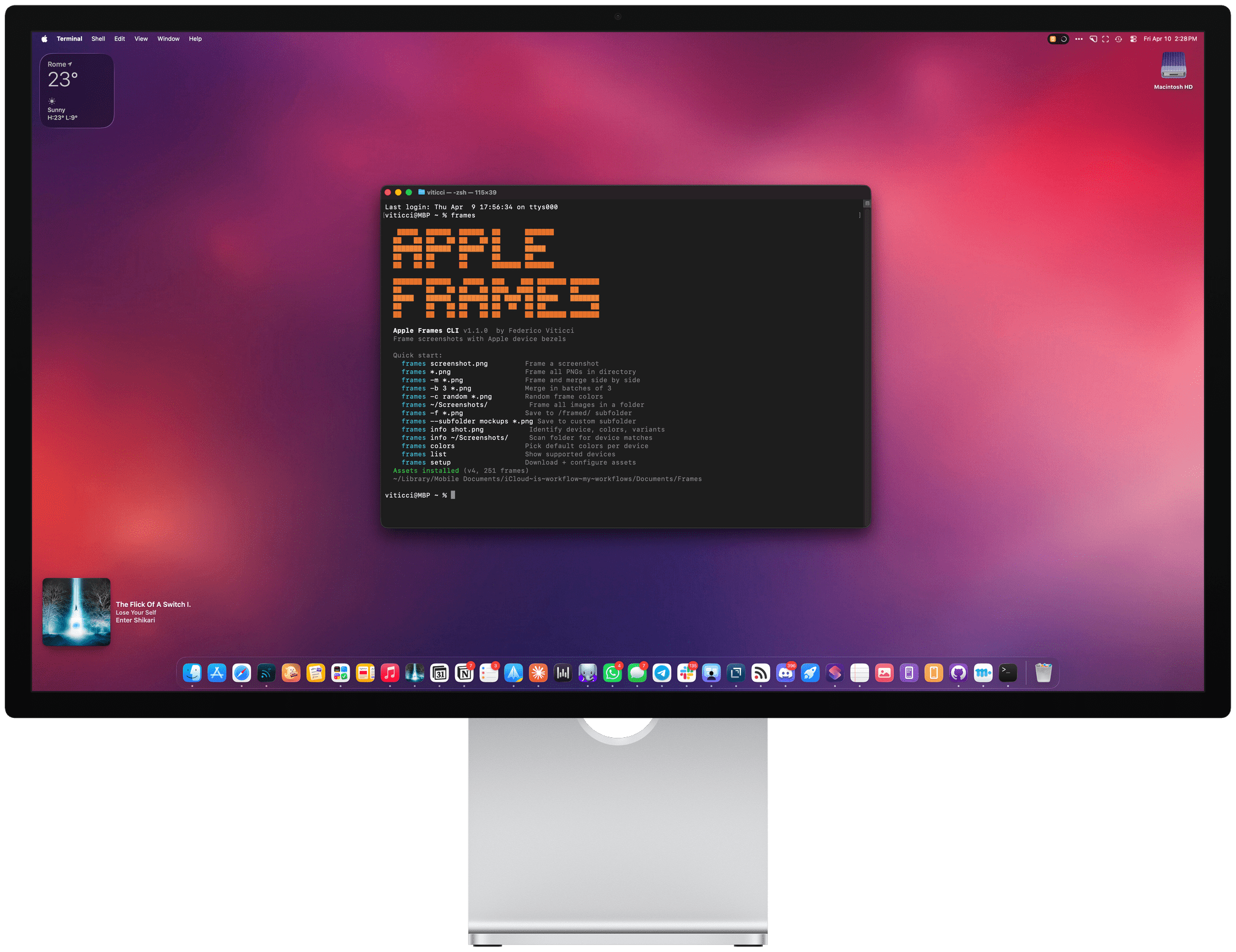
Frame device screenshots with Apple product bezels from the command line. Auto-detects devices, supports colors, merging, and batch processing. Based on the Apple Frames shortcut by me for MacStories.net, not affiliated with Apple.
- Python 3.8+
- Pillow (Python imaging library)
git clone https://github.com/viticci/frames-cli.git
cd frames-cli
pip3 install Pillow
Then symlink the script into a directory that's already in your PATH:
# Check which bin directory is in your PATH (use the first one that exists)
# Common locations: ~/.local/bin, ~/bin, /usr/local/bin

# Create the directory if needed, then symlink
mkdir -p ~/.local/bin
ln -s "$(pwd)/frames" ~/.local/bin/frames
If ~/.local/bin isn't in your PATH yet, add it to ~/.zshrc (or ~/.bashrc):
export PATH="$HOME/.local/bin:$PATH"Then restart your terminal or run source ~/.zshrc.
Verify it works:
frames --versionpip3 install Pillow
mkdir -p ~/.local/bin
curl -o ~/.local/bin/frames https://raw.githubusercontent.com/viticci/frames-cli/main/frames
chmod +x ~/.local/bin/framesIf ~/.local/bin isn't in your PATH yet, add it to ~/.zshrc (or ~/.bashrc):
export PATH="$HOME/.local/bin:$PATH"Then restart your terminal or run source ~/.zshrc.
The CLI will automatically detect and download Apple Frames 4 assets on first run. You can also set up manually:
# Guided download (interactive — downloads ~40 MB from cdn.macstories.net)
frames setup

# Or point to an existing assets folder
frames setup /path/to/Frames
The guided setup downloads the asset pack, extracts it, and saves the path to ~/.config/frames/config.json. If assets get corrupted or you need a fresh copy, run frames setup again to re-download.
You can also set the FRAMES_ASSETS environment variable instead of using the config file.
# Frame a screenshot — auto-detects device, saves as name_framed.png
frames screenshot.png

# Frame all PNGs in a directory
frames *.png

# Frame with a specific color
frames -c "Cosmic Orange" screenshot.png

# Frame with random colors
frames -c random *.png

# Frame and merge side by side
frames -m screenshot1.png screenshot2.png

# Merge in batches of 3 (15 files → 5 merged images)
frames -b 3 *.png

# Copy framed result to clipboard (macOS)
frames --copy screenshot.png

# Save to /framed/ subfolder
frames -f screenshot.png

# Save to custom subfolder
frames --subfolder mockups *.png

# Show device info without framing
frames info screenshot.png

# List all supported devices
frames listFrame one or more screenshots. The frame keyword is optional — passing files directly uses it automatically.
frames screenshot.png
frames frame screenshot.png   # same thing

# With flags
frames -c "Desert Titanium" -o ~/output/ *.png
frames -m -s 80 screenshot1.png screenshot2.png
Output naming: originalname_framed.png in the same directory as the source. Merged output is merged_framed.png.
Device detection: Automatic from screenshot pixel width. When multiple devices share a width, height disambiguates. The newest device frame is used when multiple generations share a resolution — override with --device.
Color resolution: --color flag > user default (set via colors command) > first color in device's list.
Specify a frame color by name, 1-based index, or random.
frames -c "Cosmic Orange" screenshot.png
frames -c 2 screenshot.png
frames -c random *.png
Partial color name matching is supported. Use list-colors to see what's available for a device.
Merge all framed images into a single horizontal strip. Default spacing between frames is 60px.
When merging different devices, frames are automatically scaled to reflect real-world physical proportions and bottom-aligned. An iPhone next to an iPad will be proportionally shorter, just like in real life. Same-device merges are unaffected.
frames -m screenshot1.png screenshot2.png screenshot3.png
frames -m -s 120 screenshot1.png screenshot2.png
The merged output is saved as merged_framed.png in the output directory.
Disable proportional scaling when merging. All frames render at native pixel size and are center-aligned (pre-v1.2 behavior).
frames -m --no-scale iphone.png ipad.pngMerge screenshots in sequential batches of N. Produces multiple merged images instead of one.
# 15 screenshots → 5 merged images of 3
frames -b 3 *.png

# Batch merge with custom spacing and output directory
frames -b 4 -s 80 -o /output/ *.png

# Batch merge with random colors
frames -b 3 -c random *.png
Batch size must be at least 2. If the total isn't evenly divisible, the last batch contains the remainder. Output files are named merged_1_framed.png, merged_2_framed.png, etc.
--batch implies --merge — no need to pass both. JSON output includes a batches array with per-batch counts and paths.
Save framed images to a subfolder relative to the source file's directory, instead of next to the originals. Two modes:
-f(shorthand) saves to a/framed/subfolder--subfolder NAMEsaves to a custom-named subfolder
frames -f screenshot.png
# saves to ./framed/screenshot_framed.png

frames -f *.png
# saves all to ./framed/

frames --subfolder mockups *.png
# saves all to ./mockups/
To make subfolder mode the default, run frames setup --subfolder. To revert, run frames setup --no-subfolder.
Save framed images to a specific output directory.
frames -o ~/Desktop/framed/ screenshot.png
frames -o /tmp/output/ *.pngCopy the framed image directly to the macOS clipboard. Works with a single image only. The success/failure message prints to stderr, so it won't corrupt --json output.
frames --copy screenshot.png
frames --json --copy screenshot.png # valid JSON on stdoutForce a specific device frame instead of auto-detecting from the screenshot dimensions. Skips automatic variant resolution, so the exact device you specify is used. Useful when multiple devices share a resolution.
frames -d "iPhone 17 Pro Portrait" screenshot.png
frames -d "MacBook Pro M5 14" screenshot.png
Use frames list to see exact device names.
Output machine-readable JSON instead of human-readable text. Designed for AI agent pipelines and scripting.
frames --json screenshot.png
# → {"source": "screenshot.png", "device": "iPhone 17 Pro Portrait", "color": "Cosmic Orange", "output": "/path/to/screenshot_framed.png", ...}

frames --json -m screenshot1.png screenshot2.png
# → {"merged": "/path/to/merged_framed.png", "count": 2, "frames": [...]}

frames --json info screenshot.png
# → {"file": "screenshot.png", "device": "iPhone 17 Pro Portrait", "width": 1290, "height": 2796, ...}List all supported devices grouped by category. Shows pixel dimensions and available color counts.
frames listInteractive TUI color picker (curses). Navigate with arrow keys, select with space, confirm with enter. Sets per-device default colors stored in ~/.config/frames/config.json.
frames colorsShow all available colors for a specific device. Supports partial name matching.
frames list-colors "17 Pro"
frames list-colors "MacBook"
frames list-colors "Watch Ultra"Detect the device for a screenshot without framing it. Shows device name, pixel dimensions, available colors, mask and resize info.
frames info screenshot.png
frames --json info screenshot.pngDownload assets or configure the assets folder path. Without arguments, starts an interactive download from cdn.macstories.net (~40 MB). With a path, points the CLI at an existing assets folder.
# Download assets interactively (first-time setup or re-download)
frames setup

# Point to an existing assets folder
frames setup /path/to/Frames

# With subfolder mode
frames setup --subfolder /path/to/Frames     # enable subfolder mode by default
frames setup --no-subfolder /path/to/Frames  # disable subfolder mode (default)
If assets are missing or outdated when you run any command, the CLI will automatically offer to download them.
The setup and colors commands write to ~/.config/frames/config.json:
{
  "assets_path": "/path/to/Frames",
  "use_subfolder": false,
  "default_colors": {
    "iPhone 17 Pro": "Deep Blue",
    "MacBook Pro M5 14": "Space Black"
  }
}
Assets priority order: --assets flag > FRAMES_ASSETS env var > config file > default iCloud Shortcuts path.
Color priority order: --color flag > config default (set via colors command) > first color in device list.
The FRAMES_ASSETS environment variable takes precedence over the config file and is useful for CI or non-standard setups:
FRAMES_ASSETS=/path/to/assets frames screenshot.pngThe --json flag makes frames pipeline-friendly. All output goes to stdout; errors go to stderr.
# Frame a screenshot, capture the output path
OUTPUT=$(frames --json screenshot.png | python3 -c "import sys,json; print(json.load(sys.stdin)['output'])")

# Get device info as JSON
frames --json info screenshot.png

# Frame and merge, get merged path
frames --json -m *.png
Batch processing patterns:
# Frame everything into a separate directory
frames -o ~/framed/ ~/screenshots/*.png

# Frame and merge all into one image
frames -m -o ~/framed/ ~/screenshots/*.png

# Random colors for visual variety
frames -c random -o ~/framed/ ~/screenshots/*.png

# Subfolder mode — outputs land in ./framed/ next to sources
frames -f ~/screenshots/*.png
Claude Code skill: A skill file is included in skill/SKILL.md. Install it to ~/.claude/skills/frames-cli/SKILL.md to give Claude Code native awareness of the CLI, its flags, and batch patterns.
| Category | Devices | Notes |
|---|---|---|
| iPhone 17 | 17, 17 Pro, 17 Pro Max | Portrait + landscape |
| iPhone Air | Air | Portrait + landscape |
| iPhone 16 | 16, 16 Plus, 16 Pro, 16 Pro Max | Portrait + landscape |
| iPhone 12-13 | 12/13 mini, 12/13, 12/13 Pro, 12/13 Pro Max | Portrait + landscape |
| iPhone 8 / SE | iPhone 8, SE | Portrait |
| iPad | Pro 11" / 13" (2018-2024), Air, mini | Portrait + landscape |
| MacBook | Neo, Air M5 13"/15", Pro M5 14"/16", Pro 2021, Air 2020-2022, Pro 13 | Front-facing |
| iMac | iMac M4 | 7 colors (Silver default) |
| Studio Display | Studio Display, Studio Display XDR | 2 colors each (Light default); XDR is a variant |
| Apple Watch | Ultra 3, Ultra 2024, Series 11, Series 10, Series 7 | Including band combinations |
Watch Ultra 3 supports 13 case + band combinations. Watch Series 11 supports 22 case + band combinations per size. All devices that have landscape variants support both orientations.
by Federico Viticci, MacStories.net