VS Code extension: 



Firefox extension: 



Chrome extension: 



Solve LeetCode problems in VS Code with browser auth sync.
Unofficial fork notice: this extension is maintained by wilmtang at
wilmtang/vscode-leetcode.
It is not affiliated with, endorsed by, sponsored by, or published by LeetCode.
The original project's MIT license and copyright notices are preserved in
LICENSE, with additional fork attribution in NOTICE.md.
This repository has two installable pieces:
- VS Code extension: the LeetCode explorer, editor commands, test/submit flow, and local auth-sync listener.
- Browser extension: the companion browser plugin that reads your signed-in
leetcode.combrowser session and sends it to the local VS Code listener.
Install both pieces on the same machine.
- Install LeetCode with Auth Sync from the VS Code Marketplace.
- Install the companion browser extension from the public listing for your browser:
- Sign in to leetcode.com in that browser.
- In VS Code, open the LeetCode side bar, click
Sign In, and chooseAuto Cookie Sync. - Click
Sync nowin the browser extension popup, or use LeetCode normally and wait for automatic sync.
When sync succeeds, the VS Code notification closes, the LeetCode side bar refreshes, and test/submit commands use the same LeetCode session as your browser.
If a browser store listing is not available for your browser yet, load browser-extension/ manually from a local checkout using the contributor steps below.
Auto Cookie Sync is only needed for leetcode.com. If you use leetcode.cn, or if web/manual login already works for your account, you can still use the existing Web Authorization or LeetCode Cookie login options.
VS Code commands:
LeetCode: Sign InLeetCode: Sign OutLeetCode: Show Browser Auth Sync StatusLeetCode: Restart Browser Auth Sync ServerLeetCode: Force Start Browser Auth Sync Server
Browser extension controls:
Sync now: immediately sends the currentleetcode.comcookie to VS Code.Enabled: turns browser-side sync on or off.Port: must matchleetcode.authSync.portin VS Code. The default is17899.Shared secret: optional. If set in VS Code, set the same value in the browser extension.Cooldown: controls how often automatic browser sync can run after a successful sync. ManualSync nowignores the cooldown.
The browser extension does not log in to LeetCode by itself. Instead, it copies the already-signed-in browser session into the VS Code extension over a loopback-only HTTP endpoint.
flowchart LR
    A["You sign in on leetcode.com"] --> B["Browser extension reads LeetCode cookies"]
    B --> C["POST http://127.0.0.1:17899/auth/update"]
    C --> D["VS Code extension auth-sync server"]
    D --> E["Existing cookie login path"]
    E --> F["VS Code global state"]
    E --> G["Bundled vsc-leetcode-cli session/cache"]
    F --> H["LeetCode explorer refreshes"]
    G --> I["Test and submit use the synced session"]
Important details:
- The VS Code extension listens on
127.0.0.1only, not on your network interface. Default endpoint:POST http://127.0.0.1:17899/auth/update. - The health endpoint is
GET http://127.0.0.1:17899/health. - If several VS Code windows are open, only one owns the listener. Other windows observe the shared owner state and can take over after the owner heartbeat becomes stale.
- The browser extension reads
leetcode.comcookies and sends a LeetCodeCookieheader to the local listener. - Automatic sync observes only LeetCode XHR/fetch requests and waits for the configured cooldown after a successful automatic sync.
- Manual
Sync nowfrom the popup or options page bypasses the cooldown. - Cookie values are sent only to the local VS Code listener and are not intentionally logged by either extension.
- If
leetcode.authSync.secretis set, the browser extension must send the same value in theX-LeetCode-AuthSync-Secretheader.
Install dependencies first:
npm ci --replace-registry-host=alwaysRun the extension in a VS Code Extension Development Host:
npm run auth-sync:dev:vscodeThat compiles TypeScript, opens a new VS Code window with this checkout as the extension under development, and starts the auth-sync listener after activation.
Useful contributor commands in the development host:
LeetCode: Show Browser Auth Sync StatusLeetCode: Restart Browser Auth Sync ServerLeetCode: Force Start Browser Auth Sync Server
To test a packaged local install instead of an Extension Development Host:
npm run auth-sync:install:vscodeThis builds dist/vscode-leetcode-auth-sync.vsix, uninstalls the old stock/local extension IDs if present, installs the VSIX with the code CLI, and asks you to reload VS Code.
After changing TypeScript:
- Recompile with
npm run compile, or keepnpm run watchrunning in another terminal. - In the Extension Development Host, run
Developer: Reload Window.
If you used npm run auth-sync:install:vscode, rerun that install command after code changes, then reload the normal VS Code window with Developer: Reload Window.
If only auth-sync settings changed, use LeetCode: Restart Browser Auth Sync Server or change the setting and let the extension restart the listener.
Start Chrome or Chromium with the unpacked browser extension and a disposable profile:
npm run auth-sync:dev:chromeTo test against your current Chrome user-data directory:
npm run auth-sync:dev:chrome:currentQuit Chrome first when using the current-profile script. If Chrome is already running, it can ignore the --load-extension flag.
Manual Chrome load:
- Open
chrome://extensions. - Enable
Developer mode. - Click
Load unpacked. - Select the
browser-extension/folder.
Manual Firefox load:
- Open
about:debugging#/runtime/this-firefox. - Click
Load Temporary Add-on. - Select
browser-extension/manifest.json.
Chrome uses the MV3 background.service_worker entry from browser-extension/manifest.json. Firefox uses the background.scripts entry from the same manifest.
Chrome:
- Open
chrome://extensions. - Find
LeetCode VS Code Auth Sync. - Click the reload button on the extension card.
- Reopen the popup or options page before testing UI changes.
Firefox:
- Open
about:debugging#/runtime/this-firefox. - Find
LeetCode VS Code Auth Sync. - Click
Reload. - Reopen the popup or options page before testing UI changes.
Reload the browser extension after changes to browser-extension/background.js, manifest.json, popup.*, options.*, or icons.
- Start VS Code locally with
npm run auth-sync:dev:vscode. - Start the browser extension with
npm run auth-sync:dev:chrome, or load it manually. - Sign in to
https://leetcode.comin that browser profile. - In VS Code, choose
LeetCode: Sign In, thenAuto Cookie Sync. - In the browser extension popup, click
Sync now. - Confirm the VS Code waiting notification closes and the LeetCode explorer refreshes as signed in.
- Run a problem test or submit command to confirm the bundled CLI session was updated.
You can also smoke-test the local listener:
curl -i http://127.0.0.1:17899/healthFor the full local workflow and troubleshooting notes, see docs/auth-sync-local-testing.md.
npm run compile
npm run watch
npm run lint
npm run auth-sync:dev:vscode
npm run auth-sync:install:vscode
npm run auth-sync:dev:chrome
npm run auth-sync:dev:chrome:current
npm run auth-sync:paths
npm run auth-sync:icons
npm run auth-sync:lint:firefox
npm run auth-sync:build:firefox
npm run auth-sync:build:chromeThe VS Code extension and browser extension use separate release lanes.
VS Code Marketplace releases are handled by .github/workflows/vscode-extension.yml and use vscode-extension-v* tags:
git tag vscode-extension-v0.18.8
git push origin vscode-extension-v0.18.8
The workflow verifies that the tag matches package.json. Add VSCE_PAT to the vscode-marketplace GitHub Actions environment; the token must be an Azure DevOps Personal Access Token with Marketplace Manage scope for the publisher in package.json. See docs/vscode-marketplace-publishing.md.
Browser extension releases use browser-extension-v* tags for both Firefox and Chrome:
git tag browser-extension-v0.1.3
git push origin browser-extension-v0.1.3
Firefox publication is handled by .github/workflows/firefox-extension.yml. It uses web-ext and needs AMO_JWT_ISSUER and AMO_JWT_SECRET in the firefox-addons environment.
Chrome publication is handled by .github/workflows/chrome-extension.yml. Build the Chrome ZIP locally with npm run auth-sync:build:chrome. The workflow needs CHROME_WEBSTORE_CLIENT_ID, CHROME_WEBSTORE_CLIENT_SECRET, CHROME_WEBSTORE_REFRESH_TOKEN, CHROME_WEBSTORE_PUBLISHER_ID, and CHROME_WEBSTORE_EXTENSION_ID in the chrome-web-store environment.
- VS Code 1.57.0+
- Node.js 10+
NOTE: Please make sure that
Nodeis in yourPATHenvironment variable. You can also use the settingleetcode.nodePathto specify the location of yourNode.jsexecutable.
-
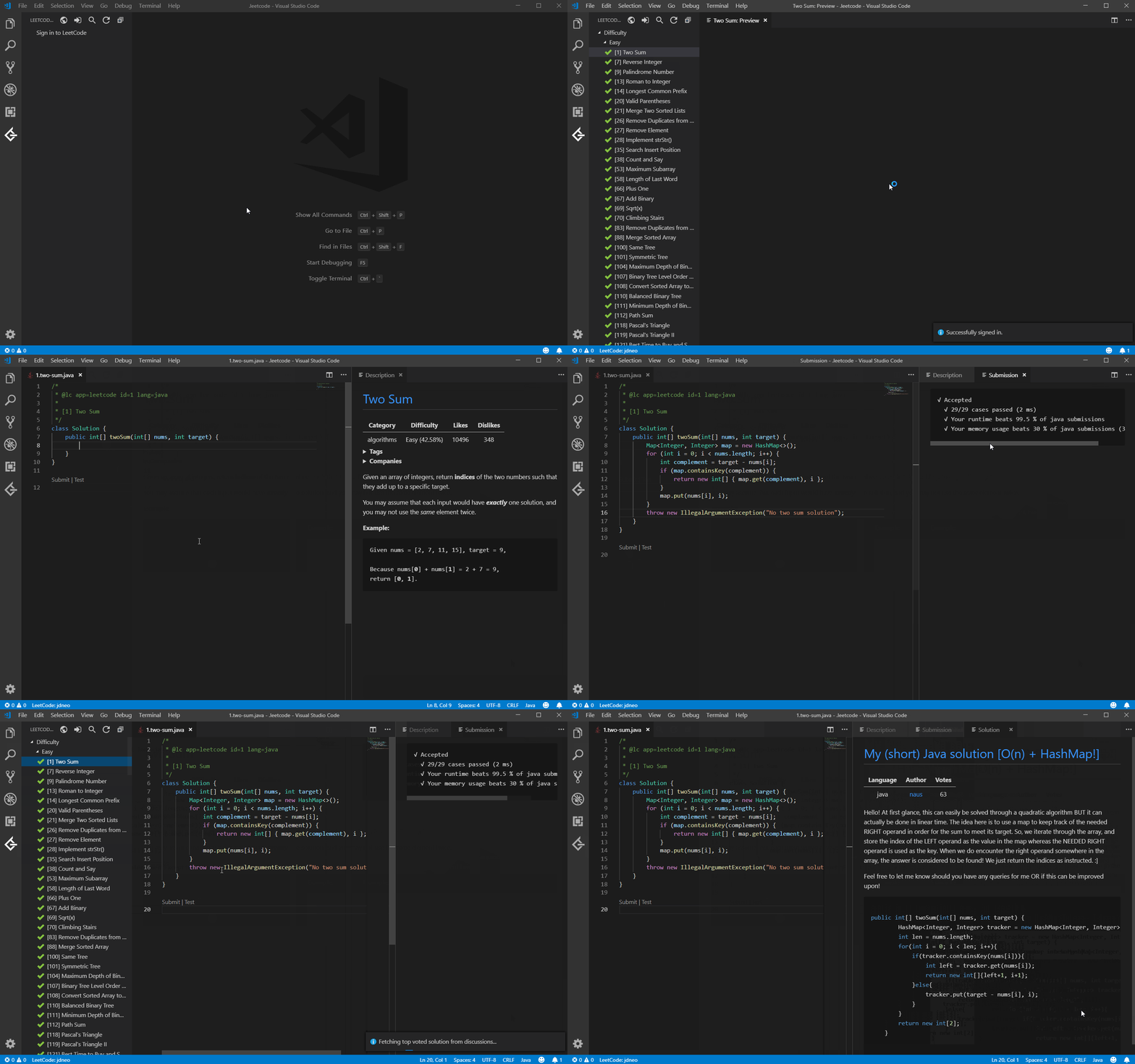
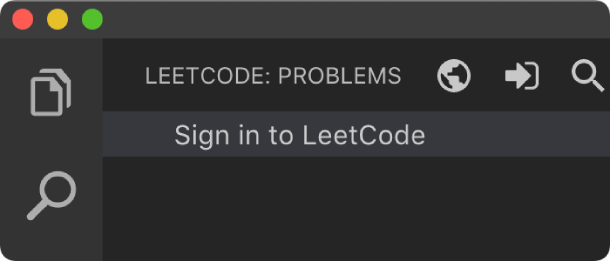
Simply click
Sign in to LeetCodein theLeetCode Explorerwill let you sign in with your LeetCode account. -
You can also use the following command to sign in/out:
- LeetCode: Sign in
- LeetCode: Sign out
-
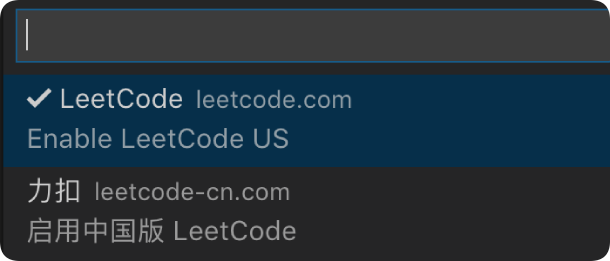
By clicking the button
 at the explorer's navigation bar, you can switch between different endpoints.
 -
The supported endpoints are:
- leetcode.com
- leetcode.cn
Note: The accounts of different endpoints are not shared. Please make sure you are using the right endpoint. The extension will use
leetcode.comby default.
-
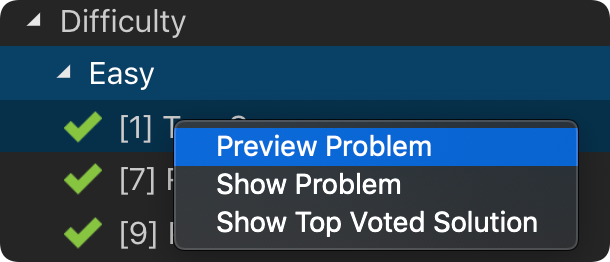
Directly click on the problem or right click the problem in the
LeetCode Explorerand selectPreview Problemto see the problem description. -
Select
Show Problemto directly open the file with the problem description.Note:You can specify the path of the workspace folder to store the problem files by updating the setting
leetcode.workspaceFolder. The default value is:$HOME/.leetcode/.You can specify whether including the problem description in comments or not by updating the setting
leetcode.showCommentDescription.You can switch the default language by triggering the command:
LeetCode: Switch Default Language.
-
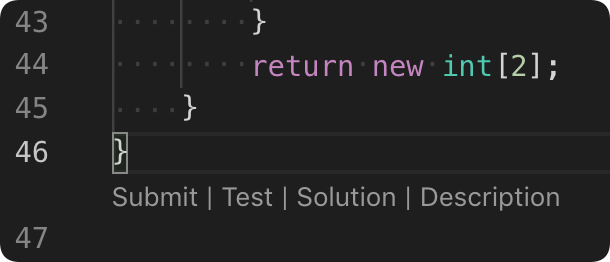
The extension supports 5 editor shortcuts (aka Code Lens):
Submit: Submit your answer to LeetCode.Test: Test your answer with customized test cases.Star/Unstar: Star or unstar the current problem.Solution: Show the top voted solution for the current problem.Description: Show the problem description page.
Note: You can customize the shortcuts using the setting:
leetcode.editor.shortcuts. By default, onlySubmitandTestshortcuts are enabled.
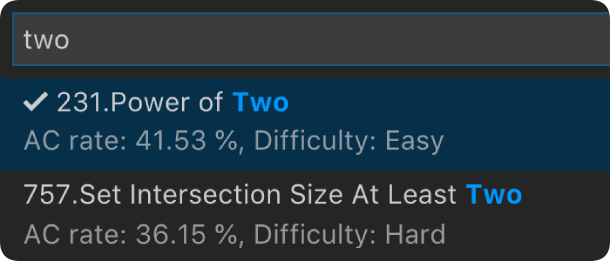
- By clicking the button
 at the explorer's navigation bar, you can search the problems by keywords.
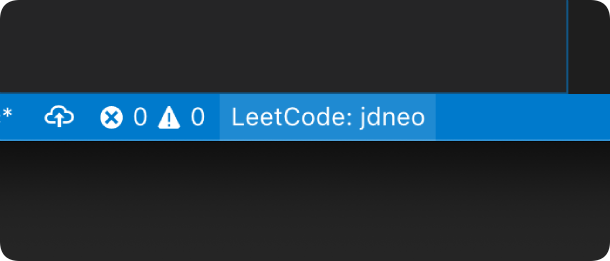
- To manage your LeetCode sessions, just clicking the
LeetCode: ***at the bottom of the status bar. You can switch between sessions or create, delete a session.
| Setting Name | Description | Default Value |
|---|---|---|
leetcode.hideSolved |
Specify to hide the solved problems or not | false |
leetcode.defaultLanguage |
Specify the default language used to solve the problem. Supported languages are: bash, c, cpp, csharp, golang, java, javascript, kotlin, mysql, php, python,python3,ruby,rust, scala, swift, typescript |
N/A |
leetcode.useWsl |
Specify whether to use WSL or not | false |
leetcode.endpoint |
Specify the active endpoint. Supported endpoints are: leetcode, leetcode-cn |
leetcode |
leetcode.workspaceFolder |
Specify the path of the workspace folder to store the problem files. | "" |
leetcode.filePath |
Specify the relative path under the workspace and the file name to save the problem files. More details can be found here. | |
leetcode.enableStatusBar |
Specify whether the LeetCode status bar will be shown or not. | true |
leetcode.editor.shortcuts |
Specify the customized shortcuts in editors. Supported values are: submit, test, star, solution and description. |
["submit, test"] |
leetcode.enableSideMode |
Specify whether preview, solution and submission tab should be grouped into the second editor column when solving a problem. |
true |
leetcode.nodePath |
Specify the Node.js executable path. for example, C:\Program Files\nodejs\node.exe |
node |
leetcode.showCommentDescription |
Specify whether to include the problem description in the comments | false |
leetcode.useEndpointTranslation |
Use endpoint's translation (if available) | true |
leetcode.colorizeProblems |
Add difficulty badge and colorize problems files in explorer tree | true |
leetcode.problems.sortStrategy |
Specify sorting strategy for problems list | None |
leetcode.allowReportData |
Opt in to anonymous usage telemetry for this unofficial fork. Telemetry is disabled by default. | false |
leetcode.authSync.enabled |
Enable the local browser auth sync server on 127.0.0.1. |
true |
leetcode.authSync.port |
Local port used by the browser auth sync server. The browser extension must use the same port. | 17899 |
leetcode.authSync.ownerHeartbeatIntervalSeconds |
How often the VS Code window that owns the browser auth sync listener writes its heartbeat. | 30 |
leetcode.authSync.observerCheckIntervalSeconds |
How often observer windows check shared auth sync ownership state. | 60 |
leetcode.authSync.ownerStaleAfterSeconds |
How long an owner heartbeat can be missing before another VS Code window may take over. | 120 |
leetcode.authSync.secret |
Optional shared secret for browser auth sync. If set, the browser extension must send the same secret. | "" |
When you meet any problem, you can check out the Troubleshooting and FAQ first.
If your problem still cannot be addressed, please file an issue.
Refer to CHANGELOG
- This extension is based on @skygragon's leetcode-cli open source project.
- Special thanks to our contributors.