[VoiceOver] Self-hosted Login Flow enhancements #170
Conversation


For errors shown on the error label and triggered by the Next button, this makes VoiceOver focus on the error label so that it will speak the contents.
The forgotPasswordButton opens Safari when tapped. Buttons with behaviors like this should be announced as a link by VoiceOver.
The same functionality will be needed from other VCs later.
…f-hosted-voiceover


There was a problem hiding this comment.
Excellent work Jayson! VoiceOver speaks in a much smoother, easier-to-understand way now.
I'm not sure if it's in the scope of this current work but I did notice one thing while testing. If the user navigates to the main WordPress.com login, signs in by email, then chooses the "enter password instead" option, it navigates to the LoginWPcomViewController, where a quick two-finger swipe of the screen reads all the elements correctly except the enter password button. It reads the variable name onePasswordButton as "owe-nep-sword-button button".
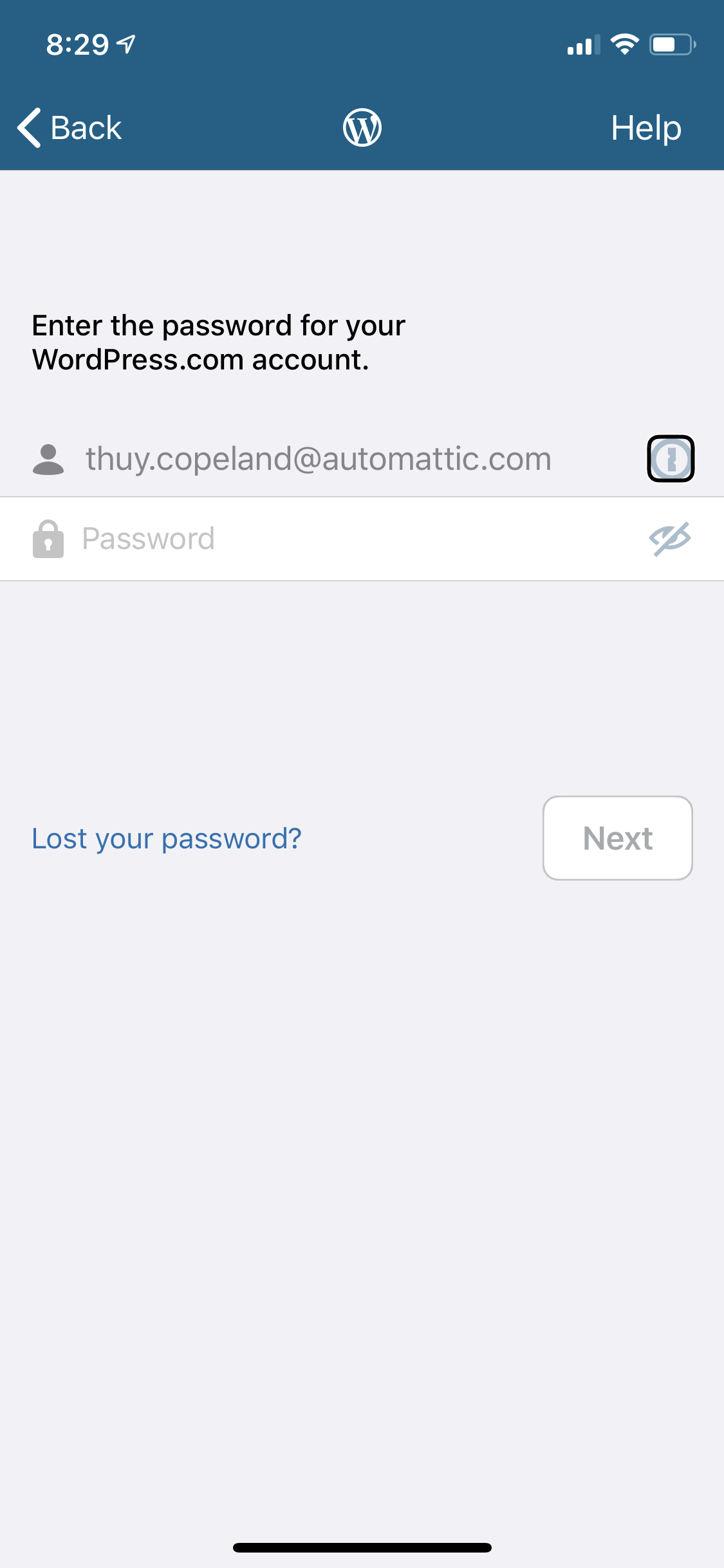
If you have time, this method needs the same treatment that the login by site address / username / password screen has.
Also, TIL Authy does not support VoiceOver in the app

|
Thank you for the review, @mindgraffiti! Re: WPCom login, it is tracked in a different task. But I appreciate you digging more into it. I haven't done that yet. I linked your research here wordpress-mobile/WordPress-iOS#13089 (comment).
😞 I found some of the apps I use are also not good. |


This fixes the issues described in wordpress-mobile/WordPress-iOS#13086.
This is a dependency of wordpress-mobile/WordPress-iOS#13099. This PR needs to be reviewed first.
Changes
The changes mainly involve the
LoginSiteAddressViewControllerandLoginSelfHostedViewController.Announce Errors
For errors that happen after pressing Next, we sometimes use the
errorLabelto display the error. The problem with this is that it is a UI element that just appears unannounced. A VoiceOver user may not know that it's there and would expect that a network request is still happening in the background.This fixes that by making VoiceOver focus on the error label. Which, in effect, makes VoiceOver speak the error message.
Text Field Labels
For these view controllers, we rely on the text field's placeholders instead of labels to describe what the text field is. Placeholders are a bit of a concern for accessibility. For this, I was mostly concerned about the VoiceOver user navigating back to the text field again and not knowing what it is.
This changes the text fields so they will have a static label like “Username“ or “Password“.
Show Password Toggle Button
The Show Password button didn't have a label. This is a toggle button so it's a bit tricky. Some apps would change the
accessibilityLabelwhen the image changes. WPAndroid uses a static label and makes TalkBack say “selected“ or “not selected“.For this, I opted to have a static
accessibilityLabelbut change theaccessibilityValueto the current state of the toggle button.WordPressAuthenticator-iOS/WordPressAuthenticator/NUX/WPWalkthroughTextField.m
Lines 278 to 289 in cafee3d
This is the same strategy used in wordpress-mobile/WordPress-iOS#13057 which seems to work well. I believe it's a bad idea to change the
accessibilityLabelas that would indicate that there are 2 different buttons.Others
0c3a93f
.linksince it opens SafariTesting
Please use the WPiOS branch at wordpress-mobile/WordPress-iOS#13099.
a. The username and password text fields have labels
b. The 1Password button has a label
c. Lost your password is announced as a link
Reviewer Checklist
Submitter Checklist
RELEASE-NOTES.txtif necessary.@mindgraffiti Would you have some time to review this? 🙂