Repository navigation
Mods
The mods were originally written for Coromon v1.1.2 and have been updated for v1.5.4 (Solar2D 2026.3729).
| Mod | What it does | Default key |
|---|---|---|
| Mod Info | Lists the installed mods and lets you change their settings | Title screen Mods button |
| Coromon Trainer | Game speed, noclip, catch all, skip battles, gold, items and more |
numPad keys |
| Potent Alert | Notification and sound when a potent or perfect Coromon appears | |
| XP & Gold Boost | Multiplies battle XP (2x) and trainer gold | |
| Text Speed+ | Dialogue text faster than the game's 3x maximum (6x) | |
| Area Encounter Info | Lists the Coromon in your current area, how common they are and which you've seen | numPad0 |
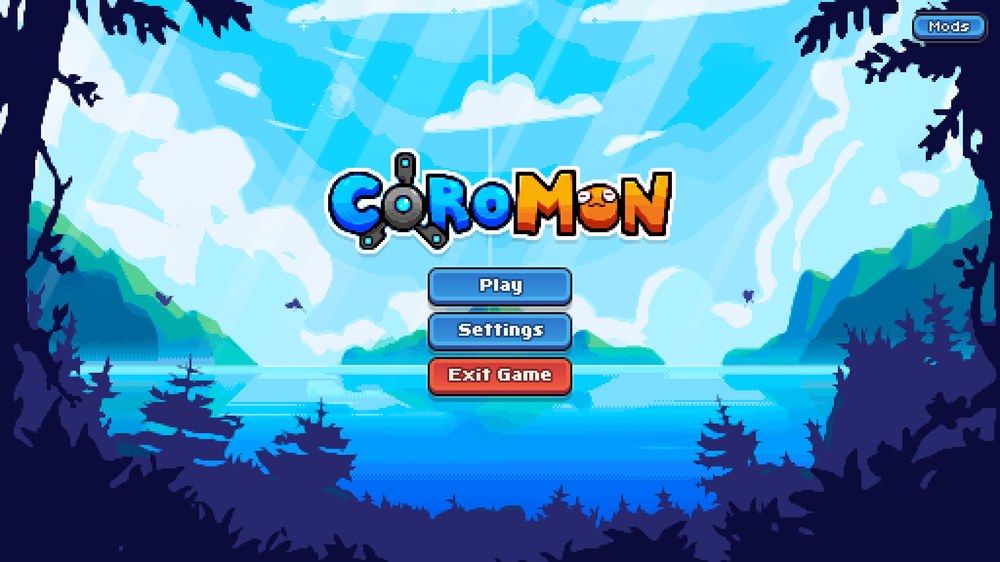
Every mod's settings, including all hotkeys, can be changed in-game:
- Open the Loaded Mods list: it's shown on startup, with the Mods button on the title screen, or with the info button next to your gold in the pause menu.
- Select a mod and press Settings (mods without settings say so in their description).
- Select a setting and press the blue button. Its label says what it does:
- Turn on / Turn off for on/off settings,
- Next to step to the next value or option,
-
Set key for hotkeys: press the new key,
Escto cancel orBackspaceto remove the key.
- Press the red button (or
Esc/Backspace) to go back to the list, and again to close it. Clicking outside the popup does nothing.
On a Steam Deck, tap the Mods button, then use A and B or tap. See Steam Deck.
Coromon's keys apply here too: Space or Z presses the blue button, and the game's Start keys (Esc, Enter,
Right Shift) and Back keys (Backspace, X, Left Shift) go back.
Changes are saved right away to mods/<mod>/settings.lua, there is no save button. You can also edit that file
directly while the game is closed. Delete it to go back to the defaults.
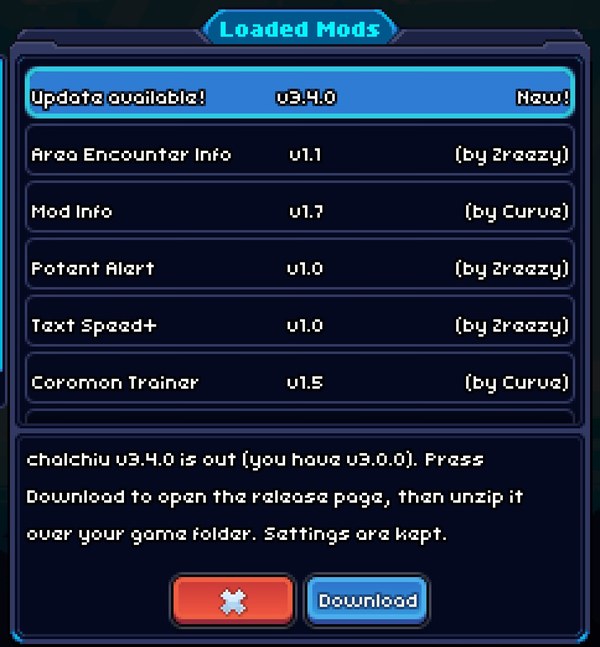
Shows the installed mods, their versions and authors, and opens each mod's settings page.
It also tells you when a new chalchiu release is out: when the game starts it asks GitHub for the latest release, and if it's newer than yours you get a message on the title screen and an Update available! row at the top of the mod list. Its Download button opens the release page in your browser. Nothing else is sent, and you can turn this off with Check for updates.
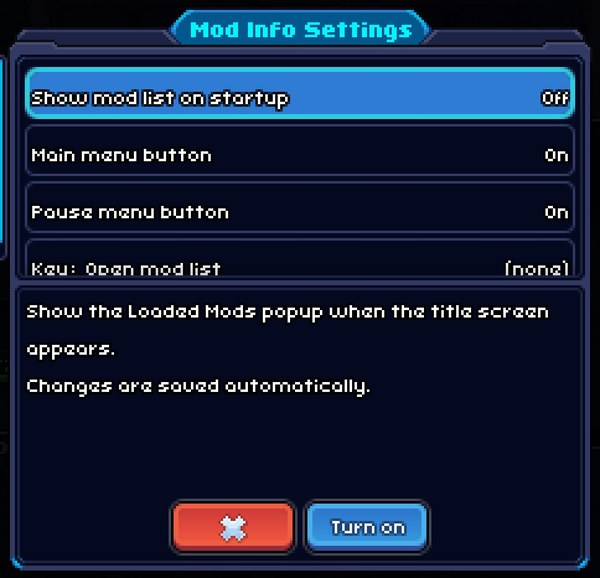
| Setting | Default |
|---|---|
| Show mod list on startup | On |
| Main menu button (the Mods button on the title screen) | On |
| Pause menu button (info button next to your gold) | On |
| Check for updates (asks GitHub once per game start) | On |
| Key: Open mod list | Not set |
Hotkeys for cheats and conveniences. Battle cheats are switched off automatically when an online battle starts and can't be turned on during one.
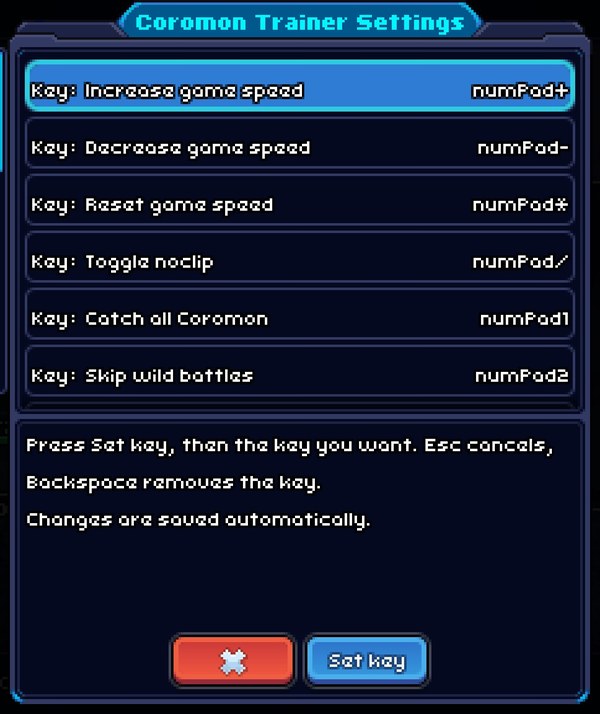
| Default key | Action |
|---|---|
numPad+ / numPad- / numPad*
|
Increase / decrease / reset game speed |
numPad/ |
Toggle noclip |
numPad1 |
Catch all Coromon |
numPad2 |
Skip wild battles |
numPad3 |
Max out squad (level, potential, health and energy) |
numPad. |
Max potential only: sets your squad to perfect potential (21), nothing else |
numPad4 |
Add gold |
numPad5 |
Skip trainer battles |
numPad6 |
No energy cost |
numPad7 |
Fast battle intros |
numPad8 |
Hide world interface (for screenshots) |
numPad9 |
Give item |
| Not set | No move damage (affects everyone in the battle) |
Settings: every key above. Add gold: amount (5000 by default) comes right after the Add gold key, and Give item: item (Spinner by default) and Give item: amount (10 by default) right after the Give item key.
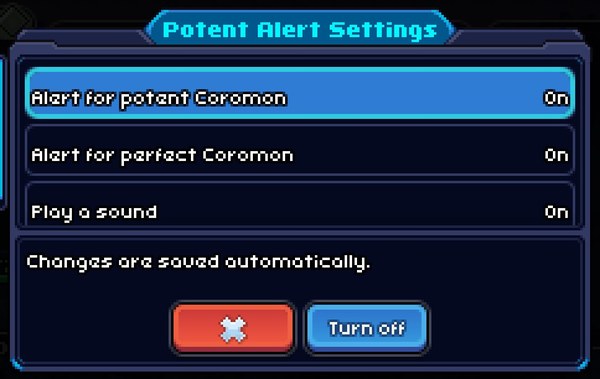
A notification and sound when a potent or perfect Coromon appears in a wild battle.
Settings: Alert for potent Coromon, Alert for perfect Coromon and Play a sound (all on by default).
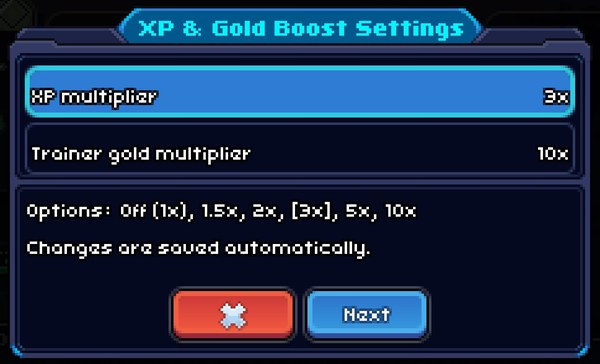
Multiplies the XP earned in battles and the gold from trainer battles. No effect in online battles.
Settings: XP multiplier (2x by default) and Trainer gold multiplier (off by default), each from off up to 10x.
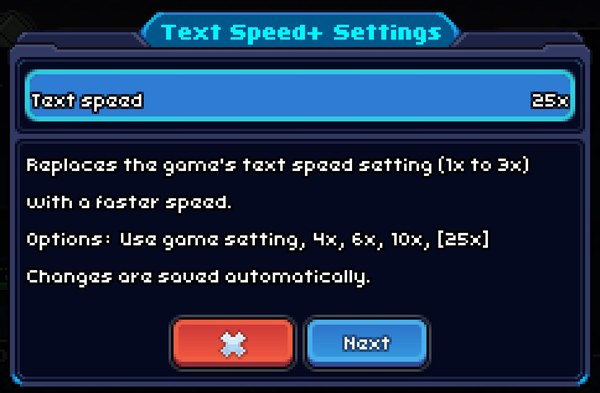
Makes dialogue text faster than the game's 3x maximum.
Settings: Text speed: use the game's setting, 4x, 6x (default), 10x or 25x.
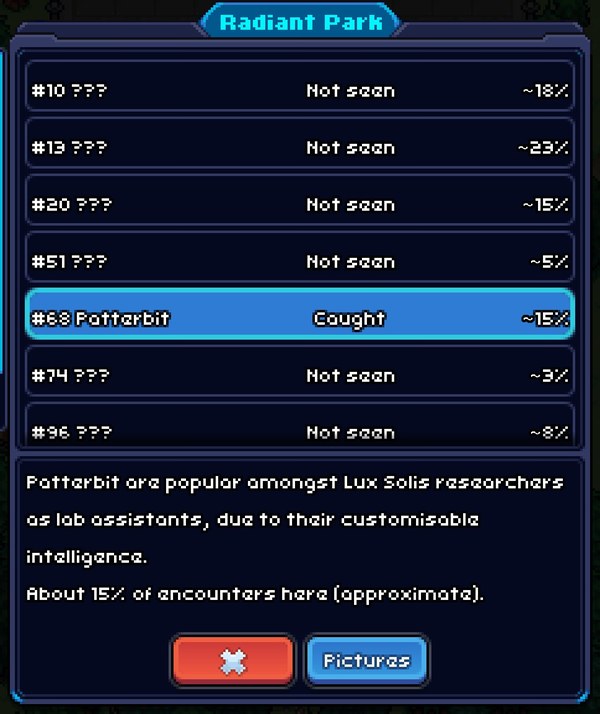
Press numPad0 in the overworld to list the Coromon that live in your current area. Each row shows:
- the dex number and name (
???for Coromon you haven't seen yet), - Caught, Seen or Not seen,
- roughly how common it is, as a share of the area's encounters (e.g.
~12%). The game adds up the encounter weights of every zone in the area (grass, water, ...), so this is approximate.
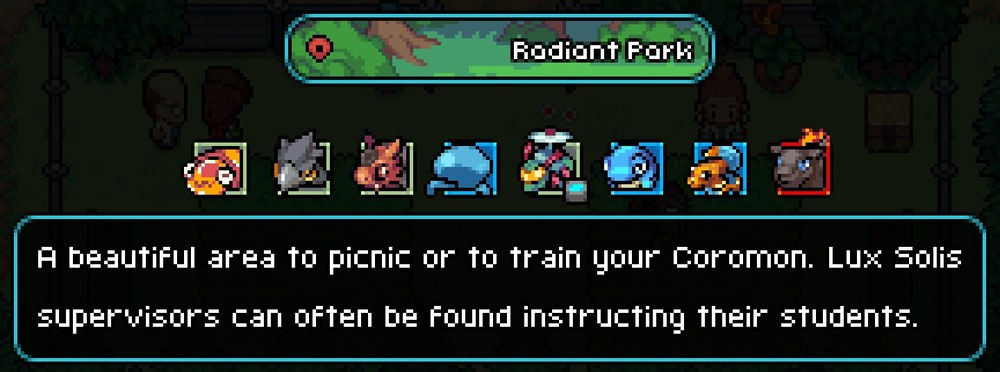
Select a row to read its dex description. The blue Pictures button opens the game's own world map popup for the area. Doesn't work during battles, or when your save randomizes every encounter.
The Pictures view, here with Show undiscovered Coromon turned on (otherwise Coromon you haven't seen are silhouettes):
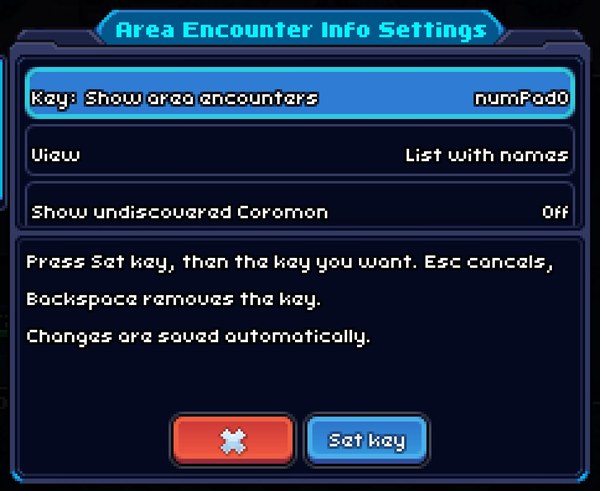
| Setting | Default |
|---|---|
| Key: Show area encounters | numPad0 |
| View: List with names or Game's map popup (what the key opens) | List with names |
| Show undiscovered Coromon: reveal names in the list and pictures in the game's popup (spoilers) | Off |
In the optional folder of the release. Copy it into mods to dump every module the game loads into
chalchiu.log. Only useful when writing mods.
Randomized evolutions are now built into the game's Custom Difficulty screen, so this mod was removed. If you still
have mods/random_evolution, delete it.