Repository navigation
Chat windows and filters
Besides tabs, ChatLanes can put messages into separate chat windows. A window is always visible, so you don't have to click a tab first. A typical example: join and leave messages in a small window at the top right, announcements like “[Advent 2026] Der Cubeside Weihnachtsmarkt hat geöffnet!” in a second one. This keeps the main chat tidy.

The quickest way to get a window:
- Open the chat (T).
- Right-click a message. This works in the normal chat and in a window.
- In the Create filter dialog choose what should happen and click Create.

| Setting | Meaning |
|---|---|
| Template |
Whole message: exactly this message, e.g. only when Max_Mustermann writes “Hallo Welt!”. Without sender: this text, no matter who writes it. Tag only: everything starting with the same tag, e.g. [Advent 2026]. |
| Detection | Contains text, Tag or Regex. You can freely edit the text below. |
| Target | New window, New tab or an existing window or channel tab |
| Name | name of the new window or tab |
| Also show in the normal chat | OFF: the message is moved to the window. ON: it also appears where it would otherwise go (e.g. the Global or System tab). |
Below the buttons you immediately see how many messages in the history already match and whether the clicked message itself matches.
Example with the Tag only template:

-
Window filters apply to every message, including channel messages like
[G] Max: Helloand private messages, and take priority over all tabs. - Tab filters (like Additional messages) only apply to messages that would otherwise land in the System tab.
Settings (K) → Edit on the window → Additional messages …. All filters are listed there as rules and can be edited or deleted with ✕.
While the chat is open, every window gets a title bar:
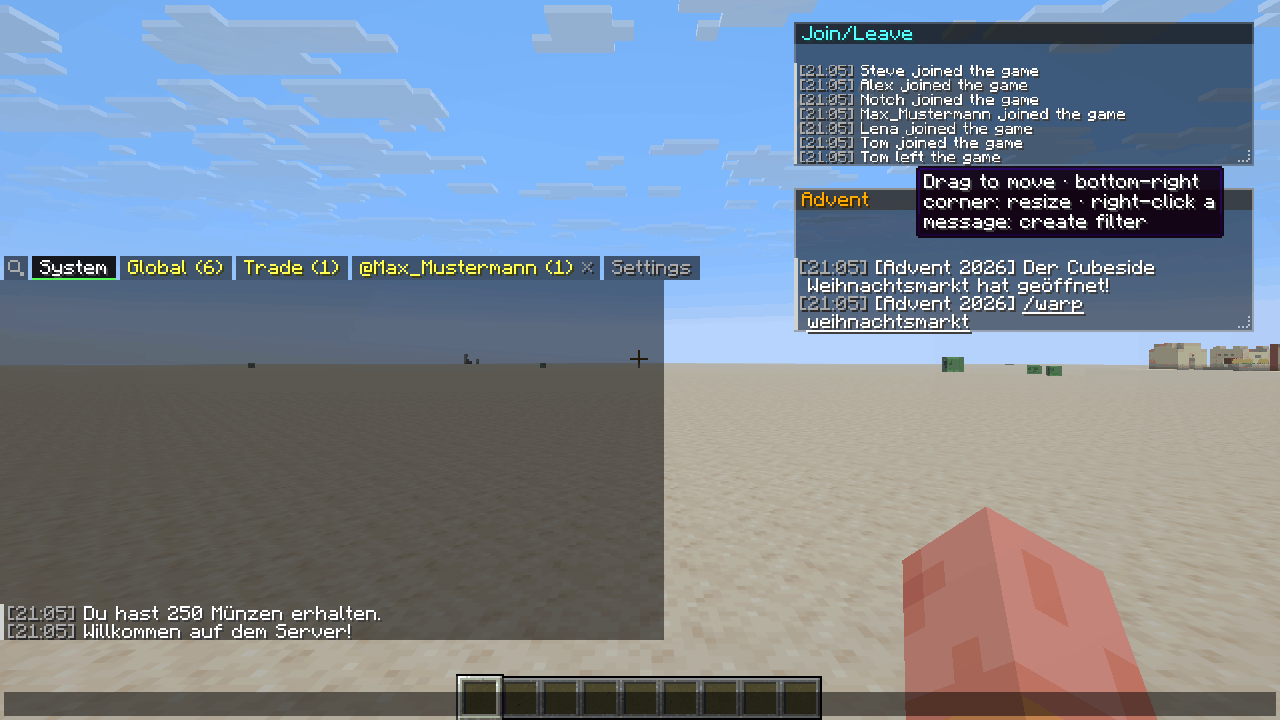
- Move: drag the title bar (with the name).
- Resize: drag the bottom-right corner (small marker).
- Scroll: mouse wheel over the window. Hold Shift to scroll line by line.
- Links and commands in messages can be clicked like in the normal chat. Shift+click inserts text into the input field.
Position and size are saved automatically per server profile when you let go. They are stored relative to the screen size, so the window stays in the same place with a different window size or GUI scale.
Every Channel and All tab can be a window:
- Settings (K) → Edit on the tab.
- Click Show as: Tab bar until it says Own window.
- Done and Save.

The tab then disappears from the tab bar. Switch command, send prefix, blink and counter don't matter for windows, because you don't type into a window and it is always visible. Sounds still work.
Tip – the complete history: A window of type All shows every message in its original order, exactly as it arrived. It's basically the normal Minecraft chat, so you can always check what was written when.
Click Window … in the tab editor:

| Setting | Values |
|---|---|
| Text size | Like chat (Minecraft's “Chat Text Size”) or 50 % to 150 % |
| Background | Like chat or 0 % to 100 % opacity (0 % = text only) |
| While chat is closed | Like chat: new messages appear and fade out like in the normal chat (see Appearance). Always visible: the latest messages stay on screen. Only when chat is open: the window stays hidden until you open the chat. Or a fixed time from 5 seconds to 5 minutes. |
| Also show in the normal chat | same as in the filter dialog (channel windows only) |
| Reset position and size | moves the window back to the top right in its default size |
You can create as many windows as you like.