Repository navigation
Tabs and channels
ChatLanes splits the chat into tabs. Open the chat (T) and click a tab at the top to see only its messages.

| Type | Shows |
|---|---|
| System | everything no other tab matches (server notices, command output …) |
| Channel | messages that match the detection, e.g. everything starting with [G]. The first matching channel wins. |
| All | every message, like the normal Minecraft chat |
| @Player | created automatically for private messages, see Private messages |
By default there are System, Global ([G]) and Trade ([T]).
-
Click a tab to select it. If the tab has a switch command (e.g.
/ch global), the mod also switches to that channel on the server, so you write there directly. -
Unread messages: tabs show
(count)in yellow. Tabs with Blink flash orange. - Magnifier at the front: search the chat (also Ctrl+F).
- Settings at the end: open the settings.
- Right-click a message: create a filter, see Chat windows and filters.
- While the chat is open, the chat area always has its full height so the tabs don't jump around (can be turned off under General → Fixed chat size).
The settings menu (key K) lists all tabs. The order of the list is the order in the bar.

- + New tab adds a tab.
- Edit opens the tab editor (see below).
- ↑ / ↓ move the tab, ✕ deletes it.
- Arrange … opens the drag & drop view (see below).
- Changes only apply after Save.

| Field | Meaning |
|---|---|
| Name | text in the tab bar |
| Time | Default (as set under General), ON or OFF for this tab |
| Type | System, Channel or All |
| Detection | how messages for this channel are recognized (see below) |
| Command / prefix |
Switch command: sent to the server when you select the tab, e.g. /ch global. Send prefix: put in front of every message you write in this tab, e.g. /g . Empty = nothing. Commands starting with / are never changed. |
| Blink | tab flashes while it has unread messages |
| Counter | show (3) after the name. OFF = the name just turns yellow. |
| Color | text color of the tab |
| Sound / Volume / ▶ | sound for new messages (about 20 sounds to choose from), ▶ to preview. No sound while you're looking at the tab or for your own messages. |
| Show as | Tab bar or Own window, see Chat windows and filters |
| Additional messages … | custom rules (see below) |
| Test message | live test: type a chat line and instantly see whether it would go to this tab (✔ / ✘) |
| Type | Example | Explanation |
|---|---|---|
| Tag | [G] |
The message starts with this tag. Server prefixes in front such as [Freebuild] are skipped. |
| Contains text | auction |
The message contains the text anywhere (case-insensitive). |
| Regex | ^\[G\] |
Regular expression on the text without colors. Invalid expressions are shown in red. |
Use this to pull messages that would otherwise land in the System tab into a channel, e.g. every line containing “Info”.
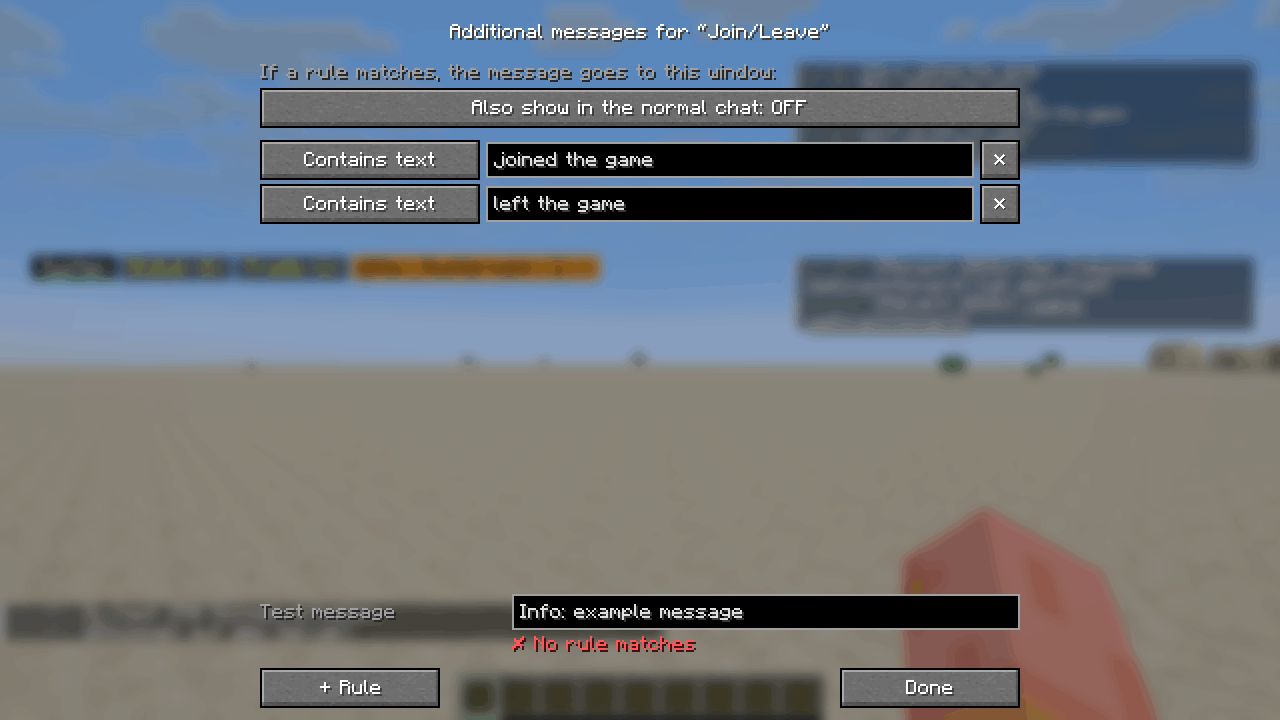
- + Rule adds a rule, ✕ deletes it.
- Rule types: Tag, Contains text, Regex and Command output.
-
Command output: e.g.
/where. Everything that would otherwise go to the System tab within the set time after this command (0.1 to 60 seconds) goes to this channel. Works with macro mods too. - Also show in System tab: ON = the message appears in both tabs, OFF = it is moved.
- There is a live test at the bottom again.
In Arrange … you drag tabs with the mouse into the order you want and spread them over two bars:
- Top bar: above the chat
- Bottom bar: right above the input field
For each bar you choose what it does while the chat is closed: Always show, Only when unread (while a blinking tab in that bar has unread messages) or Hide. The PM tabs (@ PM tabs) can be moved too. Then Save in the main menu.
