Interface
The window has folder tabs across the top, a project list on the left, a version graph on the right, and a details panel below. Drag the dividers to give the list, graph, or details more room.
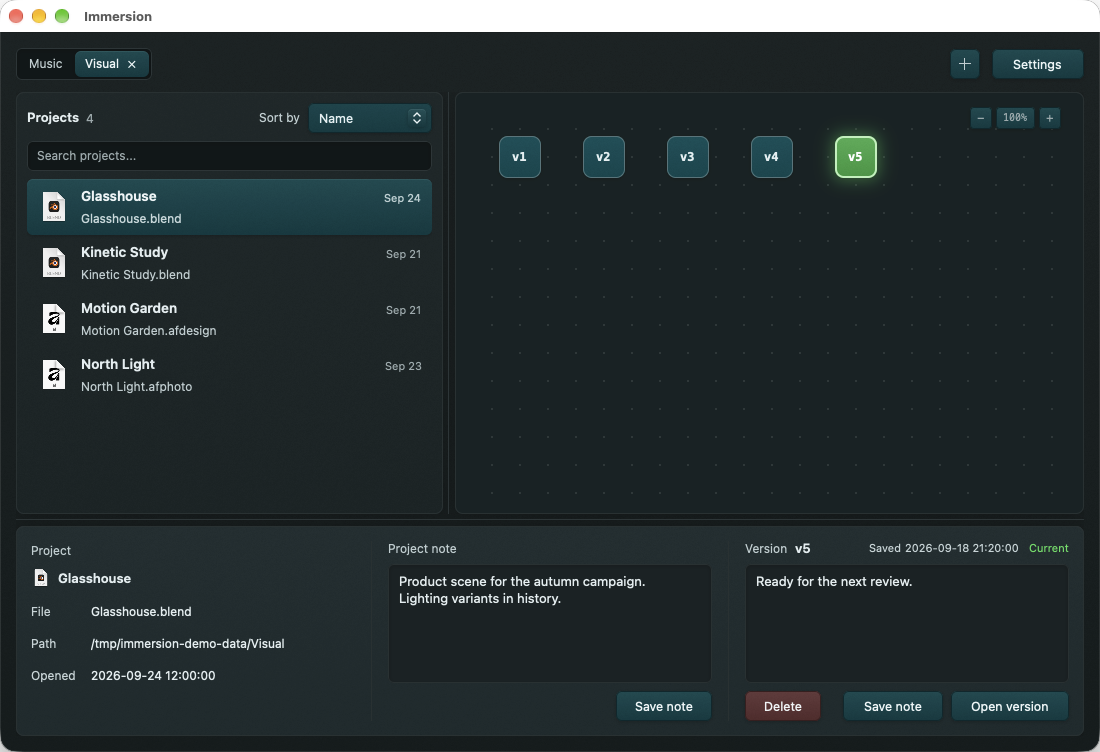
- Select a tab to work with that folder. All added folders continue to be watched, even when their tab is not selected. A tab can show scanning or queued progress.
- Select + to add a folder. A new folder asks for its layout; an existing configured folder reuses its saved layout.
- Double-click a tab name to rename it. Press Enter to save or Escape to cancel. Drag tabs to reorder them.
- Use a tab's remove control to stop watching it. Confirming removal leaves its
.musitversion history on disk, so you can add the folder again later. - Select Settings for folder and app preferences.
- Click a project to select it; double-click to open its primary file in the associated app.
- Type in Search projects… to narrow the visible list.
- Use Sort by to switch between Name and Last Opened. The setting also appears in Settings as the default sort mode.
- The list shows the project type and primary file. If a project is missing, check its format and the folder layout in Supported projects.
- Click a node to select that version. Connected nodes show ancestry, including branches created after a restore. The current on-disk version is highlighted when it matches a saved snapshot.
- Double-click a node to restore it. The Open version button in the details panel performs the same restore.
- Drag the graph to pan. Scroll to move around it. Use −, +, or the percentage control to zoom out, zoom in, or reset to 100%. On a trackpad or mouse, Command/Control plus wheel also zooms.
- A dashed node border means that version's fast uncompressed copy has been compacted. It can still be restored from the compressed object store if its data is present.
- Project shows the name, primary file, path, and last opened time. Where there are multiple candidate files, use File to select the primary one.
- Project note is an editable note for the project. Select Save note to keep it.
- Version shows the selected version, save time, current status, and its note. Select Save note after editing. Delete asks for confirmation and permanently removes that version's snapshot. Open version restores the selected version.
Project notes and version notes are different: project notes follow the project, while version notes identify one saved point in its history.