




Shopify Spy is a command-line tool for scraping product and collection data from ecommerce stores. Built on Scrapy, it supports Shopify and WooCommerce stores out of the box.
To find Shopify stores to scrape, try searching Google with site:myshopify.com.
pipx and uv tool install CLI tools in isolated environments, so they won't conflict with other Python projects:
# pipx
pipx install shopify-spy

# uv
uv tool install shopify-spy
Or install with pip if you want it in a specific virtual environment:
pip install shopify-spyRequires Python 3.10+.
# Scrape a Shopify store (default)
shopify-spy scrape https://www.example.com

# Scrape a WooCommerce store
shopify-spy scrape --platform woocommerce https://www.example.com

# Scrape multiple stores
shopify-spy scrape https://store1.com https://store2.com https://store3.com

# Download product images
shopify-spy scrape https://www.example.com --images

# Include collections (Shopify only)
shopify-spy scrape https://www.example.com --collections

# Scrape multiple stores from a file
shopify-spy scrape --url-file stores.txt

# Specify output directory
shopify-spy scrape https://www.example.com --output ./my-data

# Sample 10 items (useful for testing)
shopify-spy scrape https://www.example.com --limit 10

# Quick peek at a store (prints 1 item to stdout, no file output)
shopify-spy scrape --peek https://www.example.com

# Peek and pipe to jq
shopify-spy scrape --peek https://www.example.com 2>/dev/null | jq '.product.title'

# Bypass robots.txt restrictions
shopify-spy scrape --ignore-robots https://www.example.com
Results are saved as JSONL in the output directory (default: ./output). Use --format to choose JSON, CSV, or XML instead. A live item counter is displayed during scraping.
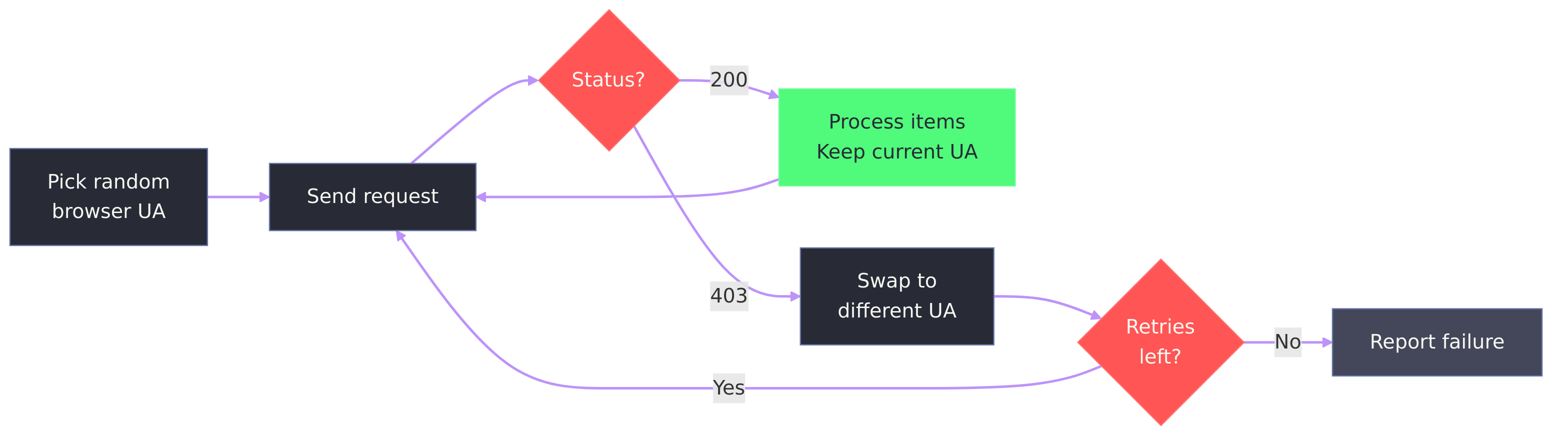
- Automatic user-agent rotation. Requests use a random browser user-agent. If a server responds with 403, the tool swaps to a different UA and retries.
- Failure diagnostics. When a scrape returns 0 items, the tool explains why (403, 404, robots.txt, timeout) and suggests flags to try.
- Log files. Scrapy's verbose output goes to a log file, keeping the terminal clean. Use
--verboseto also print to the terminal. - Status JSON. Each run writes a machine-readable status file with per-URL results, errors, and timing.
- Bail timeout. Automatically aborts if no items are scraped within
--bailseconds (default: 30). - Coding-agent friendly. Designed for use by AI coding agents (Claude Code, Cursor, etc.):
--peekpipes a single item to stdout for quick schema inspection- Non-zero exit codes on failure with diagnostic messages explaining why
- Status JSON with machine-readable per-URL results and error details
--bailprevents dead runs from hanging indefinitely--quietsuppresses visual noise; log files capture full Scrapy output separately
| Platform | Mechanism | Notes |
|---|---|---|
| Shopify | /products.json bulk endpoint, sitemap fallback |
Products and collections |
| WooCommerce | /wp-json/wc/store/v1/products |
No authentication required |
Scrape products and collections from Shopify and WooCommerce stores.
shopify-spy scrape [URL] [OPTIONS]Arguments:
URL...- One or more store URLs (optional if using--url-file)
Options:
--platform, -p PLATFORM- Ecommerce platform:shopify,woocommerce(default:shopify)--limit, -n INT- Stop after scraping N items (useful for sampling or testing)--url-file, -f FILE- File containing URLs (one per line)--products / --no-products- Scrape products (default: yes; Shopify only)--collections / --no-collections- Scrape collections (default: no; Shopify only)--images / --no-images- Download images (default: no)--output, -o PATH- Output directory (default:./output)--format, -F FORMAT- Output format:json,jsonl,csv,xml(default:jsonl)--config, -c FILE- Path to YAML config file--concurrent INT- Concurrent requests per domain (default: 16)--throttle / --no-throttle- Auto-throttle requests (default: yes)--user-agent, -A TEXT- Custom User-Agent header--ignore-robots, -i- Ignore robots.txt restrictions--bail INT- Abort if no items scraped within N seconds (default: 30, 0 to disable)--peek- Print 1 item to stdout as JSONL and exit (no file output)--verbose, -v- Show debug output (logs to both file and terminal)--quiet, -q- Suppress the live item counter
Create a default configuration file.
shopify-spy init [PATH]Arguments:
PATH- Where to create the config file (default:./shopify-spy.yaml)
Options:
--force, -f- Overwrite existing file
Shopify Spy can be configured via YAML file. Create one with shopify-spy init:
# shopify-spy.yaml
scrape:
  platform: shopify   # Platform: shopify, woocommerce
  products: true      # Scrape product data (Shopify only)
  collections: false  # Scrape collection data (Shopify only)
  images: false       # Download product images
  bail: 30            # Abort if no items scraped within N seconds (0 = off)

output:
  dir: ./output       # Output directory for results
  format: jsonl       # Output format: json, jsonl, csv, xml
  images_subdir: images  # Subdirectory for downloaded images

network:
  concurrent_requests: 16  # Concurrent requests per domain
  timeout: 180             # Download timeout (seconds)
  retries: 2               # Retry failed requests
  # user_agent: MyBot/1.0 (+https://example.com)  # Custom user agent
  respect_robots_txt: true

throttle:
  enabled: true            # Auto-throttle based on server response
  start_delay: 1           # Initial download delay (seconds)
  max_delay: 60            # Maximum download delay (seconds)
  target_concurrency: 1.0  # Target concurrent requests (higher = faster)
Config file search order:
- Path specified with
--config ./shopify-spy.yaml~/.config/shopify-spy/config.yaml
CLI options override config file settings.
Results are saved in the output directory (JSONL by default, configurable via --format):
output/
  data/
    shopify_spider_2024-01-15T10-30-00.jsonl
  status/
    shopify_spider_2024-01-15T10-30-00_status.json
  images/
    full/
      <image files>
A status JSON file is written for each run with metadata:
{
  "items_scraped": 47,
  "urls": [
    {"url": "https://store.com", "items": 47, "status": "ok"}
  ],
  "finish_reason": "finished",
  "duration_seconds": 12.3,
  "log_file": "/home/user/.local/state/shopify-spy/logs/shopify_spider_2024-01-15T10-30-00.log"
}
Scrapy's verbose log output is written to a log file (not the terminal). Log files are stored in the platform-appropriate state directory (e.g., ~/.local/state/shopify-spy/logs/ on Linux). Use --verbose to also print logs to the terminal.
Each line contains the full product or collection JSON from Shopify's API, plus two added fields:
{
  "product": { "title": "...", "variants": [...], "images": [...], ... },
  "url": "https://store.com/products/item.json",
  "store": "store.com",
  "image_urls": ["https://cdn.shopify.com/.../product.jpg"]
}Each line contains the full product JSON from the WooCommerce Store API, plus two added fields:
{
  "id": 123,
  "name": "Product Name",
  "slug": "product-name",
  "permalink": "https://store.com/product/product-name/",
  "sku": "SKU-001",
  "prices": { "price": "5200", "currency_code": "USD", "currency_minor_unit": 2 },
  "images": [{ "id": 1, "src": "https://..." }],
  "store": "store.com",
  "image_urls": ["https://..."]
}
Note: WooCommerce prices are strings in minor currency units (divide by 10^currency_minor_unit to get the decimal value).
When using --images, each item includes a scraped_images field with download info:
{
  "image_urls": ["https://cdn.shopify.com/.../product.jpg"],
  "scraped_images": [
    {
      "url": "https://cdn.shopify.com/.../product.jpg",
      "path": "full/abc123def.jpg",
      "checksum": "d41d8cd98f00b204e9800998ecf8427e",
      "status": "downloaded"
    }
  ]
}
The path is relative to the images directory (output/images/ by default).
With jq:
# Shopify: extract product titles
cat output/*.jsonl | jq '.product.title'

# WooCommerce: extract product names and prices
cat output/*.jsonl | jq '{name: .name, price: .prices.price, currency: .prices.currency_code}'
With Python:
import json

with open("output/shopify_spider_2024-01-15.jsonl") as f:
    for line in f:
        item = json.loads(line)
        print(item["product"]["title"])  # Shopify
        # print(item["name"])            # WooCommerce
With pandas:
import pandas as pd

df = pd.read_json("output/shopify_spider_2024-01-15.jsonl", lines=True)
products = pd.json_normalize(df["product"])  # Shopify
With polars:
import polars as pl

df = pl.read_ndjson("output/shopify_spider_2024-01-15.jsonl")WooCommerce Store API required. The WooCommerce spider uses the public Store API (/wp-json/wc/store/v1/products), available in WooCommerce 3.x and later. Stores that have disabled the REST API via security plugins or broadly block crawlers may not be scrapeable. When a scrape returns 0 items, the tool prints a diagnostic message explaining the likely cause (403 Forbidden, 404 Not Found, robots.txt blocking, etc.) and exits with code 1.
Rate limiting. Scraping very large stores may result in temporary bans. Auto-throttling is enabled by default, but you can adjust the settings or disable it for faster scraping:
# Disable throttling (faster but riskier)
shopify-spy scrape https://example.com --no-throttleFor advanced Scrapy configuration or custom pipelines, you can use Shopify Spy as a library:
from scrapy.crawler import CrawlerProcess
from scrapy.utils.project import get_project_settings
from shopify_spy.spiders.shopify import ShopifySpider
from shopify_spy.spiders.woocommerce import WooCommerceSpider

process = CrawlerProcess(get_project_settings())

# Shopify
process.crawl(ShopifySpider, url="https://example.com", products=True)

# WooCommerce
process.crawl(WooCommerceSpider, url="https://example.com")

process.start()Found a bug or have a suggestion? Open an issue.
Icon by Bartama Graphic.