Releases: 8bit2qubit/XboxFullScreenExperienceTool
Release list
XFSET (Xbox Mode) v0.9.4

🎉 OmniConsole — Your Gaming Platform, On Boot.

OmniConsole serves as your Windows 11 Xbox Mode (FSE) Home shell on PCs and handhelds (ROG Xbox Ally X, etc.), with an OmniCharm Game Bar widget, Mouse Mode, Steam shortcuts, and Nekomata per-app gamepad mapping so everything stays on the gamepad.
Whenever Xbox Mode (FSE) activates, OmniConsole launches your configured gaming platform. Any platform can be your Xbox Mode (FSE) Home — Steam, Xbox, Epic, Armoury Crate SE, Playnite, or anything you add.
🌐 Visit the Official Website for the full documentation, features overview, and installation guide.
- Boot straight into your platform — auto-launch on startup; switch anytime via Game Bar's "Library"
- Auto FSE entry — launch from the Start Menu and OmniConsole triggers FSE for you
- Built-in platforms — Steam Big Picture, Xbox, Epic Games Store, Armoury Crate SE, Playnite Fullscreen
- Custom platforms — executable, protocol URI, or packaged MSIX/APPX, with cover image and launch arguments
- Xbox-compatible controller required — XInput controller with an Xbox button (needed for Game Bar, FSE, and all gamepad features)
- Gamepad-first UI — controller navigation across the card-grid Settings, plus a gamepad-compatible file picker for browsing executables
- Gamepad Mouse Mode — turn your controller into a mouse and keyboard, with two layouts (OmniNav / Classic) and three states (Off / Auto / Force On)
- Gamepad Steam Shortcuts — ⧉ button for Steam Big Picture menus; long-press ☰ in-game for the Steam Overlay
- Nekomata per-app gamepad mapping — remap every XInput input to a key, modifier combo, mouse button, scroll, cursor movement, arrow keys, or WASD, with a separate profile for each app
- OmniCharm Game Bar Widget — one-tap shortcuts to Task View, Xbox Library, and Steam Overlay; toggle Mouse Mode, controller layout, and cursor speed during gameplay
- Game Bar integration — customize "Home" / "Library" buttons; open OmniConsole Settings without leaving FSE
- Troubleshoot & Environment Snapshot — built-in FSE recovery and a one-click Markdown system report for bug reporting
- In-app updates, multilingual UI — auto-checks GitHub releases; English, 繁體中文, 简体中文
- Compatible with all FSE-enabled devices — native FSE handhelds (ROG Xbox Ally X) and any system using this tool.
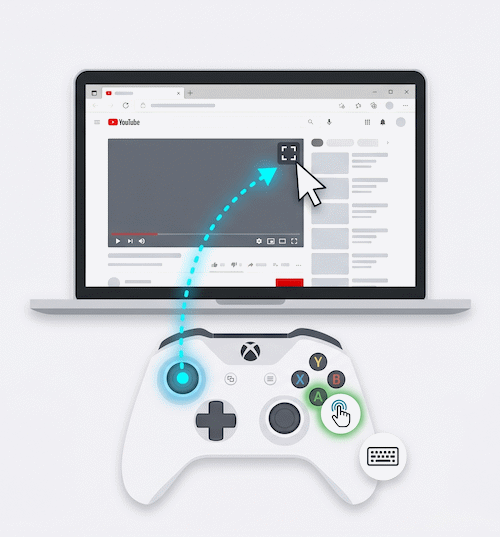
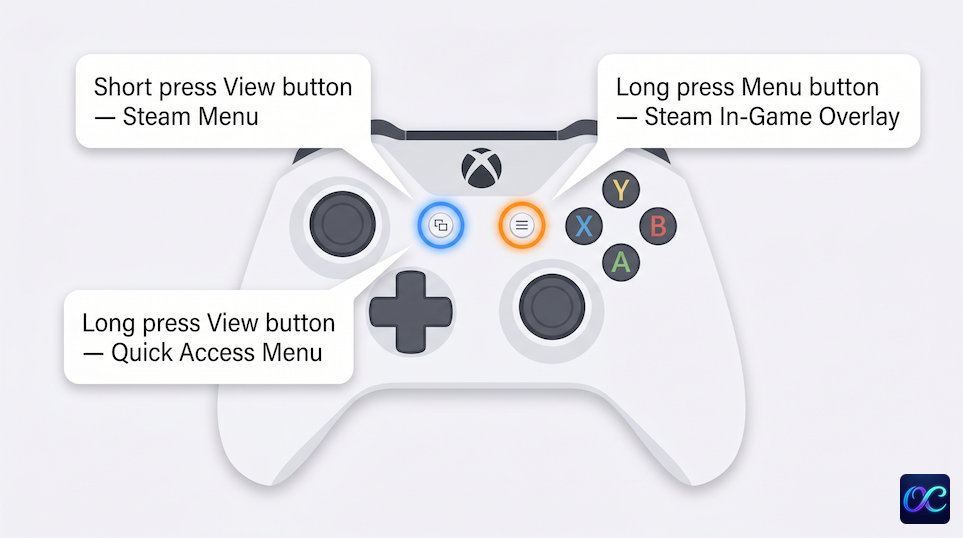
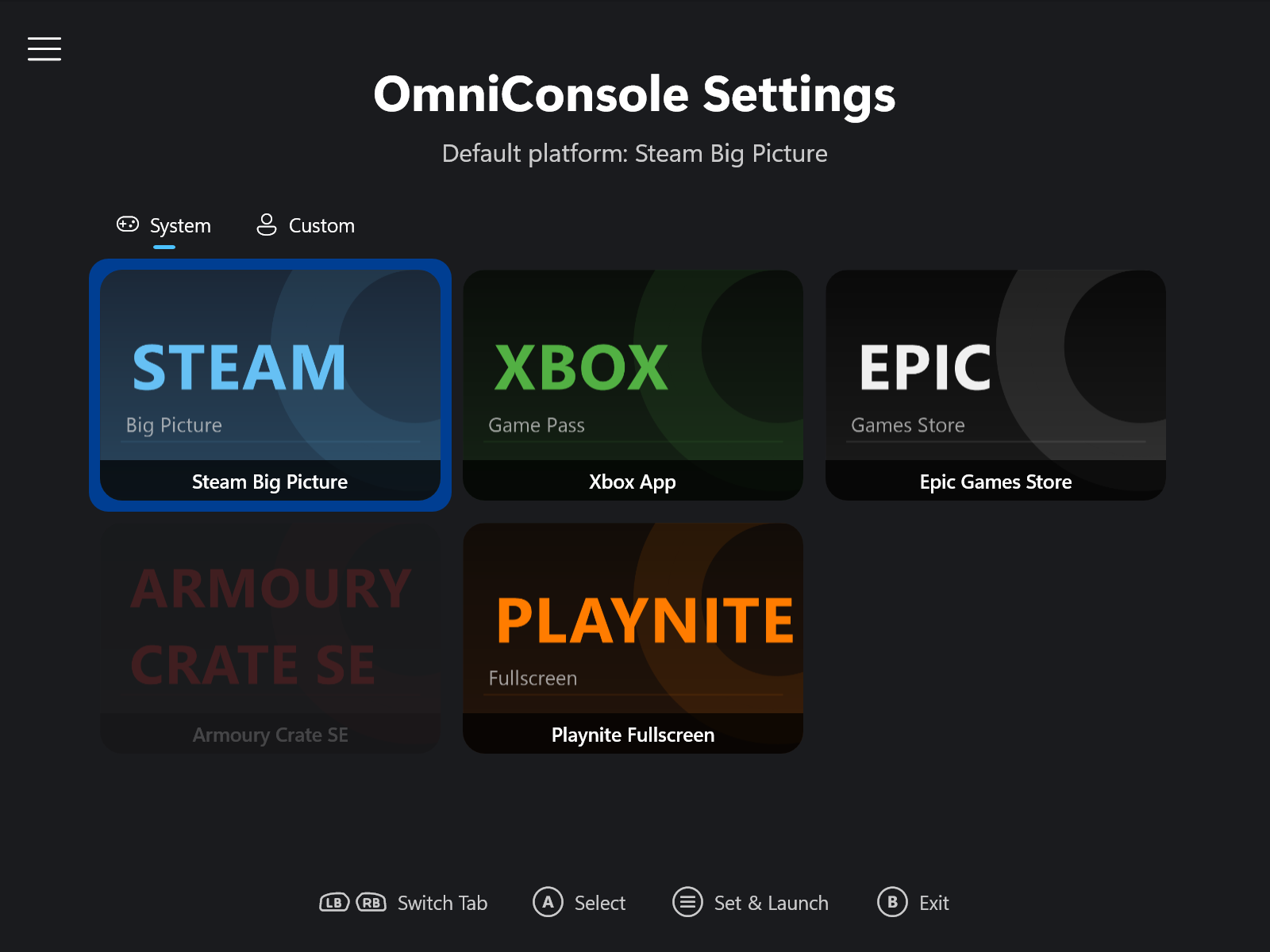 | 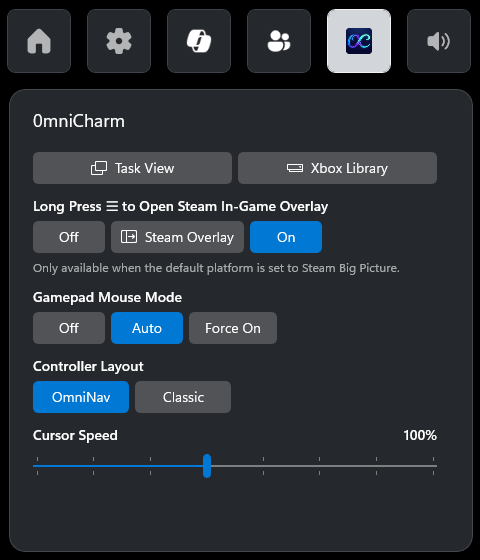 |  |
| OmniConsole Settings | OmniCharm Game Bar Widget | Settings → Gaming → Full screen experience |
English
💡 Important Findings & Usage Tips
- Unlock the Full Handheld Edition:
- Microsoft's native rollout (24H2 build
26100.8328+, 25H2 build26200.8328+, and Insider Build26220.7271+) is currently a Limited PC edition — noChoose home appsetting, no auto-launch on startup. You're stuck opening it by hand from Task View or the Xbox App. - This tool enables the Full Handheld edition (identical to the ROG Xbox Ally series), unlocking
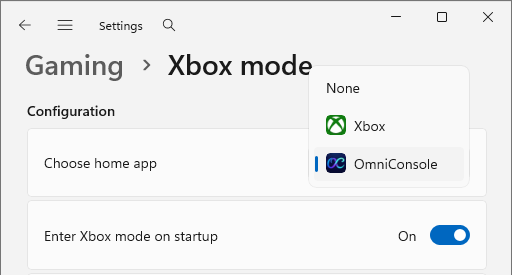
Choose home app(pick Xbox or OmniConsole), "Enter Xbox mode on startup" / "Enter full screen experience on startup", and the "Restart for better performance" prompt that boots into an optimized performance mode — freeing up memory for actual gameplay.
- Microsoft's native rollout (24H2 build
- Solving Startup Issues:
- For users on older builds whose PC sometimes boots straight to the desktop instead of Xbox Mode (FSE) (the desktop wins the startup race), the recommended fix is to upgrade to a Native build:
- 24H2 Release →
26100.8328+ - 25H2 Release →
26200.8328+ - Insider →
26220.7271+,26300.7674+, or28020.1362+
- 24H2 Release →
- By combining a Native build with this tool's Native Mode (which requires no screen dimensions override), you can achieve a 100% reliable boot into the FSE Shell.
- Upgrade Workflow:
- Recommended: Upgrade Windows to a Native build first, then upgrade this tool. It will automatically apply the Native configuration.
- If you upgrade Windows after upgrading the tool: Simply open the tool and click "Enable" again to migrate to the Native configuration.
- For users on older builds whose PC sometimes boots straight to the desktop instead of Xbox Mode (FSE) (the desktop wins the startup race), the recommended fix is to upgrade to a Native build:
- Gamepad Keyboard for Sign-in Screen (v0.9.0+ Architecture Update) (#5):
- It is highly recommended to check "Simulate touch input on startup to enable the gamepad keyboard". v0.9.0+ introduces a refactored, system-wide touch simulation architecture so the on-screen keyboard reliably pops up with a controller anywhere — including PIN / password entry on the Windows sign-in screen. Tool version v0.9.0+ is strictly required for sign-in screen support.
- Known LogonUI Glitch (The "Wait Strategy"): If you press 'A' too quickly while the system is booting into the sign-in screen, the Gamepad Keyboard (PIN pad) might glitch (pop up and vanish, or fail to appear at all). This is a known bug within Microsoft's
LogonUI.exethat affects even native FSE handheld devices like the ROG Xbox Ally.- Workaround: Do not press 'A' immediately. Wait a few seconds for the sign-in screen to fully initialize (e.g., wait for the Network/Wi-Fi icon in the bottom right corner to become solid, or the Windows Spotlight text to appear) before pressing 'A' to reliably trigger the on-screen keyboard.
- Task View Xbox Icon Broken in Recent Windows Builds (#27):
- Microsoft introduced a regression starting with KB5074105 (Build 26200.7705) that breaks the Xbox integration inside the Task View (the button's Xbox icon is replaced by a generic placeholder glyph and the button no longer launches Xbox Mode / FSE).
- Xbox Mode / FSE itself still works — only the Xbox button inside Task View is affected.
- Resolution: Upgrade Windows to
26100.8328+(24H2) or26200.8328+(25H2) first, then install v0.9.4+ — the installer migrates you to the Native configuration automatically and restores the Xbox icon along with the Task View button's behavior. (If you upgraded Windows after the tool, just open the tool and click Enable again to migrate.)
v0.9.4: Restore Xbox Mode (FSE) for EU/EEA-region Windows
🔧 Improvements
- Restored Xbox Mode (FSE) for EU/EEA-region Windows on Native builds (#34, #35): Microsoft disables Xbox Mode (FSE) on EU/EEA-region Windows 11 PCs after the first online reboot — the entry is removed from Windows Settings and the feature itself stops working. This tool now detects EU/EEA systems and applies the configuration needed to keep the feature available.
🛠️ Installation Instructions
Choose between two installer types.
Setup-0.9.4-Full.msi(Recommended):- Includes everything you need. No prerequisites required.
Setup-0.9.4-Lite.msi:- A smaller download, but requires the .NET 8 Desktop Runtime (x64) to be installed first.
For all users: Download the installer of your choice and run it. It will handle both new installations and upgrades automatically.
中文 (简体)
💡 重要发现与使用技巧
- 解锁掌机完整版 (Full Handheld edition):
- 目前微软推送的原生功能 (24H2 build
26100.8328+、25H2 build26200.8328+、Insider Build26220.7271+) 属于 PC 限制版 (Limited PC edition) — 没有 「选择主页应用」(Choose home app) 设置,也不能 开机自动启动,每次只能自己从 任务视图 (Task View) 或 Xbox App 点进去。 - 本工具能强制开启掌机完整版 Xbox 模式 (FSE) (同 ROG Xbox Ally 系列功能),同时解锁 「选择主页应用」 (可指定 Xbox 或 OmniConsole)、「启动时进入 Xbox 模式」/「启动时进入全屏体验」,以及 「重启以提高性能」(Restart for better performance) 提示框 — 重启进入优化性能模式,腾出更多内存给实际游戏使用。
- 目前微软推送的原生功能 (24H2 build
- 解决开机启动失败:
- 对于在旧版本上遇到开机有时直接进入桌面、没进 Xbox 模式 (FSE) 的用户 (桌面在开机这场赛跑中赢了),最佳解决方案是 升级至原生支持版本 (Native build):
- 24H2 正式版 →
26100.8328+ - 25H2 正式版 →
26200.8328+ - Insider →
26220.7271+、26300.7674+或28020.1362+
- 24H2 正式版 →
- 搭配本工具的 原生模式 (Native Mode) (无需屏幕尺寸覆写),即可 100% 顺利进入 FSE Shell。
- 升级流程建议:
- 推荐: 先升级 Windows 至原生支持版本,再更新本工具,即可自动应用原生设置。
- 若您先安装工具才升级系统: 请在升级后打开工具,再次点击 「启用 (Enable)」 按钮以完成配置迁移。
- 对于在旧版本上遇到开机有时直接进入桌面、没进 Xbox 模式 (FSE) 的用户 (桌面在开机这场赛跑中赢了),最佳解决方案是 升级至原生支持版本 (Native build):
- 登录画面游戏控制器键盘 (v0.9.0+ 架构更新) (#5):
- 强烈建议勾选 「在系统启动时模拟触控输入,以启用游戏控制器键盘」。v0.9.0+ 已全面重构底层架构,实现全局系统级触控模拟,确保能用控制器随时随地叫出虚拟键盘,包括在 Windows 登录画面输入密码或 PIN 码。本工具 v0.9.0+ 是登录画面支持的必要条件。
- 已知 LogonUI 故障 (「等待策略」):若您在系统刚开机进入登录画面时太快按下控制器上的 'A' 键,游戏控制器键盘 (PIN 码面板) 可能会发生故障 (闪现后消失或完全不出现)。这是微软
LogonUI.exe本身的已知 Bug,即便是原生的掌机设备 (如 ROG Xbox Ally) 也会遇到相同的状况。- 解决方案:请勿在画面一出现时立刻按 'A' 键。请等待几秒钟让登录画面完全初始化 (例如观察右下角网络图标变为稳定,或 Windows 背景聚焦文字出现后) 再按下 'A' 键,即可稳定叫出虚拟键盘。
- 最新 Windows 版本中任务视图 (Task View) Xbox 图标失效 (#27):
- 微软从 KB5074105 (Build 26200.7705) 开始导入了一个 Regression...
XFSET (Xbox Mode) v0.9.3
🚨 IMPORTANT UPDATE NOTICE / 重要更新通知 🚨
If you are on 24H2 build 26100.8328+, 25H2 build 26200.8328+, or Insider Build 26220.7271+, deploy v0.9.4 for native compatibility and stability improvements:
👉 Get v0.9.4 Here
若您的系統為 24H2 build 26100.8328+、25H2 build 26200.8328+ 或 Insider Build 26220.7271+,直接 部署 v0.9.4 以獲得原生相容性與穩定性提升:
👉 取得 v0.9.4
若您的系统为 24H2 build 26100.8328+、25H2 build 26200.8328+ 或 Insider Build 26220.7271+,直接 部署 v0.9.4 以获得原生兼容性与稳定性提升:
👉 获取 v0.9.4
English
💡 Important Findings & Usage Tips
- Unlock the Full Handheld Edition:
- Microsoft's native rollout (24H2 build
26100.8328+, 25H2 build26200.8328+, and Insider Build26220.7271+) is currently a Limited PC edition — noChoose home appsetting, no auto-launch on startup. You're stuck opening it by hand from Task View or the Xbox App. - This tool enables the Full Handheld edition (identical to the ROG Xbox Ally series), unlocking
Choose home app(pick Xbox or OmniConsole), "Enter Xbox mode on startup" / "Enter full screen experience on startup", and the "Restart for better performance" prompt that boots into an optimized performance mode — freeing up memory for actual gameplay.
- Microsoft's native rollout (24H2 build
- Solving Startup Issues:
- For users on older builds whose PC sometimes boots straight to the desktop instead of Xbox Mode (FSE) (the desktop wins the startup race), the recommended fix is to upgrade to a Native build:
- 24H2 Release →
26100.8328+ - 25H2 Release →
26200.8328+ - Insider →
26220.7271+,26300.7674+, or28020.1362+
- 24H2 Release →
- By combining a Native build with this tool's Native Mode (which requires no screen dimensions override), you can achieve a 100% reliable boot into the FSE Shell.
- Upgrade Workflow:
- Recommended: Upgrade Windows to a Native build first, then upgrade this tool. It will automatically apply the Native configuration.
- If you upgrade Windows after upgrading the tool: Simply open the tool and click "Enable" again to migrate to the Native configuration.
- For users on older builds whose PC sometimes boots straight to the desktop instead of Xbox Mode (FSE) (the desktop wins the startup race), the recommended fix is to upgrade to a Native build:
- Gamepad Keyboard for Sign-in Screen (v0.9.0+ Architecture Update) (#5):
- It is highly recommended to check "Simulate touch input on startup to enable the gamepad keyboard". v0.9.0+ introduces a refactored, system-wide touch simulation architecture so the on-screen keyboard reliably pops up with a controller anywhere — including PIN / password entry on the Windows sign-in screen. Tool version v0.9.0+ is strictly required for sign-in screen support.
- Known LogonUI Glitch (The "Wait Strategy"): If you press 'A' too quickly while the system is booting into the sign-in screen, the Gamepad Keyboard (PIN pad) might glitch (pop up and vanish, or fail to appear at all). This is a known bug within Microsoft's
LogonUI.exethat affects even native FSE handheld devices like the ROG Xbox Ally.- Workaround: Do not press 'A' immediately. Wait a few seconds for the sign-in screen to fully initialize (e.g., wait for the Network/Wi-Fi icon in the bottom right corner to become solid, or the Windows Spotlight text to appear) before pressing 'A' to reliably trigger the on-screen keyboard.
- Task View Xbox Icon Broken in Recent Windows Builds (#27):
- Microsoft introduced a regression starting with KB5074105 (Build 26200.7705) that breaks the Xbox integration inside the Task View (the button's Xbox icon is replaced by a generic placeholder glyph and the button no longer launches Xbox Mode / FSE).
- Xbox Mode / FSE itself still works — only the Xbox button inside Task View is affected.
- Resolution: Upgrade Windows to
26100.8328+(24H2) or26200.8328+(25H2) first, then install v0.9.3+ — the installer migrates you to the Native configuration automatically and restores the Xbox icon along with the Task View button's behavior. (If you upgraded Windows after the tool, just open the tool and click Enable again to migrate.)
v0.9.3: Reliable Disable / Re-enable & Xbox Mode Terminology
Caution
🔧 Improvements
- Disable and Enable now share a symmetric two-phase Reset + Write flow (#32, #28): clicking either action first clears any existing overrides for the relevant Feature IDs, then writes the target state — resetting first resolves interference from Microsoft's Controlled Feature Rollout (CFR).
- UI and READMEs lead with "Xbox Mode": in line with Microsoft's official naming on Windows PCs, button labels and docs now read "Xbox Mode (FSE)", keeping "Full Screen Experience" as the secondary reference.
- README slimmed and reorganized: the lengthy Screen Dimensions Override for Desktop PCs & Laptops section now lives in its own doc (English / 繁體中文), and the main README now spells out how to enter Xbox Mode (FSE) and how to uninstall the tool via Windows Settings.
🛠️ Installation Instructions
Choose between two installer types.
Setup-0.9.3-Full.msi(Recommended):- Includes everything you need. No prerequisites required.
Setup-0.9.3-Lite.msi:- A smaller download, but requires the .NET 8 Desktop Runtime (x64) to be installed first.
For all users: Download the installer of your choice and run it. It will handle both new installations and upgrades automatically.
中文 (简体)
💡 重要发现与使用技巧
- 解锁掌机完整版 (Full Handheld edition):
- 目前微软推送的原生功能 (24H2 build
26100.8328+、25H2 build26200.8328+、Insider Build26220.7271+) 属于 PC 限制版 (Limited PC edition) — 没有 「选择主页应用」(Choose home app) 设置,也不能 开机自动启动,每次只能自己从 任务视图 (Task View) 或 Xbox App 点进去。 - 本工具能强制开启掌机完整版 Xbox 模式 (FSE) (同 ROG Xbox Ally 系列功能),同时解锁 「选择主页应用」 (可指定 Xbox 或 OmniConsole)、「启动时进入 Xbox 模式」/「启动时进入全屏体验」,以及 「重启以提高性能」(Restart for better performance) 提示框 — 重启进入优化性能模式,腾出更多内存给实际游戏使用。
- 目前微软推送的原生功能 (24H2 build
- 解决开机启动失败:
- 对于在旧版本上遇到开机有时直接进入桌面、没进 Xbox 模式 (FSE) 的用户 (桌面在开机这场赛跑中赢了),最佳解决方案是 升级至原生支持版本 (Native build):
- 24H2 正式版 →
26100.8328+ - 25H2 正式版 →
26200.8328+ - Insider →
26220.7271+、26300.7674+或28020.1362+
- 24H2 正式版 →
- 搭配本工具的 原生模式 (Native Mode) (无需屏幕尺寸覆写),即可 100% 顺利进入 FSE Shell。
- 升级流程建议:
- 推荐: 先升级 Windows 至原生支持版本,再更新本工具,即可自动应用原生设置。
- 若您先安装工具才升级系统: 请在升级后打开工具,再次点击 「启用 (Enable)」 按钮以完成配置迁移。
- 对于在旧版本上遇到开机有时直接进入桌面、没进 Xbox 模式 (FSE) 的用户 (桌面在开机这场赛跑中赢了),最佳解决方案是 升级至原生支持版本 (Native build):
- 登录画面游戏控制器键盘 (v0.9.0+ 架构更新) (#5):
- 强烈建议勾选 「在系统启动时模拟触控输入,以启用游戏控制器键盘」。v0.9.0+ 已全面重构底层架构,实现全局系统级触控模拟,确保能用控制器随时随地叫出虚拟键盘,包括在 Windows 登录画面输入密码或 PIN 码。本工具 v0.9.0+ 是登录画面支持的必要条件。
- 已知 LogonUI 故障 (「等待策略」):若您在系统刚开机进入登录画面时太快按下控制器上的 'A' 键,游戏控制器键盘 (PIN 码面板) 可能会发生故障 (闪现后消失或完全不出现)。这是微软
LogonUI.exe本身的已知 Bug,即便是原生的掌机设备 (如 ROG Xbox Ally) 也会遇到相同的状况。- 解决方案:请勿在画面一出现时立刻按 'A' 键。请等待几秒钟让登录画面完全初始化 (例如观察右下角网络图标变为稳定,或 Windows 背景聚焦文字出现后) 再按下 'A' 键,即可稳定叫出虚拟键盘。
- 最新 Windows 版本中任务视图 (Task View) Xbox 图标失效 (#27):
- 微软从 KB5074105 (Build 26200.7705) 开始导入了一个 Regression Bug,导致任务视图内的 Xbox 按钮整合失效 (Xbox 图标被替换为通用占位图标,按钮也无法启动 Xbox 模式 / FSE)。
- Xbox 模式 / FSE 本身仍可正常运作 — 受影响的只是任务视图界面里那颗 Xbox 按钮。
- 解决方案:先将 Windows 升级至
26100.8328+(24H2) 或26200.8328+(25H2),再安装本工具 v0.9.3+ — 安装程序会自动迁移至原生配置,恢复 Xbox 图标与任务视图按钮的正常行为。(若您是先升级工具、后升级 Windows,只需打开工具再次点击 「启用」 即可完成迁移。)
v0.9.3:稳定的禁用 / 重新启用流程与 Xbox 模式术语更新
Caution
🔧 改进
- 「禁用」与「启用」改用对称的「重置 + 写入」两阶段流程 (#32, #28):按下其中任一动作,会先清除相关功能 ID 的既有覆写,再写入目标状态 — 先重置再写入,解决微软 Controlled Feature Rollout (CFR) 的干扰。
- UI 与 README 以「Xbox 模式」为主:配合微软在 Windows PC 上的正式命名,按钮文字与文档统一改写为 「Xbox 模式 (FSE)」,「全屏体验 (FSE)」退居次要名称。
- README 精简与重整:冗长的「为台式机与笔记本覆写屏幕尺寸」章节移至专属文档 (English / 繁中),主 README 则新增明确说明:如何进入 Xbox 模式 (FSE)、如何通过 Windows 设置卸载本工具。
🛠️ 安装说明
可选择以下两种安装程序。
Setup-0.9.3-Full.msi(推荐):- 已包含所有必要组件,无需安装任何前置需求。
Setup-0.9.3-Lite.msi:- 文件较小,但需要先安装 .NET 8 桌面运行环境 (x64)。
所有用户:请直接下载偏好的安装程序并运行即可。它会自动处理全新安装与版本升级。
中文 (繁體)
💡 重要發現與使用技巧
- 解鎖掌機完整版 (Full Handheld edition):
- 目前微軟推送的原生功能 (24H2 build
26100.8328+、25H2 build26200.8328+、Insider Build26220.7271+) 屬於 PC 限制版 (Limited PC edition) — 沒有 「選擇主畫面應用程式」(Choose home app) 設定,也不能 開機自動啟動,每次只能自己從 工作檢視 (Task View) 或 Xbox App 點進去。 - 本工具能強制開啟掌機完整版 Xbox 模式 (FSE) (同 ROG Xbox Ally 系列功能),同時解鎖 「選擇主畫面應用程式」 (可指定 Xbox 或 OmniConsole)、「啟動時進入 Xbox 模式」/「啟動時進入全螢幕體驗」,以及 「重新啟動以提升效能」(Restart for better performance) 提示方塊 — 重啟進入最佳化效能模式,騰出更多記憶體給實際遊戲使用。
- 目前微軟推送的原生功能 (24H2 build
- 解決開機啟動失敗:
- 對於在舊版本上遇到開機有時直接進入桌面、沒進 Xbox 模式 (FSE) 的使用者 (桌面在開機這場賽跑中贏了),最佳解決方案是 升級至原生支援版本 (Native build):
- 24H2 正式版 →
26100.8328+ - 25H2 正式版 →
26200.8328+ - Insider →
26220.7271+、26300.7674+或28020.1362+
- 24H2 正式版 →
- 搭配本工具的 原生模式 (Native Mode) (無需螢幕尺寸覆寫),即可 100% 順利進入 FSE Shell。
- 升級流程建議:
- 推薦: **先升級 Windows 至原生支援版本,再更新本...
- 對於在舊版本上遇到開機有時直接進入桌面、沒進 Xbox 模式 (FSE) 的使用者 (桌面在開機這場賽跑中贏了),最佳解決方案是 升級至原生支援版本 (Native build):
XFSET (Xbox Mode) v0.9.2
🚨 IMPORTANT UPDATE NOTICE / 重要更新通知 🚨
If you are on 24H2 build 26100.8328+, 25H2 build 26200.8328+, or Insider Build 26220.7271+, deploy v0.9.4 for native compatibility and stability improvements:
👉 Get v0.9.4 Here
若您的系統為 24H2 build 26100.8328+、25H2 build 26200.8328+ 或 Insider Build 26220.7271+,直接 部署 v0.9.4 以獲得原生相容性與穩定性提升:
👉 取得 v0.9.4
若您的系统为 24H2 build 26100.8328+、25H2 build 26200.8328+ 或 Insider Build 26220.7271+,直接 部署 v0.9.4 以获得原生兼容性与稳定性提升:
👉 获取 v0.9.4
English
💡 Important Findings & Usage Tips
- Unlock the Full Handheld Edition:
- Microsoft's native rollout (24H2 build
26100.8328+, 25H2 build26200.8328+, and Insider Build26220.7271+) is currently a Limited PC edition. It lacks the "Enter on startup" option and performance optimizations (users must manually enter via Task View). - This tool enables the Full Handheld edition (identical to the ROG Xbox Ally series). This unlocks the critical "Enter full screen experience on startup" / "Enter Xbox mode on startup" option, which provides true system performance optimization and frees up more memory.
- Microsoft's native rollout (24H2 build
- Solving Startup Issues:
- For users on older builds who experience boot failures (booting to desktop instead of FSE due to losing the startup race condition), the recommended fix is to upgrade to a Native build:
- 24H2 stable →
26100.8328+ - 25H2 stable →
26200.8328+ - Insider →
26220.7271+,26300.7674+, or28020.1362+
- 24H2 stable →
- By combining a Native build with this tool's Native Mode (which requires no screen dimensions override), you can achieve a 100% reliable boot into the FSE Shell.
- Upgrade Workflow:
- Recommended: Upgrade Windows to a Native build first, then upgrade this tool. It will automatically apply the Native configuration.
- If you upgrade Windows after upgrading the tool: Simply open the tool and click "Enable" again to migrate to the Native configuration.
- For users on older builds who experience boot failures (booting to desktop instead of FSE due to losing the startup race condition), the recommended fix is to upgrade to a Native build:
- Gamepad Keyboard for Logon Screen (v0.9.0+ Architecture Update):
- It is highly recommended to check "Simulate touch capabilities at system startup to enable gamepad keyboard input". v0.9.0+ introduces a refactored, system-wide touch simulation architecture that ensures the on-screen keyboard can be invoked reliably via controller anywhere — including PIN / password entry on the Windows logon screen. Tool version v0.9.0+ is strictly required for logon-screen support.
- Known LogonUI Glitch (The "Wait Strategy"): If you press 'A' too quickly while the system is booting into the login screen, the Gamepad Keyboard (PIN pad) might glitch (pop up and vanish, or fail to appear at all). This is a known bug within Microsoft's
LogonUI.exethat affects even native FSE handheld devices like the ROG Xbox Ally.- Workaround: Do not press 'A' immediately. Wait a few seconds for the login screen to fully initialize (e.g., wait for the Network/Wi-Fi icon in the bottom right corner to become solid, or the Windows Spotlight text to appear) before pressing 'A' to reliably trigger the on-screen keyboard.
- Task View Button Broken in Recent Windows Previews:
- Microsoft introduced a regression starting with KB5074105 (Build 26200.7705) that breaks the Xbox integration inside the Task View (the button loses its icon and fails to open FSE).
- The FSE feature itself remains fully functional.
- Resolution: Upgrade to
26100.8328+/26200.8328+and install v0.9.2+ to apply the Native configuration via this tool, which restores the Task View button.
v0.9.2: Expanded Native Support to 24H2 / 25H2 Builds
Caution
This release expands Native Support to the latest 24H2 and 25H2 builds, so users on stable channels no longer need to switch to the Insider channel for the native experience.
✨ What's New in This Release
- Expanded Native Build Support (#31):
- Builds
26100.8328+(24H2) and26200.8328+(25H2) are now classified as Native Support. - As a side benefit, applying the Native configuration on these builds also resolves the Task View button regression mentioned in the Tips above.
- Builds
🛠️ Installation Instructions
Choose between two installer types.
Setup-0.9.2-Full.msi(Recommended):- Includes everything you need. No prerequisites required.
Setup-0.9.2-Lite.msi:- A smaller download, but requires the .NET 8 Desktop Runtime (x64) to be installed first.
For all users: Download the installer of your choice and run it. It will handle both new installations and upgrades automatically.
中文 (简体)
💡 重要发现与使用技巧
- 解锁掌机完整版 (Full Handheld edition):
- 目前微软推送的原生功能 (24H2 build
26100.8328+、25H2 build26200.8328+、Insider Build26220.7271+) 属于 PC 限制版 (Limited PC edition)。它不包含开机自动启动选项,也没有性能优化 (仅能通过 任务视图 (Task View) 手动进入)。 - 本工具能强制开启掌机完整版 FSE (同 ROG Xbox Ally 系列功能)。可获得关键的 「启动时进入全屏体验」/「启动时进入 Xbox 模式」 选项,这能启用真正的系统性能优化并腾出更多内存。
- 目前微软推送的原生功能 (24H2 build
- 解决开机启动失败:
- 对于在旧版本上遇到开机直接进入桌面 (未能赢得竞态条件) 的用户,最佳解决方案是 升级至原生支持版本 (Native build):
- 24H2 稳定版 →
26100.8328+ - 25H2 稳定版 →
26200.8328+ - Insider →
26220.7271+、26300.7674+或28020.1362+
- 24H2 稳定版 →
- 搭配本工具的 原生模式 (Native Mode) (无需屏幕尺寸覆写),即可 100% 顺利进入 FSE Shell。
- 升级流程建议:
- 推荐: 先升级 Windows 至原生支持版本,再更新本工具,即可自动应用原生设置。
- 若您先安装工具才升级系统: 请在升级后打开工具,再次点击 「启用 (Enable)」 按钮以完成配置迁移。
- 对于在旧版本上遇到开机直接进入桌面 (未能赢得竞态条件) 的用户,最佳解决方案是 升级至原生支持版本 (Native build):
- 登录画面游戏控制器键盘 (v0.9.0+ 架构更新):
- 强烈建议勾选 「在系统启动时模拟触控功能,以启用游戏控制器键盘输入」。v0.9.0+ 已全面重构底层架构,实现全局系统级触控模拟,确保能用控制器随时随地唤起虚拟键盘,包括在 Windows 登录画面输入密码或 PIN 码。本工具 v0.9.0+ 是登录画面支持的必要条件。
- 已知 LogonUI 故障 (「等待策略」):若您在系统刚开机进入登录画面时太快按下控制器上的 'A' 键,游戏控制器键盘 (PIN 码面板) 可能会发生故障 (闪现后消失或完全不出现)。这是微软
LogonUI.exe本身的已知 Bug,即便是原生的掌机设备 (如 ROG Xbox Ally) 也会遇到相同的状况。- 解决方案:请勿在画面一出现时立刻按 'A' 键。请等待几秒钟让登录画面完全初始化 (例如观察右下角网络图标变为稳定,或 Windows 背景聚焦文字出现后) 再按下 'A' 键,即可稳定唤起虚拟键盘。
- 最新预览版中任务视图 (Task View) 按钮失效:
- 微软从 KB5074105 (Build 26200.7705) 开始导入了一个 Regression Bug,导致任务视图内的 Xbox 按钮集成失效 (图标消失且无法点击)。
- FSE 核心功能本身依然运作正常。
- 解决方案:升级至
26100.8328+/26200.8328+并安装 v0.9.2+,透过本工具套用原生配置即可恢复任务视图按钮功能。
v0.9.2:扩展 24H2 / 25H2 版本的原生支持
Caution
本次更新将原生支持范围扩展至最新的 24H2 与 25H2 版本,让稳定通道的用户无需切换至 Insider 通道也能获得原生体验。
✨ 本次更新亮点
- 扩展原生版本支持 (#31):
- Build
26100.8328+(24H2) 与26200.8328+(25H2) 现已归类为 原生支持 (Native Support)。 - 附带效益:在这些版本上套用原生配置,亦可解决上方「使用技巧」中提到的任务视图按钮失效问题。
- Build
🛠️ 安装说明
可选择以下两种安装程序。
Setup-0.9.2-Full.msi(推荐):- 已包含所有必要组件,无需安装任何前置需求。
Setup-0.9.2-Lite.msi:- 文件较小,但需要先安装 .NET 8 桌面运行环境 (x64)。
所有用户:请直接下载偏好的安装程序并运行即可。它会自动处理全新安装与版本升级。
中文 (繁體)
💡 重要發現與使用技巧
- 解鎖掌機完整版 (Full Handheld edition):
- 目前微軟推送的原生功能 (24H2 build
26100.8328+、25H2 build26200.8328+、Insider Build26220.7271+) 屬於 PC 限制版 (Limited PC edition)。它不包含開機自動啟動選項,也沒有效能最佳化 (僅能透過 工作檢視 (Task View) 手動進入)。 - 本工具能強制開啟掌機完整版 FSE (同 ROG Xbox Ally 系列功能)。可獲得關鍵的 「啟動時進入全螢幕體驗」/「啟動時進入 Xbox 模式」 選項,這能啟用真正的系統效能最佳化並騰出更多記憶體。
- 目前微軟推送的原生功能 (24H2 build
- 解決開機啟動失敗:
- 對於在舊版本上遇到開機直接進入桌面 (未能贏得競態條件) 的使用者,最佳解決方案是 升級至原生支援版本 (Native build):
- 24H2 穩定版 →
26100.8328+ - 25H2 穩定版 →
26200.8328+ - Insider →
26220.7271+、26300.7674+或28020.1362+
- 24H2 穩定版 →
- 搭配本工具的 原生模式 (Native Mode) (無需螢幕尺寸覆寫),即可 100% 順利進入 FSE Shell。
- 升級流程建議:
- 推薦: 先升級 Windows 至原生支援版本,再更新本工具,即可自動套用原生設定。
- 若您先安裝工具才升級系統: 請在升級後開啟工具,再次點選 「啟用 (Enable)」 按鈕以完成設定遷移。
- 對於在舊版本上遇到開機直接進入桌面 (未能贏得競態條件) 的使用者,最佳解決方案是 升級至原生支援版本 (Native build):
- 登入畫面遊戲控制器鍵盤 (v0.9.0+ 架構更新):
- 強烈建議勾選 「在系統啟動時模擬觸控能力,以啟用遊戲控制器鍵盤輸入」。v0.9.0+ 已全面重構底層架構,實現全域系統級觸控模擬,確保能用控制器隨時隨地喚起虛擬鍵盤,包括在 Windows 登入畫面輸入密碼或 PIN 碼。本工具 v0.9.0+ 是登入畫面支援的必要條件。
- 已知 LogonUI 故障 (「等待策略」):若您在系統剛開機進入登入畫面時太快按下控制器上的 'A' 鍵,遊戲控制器鍵盤 (PIN 碼面板) 可能會發生故障 (閃現後消失或完全不出現)。這是微軟
LogonUI.exe本身的已知 Bug,即便是原生的掌機裝置 (如 ROG Xbox Ally) 也會遇到相同的狀況。- 解決方案:請勿在畫面一出現時立刻按 'A' 鍵。請等待幾秒鐘讓登入畫面完全初始化 (例如觀察右下角網路圖示變為穩定,或 Windows 背景焦點文字出現後) 再按下 'A' 鍵,即可穩定喚起虛擬鍵盤。
- 最新預覽版中工作檢視 (Task View) 按鈕失效:
- 微軟從 KB5074105 (Build 26200.7705) 開始導入了一個 Regression Bug,導致工作檢視內的 Xbox 按鈕整合失效 (圖示消失且無法點選)。
- FSE 核心功能本身依然運作正常。
- 解決方案:升級至
26100.8328+/26200.8328+並安裝 v0.9.2+,透過本工具套用原生配置即可恢復工作檢視按鈕功能。
v0.9.2:擴大 24H2 / 25H2 版本的原生支援
Caution
本次更新將原生支援範圍擴展至最新的 24H2 與 25H2 版本,讓穩定通道的使用者無需切換至 Insider 通道也能獲得原生體驗。
✨ 本次更新亮點
- 擴大原生版本支援 (#31):
- Build
26100.8328+(24H2) 與26200.8328+(25H2) 現已歸類為 原生支援 (Native Support)。 - 附帶效益:在這些版本上套用原生配置,亦可解決上方「使用技巧」中提到的工作檢視按鈕失效問題。
- Build
🛠️ 安裝說明
可選擇以下兩種安裝程式。
Setup-0.9.2-Full.msi(推薦):- 已包含所有必要元件,無需安裝任何前置需求。
Setup-0.9.2-Lite.msi:- 檔案較小,但需要先安裝 .NET 8 桌面執行階段 (x64)。
所有使用者:請直接下載偏好的安裝程式並執行即可。它會自動處理全新安裝與版本升級。
Full Changelog: v0.9.0...v0.9.2
XFSET v0.9.0
🚨 IMPORTANT UPDATE NOTICE / 重要更新通知 🚨
If you are on 24H2 build 26100.8328+, 25H2 build 26200.8328+, or Insider Build 26220.7271+, deploy v0.9.4 for native compatibility and stability improvements:
👉 Get v0.9.4 Here
若您的系統為 24H2 build 26100.8328+、25H2 build 26200.8328+ 或 Insider Build 26220.7271+,直接 部署 v0.9.4 以獲得原生相容性與穩定性提升:
👉 取得 v0.9.4
若您的系统为 24H2 build 26100.8328+、25H2 build 26200.8328+ 或 Insider Build 26220.7271+,直接 部署 v0.9.4 以获得原生兼容性与稳定性提升:
👉 获取 v0.9.4
English
💡 Important Findings & Usage Tips
- Unlock the "Full" Handheld Experience:
- Microsoft's native implementation starting from Dev Build 26220.7271 is currently a "Limited" PC version. It lacks the "Enter on startup" option and performance optimizations (users must manually enter via Task View).
- This tool enables the "Full" Handheld version (identical to the ROG Xbox Ally series) across all supported builds (24H2, 25H2, 25H2 RP, or newer Dev builds). This unlocks the critical "Enter full screen experience on startup" option, which provides true system performance optimization and frees up more memory.
- Solving Startup Issues:
- For users on older builds (24H2, 25H2, 25H2 RP) who experience boot failures (booting to desktop instead of FSE due to losing the startup race condition), the recommended fix is to upgrade to Dev Build 26220.7271+ (or newer Native builds like 26300+ / 28020+).
- By combining a newer OS build with this tool's Native Mode (which requires no screen dimensions override), you can achieve a 100% reliable boot into the FSE Shell.
- Upgrade Workflow:
- Recommended: Upgrade Windows to a Native build first, then upgrade this tool. It will automatically apply the Native configuration.
- If you upgrade Windows after upgrading the tool: Simply open the tool and click "Enable" again to migrate to the Native configuration.
- Gamepad Keyboard (v0.9.0 Architecture Update):
- It is highly recommended to check "Simulate touch capabilities at system startup to enable gamepad keyboard input". This ensures you can use your controller to type in text fields, such as the Xbox App search bar. v0.9.0+ introduces a refactored underlying architecture to ensure reliable, system-wide on-screen keyboard access.
- Logon Screen Gamepad Keyboard Glitch (The "Wait Strategy"):
- Prerequisite: Tool version v0.9.0+ is strictly required to utilize the gamepad keyboard for PIN or password entry on the Windows logon screen.
- If you press 'A' on your controller too quickly while the system is booting into the login screen, the Gamepad Keyboard (PIN pad) might glitch (pop up and vanish, or fail to appear at all).
- This is a known bug within Microsoft's
LogonUI.exethat affects even native FSE handheld devices like the ROG Xbox Ally. - Workaround: Do not press 'A' immediately. Wait a few seconds for the login screen to fully initialize (e.g., wait for the Network/Wi-Fi icon in the bottom right corner to become solid, or the Windows Spotlight text to appear) before pressing 'A' to reliably trigger the on-screen keyboard.
- Task View Button Broken in Recent Windows Previews:
- Microsoft introduced a regression starting with KB5074105 (Build 26200.7705) that breaks the Xbox integration inside the Task View (the button loses its icon and fails to open FSE). This issue persists in recent preview updates.
- The FSE feature itself remains fully functional.
- Workaround: Please use the
Win + F11hotkey or click the "Xbox Full Screen" button directly inside the Xbox App to launch the FSE shell.
v0.9.0: Logon On-screen Keyboard Support, System-wide Touch Simulation & Interactive UI
This major update introduces a robust, system-wide touch simulation service running as SYSTEM to ensure the Gamepad Keyboard is accessible everywhere, including the Windows logon screen. It also brings interactive UI prompts and expanded support for the latest Windows Insider builds.
3c100744-483c-4c98-88ab-cd2b97168e56.mp4 |
| Enabling Controller PIN/Password Entry via TouchInjection (Touch Simulation) |
✨ What's New in This Release
- System-wide Touch Simulation Service (#5):
- Replaced the user-level workaround with a robust Master/Worker architecture running under the
SYSTEMaccount. - Automatically injects touch instances into active user sessions (both
defaultandwinlogondesktops), ensuring the Gamepad Keyboard can be invoked reliably via controller anywhere. - Added a retry probing mechanism to verify Touch Injection readiness during system startup.
- Replaced the user-level workaround with a robust Master/Worker architecture running under the
- Interactive UI Prompts (#5):
- The tool now detects if your device lacks a physical touch screen during enablement and interactively prompts you to enable touch simulation.
- Added pre-execution warnings before applying changes to prevent unexpected system restarts.
- Expanded Windows Build Compatibility:
- Overhauled compatibility logic to accurately distinguish between "Native" (native support) and "Legacy" (requires override) experiences.
- Added support for newer Insider builds, including Build
28020.1362+and26300.7674+(Native), and Build28000.1450+(Legacy).
🛠️ Installation Instructions
Choose between two installer types.
Setup-0.9.0-Full.msi(Recommended):- Includes everything you need. No prerequisites required.
Setup-0.9.0-Lite.msi:- A smaller download, but requires the .NET 8 Desktop Runtime (x64) to be installed first.
For all users: Download the installer of your choice and run it. It will handle both new installations and upgrades automatically.
中文 (简体)
💡 重要发现与使用技巧
- 解锁“完整”掌机体验:
- 目前微软由 Dev Build 26220.7271 起推送的原生功能属于 “PC 受限版 (Limited)”。它不包含开机自动启动选项,也没有性能优化 (仅能通过 任务视图 (Task View) 手动进入)。
- 本工具能强制开启“完整”掌机版 FSE (同 ROG Xbox Ally 系列功能)。无论您是在 24H2、25H2、25H2 RP 或更新的 Dev 版本,都能获得关键的 “启动时进入全屏体验” 选项,这能启用真正的系统性能优化并腾出更多内存。
- 解决开机启动失败:
- 对于在旧版本 (24H2、25H2、25H2 RP) 上遇到开机直接进入桌面 (未能赢得竞态条件) 的用户,最佳解决方案是 升级至 Dev Build 26220.7271+ (或 26300+ / 28020+ 等更新的原生版本)。
- 搭配本工具的 原生模式 (Native Mode) (无需屏幕尺寸覆写),即可 100% 顺利进入 FSE Shell。
- 升级流程建议:
- 推荐: 先升级 Windows 至原生支持版本,再更新本工具,即可自动应用原生设置。
- 若您先安装工具才升级系统: 请在升级后打开工具,再次点击 “启用 (Enable)” 按钮以完成配置迁移。
- 游戏控制器键盘 (v0.9.0 核心更新):
- 强烈建议勾选 “在系统启动时模拟触控功能,以启用游戏控制器键盘输入”。这样您才能使用手柄在 Xbox App 的搜索栏中输入文字。v0.9.0+ 已全面重构此功能的底层架构,实现全局系统级的游戏控制器键盘支持。
- 登录画面游戏控制器键盘故障 (“等待策略”):
- 前提条件: 必须将本工具升级至 v0.9.0 或以上版本,方能在 Windows 登录画面上通过控制器唤醒并使用游戏控制器键盘(输入密码或 PIN 码)。
- 若您在系统刚开机进入登录画面时,太快按下控制器上的 'A' 键,游戏控制器键盘 (PIN 码面板) 可能会发生故障 (闪现后消失或完全不出现)。
- 这是微软
LogonUI.exe本身的已知 Bug,即便是原生的掌机设备 (如 ROG Xbox Ally) 也会遇到相同的状况。 - 解决方案:请勿在画面一出现时立刻按 'A' 键。请等待几秒钟让登录画面完全初始化 (例如观察右下角网络图标变为稳定,或 Windows 背景聚焦文字出现后) 再按下 'A' 键,即可稳定唤起虚拟键盘。
- 最新预览版中任务视图 (Task View) 按钮失效:
- 微软从 KB5074105 (Build 26200.7705) 开始导入了一个 Regression Bug,导致任务视图内的 Xbox 按钮集成失效 (图标消失且无法点击)。此问题在近期的预览版更新中仍然存在。
- FSE 核心功能本身依然运作正常。
- 解决方案:请暂时使用
Win + F11快捷键,或直接在 Xbox App 内点击“Xbox 全屏”按钮来运行 FSE。
v0.9.0:登录画面屏幕键盘支持、系统级触控模拟与交互式界面
本次重大更新引入了以 SYSTEM 权限运行的系统级触控模拟服务,确保游戏控制器键盘能够在任何地方(包括 Windows 登录画面)正常唤起。此外,加入了交互式提示界面,并扩展了对最新 Windows Insider 测试版的支持。
✨ 本次更新亮点
- 系统级触控模拟服务 (#5):
- 舍弃了原本用户层级的解决方案,改用在
SYSTEM账户下运行的 Master/Worker 架构。 - 能自动将触控实例注入到活跃的用户会话(包括
default桌面与winlogon登录画面),确保能用控制器随时随地无缝唤起虚拟键盘。 - 加入了重试探测机制,确保系统启动时触控注入功能已完全准备就绪。
- 舍弃了原本用户层级的解决方案,改用在
- 交互式 UI 界面 (#5):
- 在启用过程中,工具现在会检测您的设备是否缺乏实体触摸屏,并以交互对话框建议您开启触控模拟。
- 执行启用或禁用前加入了防呆警告对话框,避免预期之外的自动系统重启。
- 扩展 Windows 版本兼容性:
- 全面重构兼容性判断逻辑,精确区分“原生 (Native)”与“传统 (Legacy)”体验环境。
- 新增对最新 Windows Insider 版本的支持,包括 Build
28020.1362+与26300.7674+(原生机制),以及 Build28000.1450+(传统机制)。
🛠️ 安装说明
可选择以下两种安装程序。
Setup-0.9.0-Full.msi(推荐):- 已包含所有必要组件,无需安装任何前置需求。
Setup-0.9.0-Lite.msi:- 文件较小,但需要先安装 .NET 8 桌面运行环境 (x64)。
所有用户:请直接下载偏好的安装程序并运行即可。它会自动处理全新安装与版本升级。
中文 (繁體)
💡 重要發現與使用技巧
- 解鎖「完整」掌機體驗:
- 目前微軟由 Dev Build 26220.7271 起推送的原生功能屬於 「PC 受限版 (Limited)」。它不包含開機自動啟動選項,也沒有效能最佳化 (僅能透過 工作檢視 (Task View) 手動進入)。
- 本工具能強制開啟「完整」掌機版 FSE (同 ROG Xbox Ally 系列功能)。無論您是在 24H2、25H2、25H2 RP 或更新的 Dev 版本,都能獲得關鍵的 「啟動時進入全螢幕體驗」 選項,這能啟用真正的系統效能最佳化並騰出更多記憶體。
- 解決開機啟動失敗:
- 對於在舊版本 (24H2、25H2、25H2 RP) 上遇到開機直接進入桌面 (未能贏得競態條件) 的使用者,最佳解決方案是 升級至 Dev Build 26220.7271+ (或 26300+ / 28020+ 等更新的原生版本)。
- 搭配本工具的 原生模式 (Native Mode) (無需螢幕尺寸覆寫),即可 100% 順利進入 FSE Shell。
- 升級流程建議:
- 推薦: 先升級 Windows 至原生支援版本,再更新本工具,即可自動套用原生設定。
- 若您先安裝工具才升級系統: 請在升級後開啟工具,再次點選 「啟用 (Enable)」 按鈕以完成設定遷移。
- 遊戲控制器鍵盤 (v0.9.0 核心更新):
- 強烈建議勾選 「在系統啟動時模擬觸控能力,以啟用遊戲控制器鍵盤輸入」。這樣您才能使用手把在 Xbox App 的搜尋列中輸入文字。v0.9.0+ 已全面重構此功能的底層架構,實現全域系統級的遊戲控制器鍵盤支援。
- 登入畫面遊戲控制器鍵盤故障 (「等待策略」):
- 前提要件: 必須將本工具升級至 v0.9.0 或以上版本,方能在 Windows 登入畫面上透過控制器喚醒並使用遊戲控制器鍵盤(輸入密碼或 PIN 碼)。
- 若您在系統剛開機進入登入畫面時,太快按下控制器上的 'A' 鍵,遊戲控制器鍵盤 (PIN 碼面板) 可能會發生故障 (閃現後消失或完全不出現)。
- 這是微軟
LogonUI.exe本身的已知 Bug,即便是原生的掌機裝置 (如 ROG Xbox Ally) 也會遇到相同的狀況。 - 解決方案:請勿在畫面一出現時立刻按 'A' 鍵。請等待幾秒鐘讓登入畫面完全初始化 (例如觀察右下角網路圖示變為穩定,或 Windows 背景焦點文字出現後) 再按下 'A' 鍵,即可穩定喚起虛擬鍵盤。
- **最新預覽版中工...
XFSET v0.0.18
🚨 IMPORTANT UPDATE NOTICE / 重要更新通知 🚨
If you are on 24H2 build 26100.8328+, 25H2 build 26200.8328+, or Insider Build 26220.7271+, deploy v0.9.4 for native compatibility and stability improvements:
👉 Get v0.9.4 Here
若您的系統為 24H2 build 26100.8328+、25H2 build 26200.8328+ 或 Insider Build 26220.7271+,直接 部署 v0.9.4 以獲得原生相容性與穩定性提升:
👉 取得 v0.9.4
若您的系统为 24H2 build 26100.8328+、25H2 build 26200.8328+ 或 Insider Build 26220.7271+,直接 部署 v0.9.4 以获得原生兼容性与稳定性提升:
👉 获取 v0.9.4
📢 An Important Update is Available!
You are viewing an older release. For the latest features, bug fixes, and the best user experience, please download the most current version from the link below.
📢 溫馨提示:有更新的版本可供下載!
您正在查看的是一個舊版本。為了獲得最新的功能、錯誤修正與最佳體驗,請透過以下連結下載最新版本。
English
💡 Important Findings & Usage Tips
- Unlock the "Full" Handheld Experience:
- Microsoft's native implementation on Dev Build 26220.7271 is currently a "Limited" PC version. It lacks the "Enter on startup" option and performance optimizations (users must manually enter via Task View).
- This tool enables the "Full" Handheld version (identical to the ROG Xbox Ally series) across all supported builds (24H2, 25H2, 25H2 RP, 25H2 Dev). This unlocks the critical "Enter full screen experience on startup" option, which provides true system performance optimization and frees up more memory.
- Solving Startup Issues:
- For users on older builds (24H2, 25H2, 25H2 RP) who experience boot failures (booting to desktop instead of FSE due to losing the startup race condition), the recommended fix is to upgrade to Dev Build 26220.7271.
- By combining the new OS build with this tool's Native Mode (which requires no screen dimension overrides), you can achieve a 100% reliable boot into the FSE Shell.
- Upgrade Workflow:
- Recommended: Upgrade Windows to 26220.7271 first, then upgrade this tool. It will automatically apply the Native configuration.
- If you upgrade Windows after upgrading the tool: Simply open the tool and click "Enable" again to migrate to the Native configuration.
- Gamepad Keyboard:
- It is highly recommended to check "Start gamepad keyboard on logon". This ensures you can use your controller to type in text fields, such as the Xbox App search bar.
v0.0.18: Refactored Keyboard Detection and Enhanced Driver Management Logic
This update introduces architectural improvements to the gamepad keyboard handling, transitioning to IFrameworkInputPane for reliable detection. It also reinforces the "Driver Mode" against OEM resets and refines the uninstallation process.
✨ What's New in This Release
- Refactored Gamepad Keyboard Detection:
- Replaced the legacy window polling mechanism with
IFrameworkInputPane. - Optimized the active polling of visibility state, allowing the keyboard to initialize and auto-hide more efficiently.
- Removed the dependency on
dwmapi.dll.
- Replaced the legacy window polling mechanism with
- Driver Mode Persistence Fix:
- "Driver Mode" (
PhysPanelDrv) now also creates the helper task (XFSET-SetPanelDimensionsin registry-only mode). - This ensures the critical
DeviceFormregistry key is forcibly reapplied on every boot, preventing resets by OEM drivers (e.g., on Surface devices).
- "Driver Mode" (
- Improved Installation & Uninstallation Logic:
- The uninstaller now detects existing log files and prompts the user to delete them.
- The driver installation logic (during enablement) now checks for existing certificates to prevent redundancy, while the uninstaller ensures the
PhysPanelDrvcertificate is correctly removed.
- UI Refinements:
- Adjusted the font size of quick access buttons to improve visual density and ensure text fits comfortably.
🛠️ Installation Instructions
Choose between two installer types.
Setup-0.0.18-Full.msi(Recommended):- Includes everything you need. No prerequisites required.
Setup-0.0.18-Lite.msi:- A smaller download, but requires the .NET 8 Desktop Runtime (x64) to be installed first.
For all users: Download the installer of your choice and run it. It will handle both new installations and upgrades automatically.
中文 (繁體)
💡 重要發現與使用技巧
- 解鎖「完整」掌機體驗:
- 目前微軟在 Dev Build 26220.7271 推送的原生功能屬於 「PC 受限版 (Limited)」。它不包含開機自動啟動選項,也沒有效能最佳化 (僅能透過 工作檢視 (Task View) 手動進入)。
- 本工具能強制開啟「完整」掌機版 FSE (同 ROG Xbox Ally 系列功能)。無論您是在 24H2、25H2、25H2 RP 或 25H2 Dev 版本,都能獲得關鍵的 「啟動時進入全螢幕體驗」 選項,這能啟用真正的系統效能最佳化並騰出更多記憶體。
- 解決開機啟動失敗:
- 對於在舊版本 (24H2、25H2、25H2 RP) 上遇到開機直接進入桌面 (未能贏得競態條件) 的使用者,最佳解決方案是 升級至 Dev Build 26220.7271。
- 搭配本工具的 原生模式 (Native Mode) (無需螢幕尺寸覆寫),即可 100% 順利進入 FSE Shell。
- 升級流程建議:
- 推薦: 先升級 Windows 至 26220.7271,再更新本工具,即可自動套用原生設定。
- 若您先安裝工具才升級系統: 請在升級後開啟工具,再次點選 「啟用 (Enable)」 按鈕以完成設定遷移。
- 遊戲控制器鍵盤:
- 強烈建議勾選 「在登入時啟動遊戲控制器鍵盤」。這樣您才能使用手把在 Xbox App 的搜尋列中輸入文字。
v0.0.18:重構鍵盤偵測與驅動管理邏輯增強
本次更新改進了遊戲控制器鍵盤的處理架構,採用 IFrameworkInputPane 以實現更可靠的偵測。同時,針對「驅動程式模式 (Driver Mode)」進行了強化,以防止 OEM 設定重置,並改進了移除流程。
✨ 本次更新亮點
- 重構遊戲控制器鍵盤偵測:
- 捨棄了舊式的視窗輪詢機制,改用
IFrameworkInputPaneCOM 介面。 - 最佳化了對鍵盤可見狀態的主動偵測,讓鍵盤的初始化與自動隱藏更有效率。
- 移除了對
dwmapi.dll的依賴。
- 捨棄了舊式的視窗輪詢機制,改用
- 驅動模式持久化修復:
- 「驅動程式模式」 (
PhysPanelDrv) 現在也會建立輔助工作排程 (XFSET-SetPanelDimensions,僅限登錄檔模式)。 - 這確保了關鍵的
DeviceForm登錄檔鍵值會在每次開機時被強制重新套用,防止 OEM 驅動程式 (如 Surface 裝置) 將其重置。**: - 解除安裝程式現在會偵測殘留的日誌檔,並詢問是否將其刪除。
- 驅動程式安裝邏輯 (啟用時) 現在會檢查憑證是否已存在以避免重複;解除安裝程式則會正確移除
PhysPanelDrv的系統憑證。
- 「驅動程式模式」 (
- 介面最佳化:
- 調整了快速存取按鈕的字體大小,最佳化視覺密度並確保文字完整顯示。
🛠️ 安裝說明
可選擇以下兩種安裝程式。
Setup-0.0.18-Full.msi(推薦):- 已包含所有必要元件,無需安裝任何前置需求。
Setup-0.0.18-Lite.msi:- 檔案較小,但需要先安裝 .NET 8 桌面執行階段 (x64)。
所有使用者:請直接下載偏好的安裝程式並執行即可。它會自動處理全新安裝與版本升級。
中文 (简体)
💡 重要发现与使用技巧
- 解锁“完整”掌机体验:
- 目前微软在 Dev Build 26220.7271 推送的原生功能属于 “PC 受限版 (Limited)”。它不包含开机自动启动选项,也没有性能优化 (仅能通过 任务视图 (Task View) 手动进入)。
- 本工具能强制开启“完整”掌机版 FSE (同 ROG Xbox Ally 系列功能)。无论您是在 24H2、25H2、25H2 RP 或 25H2 Dev 版本,都能获得关键的 “启动时进入全屏体验” 选项,这能启用真正的系统性能优化并腾出更多内存。
- 解决开机启动失败:
- 对于在旧版本 (24H2、25H2、25H2 RP) 上遇到开机直接进入桌面 (未能赢得竞态条件) 的用户,最佳解决方案是 升级至 Dev Build 26220.7271。
- 搭配本工具的 原生模式 (Native Mode) (无需屏幕尺寸覆写),即可 100% 顺利进入 FSE Shell。
- 升级流程建议:
- 推荐: 先升级 Windows 至 26220.7271,再更新本工具,即可自动应用原生设置。
- 若您先安装工具才升级系统: 请在升级后打开工具,再次点击 “启用 (Enable)” 按钮以完成配置迁移。
- 游戏控制器键盘:
- 强烈建议勾选 “在登录时启动游戏控制器键盘”。这样您才能使用手柄在 Xbox App 的搜索栏中输入文字。
v0.0.18:重构键盘检测与驱动管理逻辑增强
本次更新改进了游戏控制器键盘的处理架构,采用 IFrameworkInputPane 以实现更可靠的检测。同时,针对“驱动程序模式 (Driver Mode)”进行了强化,以防止 OEM 设置重置,并改进了卸载流程。
✨ 本次更新亮点
- 重构游戏控制器键盘检测:
- 舍弃了旧式的窗口轮询机制,改用
IFrameworkInputPaneCOM 接口。 - 优化了对键盘可见状态的主动检测,让键盘的初始化与自动隐藏更效率。
- 移除了对
dwmapi.dll的依赖。
- 舍弃了旧式的窗口轮询机制,改用
- 驱动模式持久化修复:
- “驱动程序模式” (
PhysPanelDrv) 现在也会创建辅助任务计划 (XFSET-SetPanelDimensions,仅限注册表模式)。 - 这确保了关键的
DeviceForm注册表键值会在每次开机时被强制重新应用,防止 OEM 驱动程序 (如 Surface 设备) 将其重置。
- “驱动程序模式” (
- 改进安装与卸载流程:
- 卸载程序现在会检测残留的日志文件,并询问是否将其删除。
- 驱动程序安装逻辑 (启用时) 现在会检查证书是否已存在以避免重复;卸载程序则会正确移除
PhysPanelDrv的系统证书。
- 界面优化:
- 调整了快速访问按钮的字体大小,优化视觉密度并确保文本完整显示。
🛠️ 安装说明
可选择以下两种安装程序。
Setup-0.0.18-Full.msi(推荐):- 已包含所有必要组件,无需安装任何前置需求。
Setup-0.0.18-Lite.msi:- 文件较小,但需要先安装 .NET 8 桌面运行环境 (x64)。
所有用户:请直接下载偏好的安装程序并运行即可。它会自动处理全新安装与版本升级。
Full Changelog: v0.0.17...v0.0.18
XFSET v0.0.17
📢 An Important Update is Available!
You are viewing an older release. For the latest features, bug fixes, and the best user experience, please download the most current version from the link below.
📢 溫馨提示:有更新的版本可供下載!
您正在查看的是一個舊版本。為了獲得最新的功能、錯誤修正與最佳體驗,請透過以下連結下載最新版本。
🙏 致謝 (Acknowledgements)
特別感謝以下貢獻者協助測試與提供關鍵的回饋:
Special thanks to the following contributors for their testing and critical feedback:
- @lmos0202 – 協助進行多種環境下的測試 (Surface Pro 6, ZenBook 14, Zenbook S, Custom-built Desktop) / For assistance with testing across multiple environments.
English
💡 Important Findings & Usage Tips
- Unlock the "Full" Handheld Experience:
- Microsoft's native implementation on Dev Build 26220.7271 is currently a "Limited" PC version. It lacks the "Enter on startup" option and performance optimizations (users must manually enter via Task View).
- This tool enables the "Full" Handheld version (identical to the ROG Xbox Ally series) across all supported builds (24H2, 25H2, 25H2 RP, 25H2 Dev). This unlocks the critical "Enter full screen experience on startup" option, which provides true system performance optimization and frees up more memory.
- Solving Startup Issues:
- For users on older builds (24H2, 25H2, 25H2 RP) who experience boot failures (booting to desktop instead of FSE due to losing the startup race condition), the recommended fix is to upgrade to Dev Build 26220.7271.
- By combining the new OS build with this tool's Native Mode (which requires no screen dimension overrides), you can achieve a 100% reliable boot into the FSE Shell.
- Upgrade Workflow:
- Recommended: Upgrade Windows to 26220.7271 first, then upgrade this tool. It will automatically apply the Native configuration.
- If you upgrade Windows after upgrading the tool: Simply open the tool and click "Enable" again to migrate to the Native configuration.
- Gamepad Keyboard:
- It is highly recommended to check "Start gamepad keyboard on logon". This ensures you can use your controller to type in text fields, such as the Xbox App search bar.
v0.0.17: UX Enhancements and Advanced Logging
This update focuses on improving user experience by adding quick access to essential system settings directly from the tool. Additionally, the logging mechanism has been upgraded with better timestamp formatting and automatic rotation to ensure long-term stability and easier debugging.
✨ What's New in This Release
- New Quick Access Actions:
- Open Startup Apps Settings: Added a direct shortcut to Windows Settings. This helps users configure startup apps that are normally suppressed by the FSE environment, allowing them to launch at login.
- Note: The special dropdown options (e.g., "Start at log in") are only visible when "Enter full screen experience on startup" is turned ON in Windows Settings.
- Open UAC Settings: Added a shortcut to User Account Control settings. This allows users to adjust notification levels (e.g., disabling prompts) for a smoother game launching experience with controllers.
- Open Startup Apps Settings: Added a direct shortcut to Windows Settings. This helps users configure startup apps that are normally suppressed by the FSE environment, allowing them to launch at login.
- Redesigned UI Layout:
- The "Actions" group has been reorganized for better workflow.
- Left Side: Contains "Enable Xbox Full Screen Experience" and "Disable & Restore".
- Right Side: Contains "Check MS Store for Xbox Updates", "Open Full Screen Experience Settings", "Open Startup Apps Settings", and "Open UAC Settings".
- Advanced Logging Mechanism:
- Detailed Timestamps: The log format has been refined. The UI log remains clean with short timestamps (
[HH:mm:ss]), while the log file now records the full date and time ([yyyy-MM-dd HH:mm:ss]) for precise debugging context. - Automatic Log Rotation: Implemented a check on startup. If the log file exceeds 1MB, it is automatically archived (
.log->.log.bak) and a fresh log is started. This prevents log files from growing indefinitely.
- Detailed Timestamps: The log format has been refined. The UI log remains clean with short timestamps (
- Localization & Fixes:
- Fixed and refined localized text across all supported languages for better consistency and accuracy.
🛠️ Installation Instructions
Choose between two installer types.
Setup-0.0.17-Full.msi(Recommended):- Includes everything you need. No prerequisites required.
Setup-0.0.17-Lite.msi:- A smaller download, but requires the .NET 8 Desktop Runtime (x64) to be installed first.
For all users: Download the installer of your choice and run it. It will handle both new installations and upgrades automatically.
中文 (繁體)
💡 重要發現與使用技巧
- 解鎖「完整」掌機體驗:
- 目前微軟在 Dev Build 26220.7271 推送的原生功能屬於 「PC 受限版 (Limited)」。它不包含開機自動啟動選項,也沒有效能最佳化 (僅能透過 工作檢視 (Task View) 手動進入)。
- 本工具能強制開啟「完整」掌機版 FSE (同 ROG Xbox Ally 系列功能)。無論您是在 24H2、25H2、25H2 RP 或 25H2 Dev 版本,都能獲得關鍵的 「啟動時進入全螢幕體驗」 選項,這能啟用真正的系統效能最佳化並騰出更多記憶體。
- 解決開機啟動失敗:
- 對於在舊版本 (24H2、25H2、25H2 RP) 上遇到開機直接進入桌面 (未能贏得競態條件) 的使用者,最佳解決方案是 升級至 Dev Build 26220.7271。
- 搭配本工具的 原生模式 (Native Mode) (無需螢幕尺寸覆寫),即可 100% 順利進入 FSE Shell。
- 升級流程建議:
- 推薦: 先升級 Windows 至 26220.7271,再更新本工具,即可自動套用原生設定。
- 若您先安裝工具才升級系統: 請在升級後開啟工具,再次點選 「啟用 (Enable)」 按鈕以完成設定遷移。
- 遊戲控制器鍵盤:
- 強烈建議勾選 「在登入時啟動遊戲控制器鍵盤」。這樣您才能使用手把在 Xbox App 的搜尋列中輸入文字。
v0.0.17:使用者體驗增強與進階日誌
本次更新著重於提升使用者體驗,在工具中新增了常用的系統設定快速存取功能。此外,日誌機制也進行了升級,包含更詳細的時間戳記與自動輪替機制,以確保長期使用的穩定性並方便除錯。
✨ 本次更新亮點
- 新增快速存取功能:
- 開啟啟動應用程式設定:新增了前往 Windows 設定的捷徑。這能幫助使用者設定被 FSE 環境抑制的啟動程式,使其在登入時啟動。
- 注意: 特殊的下拉選單選項 (例如 「登入時啟動」) 只有在 Windows 設定中將 「啟動時進入全螢幕體驗」 設為 「開啟」 時才會出現。
- 開啟 UAC 設定:新增了使用者帳戶控制 (UAC) 設定的快速入口。使用者可藉此調整通知層級 (例如停用提示),讓使用遊戲控制器啟動遊戲時更加順暢無阻。
- 開啟啟動應用程式設定:新增了前往 Windows 設定的捷徑。這能幫助使用者設定被 FSE 環境抑制的啟動程式,使其在登入時啟動。
- 全新介面佈局:
- 「操作」區塊已重新編排,最佳化操作流程。
- 左側:包含 「啟用 Xbox 全螢幕體驗」 與 「停用並還原」。
- 右側:包含 「檢查 MS Store 的 Xbox 更新」、「開啟全螢幕體驗設定」、「開啟啟動應用程式設定」 與 「開啟 UAC 設定」。
- 進階日誌機制:
- 詳細時間戳記:最佳化了日誌格式。介面上的顯示保持簡潔 (
[HH:mm:ss]),而存檔的日誌檔現在會記錄完整的日期與時間 ([yyyy-MM-dd HH:mm:ss]),提供更精確的除錯資訊。 - 日誌自動輪替:實作了啟動檢查機制。如果日誌檔大小超過 1MB,工具會自動將其封存 (
.log->.log.bak) 並建立新日誌,防止檔案無限膨脹。
- 詳細時間戳記:最佳化了日誌格式。介面上的顯示保持簡潔 (
- 在地化與修復:
- 修復並最佳化了所有支援語言的翻譯文字,提升語意的一致性與準確度。
🛠️ 安裝說明
可選擇以下兩種安裝程式。
Setup-0.0.17-Full.msi(推薦):- 已包含所有必要元件,無需安裝任何前置需求。
Setup-0.0.17-Lite.msi:- 檔案較小,但需要先安裝 .NET 8 桌面執行階段 (x64)。
所有使用者:請直接下載偏好的安裝程式並執行即可。它會自動處理全新安裝與版本升級。
中文 (简体)
💡 重要发现与使用技巧
- 解锁“完整”掌机体验:
- 目前微软在 Dev Build 26220.7271 推送的原生功能属于 “PC 受限版 (Limited)”。它不包含开机自动启动选项,也没有性能优化 (仅能通过 任务视图 (Task View) 手动进入)。
- 本工具能强制开启“完整”掌机版 FSE (同 ROG Xbox Ally 系列功能)。无论您是在 24H2、25H2、25H2 RP 或 25H2 Dev 版本,都能获得关键的 “启动时进入全屏体验” 选项,这能启用真正的系统性能优化并腾出更多内存。
- 解决开机启动失败:
- 对于在旧版本 (24H2、25H2、25H2 RP) 上遇到开机直接进入桌面 (未能赢得竞态条件) 的用户,最佳解决方案是 升级至 Dev Build 26220.7271。
- 搭配本工具的 原生模式 (Native Mode) (无需屏幕尺寸覆写),即可 100% 顺利进入 FSE Shell。
- 升级流程建议:
- 推荐: 先升级 Windows 至 26220.7271,再更新本工具,即可自动应用原生设置。
- 若您先安装工具才升级系统: 请在升级后打开工具,再次点击 “启用 (Enable)” 按钮以完成配置迁移。
- 游戏控制器键盘:
- 强烈建议勾选 “在登录时启动游戏控制器键盘”。这样您才能使用手柄在 Xbox App 的搜索栏中输入文字。
v0.0.17:用户体验增强与高级日志
本次更新着重于提升用户体验,在工具中新增了常用的系统设置快速访问功能。此外,日志机制也进行了升级,包含更详细的时间戳与自动轮替机制,以确保长期使用的稳定性并方便调试。
✨ 本次更新亮点
- 新增快速访问功能:
- 打开启动应用程序设置:新增了前往 Windows 设置的快捷方式。这能帮助用户设置被 FSE 环境抑制的启动程序,使其在登录时启动。
- 注意: 特殊的下拉菜单选项 (例如 “登录时启动”) 只有在 Windows 设置中将 “启动时进入全屏体验” 设为 “开” 时才会出现。
- 打开 UAC 设置:新增了用户账户控制 (UAC) 设置的快速入口。用户可借此调整通知等级 (例如禁用提示),让使用游戏控制器启动游戏时更加顺畅无阻。
- 打开启动应用程序设置:新增了前往 Windows 设置的快捷方式。这能帮助用户设置被 FSE 环境抑制的启动程序,使其在登录时启动。
- 全新界面布局:
- “操作”区块已重新编排,优化操作流程。
- 左侧:包含 “启用 Xbox 全屏体验” 与 “禁用并还原”。
- 右侧:包含 “检查 MS Store 的 Xbox 更新”、“打开全屏体验设置”、“打开启动应用设置” 与 “打开 UAC 设置”。
- 进阶日志机制:
- 详细时间戳:优化了日志格式。界面上的显示保持简洁 (
[HH:mm:ss]),而存档的日志文件现在会记录完整的日期与时间 ([yyyy-MM-dd HH:mm:ss]),提供更精确的调试信息。 - 日志自动轮替:实作了启动检查机制。如果日志文件大小超过 1MB,工具会自动将其归档 (
.log->.log.bak) 并建立新日志,防止文件无限膨胀。
- 详细时间戳:优化了日志格式。界面上的显示保持简洁 (
- 本地化与修复:
- 修复并优化了所有支持语言的翻译文本,提升语意的一致性与准确度。
🛠️ 安装帮助
可选择以下两种安装程序。
Setup-0.0.17-Full.msi(推荐):- 已包含所有必要组件,无需安装任何前置需求。
Setup-0.0.17-Lite.msi:- 文件较小,但需要先安装 .NET 8 桌面运行环境 (x64)。
所有用户:请直接下载偏好的安装程序并运行即可。它会自动处理全新安装与版本升级。
Full Changelog: v0.0.16...v0.0.17
Contributors

Assets 4
XFSET v0.0.16
📢 An Important Update is Available!
You are viewing an older release. For the latest features, bug fixes, and the best user experience, please download the most current version from the link below.
📢 溫馨提示:有更新的版本可供下載!
您正在查看的是一個舊版本。為了獲得最新的功能、錯誤修正與最佳體驗,請透過以下連結下載最新版本。
🙏 致謝 (Acknowledgements)
特別感謝以下貢獻者協助測試與提供關鍵的回饋:
Special thanks to the following contributors for their testing and critical feedback:
- @CryoManne (Issue #20) – 協助發現並驗證了原生模式 (Native Mode) 設定無法持久化的問題 / For identifying and verifying the persistence issue with Native Mode configuration.
English
💡 Important Findings & Usage Tips
- Unlock the "Full" Handheld Experience:
- Microsoft's native implementation on Dev Build 26220.7271 is currently a "Limited" PC version. It lacks the "Enter on startup" option and performance optimizations (users must manually enter via Task View).
- This tool enables the "Full" Handheld version (identical to the ROG Xbox Ally series) across all supported builds (24H2, 25H2, 25H2 RP, 25H2 Dev). This unlocks the critical "Enter full screen experience on startup" option, which provides true system performance optimization and frees up more memory.
- Solving Startup Issues:
- For users on older builds (24H2, 25H2, 25H2 RP) who experience boot failures (booting to desktop instead of FSE due to losing the startup race condition), the recommended fix is to upgrade to Dev Build 26220.7271.
- By combining the new OS build with this tool's Native Mode (which requires no screen dimension overrides), you can achieve a 100% reliable boot into the FSE Shell.
- Upgrade Workflow:
- Recommended: Upgrade Windows to 26220.7271 first, then upgrade this tool. It will automatically apply the Native configuration.
- If you upgrade Windows after upgrading the tool: Simply open the tool and click "Enable" again to migrate to the Native configuration.
- Gamepad Keyboard:
- It is highly recommended to check "Start gamepad keyboard on logon". This ensures you can use your controller to type in text fields, such as the Xbox App search bar.
v0.0.16: Native Mode Persistence Fix and Enhanced UX
This release addresses a critical issue where "Native Mode" configuration could revert after a reboot on certain Windows Insider builds. It also introduces new quick-access buttons to streamline the setup process and improves UI layout.
✨ What's New in This Release
- Native Mode Persistence Fix (#20):
- Fixed a bug where the Feature IDs would automatically disable themselves after a system restart on Build 26220.7271.
- The feature update logic has been updated to include the required
VariantStateflag. This ensures the configuration passes Windows boot integrity checks and persists correctly.
- New Quick Access Buttons:
- Added two handy buttons to the main interface to help users complete their setup:
- "Open Full Screen Experience Settings": Directly launches the Windows Settings page to configure the shell behavior. (Enabled only when FSE is active).
- "Check MS Store for Xbox Updates": Opens the Microsoft Store downloads page, reminding users to keep the Xbox app and Game Bar updated to avoid common bugs.
- Added two handy buttons to the main interface to help users complete their setup:
- UI Polish:
- Optimized the main window layout to improve visual hierarchy and user flow.
🛠️ Installation Instructions
Choose between two installer types.
Setup-0.0.16-Full.msi(Recommended):- Includes everything you need. No prerequisites required.
Setup-0.0.16-Lite.msi:- A smaller download, but requires the .NET 8 Desktop Runtime (x64) to be installed first.
For all users: Download the installer of your choice and run it. It will handle both new installations and upgrades automatically.
中文 (繁體)
💡 重要發現與使用技巧
- 解鎖「完整」掌機體驗:
- 目前微軟在 Dev Build 26220.7271 推送的原生功能屬於 「PC 受限版 (Limited)」。它不包含開機自動啟動選項,也沒有效能優化 (僅能透過 工作檢視 (Task View) 手動進入)。
- 本工具能強制開啟「完整」掌機版 FSE (同 ROG Xbox Ally 系列功能)。無論您是在 24H2、25H2、25H2 RP 或 25H2 Dev 版本,都能獲得關鍵的 「啟動時進入全螢幕體驗」 選項,這能啟用真正的系統效能優化並騰出更多記憶體。
- 解決開機啟動失敗:
- 對於在舊版本 (24H2、25H2、25H2 RP) 上遇到開機直接進入桌面 (未能贏得競態條件) 的使用者,最佳解決方案是 升級至 Dev Build 26220.7271。
- 搭配本工具的 原生模式 (Native Mode) (無需螢幕尺寸覆寫),即可 100% 順利進入 FSE Shell。
- 升級流程建議:
- 推薦: 先升級 Windows 至 26220.7271,再更新本工具,即可自動套用原生設定。
- 若您先安裝工具才升級系統: 請在升級後開啟工具,再次點選 「啟用 (Enable)」 按鈕以完成設定遷移。
- 遊戲控制器鍵盤:
- 強烈建議勾選 「在登入時啟動遊戲控制器鍵盤」。這樣您才能使用手把在 Xbox App 的搜尋列中輸入文字。
v0.0.16:原生模式持久化修復與使用者體驗增強
本次更新修復了「原生模式 (Native Mode)」設定在某些 Windows Insider 版本上重開機後會失效的關鍵問題。同時新增了快速存取按鈕以簡化設定流程,並進行了介面優化。
✨ 本次更新亮點
- 原生模式持久化修復 (#20):
- 修復了 Feature ID 在 Build 26220.7271 上重開機後會自動失效的問題。
- 功能更新邏輯已補上必要的
VariantState標記。這確保了設定能通過 Windows 的開機完整性檢查並正確保留。
- 新增快速存取按鈕:
- 主介面新增了兩個實用的按鈕,協助使用者完成設定:
- 「開啟全螢幕體驗設定」:直接開啟 Windows 設定頁面以設定 Shell 行為。(僅在 FSE 啟用時可用)。
- 「檢查 MS Store 的 Xbox 更新」:開啟 Microsoft Store 下載頁面,提醒使用者保持 Xbox App 和 Game Bar 在最新狀態,以避免常見錯誤。
- 主介面新增了兩個實用的按鈕,協助使用者完成設定:
- 介面優化:
- 優化了主視窗版面配置,以改善視覺效果與操作動線。
🛠️ 安裝說明
可選擇以下兩種安裝程式。
Setup-0.0.16-Full.msi(推薦):- 已包含所有必要元件,無需安裝任何前置需求。
Setup-0.0.16-Lite.msi:- 檔案較小,但需要先安裝 .NET 8 桌面執行階段 (x64)。
所有使用者:請直接下載偏好的安裝程式並執行即可。它會自動處理全新安裝與版本升級。
中文 (简体)
💡 重要发现与使用技巧
- 解锁“完整”掌机体验:
- 目前微软在 Dev Build 26220.7271 推送的原生功能属于 “PC 受限版 (Limited)”。它不包含开机自动启动选项,也没有性能优化 (仅能通过 任务视图 (Task View) 手动进入)。
- 本工具能强制开启“完整”掌机版 FSE (同 ROG Xbox Ally 系列功能)。无论您是在 24H2、25H2、25H2 RP 或 25H2 Dev 版本,都能获得关键的 “启动时进入全屏体验” 选项,这能启用真正的系统性能优化并腾出更多内存。
- 解决开机启动失败:
- 对于在旧版本 (24H2、25H2、25H2 RP) 上遇到开机直接进入桌面 (未能赢得竞态条件) 的用户,最佳解决方案是 升级至 Dev Build 26220.7271。
- 搭配本工具的 原生模式 (Native Mode) (无需屏幕尺寸覆写),即可 100% 顺利进入 FSE Shell。
- 升级流程建议:
- 推荐: 先升级 Windows 至 26220.7271,再更新本工具,即可自动应用原生设置。
- 若您先安装工具才升级系统: 请在升级后打开工具,再次点击 “启用 (Enable)” 按钮以完成配置迁移。
- 游戏控制器键盘:
- 强烈建议勾选 “在登录时启动游戏控制器键盘”。这样您才能使用手柄在 Xbox App 的搜索栏中输入文字。
v0.0.16:原生模式持久化修复与用户体验增强
本次更新修复了“原生模式 (Native Mode)”配置在某些 Windows Insider 版本上重启后会失效的关键问题。同时新增了快速访问按钮以简化设置流程,并进行了界面优化。
✨ 本次更新亮点
- 原生模式持久化修复 (#20):
- 修复了 Feature ID 在 Build 26220.7271 上重启后会自动失效的问题。
- 功能更新逻辑已补上必要的
VariantState标记。这确保了配置能通过 Windows 的启动完整性检查并正确保留。
- 新增快速访问按钮:
- 主界面新增了两个实用的按钮,协助用户完成设置:
- “打开全屏体验设置”:直接打开 Windows 设置页面以配置 Shell 行为。(仅在 FSE 启用时可用)。
- “检查微软商店的 Xbox 更新”:打开 Microsoft Store 下载页面,提醒用户保持 Xbox App 和 Game Bar 在最新状态,以避免常见错误。
- 主界面新增了两个实用的按钮,协助用户完成设置:
- 界面优化:
- 优化了主窗口版面布局,以改善视觉效果与操作动线。
🛠️ 安装说明
可选择以下两种安装程序。
Setup-0.0.16-Full.msi(推荐):- 已包含所有必要组件,无需安装任何前置需求。
Setup-0.0.16-Lite.msi:- 文件较小,但需要先安装 .NET 8 桌面运行环境 (x64)。
所有用户:请直接下载偏好的安装程序并运行即可。它会自动处理全新安装与版本升级。
Full Changelog: v0.0.15...v0.0.16
Contributors

Assets 4
XFSET v0.0.15
📢 An Important Update is Available!
You are viewing an older release. For the latest features, bug fixes, and the best user experience, please download the most current version from the link below.
📢 溫馨提示:有更新的版本可供下載!
您正在查看的是一個舊版本。為了獲得最新的功能、錯誤修正與最佳體驗,請透過以下連結下載最新版本。
🙏 致謝 (Acknowledgements)
特別感謝以下貢獻者協助測試與提供關鍵的回饋:
Special thanks to the following contributors for their testing and critical feedback:
- @lmos0202 – 協助進行多種環境下的測試 (Surface Pro 6, ZenBook 14, Zenbook S, Custom-built Desktop) / For assistance with testing across multiple environments.
English
💡 Important Findings & Usage Tips
- Unlock the "Full" Handheld Experience:
- Microsoft's native implementation on Dev Build 26220.7271 is currently a "Limited" PC version. It lacks the "Enter on startup" option and performance optimizations (users must manually enter via Task View).
- This tool enables the "Full" Handheld version (identical to the ROG Xbox Ally series) across all supported builds (24H2, 25H2, 25H2 RP, 25H2 Dev). This unlocks the critical "Enter full screen experience on startup" option, which provides true system performance optimization and frees up more memory.
- Solving Startup Issues:
- For users on older builds (24H2, 25H2, 25H2 RP) who experience boot failures (booting to desktop instead of FSE due to losing the startup race condition), the recommended fix is to upgrade to Dev Build 26220.7271.
- By combining the new OS build with this tool's Native Mode (which requires no screen dimension overrides), you can achieve a 100% reliable boot into the FSE Shell.
- Upgrade Workflow:
- Recommended: Upgrade Windows to 26220.7271 first, then upgrade this tool. It will automatically apply the Native configuration.
- If you upgrade Windows after upgrading the tool: Simply open the tool and click "Enable" again to migrate to the Native configuration.
- Gamepad Keyboard:
- It is highly recommended to check "Start gamepad keyboard on logon". This ensures you can use your controller to type in text fields, such as the Xbox App search bar or in-app login prompts.
v0.0.15: Native FSE Support and Architecture Improvements
This major release introduces support for Native FSE on Windows Insider Build 26220.7271, eliminating the need for screen dimension overrides on supported systems. The tool now automatically selects the best activation method based on your OS version and device type.
✨ What's New in This Release
- Native FSE Support (Build 26220.7271) (#19):
- On supported builds (Dev Channel 26220.7271), the tool enables FSE natively without applying any screen dimension overrides. This completely eliminates startup race conditions and driver dependency for these users.
- Adaptive Activation Logic (#19):
- The tool now detects the environment to apply the optimal strategy:
- Native Mode: Enables the new Feature ID and skips screen resizing.
- Registry Maintenance: Automatically applies the
DeviceFormregistry fix using the newregcommand for non-handheld devices to ensure persistence without altering screen dimensions.
- Registry Maintenance: Automatically applies the
- Legacy Mode: Falls back to the standard override mechanism (
PhysPanelCS/PhysPanelDrv) for older builds to ensure compatibility.
- Native Mode: Enables the new Feature ID and skips screen resizing.
- The tool now detects the environment to apply the optimal strategy:
- Core Architecture Updates (#19):
- Dedicated
regCommand: Introduced a standalone command toPhysPanelCPP(PhysPanelCS) that enforces registry persistence for devices without triggering a screen resize.
- Dedicated
- Localization (#19):
- Added new localized strings for Native FSE detection logs.
🛠️ Installation Instructions
Choose between two installer types.
Setup-0.0.15-Full.msi(Recommended):- Includes everything you need. No prerequisites required.
Setup-0.0.15-Lite.msi:- A smaller download, but requires the .NET 8 Desktop Runtime (x64) to be installed first.
For all users: Download the installer of your choice and run it. It will handle both new installations and upgrades automatically.
中文 (繁體)
💡 重要發現與使用技巧
- 解鎖「完整」掌機體驗:
- 目前微軟在 Dev Build 26220.7271 推送的原生功能屬於 「PC 受限版 (Limited)」。它不包含開機自動啟動選項,也沒有效能優化 (僅能透過 工作檢視 (Task View) 手動進入)。
- 本工具能強制開啟「完整」掌機版 FSE (同 ROG Xbox Ally 系列功能)。無論您是在 24H2、25H2、25H2 RP 或 25H2 Dev 版本,都能獲得關鍵的 「啟動時進入全螢幕體驗」 選項,這能啟用真正的系統效能優化並騰出更多記憶體。
- 解決開機啟動失敗:
- 對於在舊版本 (24H2、25H2、25H2 RP) 上遇到開機直接進入桌面 (未能贏得競態條件) 的使用者,最佳解決方案是 升級至 Dev Build 26220.7271。
- 搭配本工具的 原生模式 (Native Mode) (無需螢幕尺寸覆寫),即可 100% 順利進入 FSE Shell。
- 升級流程建議:
- 推薦: 先升級 Windows 至 26220.7271,再更新本工具,即可自動套用原生設定。
- 若您先安裝工具才升級系統: 請在升級後打開工具,再次點選 「啟用 (Enable)」 按鈕以完成設定遷移。
- 遊戲控制器鍵盤:
- 強烈建議勾選 「在登入時啟動遊戲控制器鍵盤」。這樣您才能使用手把在 Xbox App 的搜尋列或應用程式內的登入框中輸入文字。
v0.0.15:原生 FSE 支援與核心架構更新
本次重大更新引入了對 Windows Insider 版本 26220.7271 的 原生 FSE (Native FSE) 支援,在支援的系統上不再需要進行螢幕尺寸覆寫。工具現在能根據您的作業系統版本與裝置類型,自動選擇最佳的啟用方式。
✨ 本次更新亮點
- 原生 FSE 支援 (Build 26220.7271) (#19):
- 在支援的版本 (Dev Channel 26220.7271) 上,工具將原生啟用 FSE 而不套用任何螢幕尺寸覆寫。這徹底消除了啟動競態條件 (Race Condition) 與對驅動程式的依賴。
- 自適應啟用邏輯 (#19):
- 工具現在會偵測環境並套用最佳策略:
- 原生模式 (Native Mode): 啟用新的 Feature ID 並跳過螢幕縮放。
- 登錄檔維護: 自動針對非掌機裝置使用新的
reg指令進行DeviceForm修復,以確保設定持久化,且不改變螢幕尺寸。
- 登錄檔維護: 自動針對非掌機裝置使用新的
- 舊版模式 (Legacy Mode): 在較舊版本上自動退回使用標準覆寫機制 (
PhysPanelCS/PhysPanelDrv) 以確保相容性。
- 原生模式 (Native Mode): 啟用新的 Feature ID 並跳過螢幕縮放。
- 工具現在會偵測環境並套用最佳策略:
- 核心架構更新 (#19):
- 專用
reg指令: 為PhysPanelCPP(PhysPanelCS) 引入了獨立指令,可在不觸發螢幕縮放的情況下強制裝置的登錄檔持久化。
- 專用
- 在地化 (#19):
- 新增了針對原生 FSE 偵測日誌的翻譯字串。
🛠️ 安裝說明
可選擇以下兩種安裝程式。
Setup-0.0.15-Full.msi(推薦):- 已包含所有必要元件,無需安裝任何前置需求。
Setup-0.0.15-Lite.msi:- 檔案較小,但需要先安裝 .NET 8 桌面執行階段 (x64)。
所有使用者:請直接下載偏好的安裝程式並執行即可。它會自動處理全新安裝與版本升級。
中文 (简体)
💡 重要发现与使用技巧
- 解锁“完整”掌机体验:
- 目前微软在 Dev Build 26220.7271 推送的原生功能属于 “PC 受限版 (Limited)”。它不包含开机自动启动选项,也没有性能优化 (仅能通过 任务视图 (Task View) 手动进入)。
- 本工具能强制开启“完整”掌机版 FSE (同 ROG Xbox Ally 系列功能)。无论您是在 24H2、25H2、25H2 RP 或 25H2 Dev 版本,都能获得关键的 “启动时进入全屏体验” 选项,这能启用真正的系统性能优化并腾出更多内存。
- 解决开机启动失败:
- 对于在旧版本 (24H2、25H2、25H2 RP) 上遇到开机直接进入桌面 (未能赢得竞态条件) 的用户,最佳解决方案是 升级至 Dev Build 26220.7271。
- 搭配本工具的 原生模式 (Native Mode) (无需屏幕尺寸覆写),即可 100% 顺利进入 FSE Shell。
- 升级流程建议:
- 推荐: 先升级 Windows 至 26220.7271,再更新本工具,即可自动应用原生设置。
- 若您先安装工具才升级系统: 请在升级后打开工具,再次点击 “启用 (Enable)” 按钮以完成配置迁移。
- 游戏控制器键盘:
- 强烈建议勾选 “在登录时启动游戏控制器键盘”。这样您才能使用手柄在 Xbox App 的搜索栏或应用程序内的登录框中输入文字。
v0.0.15:原生 FSE 支持与核心架构更新
本次重大更新引入了对 Windows Insider 版本 26220.7271 的 原生 FSE (Native FSE) 支持,在支持的系统上不再需要进行屏幕尺寸覆写。工具现在能根据您的操作系统版本与设备类型,自动选择最佳的启用方式。
✨ 本次更新亮点
- 原生 FSE 支持 (Build 26220.7271) (#19):
- 在支持的版本 (Dev Channel 26220.7271) 上,工具将原生启用 FSE 而不应用任何屏幕尺寸覆写。这彻底消除了启动竞态条件 (Race Condition) 与对驱动程序的依赖。
- 自适应启用逻辑 (#19):
- 工具现在会检测环境并应用最佳策略:
- 原生模式 (Native Mode): 启用新的 Feature ID 并跳过屏幕缩放。
- 注册表维护: 自动针对非掌机设备使用新的
reg指令进行DeviceForm修复,以确保设置持久化,且不改变屏幕尺寸。
- 注册表维护: 自动针对非掌机设备使用新的
- 旧版模式 (Legacy Mode): 在较旧版本上自动退回使用标准覆写机制 (
PhysPanelCS/PhysPanelDrv) 以确保兼容性。
- 原生模式 (Native Mode): 启用新的 Feature ID 并跳过屏幕缩放。
- 工具现在会检测环境并应用最佳策略:
- 核心架构更新 (#19):
- 专用
reg指令: 为PhysPanelCPP(PhysPanelCS) 引入了独立指令,可在不触发屏幕缩放的情况下强制设备的注册表持久化。
- 专用
- 本地化 (#19):
- 新增了针对原生 FSE 检测日志的翻译字符串。
🛠️ 安装说明
可选择以下两种安装程序。
Setup-0.0.15-Full.msi(推荐):- 已包含所有必要组件,无需安装任何前置需求。
Setup-0.0.15-Lite.msi:- 文件较小,但需要先安装 .NET 8 桌面运行环境 (x64)。
所有用户:请直接下载偏好的安装程序并运行即可。它会自动处理全新安装与版本升级。
Full Changelog: v0.0.14...v0.0.15
Contributors
Assets 4
XFSET v0.0.14
📢 An Important Update is Available!
You are viewing an older release. For the latest features, bug fixes, and the best user experience, please download the most current version from the link below.
📢 溫馨提示:有更新的版本可供下載!
您正在查看的是一個舊版本。為了獲得最新的功能、錯誤修正與最佳體驗,請透過以下連結下載最新版本。
🙏 致謝 (Acknowledgements)
特別感謝以下貢獻者協助測試與提供關鍵的回饋:
Special thanks to the following contributors for their testing and critical feedback:
- @LaLaChicken (Flower-Chicken) (Issue #17) – 對於 Surface 裝置行為的深入研究與解決方案驗證 / For in-depth research into Surface device behavior and solution verification.
- @GylesTech (Issue #18) – 對於 Surface Laptop Studio 的相容性測試與回饋 / For compatibility testing and feedback on the Surface Laptop Studio.
- @lmos0202 – 協助進行多種環境下的測試 (Surface Pro 6, ZenBook 14, Zenbook S, Custom-built Desktop) / For assistance with testing across multiple environments.
English
v0.0.14: Improved Startup Reliability and Surface Compatibility
This update improves startup timing on fast PCs and fixes compatibility issues with Surface devices. The background helper utility has been refactored for better performance.
Additionally, this release confirms compatibility with devices like Surface Laptop Studio and Surface Pro 12 in 1st Ed with Snapdragon, and implements fixes for OEM-specific registry resets.
✨ What's New in This Release
- Improved Startup Reliability (#17):
- The background helper (
PhysPanelCS) has been refactored and optimized to reduce startup overhead. - The scheduled task priority is now set to
Time Critical(Level 0). - Resolved startup timing issues, verified primarily on Surface devices. (Results on other hardware configurations may vary).
- The background helper (
- Surface Device Compatibility Fix (#17, #18):
- Fixed an issue on Surface devices where OEM drivers reset the
DeviceFormregistry key on every boot. - The startup task now re-applies the correct
DeviceFormvalue on every system startup.
- Fixed an issue on Surface devices where OEM drivers reset the
- ARM64 Architecture Compatibility (#17):
- Verified that the tool launches and functions correctly on ARM64 devices (e.g., Surface Pro 12 in 1st Ed with Snapdragon).
- "Driver Mode" is disabled on ARM64 devices as the x64 kernel driver is not compatible.
- Task Migration (#17):
- The installer automatically detects and upgrades old scheduled tasks to the new format (prefixed with
XFSET-).
- The installer automatically detects and upgrades old scheduled tasks to the new format (prefixed with
- User Experience Improvements (#17):
- Installation Path: The installer now uses a standard installation path (
Program Files) to ensure file consistency during upgrades. - UI Updates: Added Git Commit Hash display and updated UI text regarding the gamepad keyboard.
- Installation Path: The installer now uses a standard installation path (
🛠️ Installation Instructions
Choose between two installer types.
Setup-0.0.14-Full.msi(Recommended):- Includes everything you need. No prerequisites required.
Setup-0.0.14-Lite.msi:- A smaller download, but requires the .NET 8 Desktop Runtime (x64) to be installed first.
For all users: Download the installer of your choice and run it. It will handle both new installations and upgrades automatically.
中文 (繁體)
v0.0.14:啟動可靠性提升與 Surface 裝置支援
本次更新改善了快速啟動電腦上的啟動時序問題,並修正了 Surface 裝置的相容性。背景輔助工具已重新編寫以提升效能。
此外,本次發布確認了在 Surface Laptop Studio 與 Surface Pro 12 in 1st Ed with Snapdragon 等裝置上的相容性,並修復了 OEM 驅動重置登錄檔的問題。
✨ 本次更新亮點
- 改善啟動可靠性 (#17):
- 背景輔助程式 (
PhysPanelCS) 已重構並優化以減少啟動開銷。 - 工作排程的優先級現已設為
Time Critical(最高等級 0)。 - 解決了啟動時序問題,此修正主要針對 Surface 裝置 進行驗證。(其他硬體配置的效果可能有所不同)。
- 背景輔助程式 (
- Surface 裝置相容性修復 (#17, #18):
- 修正了 Surface 裝置 上,OEM 驅動程式會在每次開機時重置
DeviceForm登錄檔鍵值的問題。 - 啟動工作現在會在每次系統啟動時重新套用正確的
DeviceForm數值。
- 修正了 Surface 裝置 上,OEM 驅動程式會在每次開機時重置
- ARM64 架構相容性 (#17):
- 驗證了工具可於 ARM64 裝置 (例如 Surface Pro 12 in 1st Ed with Snapdragon) 上啟動並正常使用。
- 在 ARM64 裝置上,「驅動程式模式 (Driver Mode)」將被停用,因為 x64 核心驅動無法使用。
- 工作遷移 (#17):
- 安裝程式會自動偵測並升級舊版工作排程到新格式 (加上
XFSET-前綴)。
- 安裝程式會自動偵測並升級舊版工作排程到新格式 (加上
- 使用者體驗改進 (#17):
- 安裝路徑: 安裝程式現在使用標準安裝路徑 (
Program Files),以確保升級過程中的檔案一致性。 - 介面更新: 新增 Git Commit Hash 顯示,並更新了關於遊戲控制器鍵盤的說明文字。
- 安裝路徑: 安裝程式現在使用標準安裝路徑 (
🛠️ 安裝說明
可選擇以下兩種安裝程式。
Setup-0.0.14-Full.msi(推薦):- 已包含所有必要元件,無需安裝任何前置需求。
Setup-0.0.14-Lite.msi:- 檔案較小,但需要先安裝 .NET 8 桌面執行階段 (x64)。
所有使用者:請直接下載偏好的安裝程式並執行即可。它會自動處理全新安裝與版本升級。
中文 (简体)
v0.0.14:启动可靠性提升与 Surface 设备支持
本次更新改善了快速启动电脑上的启动时序问题,并修正了 Surface 设备的兼容性。后台辅助工具已重新编写以提升性能。
此外,本次发布确认了在 Surface Laptop Studio 与 Surface Pro 12 in 1st Ed with Snapdragon 等设备上的兼容性,并修复了 OEM 驱动重置注册表的问题。
✨ 本次更新亮点
- 改善启动可靠性 (#17):
- 后台辅助程序 (
PhysPanelCS) 已重构并优化以减少启动开销。 - 任务计划的优先级现已设为
Time Critical(最高等级 0)。 - 解决了启动时序问题,此修正主要针对 Surface 设备 进行验证。(其他硬件配置的效果可能有所不同)。
- 后台辅助程序 (
- Surface 设备兼容性修复 (#17, #18):
- 修正了 Surface 设备 上,OEM 驱动程序会在每次开机时重置
DeviceForm注册表键值的问题。 - 启动任务现在会在每次系统启动时重新应用正确的
DeviceForm数值。
- 修正了 Surface 设备 上,OEM 驱动程序会在每次开机时重置
- ARM64 架构兼容性 (#17):
- 验证了工具可于 ARM64 设备 (例如 Surface Pro 12 in 1st Ed with Snapdragon) 上启动并正常使用。
- 在 ARM64 设备上,“驱动程序模式 (Driver Mode)”将被禁用,因为 x64 内核驱动无法使用。
- 任务迁移 (#17):
- 安装程序会自动检测并升级旧版任务计划到新格式 (加上
XFSET-前缀)。
- 安装程序会自动检测并升级旧版任务计划到新格式 (加上
- 用户体验改进 (#17):
- 安装路径: 安装程序现在使用标准安装路径 (
Program Files),以确保升级过程中的文件一致性。 - 界面更新: 新增 Git Commit Hash 显示,并更新了关于游戏控制器键盘的说明文本。
- 安装路径: 安装程序现在使用标准安装路径 (
🛠️ 安装说明
可选择以下两种安装程序。
Setup-0.0.14-Full.msi(推荐多数用户):- 已包含所有必要组件,无需安装任何前置需求。
Setup-0.0.14-Lite.msi:- 文件较小,但需要先安装 .NET 8 桌面运行环境 (x64)。
所有用户:请直接下载偏好的安装程序并运行即可。它会自动处理全新安装与版本升级。
Full Changelog: v0.0.13...v0.0.14
Contributors


Assets 4
XFSET v0.0.13
📢 An Important Update is Available!
You are viewing an older release. For the latest features, bug fixes, and the best user experience, please download the most current version from the link below.
📢 溫馨提示:有更新的版本可供下載!
您正在查看的是一個舊版本。為了獲得最新的功能、錯誤修正與最佳體驗,請透過以下連結下載最新版本。
🙏 致謝 (Acknowledgements)
特別感謝 @lmos0202 協助測試。
Special thanks to @lmos0202 for their assistance in testing.
English
v0.0.13: Enhanced Gamepad Keyboard Reliability and UI Responsiveness
This update focuses on improving the tool's core reliability and user experience. The gamepad keyboard activation logic has been enhanced to be more robust. The application now starts asynchronously, improving UI responsiveness.
Additionally, support has been expanded with three new languages (German, French, and Russian) and a more precise Windows version check.
✨ What's New in This Release
- Enhanced Gamepad Keyboard Activation:
- The keyboard activation logic no longer uses a fixed delay. It now actively polls the system to confirm the keyboard is ready, making its activation and retraction at logon more reliable.
- The background utility now runs silently without flashing a console window, providing a seamless startup experience.
- To improve clarity, all user-facing text has been updated from "touch keyboard" to the more accurate term "gamepad keyboard".
- Improved UI Responsiveness and Workflow:
- The application's startup checks now run on a background thread, preventing the UI from freezing on launch and ensuring it is immediately responsive.
- When a configuration issue is detected ("Needs Fix" state), both the "Fix" and "Disable" buttons are now enabled, giving users the choice to either correct the problem or revert changes directly.
- Expanded Language Support:
- Added three new languages: German, French, and Russian.
- The main window has been widened to better accommodate longer text in all languages.
- Language detection for Chinese locales is now more precise, correctly applying Traditional Chinese for Hong Kong/Macau and Simplified for Singapore/Malaysia.
- More Precise Windows Version Check:
- The version check logic has been enhanced. It now validates against a list of compatible builds, including
24H2 (26100.7019+),25H2 (26200.7019+),25H2 RP (26200.7015+), and25H2 Dev (26220.6972+).
- The version check logic has been enhanced. It now validates against a list of compatible builds, including
🛠️ Installation Instructions
Choose between two installer types.
Setup-0.0.13-Full.msi(Recommended for most users):- Includes everything you need. No prerequisites required.
Setup-0.0.13-Lite.msi:- A smaller download, but requires the .NET 8 Desktop Runtime (x64) to be installed first.
For all users: Download the installer of your choice and run it. It will handle both new installations and upgrades automatically.
中文 (繁體)
v0.0.13:鍵盤可靠性與介面響應速度提升
本次更新聚焦於提升工具的核心可靠性與使用者體驗。遊戲控制器鍵盤的啟用邏輯已獲強化,應用程式現以非同步方式啟動,提升了介面的響應速度與流暢度。
此外,本次更新還擴展了語言支援,新增德文、法文、俄文三種語言,並引入了更精確的 Windows 版本檢查機制。
✨ 本次更新亮點
- 強化的遊戲控制器鍵盤啟用機制:
- 鍵盤啟用邏輯不再使用固定的延遲等待。新機制會主動輪詢系統,直到確認鍵盤準備就緒,這使其在登入時的啟用與收回更加可靠。
- 背景工具程式現在會安靜地執行,不再閃爍主控台視窗,提供了無縫的開機體驗。
- 為提高清晰度,所有介面文字已從「觸控鍵盤」更新為更準確的「遊戲控制器鍵盤」。
- 優化的介面響應速度與操作流程:
- 應用程式的啟動檢查現在會在背景執行緒上運作,防止了啟動時介面凍結,確保程式能即時響應。
- 當偵測到設定問題時 (「需要修正」狀態),「修正」與「停用」按鈕現在會同時啟用,讓使用者能直接選擇修正問題或還原所有變更。
- 擴展的語言支援:
- 新增三種語言:德文、法文、俄文。
- 主視窗寬度經過調整,以更好地容納所有語言的較長文字。
- 針對中文地區的偵測更精準,能為港澳地區套用繁體中文,為星馬地區套用簡體中文。
- 更精確的 Windows 版本檢查:
- 版本檢查邏輯已獲增強,現在會根據一份包含具體相容版本的清單進行驗證,支援
24H2 (26100.7019+)、25H2 (26200.7019+)、25H2 RP (26200.7015+)及25H2 Dev (26220.6972+)。
- 版本檢查邏輯已獲增強,現在會根據一份包含具體相容版本的清單進行驗證,支援
🛠️ 安裝說明
可選擇以下兩種安裝程式。
Setup-0.0.13-Full.msi(推薦多數使用者):- 已包含所有必要元件,無需安裝任何前置需求。
Setup-0.0.13-Lite.msi:- 檔案較小,但需要先安裝 .NET 8 桌面執行階段 (x64)。
所有使用者:請直接下載偏好的安裝程式並執行即可。它會自動處理全新安裝與版本升級。
中文 (简体)
v0.0.13:键盘可靠性与界面响应速度提升
本次更新聚焦于提升工具的核心可靠性与用户体验。游戏控制器键盘的启用逻辑已获强化,应用程序现以异步方式启动,提升了界面的响应速度与流畅度。
此外,本次更新还扩展了语言支持,新增德语、法语、俄语三种语言,并引入了更精确的 Windows 版本检查机制。
✨ 本次更新亮点
- 强化的游戏控制器键盘启用机制:
- 键盘启用逻辑不再使用固定的延迟等待。新机制会主动轮询系统,直到确认键盘准备就绪,这使其在登录时的启用与收回更加可靠。
- 后台工具程序现在会安静地执行,不再闪烁控制台窗口,提供了无缝的开机体验。
- 为提高清晰度,所有界面文本已从“触控键盘”更新为更准确的“游戏控制器键盘”。
- 优化的界面响应速度与操作流程:
- 应用程序的启动检查现在会在后台线程上运作,防止了启动时界面冻结,确保程序能即时响应。
- 当侦测到配置问题时 (“需要修正”状态),“修正”与“禁用”按钮现在会同时启用,让用户能直接选择修正问题或还原所有变更。
- 扩展的语言支持:
- 新增三种语言:德语、法语、俄语。
- 主窗口宽度经过调整,以更好地容纳所有语言的较长文本。
- 针对中文地区的侦测更精准,能为港澳地区应用繁体中文,为新马地区应用简体中文。
- 更精确的 Windows 版本检查:
- 版本检查逻辑已获增强,现在会根据一份包含具体兼容版本的清单进行验证,支持
24H2 (26100.7019+)、25H2 (26200.7019+)、25H2 RP (26200.7015+)及25H2 Dev (26220.6972+)。
- 版本检查逻辑已获增强,现在会根据一份包含具体兼容版本的清单进行验证,支持
🛠️ 安装说明
可选择以下两种安装程序。
Setup-0.0.13-Full.msi(推荐多数用户):- 已包含所有必要组件,无需安装任何前置需求。
Setup-0.0.13-Lite.msi:- 文件较小,但需要先安装 .NET 8 桌面运行环境 (x64)。
所有用户:请直接下载偏好的安装程序并运行即可。它会自动处理全新安装与版本升级。
Full Changelog: v0.0.12...v0.0.13