Rhythm Game MIDI Beatmap Tutorial
We now have a JSON parsing utility in the RhythmGameBasic project. This scans through a json file, looks for specific notes, and makes BeatMapEvents out of them. This is much easier than putting in every event manually, and lets us use our DAW to create levels!
To start, open your project in Reaper (or a similar DAW - I recommend using something that has a "piano roll" MIDI editor). If you made your music in a different program, import it to reaper by dragging it into the timeline, or doing Insert > MediaFile

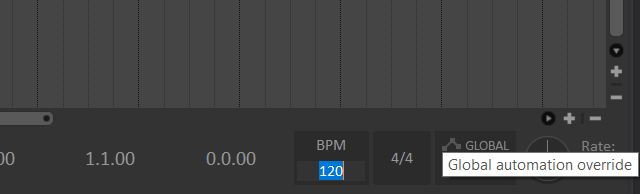
Make sure the tempo under "BPM" matches the song tempo
Create a new track by double clicking under the existing one, in the left hand side. Create a MIDI item via Insert > New MIDI Item. Double click on the box that is created and the MIDI editor window should appear.
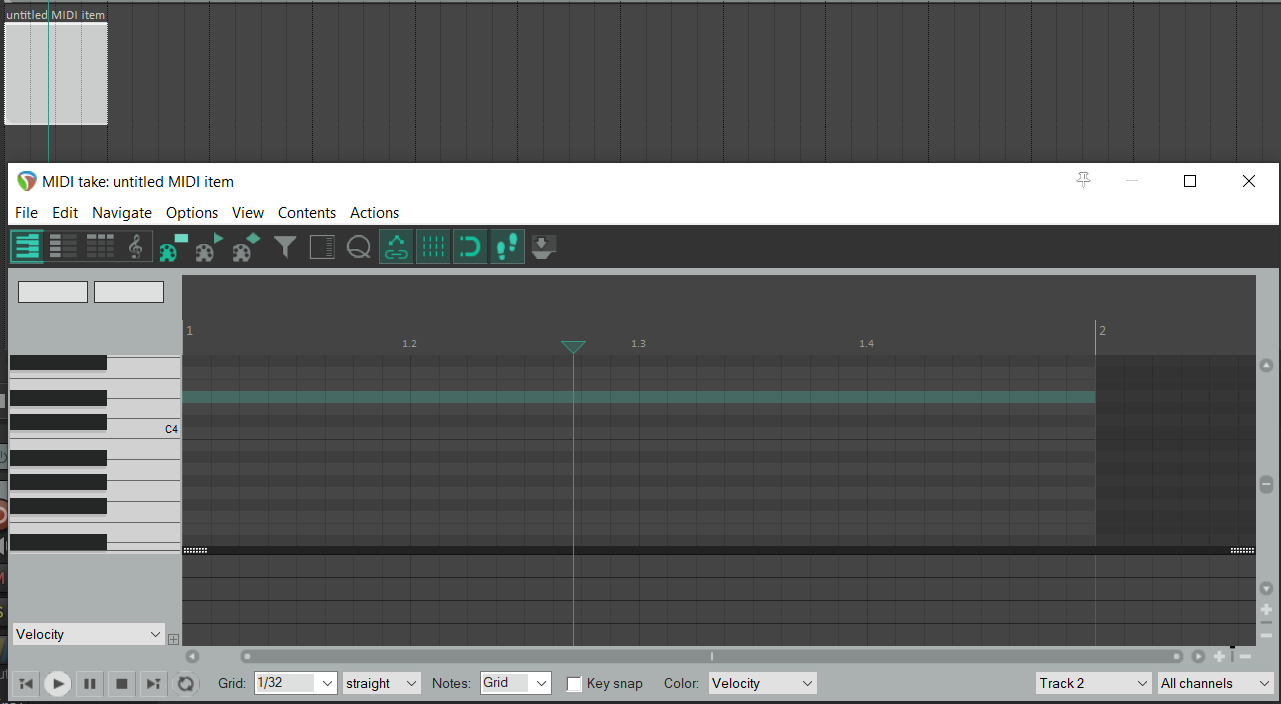
In the MIDI window, I recommend File > Rename MIDI Take to something useful (like "BeatmapMIDI"). Make sure the MIDI take starts at the beginning of your song.
By default you'll have a 1-bar MIDI loop. Make this longer by hovering your cursor over the line with a "2" at the top, until your cursor becomes a line with a double arrow (this doesn't screen cap for me, sorry). Click and drag to the right until your clip is as long as your song.
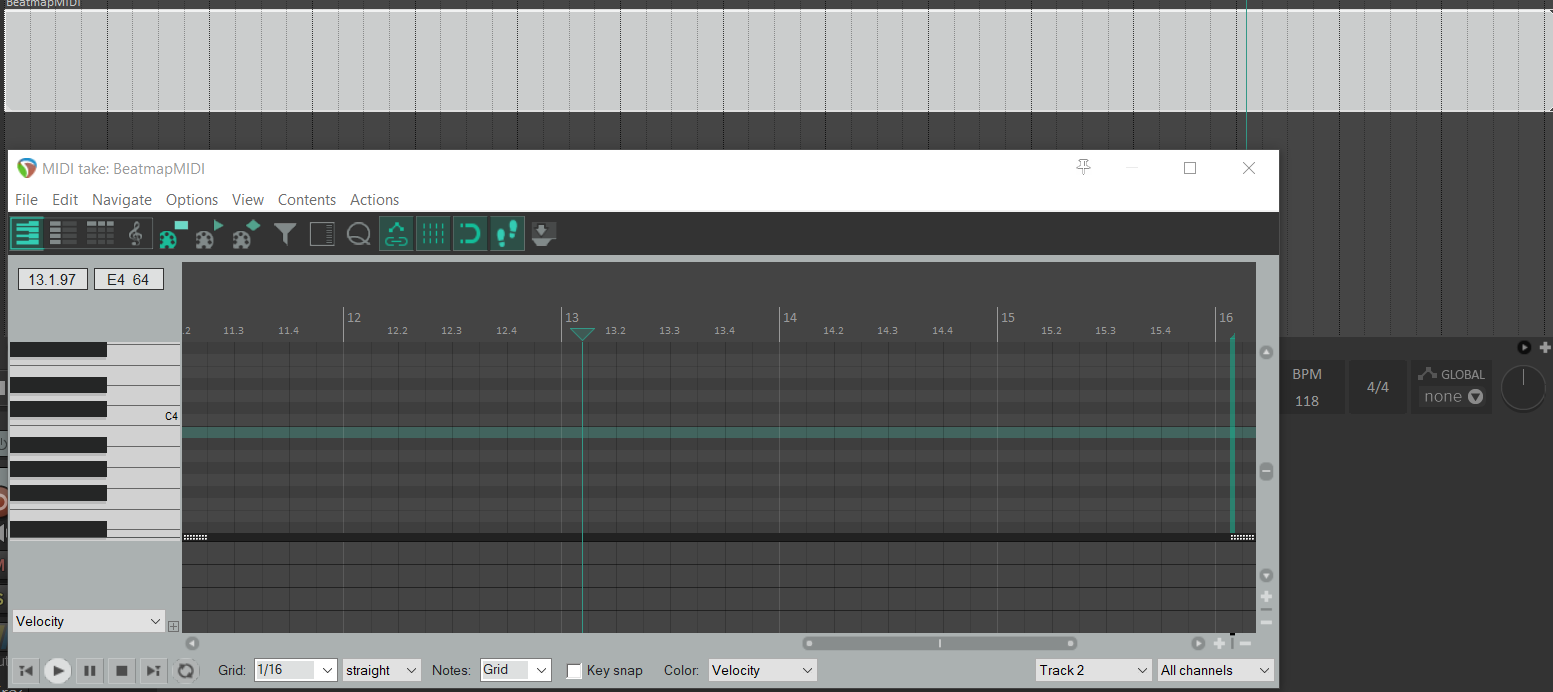
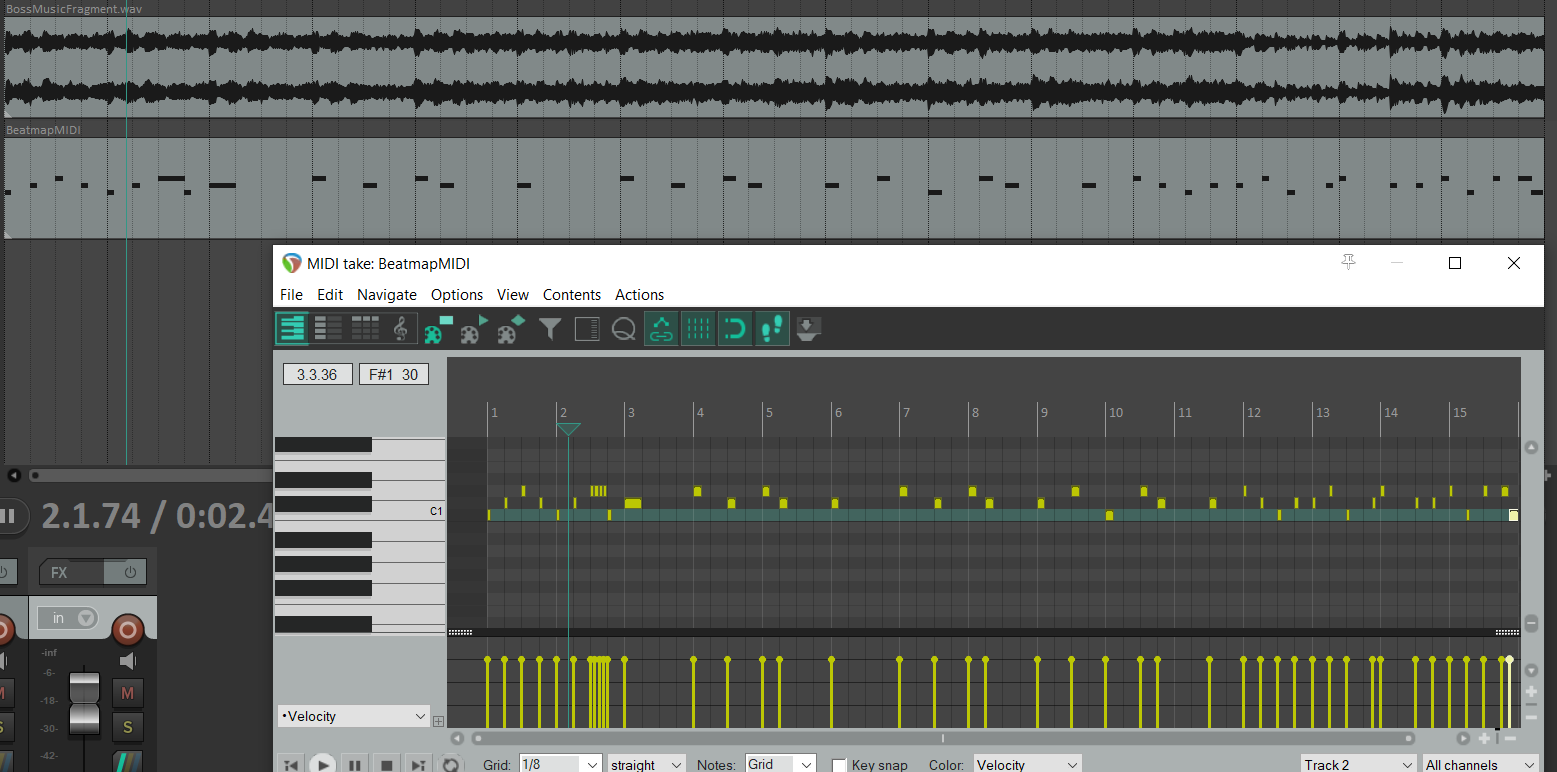
If your clip looks like this in your timeline, it means that the clip is repeating.
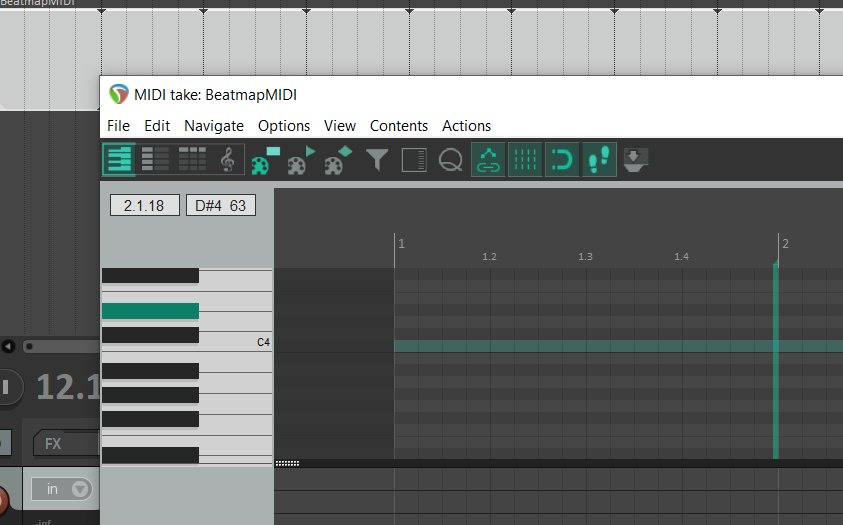
Find the repeat marker (in my version it's a green vertical line), click and drag it to the right.
Now we can start editing! One thing to take note of - when using the template project, we want to end up with the midi notes C1, C#1, and D1. Some DAW's start MIDI at C-2 (C negative 2), some start at C-1. The MIDI to JSON utility we are at assumes we start at C-1.
That means in Reaper, we want to use C1, C#1, and D1 for our Red, Blue and Green cues.
If you use something other than Reaper, it may be different! It doesn't matter if you compensate for this in your MIDI editing, or in the Unity script - just make sure you're aware of it.
In Reaper, Input notes by double clicking. You can select groups of notes by clicking and dragging with the right mouse button.
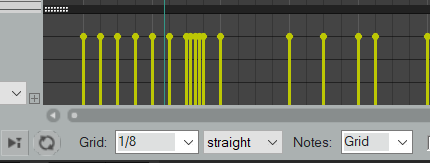
If notes are appearing in weird places, check your grid settings at the bottom of the MIDI Window. You probably don't need smaller than 1/16th notes.
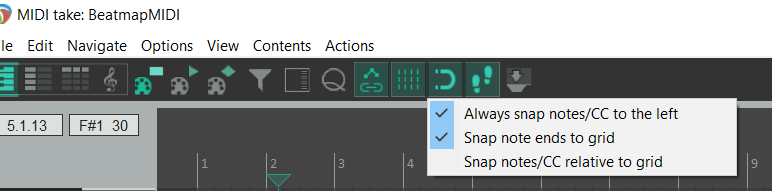
Also, right click the Magnet icon, and make sure Always snap Notes/CC to the Left is checked
When you're done, in the MIDI window do File > Export to MIDI File. Give it a relevant name and useful location.
Next, upload this file to THIS HANDY MIDI-JSON CONVERTER.
Verify the note names are the ones that you expect. The timing is going to seem off unless your song is at 120 beats per minute, but the parser compensates for this.
Download the JSON file, and put it in the Resources folder of your Assets (make this folder if you don't have it already)

On the Beatmap Game Object, under "Song Name", write the name of your JSON file exactly as it is in your Resources folder
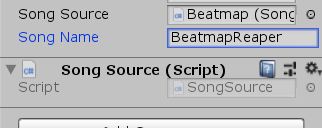
Also make sure your "Beat Events" List is empty
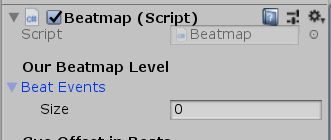
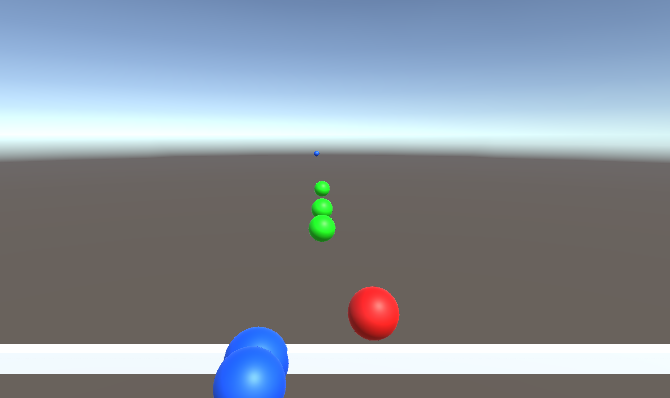
Hit Play; if all goes well, you should see your level!
If you need to change anything about how the JSON file is parsed it will be in the PrepareData method of Beatmap.cs
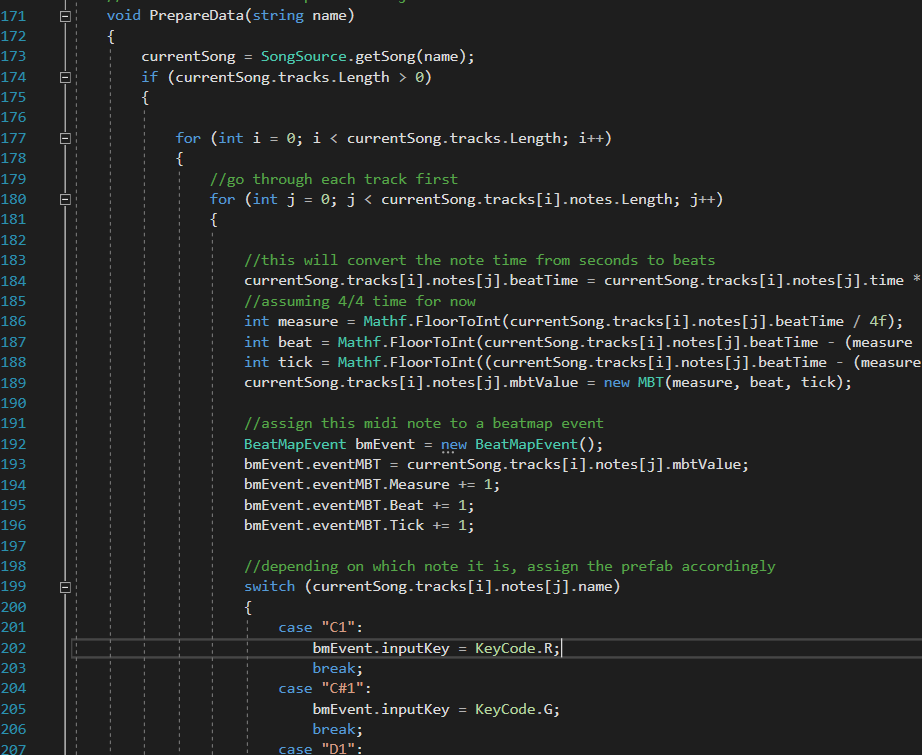
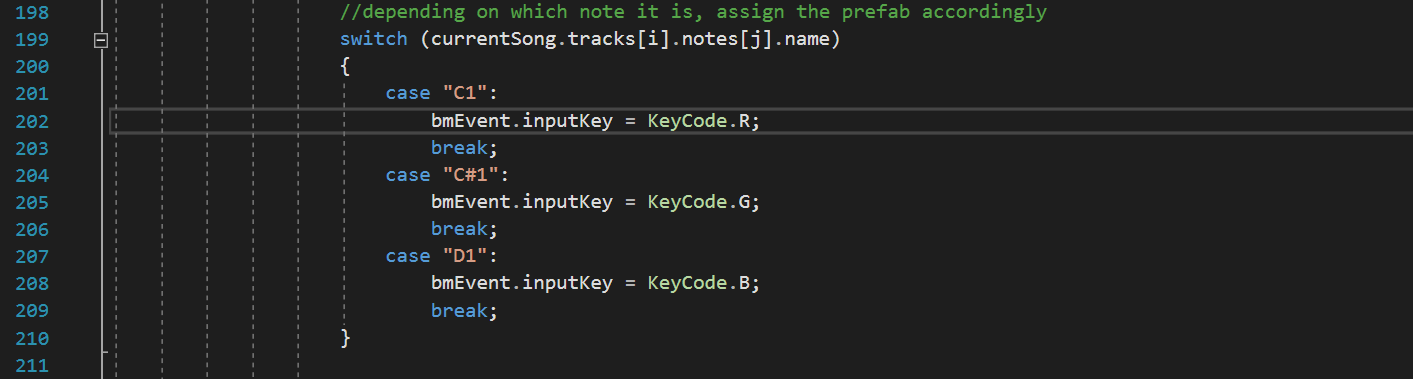
In particular, this switch statement is assigning KeyCodes based on the Note name. So if you're adding cues, or changing the inputKeys, you need to make sure that is reflected here.
I admit that this code is a bit error prone, so let me know if you encounter any troubles!