Repository navigation
Setup Page and Connections
Connecting GZreader to your servers: the setup page in your browser, Grimmory (with single sign-on), copying connections from another GZreader, and servers behind Cloudflare. Kindles without Wi‑Fi do this on a computer: Sync with a computer.
One page in your browser sets up everything. The Kindle shows a QR code, its address and a 6-digit PIN:
- With a phone: scan the QR code. No PIN needed.
-
With any browser (a computer, a tablet, a phone without a camera): type
the address into the browser, for example
192.168.1.20(some Kindles show192.168.1.20:8642: type that). The browser asks for the PIN on the Kindle's screen. After 5 wrong PINs the PIN stops working; the QR code still works, and opening the page again on the Kindle makes a new PIN.
The page is served by the Kindle itself over your Wi‑Fi (browser and Kindle on the same network). It fits any screen: tabs along the top on a phone, down the side on a computer. There's a tab for each connection (it opens at the one you came from; without JavaScript they're one under the other):
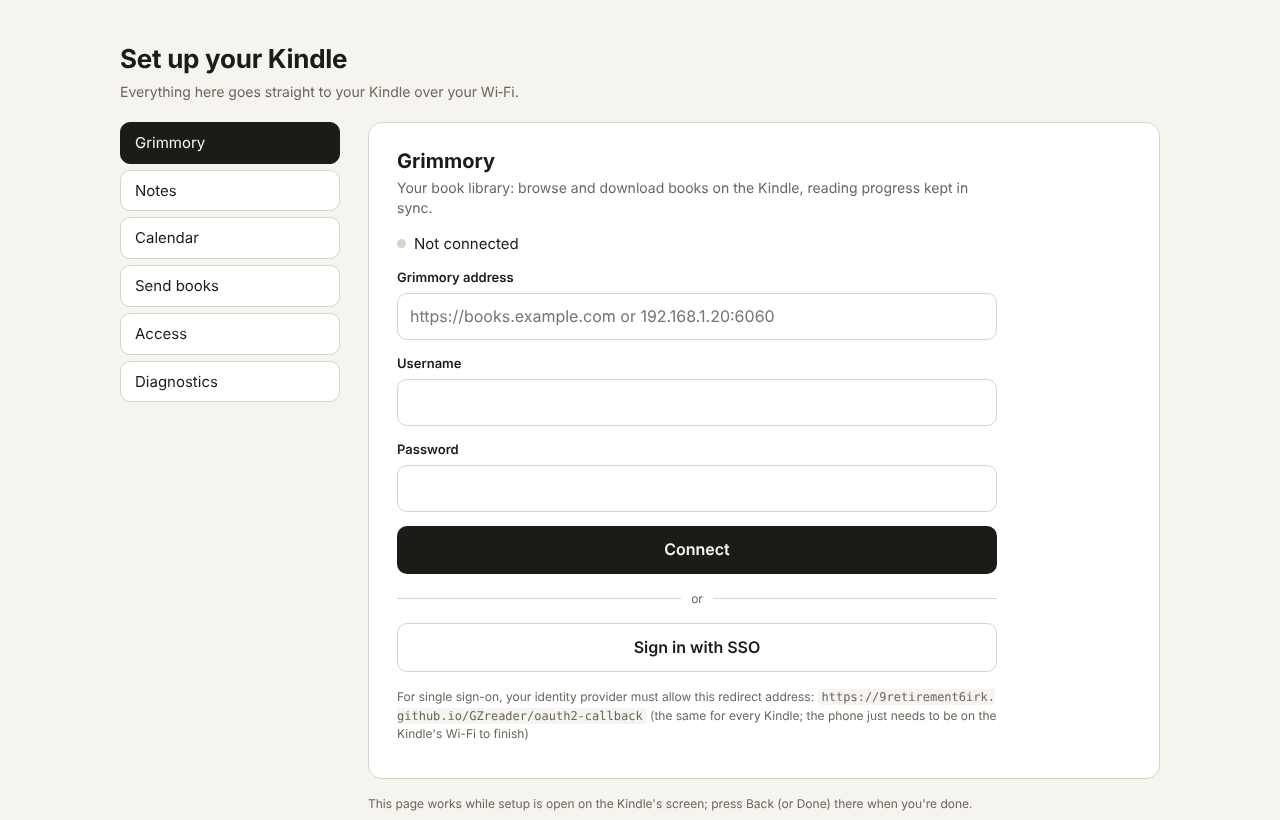
- Grimmory: connect with a password or single sign-on, or disconnect.
- Notes (Memos): the Memos address and an access token, or disconnect.
- Calendar: your calendars, each with Show its events; calendar links can be renamed, given a new link (Proton's links change when you reshare) or removed; add new links (several at once); connect or disconnect a CalDAV account.
- House (Kindles with Wi‑Fi): your Home Assistant address and a long-lived access token, or disconnect (House).
- Music (Kindles with audio): Sign in with Plex (Plex's own sign-in page, which comes back to the setup page), the Plex server to use, sign out.
- Immich: your Immich address and an API key, the album, whether its pictures are the sleep screen and the Home wallpaper, how many the Kindle keeps, Get new pictures now, disconnect (below).
- Send books: pick books in the browser (EPUB, PDF, MOBI, AZW3, FB2, CBZ, TXT, DOCX…, up to 1 GB each) and they go straight into the GZreader folder (the Downloads tab). No Grimmory needed. A name already there gets "(2)"; a book is written to a temporary file first, so a dropped Wi‑Fi leaves nothing half-copied; it is refused when the Kindle is short of space.
-
Sleep screen: your own pictures for the sleep screen. Pick photos in
the browser; they're made there to fit the Kindle's screen (filling it, or
whole with white edges), in grey, and go into the
screensaversfolder. The pictures already there are listed (Take off removes one), and you choose which sleep screen: the book's cover while reading and a picture elsewhere, a picture always, or the same with Immich's pictures. An iPhone photo: choose it from Photos (the phone sends a JPEG). - Access: the key for a Cloudflare rule (below).
- Diagnostics (while diagnostic logging is on, Settings → General → Advanced → Diagnostic logging): download the diagnostic log.
Each change shows a short note on the Kindle, and the page shows what happened and stays open for the next thing. Press Back on the Kindle when you're done (or leave it 10 minutes): a summary shows what changed, and the page stops working. The QR code's address has a random code in it, and the typed address needs the PIN; passwords and tokens are sent once to the Kindle and only Grimmory's login tokens, the Memos token and the CalDAV password are kept (never logged).
Where to open it: the setup guide's first page (Set up from your browser), the quick panel → Send books, the Catalog, Notes and Calendar tabs' Connect with QR code, Settings → Connections → Grimmory / Memos / Calendar / Immich.
Pictures from one of your Immich albums for the sleep
screen and the Home wallpaper: Settings → Connections → Immich (Photos),
Connect with QR code (the setup page's Immich tab) or Connect by typing.
You need the address and an API key (Immich → Account Settings → API Keys;
at least album.read, asset.read and asset.view). What it does and its
settings: Home and bookshelves.
Open the Catalog tab. Grimmory's options (connection, sync, bookmarks, highlights, auto-download shelf) are in Settings → Connections → Grimmory ; Memos (the Notes tab) is in Settings → Connections → Memos (Notes). Read aloud is in Settings → General → Audio; Wi‑Fi only when needed in Settings → General, the diagnostic log in Settings → General → Advanced; updates in Settings → General → Updates.
- Connect with QR code: opens the setup page (above) at its Grimmory section. The Kindle keeps only Grimmory's login tokens (never the password).
- Connect by typing: the same, using the Kindle's keyboard.
If Grimmory has SSO turned on, the setup page shows Sign in with . One-time setup, the same for every Kindle: add
https://9retirement6irk.github.io/GZreader/oauth2-callback
as an extra redirect URI on Grimmory's client at your identity provider
(Authentik, Pocket ID, Authelia, Keycloak…), next to Grimmory's own
…/oauth2-callback. If ALLOWED_ORIGINS is set in Grimmory, add
https://9retirement6irk.github.io there too. The address is also shown on the
setup page and under Settings → Connections → Grimmory → Single sign-on (SSO)
→ How to set it up.
How it works: the identity provider sends the phone back to that page (docs/oauth2-callback.html, a few lines of JavaScript with no server behind it), which hands the sign-in code straight to the Kindle; the Kindle then finishes signing in with Grimmory. The code is useless without a secret only the Kindle has (PKCE), and the page only forwards to a Kindle's address on a private network (port 8642). So:
- Grimmory and the identity provider can be anywhere the Kindle can reach, e.g. on the internet through Cloudflare. Nothing has to point at a Kindle's IP, and readers can sign in from their own homes.
- While signing in, the phone has to be on the same Wi‑Fi as the Kindle (any Wi‑Fi: the reader's own, or the Kindle on the phone's hotspot), like the rest of the setup page.
Under Single sign-on (SSO) you can also choose:
-
Redirect: your own copy of the page: host
oauth2-callback.htmlyourself on HTTPS at an address ending in/oauth2-callback(e.g.https://books.example.com/gzreader/oauth2-callback, served next to Grimmory behind Cloudflare), type that address on the Kindle, and register it at the identity provider instead. -
Redirect: this Kindle's own address:
http://<kindle-ip>:8642/oauth2-callback, as before 1.11 (one entry per Kindle; reserve its IP in your router; addhttp://<kindle-ip>:8642toALLOWED_ORIGINSif it's set). Kindles that already signed in this way keep using it.
Set one GZreader up and copy its connections to the others over the Wi‑Fi, instead of scanning the QR code on each:
- On the one that has them: Send connections to another GZreader (Settings → Connections → Copy to or from another GZreader, or its setup guide's first page). It shows its name ("Kindle Paperwhite 3 · 3F2A"), a 6-digit PIN and what it has.
- On the new one: Copy from another GZreader (the setup guide's first page, Settings → Connections → Copy to or from another GZreader, the Notes or Calendar tab while not connected, Settings → Connections → Grimmory). It lists the GZreader devices sending on the Wi‑Fi; pick it and enter the PIN.
- Tick what to copy (everything this one doesn't have yet; from the Notes tab only Notes, from the Calendar tab only calendars) and Copy.
What's copied:
- Notes: the Memos address and access token.
- Calendar: the CalDAV account (address, user name, app password, which of its calendars are hidden) and each calendar link (its name, shown or hidden).
- Grimmory: the address and user name. Grimmory gives every device its own sign-in (a refresh token used on two devices signs both out) and GZreader never keeps your password, so the new one then signs in: type the password (address and user name filled in), or the setup page for single sign-on.
Each copy is checked by connecting with it, as when typed in. Both must be on
the same Wi‑Fi. Finding each other is mDNS / DNS‑SD (_gzreader._tcp, what
AirPrint and Chromecast use); some routers block it (client isolation, guest
networks): then Type its address… and enter the address at the bottom of
the send screen.
Security: the PIN is used in a SPAKE2 key exchange (RFC 3526's 2048-bit group,
the device's libcrypto), and everything after it is AES-256-GCM. Someone else
on the Wi‑Fi sees nothing they can read, and can't test PIN guesses offline;
each guess is a try on the sending device, which allows 5. A PIN is good for
one copy; the send screen closes after 10 minutes. Tokens and passwords are
never logged. (gzreader_copy.lua, gzreader_spake.lua, gzreader_mdns.lua.)
If your servers are behind Cloudflare and its bot checks block the Kindle, GZreader can send a secret key with each request to them, for a rule that lets it through. Setup page → Access: tick Send the key, add other host names if needed (your Grimmory, Memos and CalDAV servers are included; each name covers its subdomains), Save. The page then shows the rule to paste:
- Cloudflare → your domain → Security → WAF → Custom rules → Create rule.
-
Edit expression, paste the rule (it checks the host names and the
X-GZreader-Keyheader). - Action Skip: All remaining custom rules, All rate limiting rules, All managed rules, All Super Bot Fight Mode rules, and under More: Browser Integrity Check and Security Level. Deploy, and move it to the top.
- Bot Fight Mode (Security → Bots) can't be skipped by a rule: if it blocks the Kindle, turn it off.
Behind Cloudflare Access (Zero Trust login)? Make a service token there (Access → Service auth), allow it in the application's policy (action Service Auth), and enter its Client ID and Secret on the Access tab.
The key and token go only to those servers (never to calendar links on other sites, plex.tv or GitHub) and are never written to the log.