Repository navigation
Home and Bookshelves
Home, the Downloads tab's bookshelves, the reading stats on Home and the sleep screen.
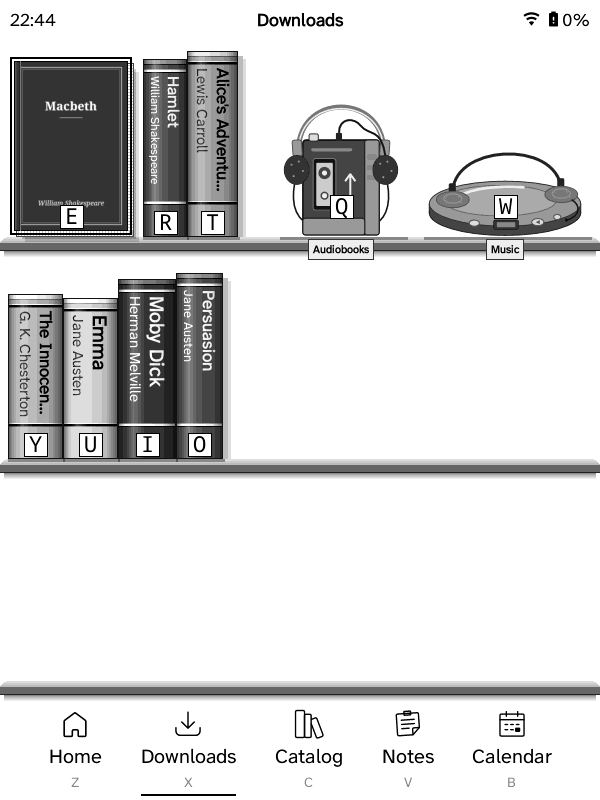
Books stand on bookshelves by default, on Home and in Downloads: spines out (title, author, number in a series, a letter key at the foot), rounded and shaded, casting shadows, on shelves with depth. The book the 5-way is on, or that you tap, turns to show its cover; tap it again, Press or its letter opens it, and holding it opens Manage book (Open, Delete from this Kindle, then the book's menu). The book you're reading (top of Home) is drawn as a book too: its pages behind the cover and a drop shadow. Covers have square corners in this view: Settings → Home → Appearance → Covers → Rounded cover corners is greyed out while it's on, and your choice for the tiles and lists comes back when you switch to one of them.
Home's status bar (clock, Wi‑Fi, battery) sits beside the book you're reading. Before you've read a book (or after clearing your reading history), it runs across the top of Home as on the other tabs, and moves back beside the book once you open one.
-
Downloads has as many shelves as the screen holds, a page at a time (on the DX four, so the books are bigger), each filled with as many books as their spines leave room for. On a Kindle with a keyboard the letter keys go from Q to L (19 books); the books after L on a page have no letter (the 5-way reaches them), and Del isn't one of them. Folders stand as light grey spines with a tab on top. A book that finishes downloading while Downloads is on screen appears in it straight away. Its title bar says Downloads between the clock and the battery, as the other tabs name themselves (or the tab's own name, if you renamed it in Settings → Interface → Navbar); inside a folder it shows the folder's name.
-
Home has one shelf of your most recent books; the DX's taller screen has two (the first filled before the second).
-
The spines are drawn after Bookshelf, AndyHazz's KOReader plugin: the shelf is seen from a little above, so each book shows the top of its page block between its boards. The whole title runs along the spine: a long one takes two or three lines of smaller type instead of being cut off. The author comes after it in smaller type, or on a line of its own where there's no room after the title. A book's number in its series is level at the foot of the spine. The books cast a soft shadow on the wall behind them, and the board shows its top.
-
Theme and ornaments (Settings → Home → Appearance → Bookshelf theme), for Home's shelf, Downloads and the Catalog's ledges:
- the plank: Oak (to begin with; Bookshelf's oak plank, in greys), Walnut (darker) or Plain (flat greys);
- ornaments, standing on a shelf's free end like a plant on a half-empty shelf: where there's room (to begin with: no book moves for them, so a full shelf has none), on every page (the shelves that get one keep room for it, so a page holds a book or two fewer), or none;
-
where and how many:
- On Home, In Downloads, In the Catalog: untick one to have no ornaments there (only on Home, say);
- One on a page (to begin with), Up to two, Up to three, or One on every shelf. A page's lowest shelves with books get them. Two or three on a page are different ones. In Downloads the top shelf has none while the walkman (Audiobooks) or the CD player (Music) stands on it;
- At the right end of the shelf (to begin with), At the left end (the books start after it), or Scattered: the first on the right, the next on the left, then the right again. In the Catalog an ornament stands in a ledge's free place, on the right, whatever this says;
- which ornaments: seventeen photorealistic ones stand all year: pictures of Poly Haven's CC0 objects (three potted plants, a stone cat, a marble bust, a porcelain horse, an alarm clock and a mantel clock, two vases, a storm lantern, a candlestick, a model ship, binoculars, a seashell, a flowered jug) and a tabby cat. Two seasonal ones stand in their season and then take about two places of three: a Christmas tree (20 November to 6 January) and a pumpkin (mid-September to November). Which ornaments has a tick for each: tick a seasonal one to have it all year, untick any to never see it; Seasonal ones in their season again undoes that. It's a grid of the ornaments, each standing on a piece of plank: a tick for those on the shelves, the others faded, and a seasonal one tagged In season or Not in season. A tap puts one on the shelves or takes it off; a hold only shows it, on your shelf at the top (the one shown has a thick frame). The page keys turn its pages when your own ornaments make more than fit;
-
your own ornaments: connect the Kindle to a computer and put PNG or
SVG pictures in
koreader/settings/gzreader/ornaments(Settings shows the folder and makes it). A picture's bottom edge stands on the plank; keep its background transparent. Bold, dark shapes read best on e-ink. A shaded picture should be a PNG: the Kindle draws an SVG's gradients far too dark (flat colours in an SVG are fine). - the screen: each choice is a tile with a small picture of what it does, and a preview of your shelf (your recent books' spines) at the top shows the result as you choose; the shelves themselves are drawn again when you close it. Chips under the preview turn the ornaments on or off on Home, in Downloads and in the Catalog. On a Kindle with keys the 5-way moves between the tiles and Press chooses;
- Hold an ornament (on Home, in Downloads or in the Catalog, on a touch Kindle) to open this screen straight away, as holding a Home widget opens its settings. Back (or the ×) returns to the shelves.
-
Audiobooks stand on the top shelf to the right of the books as a cassette walkman with its headphones sitting on it, and Music (downloaded from Plex) as a CD player with headphones. In lists and tiles both folders are always first, whatever the sort.
-
Inside Audiobooks and Music each audiobook is a cassette and each album or playlist a CD, always facing out with its cover showing, and its name on a little plate on the shelf under it. A tap (or Press, or its letter) opens it straight away; the one the 5-way is on has a frame around it.
-
Sort (quick panel → Sort) orders Downloads and Home's shelf: title, author, series, date downloaded, reading progress, size or file name; Last read puts the most recent first.
-
View (quick panel → View) switches between Bookshelf, List with details, Simple list and Tiles; Home's strip shows covers in the other views. The setup guide asks too.
Home shows Grimmory reading stats by default: three numbers on a notebook page, counted over every device that reads with your Grimmory account (GZreader on each Kindle and Grimmory's web reader send their reading sessions; Grimmory adds them up). Choose the three in Settings → Home → Widgets → Grimmory reading stats → Stat slot 1–3:
- Read this week (time), Books this week
- Day streak (as tally marks up to 10), Longest streak, Days read
- Sessions this month, Finished this year
They're fetched from Grimmory when Home shows them and they're over 15 minutes old (only while Wi‑Fi is on), and again after this Kindle's reading sessions reach Grimmory; the last ones stay for when it's offline. Your Grimmory user needs permission to see statistics (Grimmory → user settings → permissions); without it the widget shows dashes and the diagnostic log says why.
The earlier Local reading stats widget (pages and time today, this Kindle only) is gone from Home and from Settings → Home → Widgets; a Home that still showed it keeps its other widgets.
The book you're reading shows its progress as the book's page edges, read pages darker, with a ribbon bookmark where you are.
While a book is open: its cover. From Home and menus: a random picture from
the USB drive's screensavers folder (created by the setup guide), falling
back to the Kindle's own sleep pictures. Chosen in the setup guide, or in
Settings → General → Sleep → Wallpaper: each sleep screen is a tile
showing what it looks like (this one, the last book's cover, a picture from
the screensavers folder, reading progress, book status, or the screen left
as it is); tap one, or press its letter on a Kindle with keys. The cover's
fill, rotation and fit, when to ignore a book's cover and the wake-up delay
are in Wallpaper options next to it. (There is no custom image to
choose, and no sleep-screen presets.)
To have the cover fill the whole screen with no bars at the edges, tick Wallpaper options → Border fill, rotation, and fit → Scale cover to fill screen: the cover (or picture) keeps its proportions and is scaled up until it covers the screen; the parts that don't fit (the top and bottom of a tall cover, the sides of a wide one) are cut off. While it's on, Stretch cover to fit screen just above it, which pulls the cover out of shape instead, is greyed out.
With an Immich album you can have your own photos on the sleep screen and as the Home wallpaper. Set it up in Settings → Connections → Immich (Photos) (or on the setup page in your phone's browser; Kindles without Wi‑Fi on the sync page):
-
Connect: your Immich address and an API key (Immich → your picture
→ Account Settings → API Keys → New API Key, with at least
album.read,asset.readandasset.view, or all permissions). Pasting an album's address from your browser chooses that album too. The key is kept like the other sign-ins and never written to the log. - Album: which album's pictures to use (yours and the ones shared with you; photos only, no videos).
- Sleep screen: Book cover while reading, an Immich picture elsewhere, or An Immich picture, always. These are also two more tiles in Settings → General → Sleep → Wallpaper once an album is chosen. With no pictures yet, the screensavers folder's show.
- Home wallpaper: a picture from the album behind Home and the tabs (the same as Settings → Interface → Wallpaper → Picture from Immich). Turning it off puts back the wallpaper you had before; choosing an image by hand there turns it off.
-
Pictures kept on the Kindle: 10, 20 or 50. They're made to fit the
screen, in grey, and kept on the Kindle (
koreader/gzreader-immich/), so they show without Wi‑Fi. - Get new pictures now. Otherwise, whenever Wi‑Fi comes on and the last time was over 6 hours ago, about half of them are swapped for others from the album (all of them when the album changed), and the wallpaper changes to another one.
- Disconnect: the pictures are removed, the sleep screen goes back to the screensavers folder and the wallpaper to what it was.
The sync page runs in your browser on GitHub's site, and Immich only answers
web pages from other sites when it's told to: without that the page says
Couldn't reach Immich from this page. If Immich is behind a reverse proxy
(it has to be on https:// for the page anyway), add these headers there for
the page's address. Caddy:
photos.example.com {
    @gzsync header Origin https://9retirement6irk.github.io
    header @gzsync Access-Control-Allow-Origin "https://9retirement6irk.github.io"
    header @gzsync Access-Control-Allow-Headers "x-api-key, content-type"
    header @gzsync Access-Control-Allow-Methods "GET, POST, OPTIONS"
    @gzsync_preflight {
        method OPTIONS
        header Origin https://9retirement6irk.github.io
    }
    respond @gzsync_preflight 204
    reverse_proxy immich-server:2283
}
nginx: a map next to the server block, and four lines in the location
that passes requests on to Immich:
map $http_origin $gzsync_origin {
    default "";
    "https://9retirement6irk.github.io" $http_origin;
}
server {
    …
    location / {
        add_header Access-Control-Allow-Origin $gzsync_origin always;
        add_header Access-Control-Allow-Headers "x-api-key, content-type" always;
        add_header Access-Control-Allow-Methods "GET, POST, OPTIONS" always;
        if ($request_method = OPTIONS) { return 204; }
        proxy_pass http://immich-server:2283;
        …
    }
}
(nginx then ignores add_header lines of the server block in that
location: repeat any you have there.) Only that one site is let in, and it
still needs your API key for everything.
Wi‑Fi Kindles don't need any of this: they ask Immich themselves.