Repository navigation
Using GZreader
How you drive GZreader on each device: the quick panel (the same on all of them), then keys, the 5-way and touch. The Nooks: Nook 1st Edition, Nook Simple Touch.
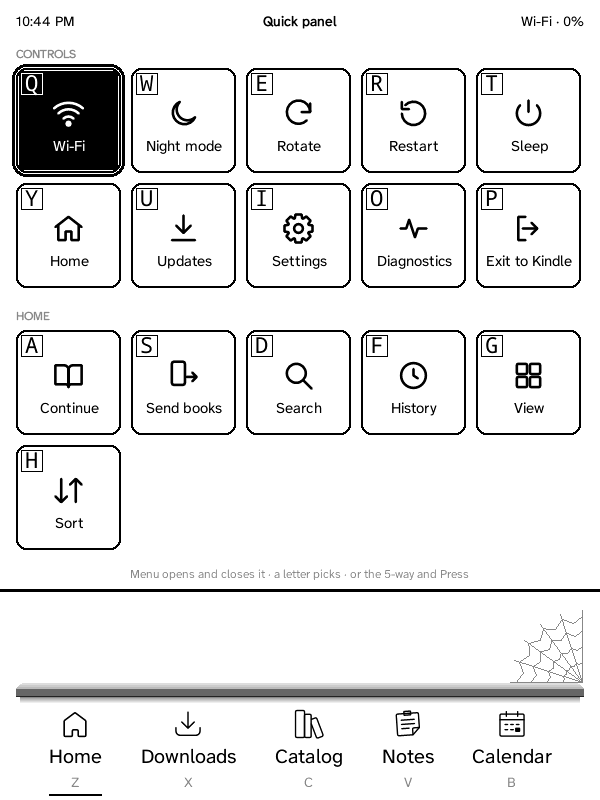
One panel of square tiles, on every Kindle and Nook: Menu opens it (on a touch Kindle, a tap at the top or a swipe down from the top; which of them). Each tile has a letter for the keyboard; the 5-way moves between them too. A highlighted tile shows white on black when it's on (Wi‑Fi, night mode, a bookmark on this page).
- Controls: Wi‑Fi (a tap goes on → off → auto; on the Kindle 2 and DX: Sync, with a computer), Night mode, Rotate, Restart, Sleep, Home, Updates, Settings, Diagnostics (while diagnostic logging is on, Settings → General) and Exit to Kindle (Exit to Nook).
- Home: Manage book (the highlighted book), Continue, Send books, Search, History, View and Sort; Quick note while Memos is connected; Music and Audiobook while one plays or is paused (they open its player: music and audiobooks are browsed in the Catalog tab), and Downloads (N) while something downloads.
- This book (while reading): Sync with Grimmory, Contents, Bookmark, Bookmarks, Go to page, Search book, Font (the list of fonts), Layout (size, margins, spacing: KOReader's bottom panel), Fit pictures, Read aloud, Quick note while Memos is connected, and Music and Audiobook while one plays or is paused.
On a touch Kindle with a frontlight the panel also has a light slider (the swipe that opens the panel leaves the light alone; tap or drag it; − and + step), and holding a book at Home or in Downloads opens Manage book.
On a touch Kindle, Settings → Interface → Quick panel starts with Open with a tap at the top and Open with a swipe down from the top (both by default; in a book too). Untick one to keep only the other: one always stays ticked. They're KOReader's "Activate menu", which no longer shows in Settings → KOReader (nor its "Auto-show bottom menu", which does nothing in GZreader).
Settings → Interface → Quick panel lists the tiles of each group (Controls, Home, This book): untick one to take it off the panel, tick it to put it back, or Show every tile to bring them all back. Home, Settings and Exit to Kindle are always there. Tiles that only appear sometimes say when (Diagnostics while logging is on, Manage book for the book highlighted, and so on). The letters follow the tiles shown, so hiding one moves the letters of the tiles after it. A group with every tile hidden isn't shown.
The Kindle 2 and DX have a number row, so 1–9 switch the tabs there too.
| Where | Key | Does |
|---|---|---|
| Home / lists | Z, X, C, V, B | Switch the bottom tabs, counted from the left: Z Home, X Downloads, C Grimmory, V Notes, B Calendar (also Alt + Q, W, E, R, T…: Alt + the top row is how the Kindle Keyboard types 1–9). Shown under each tab. |
| Home | Q, W…; A, S, D… | Q the book you're reading, W, E, R… the books in the strip, A, S, D… the strip's tabs (shown in squares). |
| Any list or menu | Q, W, E, … | Pick the entry with that letter (shown next to it), in lists, the ZenOS settings and KOReader's menus. |
| KOReader's menus | Alt + Q, W, E, … | Switch the menu's tabs. |
| Home / lists | Menu | The quick panel (Controls and Home tiles; see The quick panel). Each tile has a letter. Menu or Back closes it. |
| Home / Downloads, book highlighted | Menu → Q | Manage book: Open, Delete from this Kindle (asks first; Grimmory keeps it), then ZenOS's book menu (without its Edit submenu: Delete is already there). |
| Reading | Menu | The quick panel with This book: sync, contents, bookmark, bookmarks, go to page, search, font, layout, fit pictures, read aloud, music. |
| Reading | AA | Fonts and layout. |
| Reading | Shift + Sym | Read aloud / stop. |
| Reading | Back | Return from a followed link or TOC jump; otherwise go to Home. |
| Settings, audiobook player, tab views | Home | Home (the default tab). The audiobook keeps playing. |
| Any text box | Sym | The symbols menu, like the Kindle's own: the 5-way picks a symbol, Press types it. The menu stays up for more symbols (letters type too) until you press Sym again (or Back); it opens on the one you used last. Sym + a letter still types its symbol (Sym + G #, Sym + Q !…); Shift + Home shows the whole on-screen keyboard. |
| Anywhere | Volume buttons | Speaker volume for audiobooks and read aloud (a note shows the level). |
| Note editor | Menu | To the formatting toolbar and back; the cursor stays where it is. |
No keyboard and no touch screen: the 5-way, its centre button (Press), Menu, Back, Home, the keyboard key and the page keys on both sides.
- Tabs: Down from the bottom of Home reaches the tab bar; Left and Right choose a tab, Press opens it.
- Menu: the quick panel at Home and in a book (see The quick panel above); in Notes and Calendar their options (new note, filter, refresh; today, Agenda / Day / Week / Month, refresh, settings).
- Notes: the 5-way moves between the sticky notes, Press opens one; in a note ▲ ▼ choose a checklist item or attachment and Press ticks or opens it; Menu: edit, pin. The editor shows the on-screen keyboard (the 5-way types on it); Menu goes to the toolbar (lists, checklists, headings, italic, bold, tags, Save, and who can see the note) and back.
- Calendar: the page keys go back and forth; the 5-way picks an event.
- The 8-bit screen has inverted grey levels, which KOReader's fast drawing code can't handle (like the Kindle 3's 4-bit one): GZreader draws into an ordinary buffer and copies it to the screen, about a sixth less processor time per key press in testing, and night mode costs nothing.
The Kindle Touch (4th generation) and the Paperwhite 3 (7th generation) run the same GZreader with ZenOS's touch interface:
- Tabs at the bottom: Home, Downloads, Grimmory, Notes, Calendar.
- Swipe down from the top for the quick panel (above), with a light slider on Kindles with a frontlight. A tap below it closes it.
- Warmth: on Kindles whose light can be made warmer (Paperwhite 5 and newer, Oasis 3, Scribe, Colorsoft) a second slider under the light's goes from Cool to Warm: tap or drag it, − and + step. The swipe that opens the panel moves neither slider.
- Hold a book at Home or in Downloads for Manage book (Open, Delete from this Kindle, then the book's menu).
- Notes: Note, Draw (a new note on a page to draw on), Filter, Layout, Sort, Connection (refresh, connect again, disconnect) and a full screen icon are buttons under the title; a note opens with a tap, checklist items tick with a tap, and Edit, Pin, More and Close are buttons at the bottom. The editor shows the on-screen keyboard; its toolbar (lists, checklists, headings, italic, bold, tags) and Save are above the text, and the visibility (Private, Signed-in users, Public) is a button in the title.
- Calendar: ◀, Today, ▶ and More under the title (or swipe left and right); tap an event for its details, a day in Week or Month to open it.
- The setup page: tap Done on the Kindle when you're done (instead of Back).
-
On the Kindle's own home screen (firmware 5), GZreader shows as a
"GZreader" book with its logo (
documents/GZreader.sh); tapping it starts GZreader. It replaces ZenOS's "ZenOS" one from earlier versions. - Reading: tap the right side for the next page, the left side for the previous one, the top for the menu (contents, bookmarks, search, fonts…); swipe up for the page browser.
- The first-time tour: after the setup guide, a short tour opens the quick panel and shows how to open and close it, Settings and the Home tiles (on the first book, if it didn't run at Home: This book's tiles). It closes the panel when it ends. On the first book, a tip then shows the swipe up for the page browser. Both come again after Settings → About → Setup Guide.
- Audio: the Kindle Touch plays audiobooks; the player has buttons for chapters, ±30 s, play / pause, sleep timer, volume, the description and close (Settings → General → Audio → Test audiobook playback finds what works on its firmware). It also reads aloud with the Kindle's voice: in a book, swipe down from the top and tap Listen in the quick panel (again to stop); the first time, a short test finds the Kindle's voice. The Paperwhite has no speaker or headphone jack, so neither is offered there.
- Everything is sized for the screen (the Paperwhite's 1072 × 1448 at 300 dpi): Home's text is the same size as on a Kindle 3. The Kindle's own time zone is used (the time zone setting is for the Kindles without one).