Open-source PDF slide presenter with real-time remote control from any device.


| Feature | Details |
|---|---|
| PDF Rendering | Full-quality rendering via PDF.js (works offline) |
| Remote Control | Control slides from phone/tablet via QR code |
| Viewer Mode | View-only mode for audience (separate from remote) |
| Real-time Sync | WebSocket sync — all viewers stay in step |
| Keyboard Nav | Arrow keys, Space, Page Up/Down |
| Touch & Swipe | Works on tablets and touch screens |
| Dark / Light Mode | Toggle with one click |
| Multi-PDF | Upload multiple PDFs and switch between them |
| Fullscreen | Distraction-free presentation mode (presenter + viewer) |
| Thumbnail Strip | Scrub through slides quickly |
| Orientation | Choose portrait/landscape for optimal viewing |
| Session Access | Easy /access page to join active sessions directly |
| Offline Ready | All vendor files bundled — no internet needed |
Watch this complete video guide to learn how to install and use PDF Presenter:
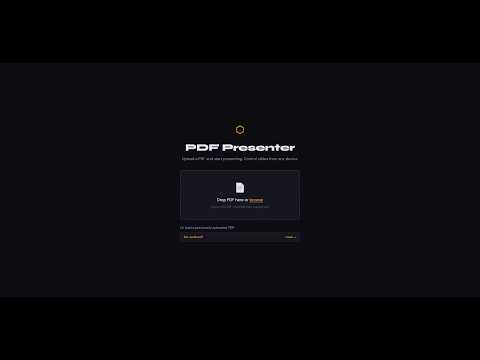
[Watch the Complete Setup and Usage Guide on YouTube]
This video covers:
- Step-by-step installation process
- How to start the application
- Remote control setup and usage
- Key features and navigation
- Tips for effective presentations
Step 1: Install (run once)
git clone https://github.com/AHMEDabdamine/pdf-presenter.git
cd pdf-presenter
sudo chmod +x linux-install.sh start-app-lnx.sh
./linux-install.sh
Step 2: Start the app (run every time)
./start-app-lnx.shStep 1: Install (run once)
git clone https://github.com/AHMEDabdamine/pdf-presenter.git
cd pdf-presenter
windows-install.bat
Step 2: Start the app (run every time)
start-app-win.batInstall scripts (linux-install.sh / windows-install.bat):
- Check and install Node.js if needed
- Install npm dependencies (skips if already installed)
- Download offline vendor files
- Create required directories
Start scripts (start-app-lnx.sh / start-app-win.bat):
- Display all available network URLs
- Launch the application on http://localhost:3000
Quick Start with Docker Compose:
# Clone the repository
git clone https://github.com/AHMEDabdamine/pdf-presenter.git
cd pdf-presenter

# Start the container
docker-compose up -d

# View logs
docker-compose logs -f

# Stop the container
docker-compose down
Manual Docker Build:
# Build the image
docker build -t pdf-presenter .

# Run the container
docker run -d \
  -p 3000:3000 \
  -v $(pwd)/uploads:/app/uploads \
  --name pdf-presenter \
  --restart unless-stopped \
  pdf-presenter
Docker Environment Variables:
| Variable | Default | Description |
|---|---|---|
PORT |
3000 |
Server port |
NODE_ENV |
production |
Environment mode |
SESSION_TTL |
4 |
Session lifetime in hours |
Copy .env.example to .env and customize as needed.
- Node.js 16+ — Download here
- Works on Linux, macOS, and Windows
git clone https://github.com/your-username/pdf-presenter
cd pdf-presenternpm installnpm startServer starts at http://localhost:3000
For development (auto-restart on changes):
npm run dev- Open
http://localhost:3000in your browser (the presenter view) - Upload a PDF using the drag-and-drop zone
- Click Remote in the top bar
- Scan the QR code with your phone, OR copy the link and open it on another device
- Use the Prev / Next buttons on your phone to control slides in real-time
- Click Viewer in the top bar (separate from Remote)
- Choose Portrait or Landscape orientation based on your PDF layout
- Scan the QR code or share the link with your audience
- Viewers see the slides in real-time but cannot control them
- Viewers can tap the fullscreen button to enter fullscreen mode for better viewing
Tip: Use Viewer mode for audience screens, Remote mode for the presenter/assistant.
On your local network: Share
http://YOUR_LOCAL_IP:3000/viewer.html?session=XXXXfor view-only access.
pdf-presenter/
├── server.js              # Express + Socket.io server
├── package.json           # Dependencies
├── linux-install.sh       # Linux/macOS installer (one-time setup)
├── windows-install.bat    # Windows installer (one-time setup)
├── start-app-lnx.sh     # Linux/macOS app launcher
├── start-app-win.bat    # Windows app launcher
├── .gitignore             # Git ignore rules (excludes uploads/)
├── uploads/               # Auto-created; stores uploaded PDFs
└── public/
    ├── index.html         # Presenter view
    ├── viewer.html        # View-only mode for audience
    ├── remote.html        # Remote control (phone/tablet)
    ├── css/
    │   └── style.css      # All styles (dark/light themes)
    ├── js/
    │   ├── presenter.js   # PDF rendering, navigation, upload logic
    │   ├── viewer.js      # Viewer mode client
    │   └── remote.js      # Remote control WebSocket client
    └── vendor/            # Bundled libraries (offline ready)
        ├── pdf.min.js
        ├── pdf.worker.min.js
        └── qrious.min.js
| Environment Variable | Default | Description |
|---|---|---|
PORT |
3000 |
HTTP server port |
PORT=8080 npm startAll devices connect to the same Wi-Fi router. The laptop runs the Node.js server and hosts the presentation. Remote phones and viewers connect via HTTP/WebSocket on port 3000.

Find your machine's local IP:
- Linux/macOS:
ip addrorifconfig - Windows:
ipconfig
Then share: http://192.168.x.x:3000
The app runs on any Node.js host (Railway, Render, Fly.io, Heroku, VPS):
# Example with Railway
npm install -g railway
railway login && railway up
Make sure the host supports WebSockets (most modern PaaS do).
location / {
    proxy_pass http://localhost:3000;
    proxy_http_version 1.1;
    proxy_set_header Upgrade $http_upgrade;
    proxy_set_header Connection "upgrade";
    proxy_set_header Host $host;
}| Key | Action |
|---|---|
→ / ↓ / Space / Page Down |
Next slide |
← / ↑ / Page Up |
Previous slide |
F |
Toggle fullscreen |
Esc |
Close modal / exit fullscreen |
| Layer | Technology |
|---|---|
| Frontend | Vanilla HTML + CSS + JavaScript |
| PDF Rendering | PDF.js 3.x |
| Backend | Express 4.x |
| WebSockets | Socket.io 4.x |
| File Upload | Multer |
| QR Code | qrcode (server) + QRious (fallback) |
Apache License 2.0 © 2024 — Free to use, modify, and distribute.
See LICENSE for full text.