Repository navigation
EchoInk Agent 2.2.2 · 每次回来,都有一个继续的地方

2.2.2 - 2026-09-09
中文
修复了 Windows 上无法启用插件的问题。
每次回来,都有一个继续的地方。
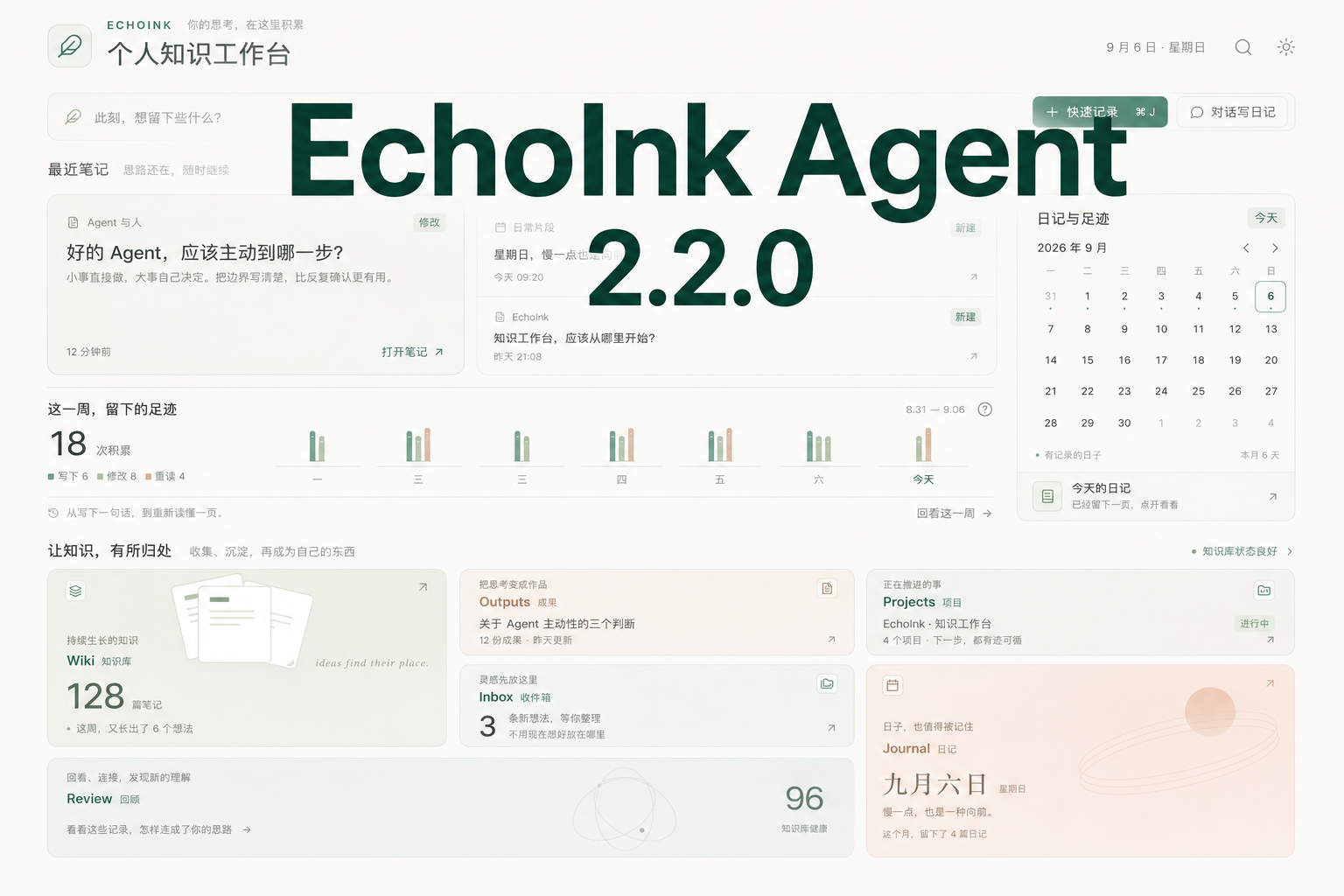
昨天写到一半的想法,这周反复翻过的笔记,还有那条来不及整理的灵感,现在可以在同一个首页里接起来。EchoInk Agent 2.2.2 带来重新设计的个人知识工作台,以及从基础设置到知识库管理的完整界面更新。熟悉的 Obsidian 文件夹、笔记标签和右侧 Agent 依然各在其位,你与知识之间的路径变得更清楚了。
打开首页,就能接上思路
“最近笔记”把新建和修改过的内容带回眼前;想找更早的内容,搜索就在页面内展开,结果随输入出现在下方。临时冒出的念头也有了顺手的入口:点击 快速记录,直接在 Inbox 新建一篇空白笔记,打开就能写。
点击最近笔记或搜索结果,会在 Obsidian 笔记标签中打开。首页本身也是工作区里的一个标签,需要时随时切回来,关闭后也能从左侧 EchoInk 入口重新打开。
积累不只是一串数字,也是可以重返的日子
本周足迹把写下、修改和重读放在一起,让你看见知识是怎样一点点长出来的。日历把日记和活动串回具体日期,方便从“那天做了什么”找回一段思考。
点击某一天查看当天记录,或用 回看这一周 打开足迹列表,再从列表进入笔记。足迹从启用记录后开始积累,同一天对同一篇笔记的同类操作会合并,不会凭空补出旧历史。
给知识一个去处,也给下一步一个入口
Wiki、Outputs、Projects、Inbox、Journal、Review 六张卡片,分别承接知识、成果、项目、灵感、日记与回顾。柔和的色彩和轻盈的悬停动作,让入口容易辨认;鼠标移上去,下一步的动作自然浮现。
- Wiki / Outputs / Projects / Inbox: 打开对应目录入口笔记的 Obsidian 原生局部图谱,沿着与它相连的笔记继续探索。
- Journal: 选择模板开始日记;想先聊聊今天,可以用首页上方的 对话写日记,和 Agent 一起梳理。
- Review: 在右侧开启一段新的知识复盘对话,沿着已有笔记逐步回看、连接和追问。是否写入笔记,仍由你确认。
设置终于有了同一种节奏
五个设置页及其详情页统一了卡片、行距、按钮、开关、输入框和下拉选择。模型连接、资源管理、知识库状态与复盘各有清楚的位置;窗口缩小、放大或切换中英文时,内容会随可用空间调整。
在 API Provider 中按分组选择服务、启用模型并调整默认模型与参数;在 Skills & MCP 中搜索资源、查看详情或编辑配置。需要解释时,把鼠标放到标题旁的问号上即可,日常操作不必被长段说明打断。
知识库状态也更容易读懂:在 知识库管理 中查看本地结构评分、体检记录与维护进度。评分来自实际目录、索引文件和来源状态;它反映结构准备情况,不代表笔记内容质量,也不等于一次完整的全库诊断。
整理已有笔记,先看清它们将去哪里
自定义初始化按目录展示,每个文件夹占一行。即使笔记很多,也不用在一张不断变长的分配表里来回寻找。
进入 知识库管理 → 自定义方案,点击目录右侧的添加入口,搜索标题或路径,批量选中笔记。你可以查看已分配内容、撤回选择,再检查整理预览。只有点击 开始初始化 后才真正执行整理,决定之前可以从容调整。
第一次见面,有人带你走到入口
五步引导换上了与新首页一致的聚光提示和进度卡片,从左侧入口、设置、模型连接,一直带到知识库方案和 Agent 画像。每一步都对准实际界面,不需要对照说明猜按钮在哪。
用“下一步”继续,也可以返回、跳步或随时退出;完成页支持再看一遍。引导负责介绍位置,连接模型和整理笔记仍由你操作。
让等待少打断一点工作
在 EchoInk 对话栏保持打开时,可以切到另一段会话继续工作,原会话仍会运行,完成后显示未读提示;需要时也能分别停止。首页、设置和对话栏补齐了英文界面,用户自己的笔记与聊天内容保留原语言。插件主文件从 2.1.0 的约 12.64 MiB 减至约 8.71 MiB,下载体积减少约 31%。
下载与升级
- 从 2.1.0 可以直接升级,无需重新初始化知识库或重建会话、长期记忆;已有 Provider 与模型配置继续使用。
- 已安装用户可在 Obsidian 社区插件页面检查更新。手动安装请下载本页的 main.js、manifest.json、styles.css,放入 Vault 的
.obsidian/plugins/codex-echoink/,然后重新启用插件。不要覆盖自己的data.json。 - 仍支持 Obsidian Desktop 1.11.4 及以上,暂不支持移动端。主文件仍超过 Obsidian Sync Standard 的 5 MiB 单文件上限,使用该方案时请在各设备分别更新。
- 头图展示的是首页示意内容;实际笔记、数量、足迹与状态来自你的知识库。
English
Fixed an issue that prevented the plugin from being enabled on Windows.
A place to pick up where you left off.
An unfinished thought, a note you kept returning to this week, an idea you haven't sorted yet: EchoInk Agent 2.2.2 brings them together in a redesigned personal knowledge workspace. A complete settings refresh makes the rest of the plugin easier to navigate, while your familiar Obsidian folders, note tabs, and Agent sidebar stay in place.
Open your workspace and find your thread
Recent notes bring newly created and edited pages back into view. Search expands within the page, with suggestions appearing below as you type. For a passing idea, select Quick note to create and open a blank note in Inbox, ready to write.
Select a recent note or search result to open it in an Obsidian note tab. The workspace is a tab too: return whenever you need it, or reopen it from the left EchoInk entry if you close it.
See your progress as days you can return to
Weekly activity brings writing, editing, and rereading together. The calendar connects journals and activity to a date, giving you another way to recover a line of thought.
Select a day to see its records, or open View this week and follow an entry back to its note. Activity starts accumulating when tracking is enabled; matching actions on the same note and day are combined. Earlier activity is not invented or backfilled.
A home for your knowledge, a clear next step
Six cards—Wiki, Outputs, Projects, Inbox, Journal, and Review—connect knowledge, finished work, projects, ideas, daily writing, and reflection. Gentle colors distinguish the destinations, and a light hover animation reveals each action.
- Wiki / Outputs / Projects / Inbox: Open the native Obsidian local graph for that folder's index note and explore the notes connected to it.
- Journal: Choose a template to start writing. Prefer talking first? Use Journal with your Agent at the top of the workspace to reflect on your day with the Agent.
- Review: Start a fresh knowledge-review conversation in the right sidebar, revisiting notes and exploring connections one step at a time. Writing changes back to notes still requires your confirmation.
Settings with a consistent rhythm
All five settings tabs and their detail pages now share cards, spacing, buttons, switches, inputs, and selectors. Model connections, resources, knowledge status, and review tools each have a clear place. Layouts adapt to the available space as windows resize or the interface switches between Chinese and English.
Under API Provider, choose a service by group, enable models, and adjust defaults and parameters. Under Skills & MCP, search resources, open details, and edit configuration. Hover over a question mark beside a heading for an explanation when you need it.
Under Knowledge, inspect the local structure score, check history, and maintenance progress. The score uses actual directory, index-file, and source status. It describes structural readiness, not the quality of your writing or a comprehensive vault diagnosis.
Organize existing notes after seeing where they will go
Custom initialization gives each destination folder one row, so a large collection of notes no longer turns into a sprawling assignment table.
Open Knowledge → Custom plan, select the add action beside a folder, search by title or path, and choose multiple notes. Review assigned items, undo selections, and check the plan. Organization runs only after you select Start initialization, leaving room to adjust your choices first.
A clearer first meeting
The redesigned five-step guide uses focused highlights and progress cards that match the new workspace. It points to the actual left-side entry, settings, model connection, knowledge plan, and Agent profile.
Continue with Next, go back, jump between steps, or leave at any time. The completion screen lets you replay the guide. It shows you around; connecting a model and organizing notes remain your actions.
Keep working while another conversation finishes
While the EchoInk chat view remains open, switch to another conversation and continue working. The earlier conversation can keep running and shows an unread indicator when it finishes; runs can also be stopped individually. English now covers the workspace, settings, and chat sidebar, while your own notes and conversations keep their original language. The main plugin file has dropped from about 12.64 MiB in 2.1.0 to 8.71 MiB, a download-size reduction of roughly 31%.
Download and upgrade
- Upgrade directly from 2.1.0 without reinitializing Knowledge or rebuilding conversations and long-term memory. Existing Provider and model settings remain available.
- Check for updates in Obsidian's Community plugins page. For manual installation, download main.js, manifest.json, and styles.css from this release, place them in your vault's
.obsidian/plugins/codex-echoink/folder, and re-enable the plugin. Keep your existingdata.json. - Requires Obsidian Desktop 1.11.4 or later; mobile is not supported. The main file still exceeds Obsidian Sync Standard's 5 MiB per-file limit, so update each device separately when using that plan.
- The cover uses illustrative homepage content. Your actual notes, counts, activity, and status come from your own vault.