GitHub
Version control and centralized collaboration. Being able to push code and have it revised. Being able to see code and use it from anywhere without having to copy and paste emails or exchange SD cards and hard drives. Even if you're on a satellite team, you'll be using GitHub because it makes code review and collaboration that much easier.
GitHub Desktop is an application that adapts the Git environment into GUI form. GitHub Desktop is recommended for everyone first starting out with the Git environment and should make things a lot easier for everyone. I can't stress the importance of pushing code changes and version control.
- Go to the git page here and click "64-bit git for Windows Setup."
- Complete the install. There are a lot of options, but the ones for you are usually already selected.
- Go to the GitHub Desktop page here and click "Download for Windows (64bit)."
- Go through the installation.
- Now that you have all of your Desktop applications set up for GitHub, make sure you have an account.
- Login and setup your account.
Let's say that we write a codebase for Robotics, and we want to share that codebase with the programming sub team so they can also make contributions. What we do is publish that codebase onto GitHub. Everyone can pull the repo (what the codebase is called on GitHub), which creates a local repository on your device. You can make direct changes to this repo. After your done editing your local repository, you can commit the changes, which essentially confirms all the changes you made onto your local repo. Then, you can push your local repo, which essentially replaces the repo on GitHub with your local repo. Changes that your friend has made can be pulled at any time.
There also different variations of a codebase called "branches." Branches of a codebase could include specific development focuses like a Shooter branch or a Drivetrain branch. It allows different teams to work on different things at the same time while avoiding merge errors (which you won't have to deal with).
I highly suggest doing the "Create a tutorial Repository" introduction on GitHub Desktop.
Cloning a repo gives you a local version of the repo. This local version is what you'll always be using to commit to the GitHub repo.
A quick guide to cloning a repo:
- Click "clone an existing repo from the internet."
- Find the URL for the repo you want to use. That can be found by finding the repo page on GitHub, and clicking that green button labeled "Code," and copying that HTTPS link.
- Paste that URL into GitHub Desktop.
- Now, you have a copy of the repo on your computer. Make sure you save the location of the folder you saved that repo in, because you'll need it to find it on WPILib.
- Make sure to click "Fetch Origin" at the top on the farthest right box.
- Now, this directory that holds your local repo can be found by clicking "Repository," at the top and selecting "Show in Explorer."
- Select and save that directory. Open 2022 WPILib VS Code and select "Open Folder."
- Paste in your directory that you saved, and press "Select Folder."
- That should open up your cloned repo on 2022 WPILib VS Code.
- Make some changes on your local repo.
- Now, GitHub Desktop realizes you made changes and wants to know if you want to commit those changes to your official local repo.
- Go to Github Desktop and open the codebase you made changes in and the right branch.
- In the bottom left, you have gained the option to commit your changes to your local repo.
- Please make sure you expand on what you're doing when you commit.
- Now, press "Commit to" branch name.
- Finally, push to GitHub by pressing "Push origin" in the top right.
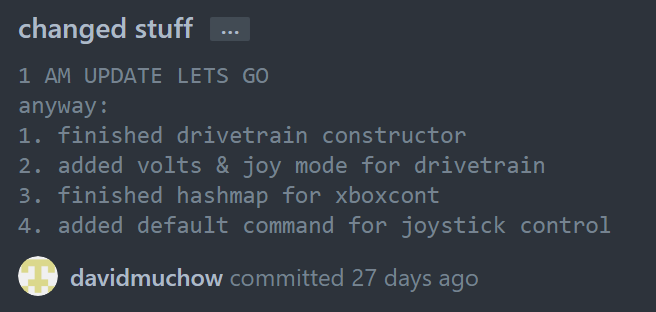
Why it's good: Even if the title is a little lackluster, the description goes into detail about each thing that's changed. If it's for smaller edits for previous code like this one, list out one by one what you changed.
PLEASE do not write code at 1am

Why it's good: A whole concept was changed. That's a lot of code. You may need to explain how the subsystem works, and make sure there are supplemental comments on the code base itself to help others understand.