Tutorial 1
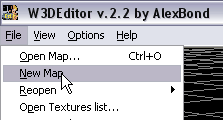
Open W3DEditor v2.2 and select in Menu -> File -> New map.
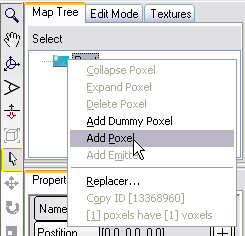
Select Add Poxel using Context Menu from Map Tree.
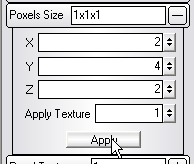
In Properties Panel, set New Size of Poxel.
For X = 2, Y = 4, Z = 2, and Press Apply.
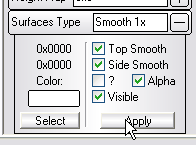
Set in Surfaces Type next Values:
Top Smooth ON, Side Smooth On and press Apply.
Then select your Poxel with the Mouse and press Move mode (hotkey W) in Tool panel .
Hold Ctrland drag the poxel to any position. You should get a Copy of it.
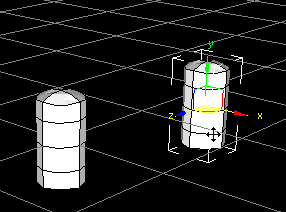
Select New Poxel and Press on Layers Mode in Layers Panel.
Set Soft Len to 5.
Select one of the points in the top, hold Ctrl and select another point from the same height.
You should have 2 red points as show on image.
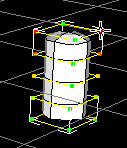
Now you must select Size Mode (hotkey R) in Tool panel and
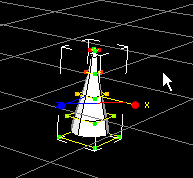
hold Shift (Proportional Scale) for form resize to layers.
The rusult should be like on this image:
Select First Poxel, and make Copy using the Move mode Ctrl.
Select New Poxel and Press On Layers Mode.
Put two points in middle layer linke on the image:
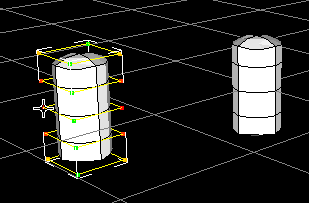
Choose the mode size (hotkey R), hold the Shift key (Proportional Scale), and increase the size, until you obtain the shape of a sphere.
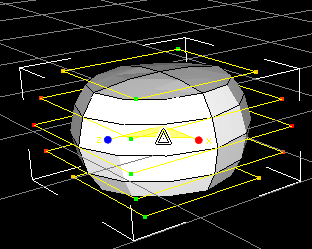
To improve the shape, there are two high and low points.
Reduce their size holding Shift .
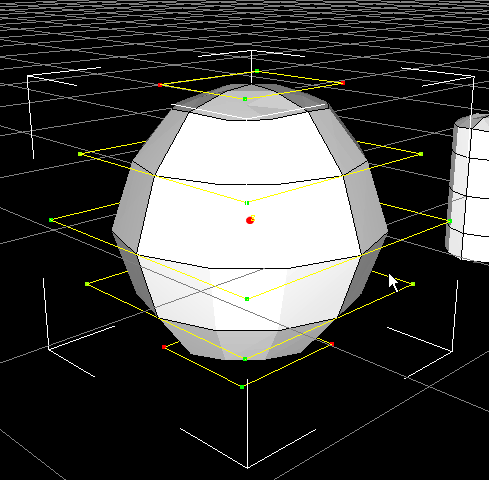
Copy the first poxel, holding Ctrl and dragging in to a new location.
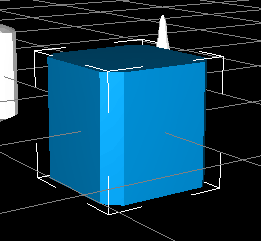
Set its size to 4x4x4 in Poxel Size. Click Apply.
In Surfaces Type remove all the ticks, select color Red: 0 Green: 128 Blue: 129 and click Apply.
As a result, you should get what is shown in the screenshot.
Choosing the first poxel, go to Surfaces Type and choose only Side Smooth, color R: 255 G: 0 B: 128. Click Apply.
After using Size Mode (hotkey R) by pressing in the center of the Transform gizmo (Uniform Scale), which selects all three axes at the same time, increase the size of the object to about 2.3 .
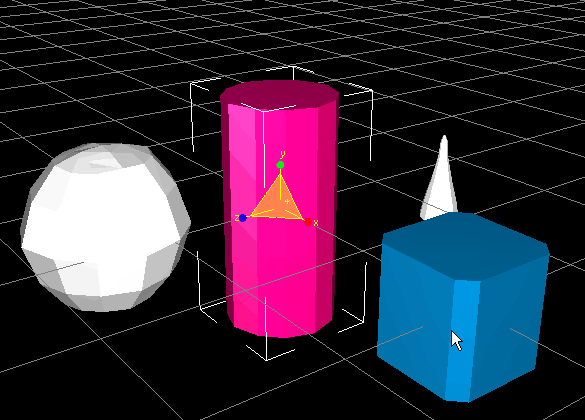
Select the previous conoid poxel.
In Surfaces Type set only Side Smooth, choosing the color R: 0 G: 255 B: 0. Click Apply.
Change its size through the Size mode (hotkey R).
Change the size of all the axis to 3.6, then select click on the center of the Transform gizmo (Uniform Scale).
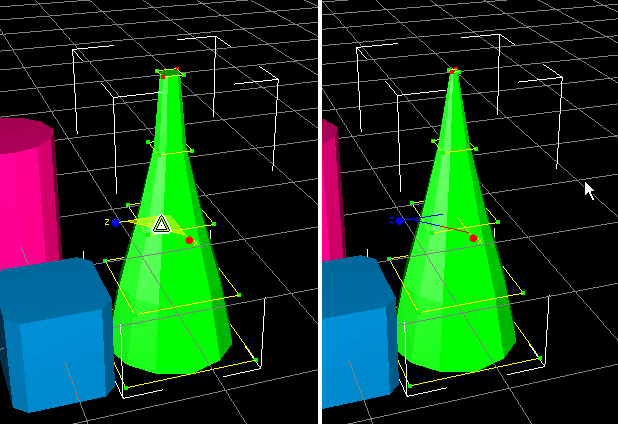
Go to Layers Mode . Select two diagonal points in the top.
Press R for Size Mode and reduce the size (Proportional Scale) so as to obtain the devices cone.
As a result, you should get what is shown in the screenshot.
Choosing the shape of a poxel into a sphere.
In Surfaces Type set full smoothing (Side and Top Smooth).
Choose yellow R: 255 G: 255 B: 0. Click Apply.
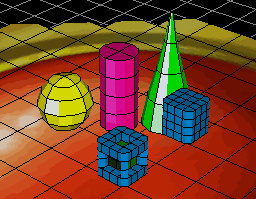
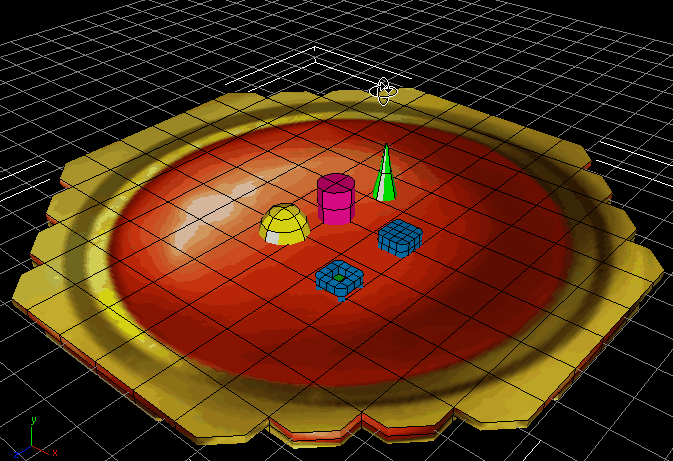
As a result, you should get what is shown in the screenshot.
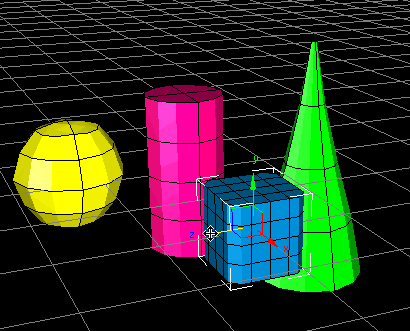
Now you know how to work with the poxels to create primary shapes.
To work with voxels editor, there is a tool called Poxel Texture.
Chouse a Box and make a copy of it, as explaned before.
Having created this new poxel, choose Poxel Texture panel.
Turn the material texture to 0.
Mat from the left and right should be 0.
Choose bucket (Fill Mode) hotkey M . The cursor must turn into a bucket.
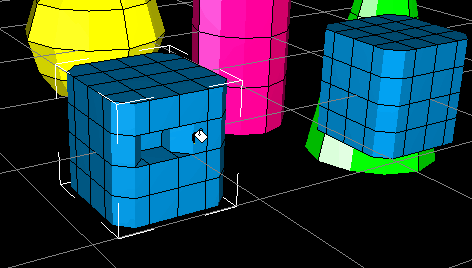
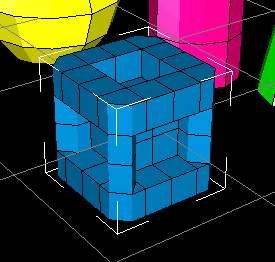
Using Zero textures (to remove them) delete 4 pieces in the center of each size of the poxel, so as to get a shape similar to the one in the screenshot.
Select Textures panel . Press Texture View.
Open the window and click on the button Load Texture Dir.
Look for a folder in data/Bundles.
When you find the right folder, the OK button will become active. Click it.
Close the Texture View window.
Next step: You need a list of textures.
Click Open Textures and select folder ThemePirate to open the texture list - ThemePirate.txt.
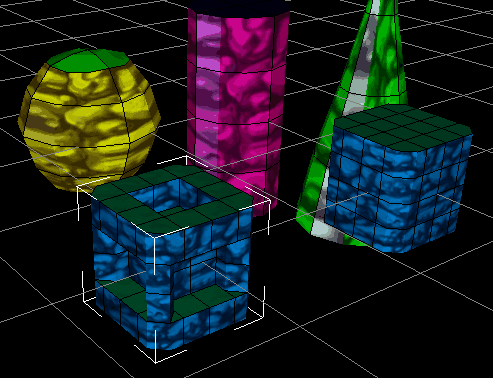
Then the Load Texturebutton becomes active, click on it to put the selected texture on your poxels.
As a result, you should get the same picture as the one the screenshot.
Now you need to choose a texture for the poxels.
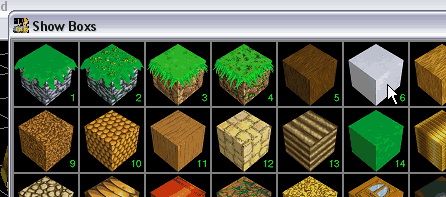
To do this, click on Show Boxs in Textures panel.
Remember the number of the texture you want to apply, for example, the white box has the number 6 .
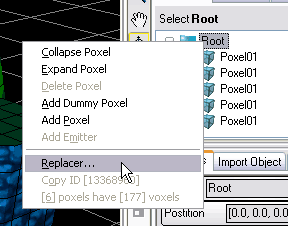
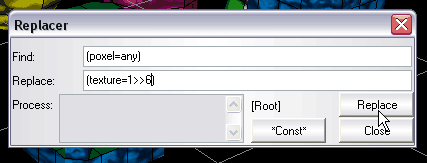
To apply textures use Replacer tool.
Select Root and open the context menu.
To change the texture, the command (texture=n>>m).
Example: Find section (poxel=any), Replace section (texture=1>> 6).
This means that all the textures found will be replaced from 1 to 6 (the white texture). Click Replace.
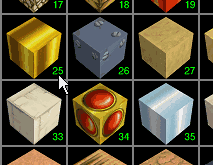
For example, find the texture of gold in the Show Box window.
It's the no. 25.
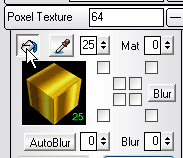
Now return to the panel Poxel Texture and in the upper left blank, select 25 , the window should show this texture.
Click on the **Fill Mode (**hotkey M) button.
Select all the central voxels in the last edited poxel.
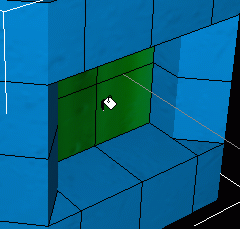
You should obtain the following:
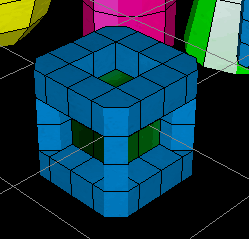
Make a New Poxel, selecting Add Poxel in the Context Menu from Edit Tree.
Go to Poxel Size Panel and put the fallowing size for poxel:12x2x12 and texture 34. Press Apply.
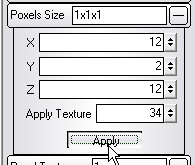
You must have a poxel named Poxel02, like on image:
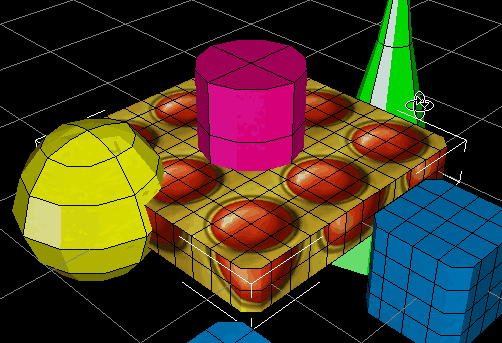
Now resize it with Size Mode (hotkey R).
Change size in Axis X and Z using Proportional Scale with two axis. Keep Shift and move the mouse to do so.
Its size should be about 6x1x6 .
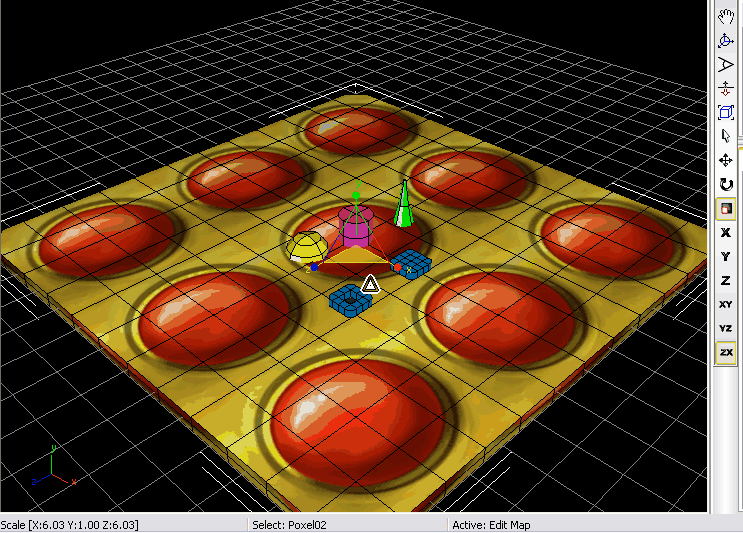
For the next operation, you should turn off the textures.
To do so, select Menu -> View -> Textures or hotkey Ctrl T .
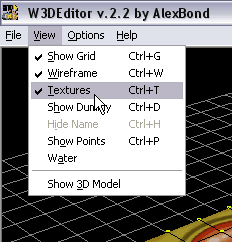
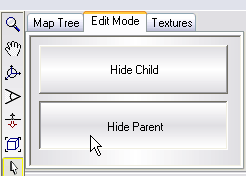
Also also hide unnecesary objects.
To do so, press Hide Parent in the Edit Mode panel.
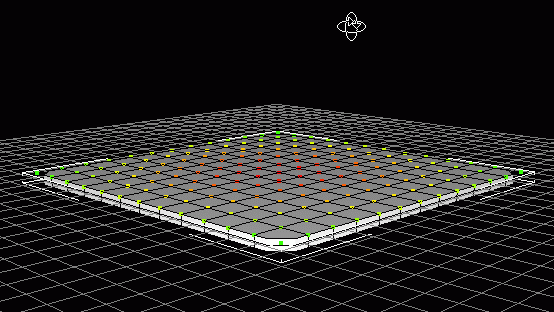
Go to Height Map panel and activate Pick mode.
Select central point in the point grid. This point change its color to red.
For re-point more then one choice, it is necessary to keep Ctrl pressed.
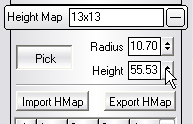
Change Smooth Radius to 10.7 in Height Map panel.
In Height Map panel, find the Height value and change about 55.5 .
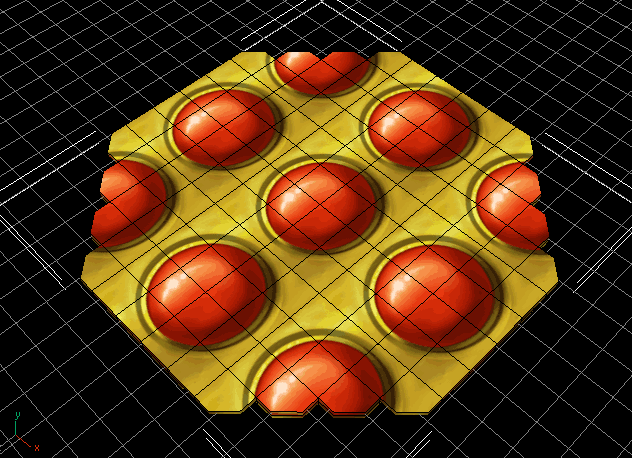
The hill is completed. Compare your result to the screenshot:
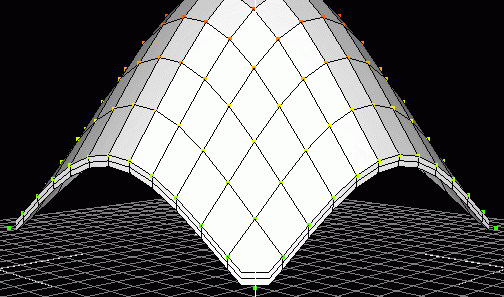
This is to remove unnecessary parts of the hill, to make its bottom flat.
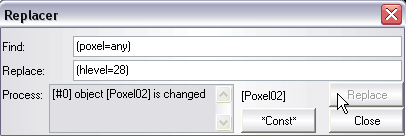
Open Replacer for Poxel02.
In Find section, write (poxel=any), in Replace section, write (hlevel=28).
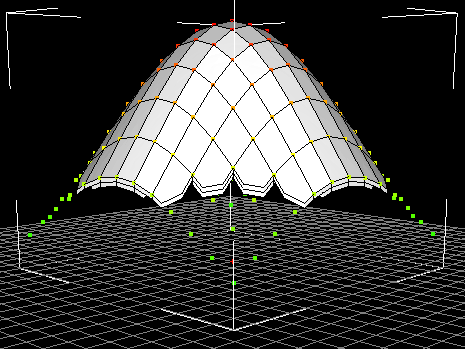
Press Replace for remove all the voxels below the Level 28.
You should obtain the following:
In Height Map panel, change Height value to 0 .
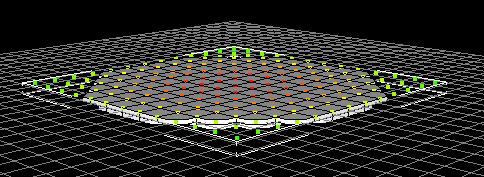
Activate Texture (Ctrl T) and look at the model top.
This step is to expand the texture in order to avoid the mosaic effect.
Go to Texture Coordinates panel.
To select any cell in table, press left mouse button.
In Context Menu select Edit Value.
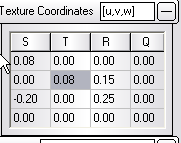
Change S[1] and T[2] cell to 0.08.
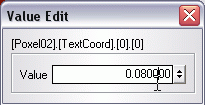
The coordinates table should be like on this:
The texture has been corrected.
In Map Tree panel select all poxels with name Poxel01. Keep Ctrl pressed to do so.
Then in Context Menu select Group Poxels.
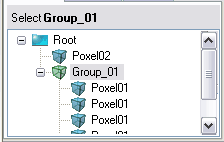
Turn to the Move tool (hotkey W) and drag the objects on the plane.
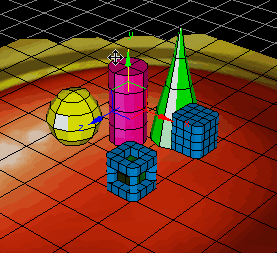
Finally, let's save the map on your harddisk.
Select Menu -> File -> Save Map As.. (hotkey Ctrl S).
For example, Choose a folder and write the map name 001

Now you can work with W3DEditor to create your own maps.