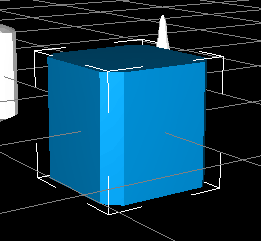
Tutorial 1
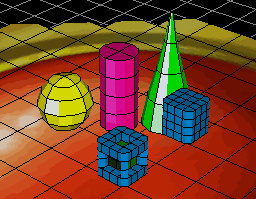
Creating a Poxel
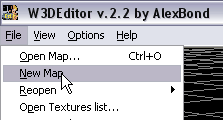
Open W3DEditor v2.2 and select in Menu -> File -> New map.
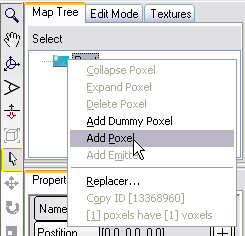
Select Add Poxel using Context Menu from Map Tree.
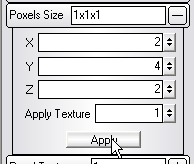
In Properties Panel, set New Size of Poxel.
For X = 2, Y = 4, Z = 2, and Press Apply.
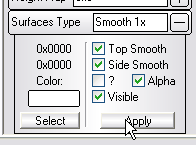
Set in Surfaces Type next Values:
Top Smooth ON, Side Smooth On and press Apply.
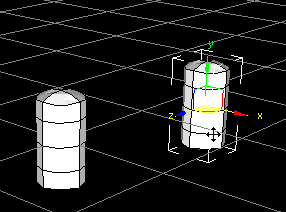
Then select your Poxel with the Mouse and press Move mode (hotkey W) in Tool panel .
Hold Ctrland drag the poxel to any position. You should get a Copy of it.
Cone
Select New Poxel and Press on Layers Mode in Layers Panel.
Set Soft Len to 5.
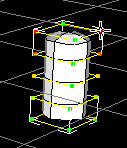
Select one of the points in the top, hold Ctrland select another point from the same height.
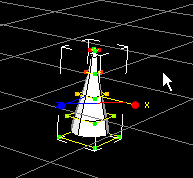
You should have 2 red points as show on image.
Now you must select Size Mode (hotkey R) in Tool panel and
hold Shift (Proportional Scale) for form resize to layers.
The rusult should be like on this image:
Sphere
Select First Poxel, and make Copy using the Move mode Ctrl.
Select New Poxel and Press On Layers Mode.
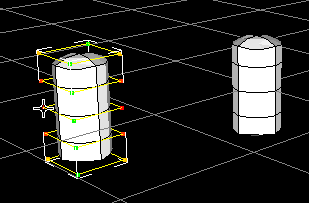
Put two points in middle layer linke on the image:
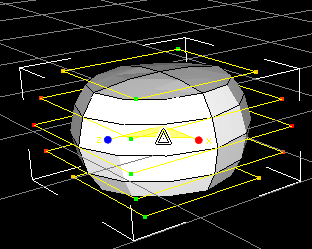
Choose the mode size (hotkey R), hold the Shift key (Proportional Scale), and increase the size, until you obtain the shape of a sphere.
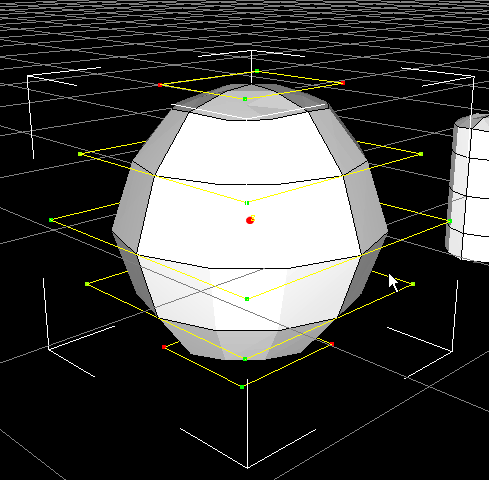
To improve the shape, there are two high and low points.
Reduce their size holding Shift .
Box
Copy the first poxel, holding Ctrl and dragging in to a new location.
Set its size to 4x4x4 in Poxel Size. Click Apply.
In Surfaces Type remove all the ticks, select color Red: 0 Green: 128 Blue: 129 and click Apply.
As a result, you should get what is shown in the screenshot.