Tutorial 2
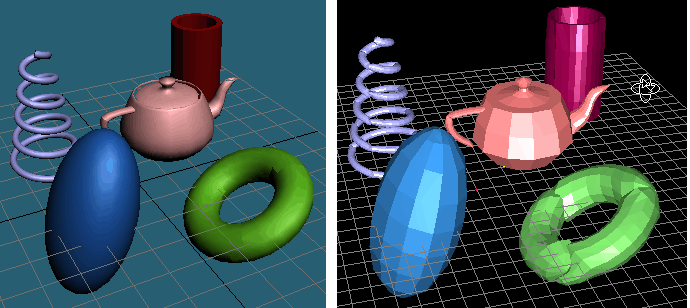
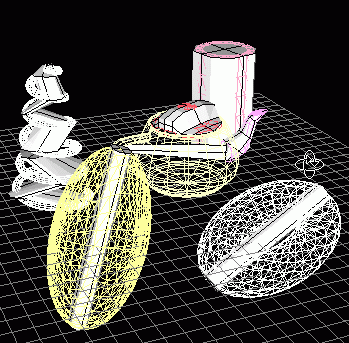
Open 3DSMAX to create Primitives Objects like on the next scheme:
Ellipse: Select in Menu -> Create -> Standard Primitives -> Sphere.
(Radius: 12, Segments: 32, Move: [-18,-8,0], Rotate: [0,105,0], Scale: [210,125,100])
Torus: Select in Menu -> Create -> Standard Primitives -> Torus.
(Radius 1: 14, Radius 2: 5, Segments: 24, Sides 12, Move: [24,-24,0], Rotate: [-5,-28,2], Scale: [100,100,100])
Teapot: Select in Menu -> Create -> Standard Primitives -> Teapot.
(Radius: 16, Segments: 4, Move: [18,16,0], Rotate: [0,0,0], Scale: [100,100,100])
Tube: Select in Menu -> Create -> Standard Primitives -> Tube.
(Radius 1: 9, Radius 2: 7, Height:32.5 Segments: [5,1,18], Move: [42,40,0], Rotate: [0,0,0], Scale: [100,100,100])
Helix: Select in Menu -> Create -> Shapes -> Helix.
(Radius 1: 11, Radius 2: 3, Height: 40, Turns:5.3, Enabple in Viewport, Radial Thickness: 2.21,
Move: [-22,21.5,0], Rotate: [0,0,0], Scale: [100,100,100])
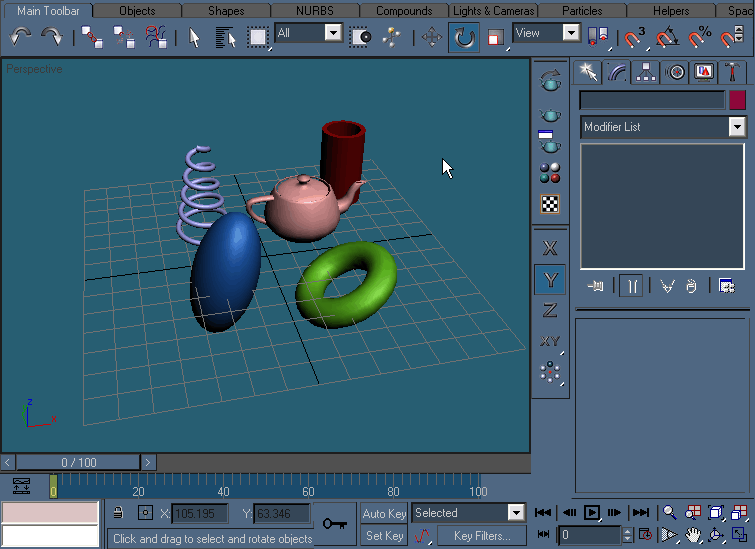
You should get primitive objects like ones shown on the screenshot:
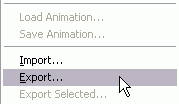
Now Export the current file to *.3ds. Select Menu -> File-> Export...
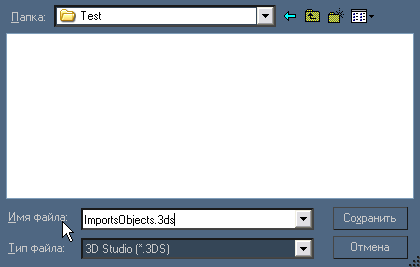
Save this file as ImportsObjects.3ds
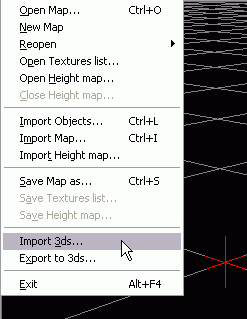
Now open W3DEditor v2.2 and select Menu -> File -> Import 3ds...
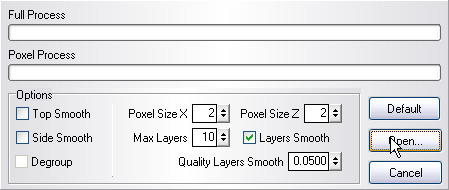
In the first time, do not change defaults values, and open the file. Press Open.
Select ImportObjects.3ds in the folder where it was saved.
The first result of the Objects imported has a very bad quality. As you can see Poxels have not the shape of Primitive objects, but that is not a problem.
In next steps we will solve it.
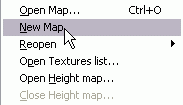
For clear your workplace, press in W3DEditor v2.2 Menu -> File -> New Map...
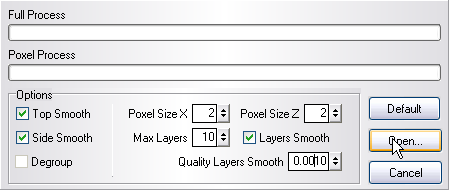
Change Options for Apoxelation process. CheckTop Smooth and Side Smooth,
change Quality Layers Smooth to 0.001. And Open file.
Now a more nice result is obtain, but not for all primitives. Only Ellipse it perfect.
In next steps we will improve the rest of the Objects.
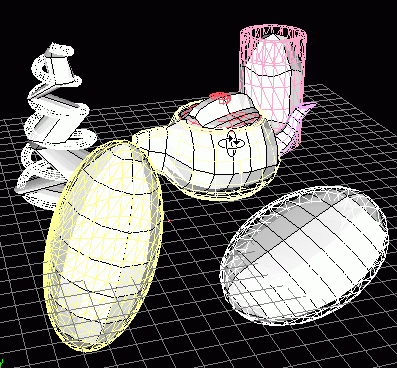
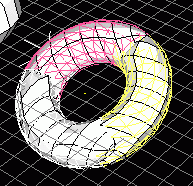
As you can see, Torus in poxel shape has not a hole in middle, therefore we should divide the object into parts.
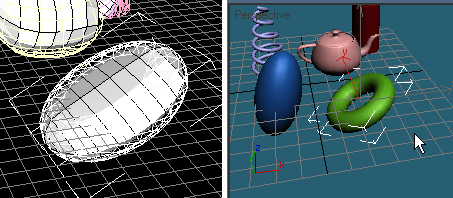
In order to do so, go to 3DSMAX, select Torus and Convert to Editable Mesh, in Modify Panel.
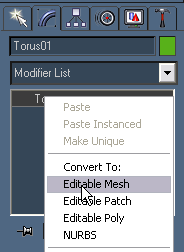
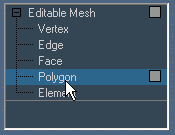
For making a division, use polygon method.
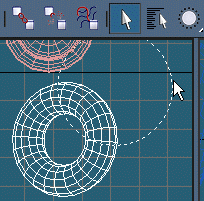
To be able to select an object, choose a way to Circular Selection Region.

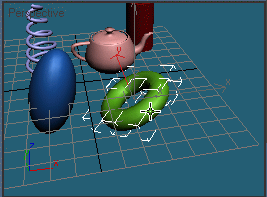
We must divide torus into 3 parts. Go to Top View and select polygons as it's shown on the screenshot:
Disconnecting the selected part, click the Edit Geometry -> Detach
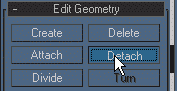
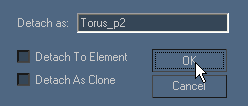
Named the object as Torus_p1 and press OK.
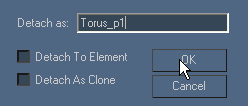
The next part requeires selecting a similar method.
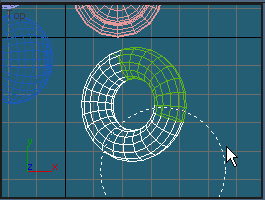
Try to separate identical fragments.
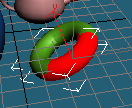
Name the second part as Torus_p2 and press OK.
Select all 3 parts of Torus to export them to .3ds.
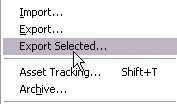
3DSMAX -> Menu -> File -> Export Selected...
Save as Torus.3ds. Then, go to W3DEditor ->Menu -> File -> Import 3ds...
Select Torus.3ds and watch the results:
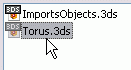
As you can see, now the Torus is more similar to the original one.
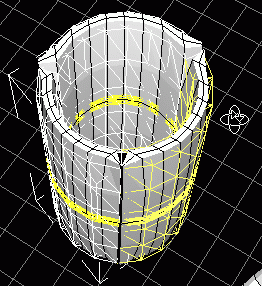
Tube shape has to be corrected too. It needs to do divided into 3 parts.
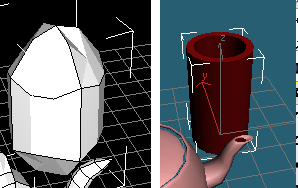
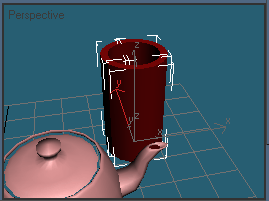
In 3DSMAX select Tube, Convert to Editable Mesh and Detach to identical parts.
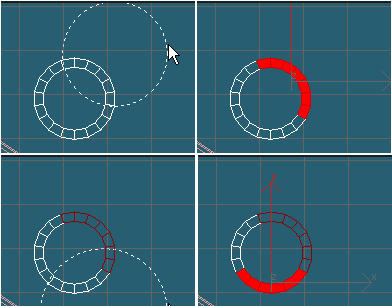
Select all 3 parts of the Tube to Exports them to .3ds. 3DSMAX -> Menu -> File -> Export Selected...
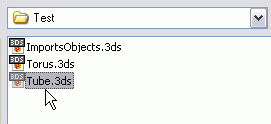
Save as Tube.3ds. Then go to W3DEditor -> Menu -> File -> Import 3ds...
Select Tube.3ds and watch on result.
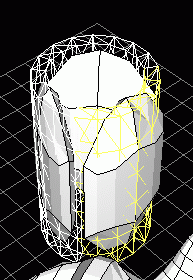
The results are not so good. It needs extra corection.
If Apoxelation works badly, you should change the size of the Original Object.
After Apoxelation, it will come back to its previous size.
In 3DSMAX use Select and Uniform Size, select all 3 parts of the Tube,
Then keep Ctrl pressed and change Y size in Front View.
Reduces the size ot the object to about the size shown in the screenshot:
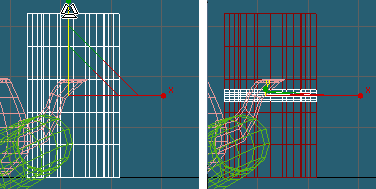
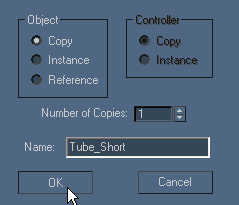
In the current opened window write name of the Copy: Tube_Short.
Select New and old tube parts and Export them to .3ds.
3DSMAX -> Menu -> File -> Export Selected...
Save as Tube2.3ds.
In W3DEditor in 3DS Import Form change options:
Off Top Smooth, Off Side Smooth. Press Open...
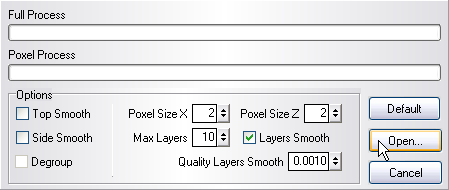
You should get some strange poxels, but it's alright.
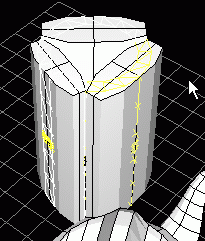
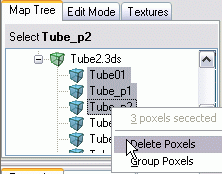
In order to delete the incorrect parts go to Map Tree Panel, hold Ctrl and Select Tube01, Tube_p1, Tube_p2.
Then in context menu press Delete Poxels.
To get the previous shape of the Tube, you need to change the size of the poxels.
Select a part of the Tube and resize it.
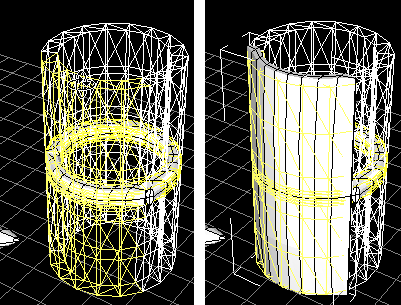
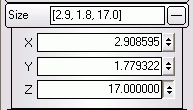
The new Size must be about 17 on Z Axis.
If all steps were correctly done, you should obtain a result like this.
This not a perfect Tube, but it's the most similar to the original you can make.