This code is provided by Aprimo as-is as an example of how you might solve a specific business problem. It is not intended for direct use in Production without modification.
You are welcome to submit issues or feedback to help us improve visibility into potential bugs or enhancements. Aprimo may, at its discretion, address minor bugs, but does not guarantee fixes, vulnerability remediation or ongoing support.
It is expected that developers who clone or use this code take full responsibility for supporting, maintaining, securing, and vulnerability management of any deployments derived from it.
If you are interested in a production-ready and supported version of this solution, please contact your Aprimo account representative. They can connect you with our technical services team or a partner who may be able to build and support a packaged implementation for you.
Please note: This code may include references to non-Aprimo services or APIs. You are responsible for acquiring any required credentials or API keys to use those services—Aprimo does not provide them.
It is assumed that the following is true for your inRiver model to be able to use the existing connector code. If you have differences in your model, you may have to change the connector code to get the functionality outlined in this document.
- The special EntityType of Resource exists along with the following fields.
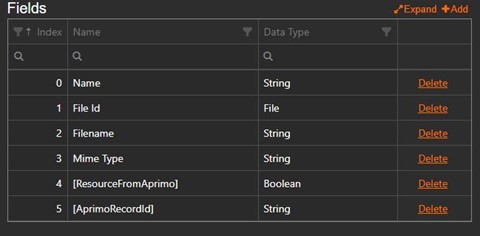
- ResourceFromAprimo is marked Mandatory
- AprimoRecordId is marked Unique
- The entities you are linking Aprimo assets to have a unique identifier configured and can be linked to Resources.
- All link names to the resource entity will be in the best practice format “[EntityType]Resource”. E.g. “ItemResource”, “ProductResource”
- For every EntityType you would like to be able to link Aprimo assets to, you must include a metadata mapping in the EntityListener and LinkListener extensions settings. Use the following format “inRiverFieldTypeId:AprimoFieldID;inRiverFieldTypeId2:AprimoFieldID2”. You must also go into the Extension’s code and create a “private Dictionary<string, string> properlyNamedDictionary = null;” as a class variable for the InRiverAprimoListener class.
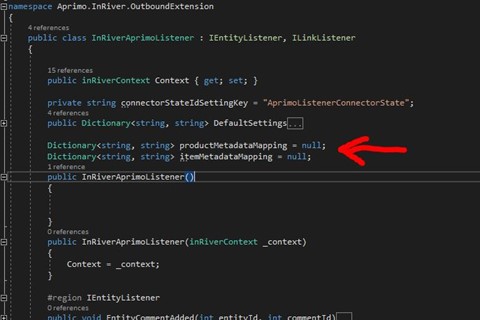
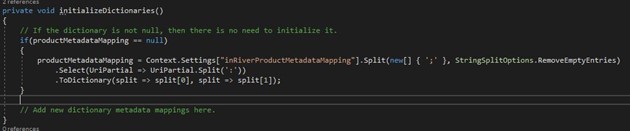
- Add the new dictionary to the initializeDictionaries() function. Reuse the code, changing the index string of the Context.Settings to the appropriate setting, to convert the mapping to a dictionary.
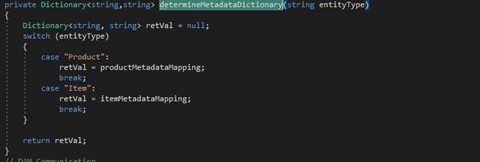
- Add the dictionary to the determineMetadataDictionary(string entitytype) function. This function is used by the LinkCreated and ConstructAddOrUpdateObjects() functions to identify which metadata mapping the integration should use for the specific entity it is working on.
All code is deployed in inRiver – in Aprimo, only configuration is required. The connector is broken down into 2 major parts:
Interface A: The InboundDataExtension an HTTP endpoint which receives POST requests from the Aprimo DAM and create new resource entities in inRiver, linking them to entities chosen by the user.
Interface B: The Listener extensions, which monitors the data inside of inRiver and will update metadata in the Aprimo DAM via the REST API if there is an edit inside of inRiver on an entity that is linked to an Aprimo resource, or when the Aprimo Resource & link are initially created.
InboundDataExtension
The InboundDataExtension receives HTTP requests via DAM rules when an asset is associated with an inRiver entity. The only class, DataAPI, implements the IInboundDataExtension interface. The InboundDataExtension only implements the Add() method, which is called when a POST request is received from an Aprimo DAM Rule. All other methods were left as is.
EntityListener
The EntityListener receives notifications from the inRiver system when changes are made to entities including updates, creation, and deletion. When an entity in inRiver is updated the EntityListener checks to see if that entity includes an Aprimo resource, and if it does it updates Aprimo metadata with new inRiver metadata. The only method implemented in the Extension is EntityUpdated(int entityId, string[] fields).
LinkListener
The LinkListener receives notifications from the inRiver system if changes to links occur. The only implementation in the Extension is LinkCreated(int linkId, int sourceId, int targetId, string linkTypeId, int? linkEntityId) which is called when the InboundDataExtension creates a link between a resource and entity in inRiver. The LinkListener then updates the Aprimo record with any data that already exists on the inRiver entity when the link was made.
EntityListener and LinkListener are included on the same class in AprimoListenerExtension.cs, but within inRiver they are considered separate extensions and will require their own extensions created in the inRiver Connect tab.
This section will go over the process of implementing the Aprimo inRiver Connector.
- Download the Connector solution from Aprimo
- Log into Aprimo and follow the step 1 under Retrieving an Access Token for Services and Daemons to create an integration registration. Note the client id.
- In Aprimo, create an integration user who has rights to read and write to all assets that may sync with inRiver, and note the username and user token (see Step 2 under Retrieving an Access Token for Services and Daemons)
- Navigate the Aprimo DAM System UI and create the following fields (you can change the name without worry)
- inRiverEntityType – Option List – Set the options to be the different inRiver entities you would like the connector to be able to link resources to (e.g. Product, Item, Look, etc.)
- inRiverEntityId – Text – The user will enter the unique Id of the entity they want the resource linked to.
- InRiverResourceId – Numeric – The field will expose the entity ID of the resource in inRiver associated to this record
- InRiverStatus
- Create fields for any custom metadata you want synced back from inRiver (see configurability for supported types below). Any custom field must be Record Content Type Dependent
- Compile the connector. Go to the connector bin directory and zip the following files into “Aprimo.InRiver.InboundExtension.zip”.
- Antlr3.Runtime.dll
- Aprimo.InRiver.InboundExtension.dll
- inRiver.Remoting.dll
- Newtonsoft.Json.dll
- Newtonsoft.Json.xml
- Go to your inRiver Control Center’s ‘Connect’ tab
- Navigate to the Packages section
- Upload the .zip file
- Navigate back to Connect and navigate to Extensions
- Create a new extension using the package you just uploaded
- Choose a descriptive Extension Id and apiKey
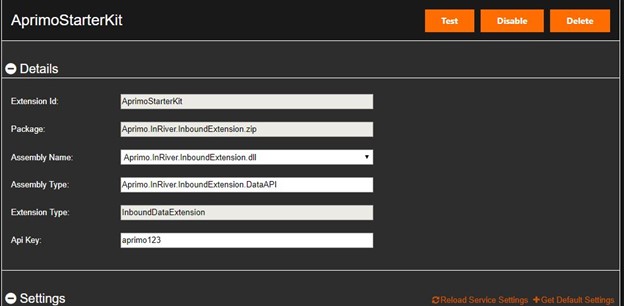
- Choose a descriptive Extension Id and apiKey
- Repeat steps 5 – 10 for the Aprimo.InRiver.OutboundExtensions(EntityListener and LinkListener)
- You won’t need an apiKey for the OutboundExtensions
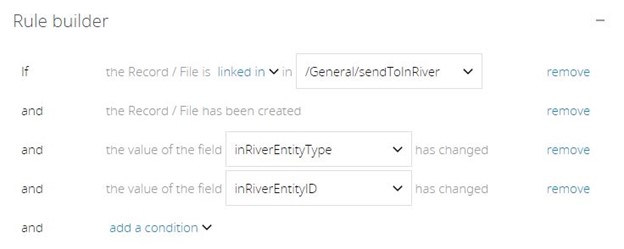
- Create a new Business Rule in Aprimo DAM (System > Advanced > Create New Rule)
- Set the conditions of the rule so it executes when someone sets the inRiverEntityType and inRiverEntityId.
- E.G.
- The rule’s action should execute the following reference
- To get the Basic Authentication Token for @apiKey base64 encode apikey:[InboundDataExtension’s apikey] without the brackets
- To get the uri see the documentation for InboundDataExtension
<ref:record out="id" store="@recordID" />
<ref:text out="Basic [Basic Auth Token]" store="@apiKey" />
<ref:record fieldId="e101ff8be98d404ca43daa3f01538c97" out="valuename" store="@entityType"/>
<ref:record fieldId="7ac090e504944877ab4faa3f0153d467" out="value" store="@entityUniqueID"/>

<ref:httpRequest uri="[InboundDataExtension POST URL] " include="auth-code" timeout="15">
<Request>
<Headers>
   <Header name="Authorization">@apiKey</Header>
</Headers>
<Body>
{
"value":<ref:text out="@recordID;@entityUniqueID;@entityType;CREATE" encode="json" />
}
</Body>
</Request>
</ref:httpRequest>
Below are a list of features and design considerations that may impact you as you complete your integration. Changing relationships from M:1 Aprimo Asset:inRiver Entity to M:M Aprimo Asset:inRiver The connector assumes that a user will associate a single entity in inRiver to an asset in Aprimo. In the cases where an asset may represent multiple entities (i.e. a model wearing multiple products), it is expected that that asset would tie to a “look” type entity that represents multiple entities in a collection. However, if you choose to allow an asset to be associated to multiple entities, you will need to:
- Change fields in the DAM to allow users to select multiple entities to tie to in Aprimo
- Adjust Interface A to create multiple links on the resource created
- Change how metadata is written back into Aprimo to accommodate that multiple entities may need to synchronize back to Aprimo (or choose a priority order for which entity’s metadata gets written back to Aprimo).
Reacting to additional events in Aprimo The connector will only allow a user to set the inRiver entity and unique Id once. Consider implementing the following actions for the following triggers:
- Updated Asset Case
- Trigger: A user logs into the DAM and changes the inRiver entity type or inRiver unique Id of on the asset record, attempting to point the asset to different entity in inRiver.
- Action: Change the link in the PIM to point to the new item.
- Technical Design: Create a DAM rule to listen for the trigger changes, which invokes a custom InboundDataExtension, passing along the DAM record Id. Call back into the DAM via the REST API and adjust the link in inRiver to point to the newly specified entity.
- New Asset Version Case
- Trigger: A user logs into the DAM and adds a new file version to the master file on a record which is synched with inRiver.
- Action: Update the resource in inRiver with the latest file version.
- Technical Design: Create a DAM rule to listen for the trigger changes, which invokes a custom InboundDataExtension, passing along the DAM record Id. Call back into the DAM via the REST API to get an updated preview and update the resource in inRiver.
- Deleted/Expired Asset Case
- Trigger: A user deletes or expires an asset When an asset is deleted or expired
- Action: Soft delete the resource record in PIM via an active/inactive flag.
- Technical Design: Create a DAM rule to listen for the trigger changes, which invokes a custom InboundDataExtension, passing along the DAM record Id. Update the resource in InRiver to be inactive or remove it. Note that the DAM only sends POST requests, so the value that is passed to the InboundDataExtension must also contain an identifier for the desired action.
Beware the Infinite Loop
Be careful to avoid an infinite loop – Asset updates in Aprimo may trigger callouts to inRiver, and entity updates in inRiver may update assets in Aprimo. Ensure your rule conditions and listener extension code does not cause an infinite loop of updates.
Leverage Connector State for Robustness
Leverage the inRiver connector state to retry any requests to Aprimo that had failed. The connector contains a ConnectorStateHelper class that acts as a wrapper around inRiver’s ConnectorState class. The ConnectorState is useful for sharing data between different extensions. The connector does not make use of this fully, but if an API request to Aprimo to edit a record fails, the connector will log the error and use ConnectorStateHelper to store the request. You can expand this functionality and implement a feature that can retry failed requests on a schedule.
Leverage Connector State for Scalability
Additionally, for implementations that may have large amount of updates, it’s recommended to change Interface B to process on a schedule instead of real time. To do this, modify the ListenerExtension to log changes to ConnectorState, and processes the changes in a ScheduledExtension instead, de-duping any ConnectorState messages pointing to the same entity.
Additional Languages
English is the only supported language for the connector. If additional language support is needed, this will have to be built in.
For more information about Aprimo's Open Source Policies, please refer to https://community.aprimo.com/knowledgecenter/aprimo-connect/aprimo-connect-open-source