Repository navigation
Edit Mode JSON
The JSON tab of the Edit Mode Menu displays and edits the JSON for the selected widget. It is the heart of Edit Mode
-
 Displays the JSON for the selected widget. More details on viewing and editing JSON are in several of the following sections.
 - The separate Tree menu button has been removed. The widget tree is part of the selection bar described below, which the JSON module and the Edit Widgets module both carry — open it with the tree button.
At the very top of the JSON display — and of the Edit Widgets panel, which mounts the very same bar — is a selection bar that keeps the current widget's context visible and makes it quick to jump between widgets. Everything below applies in both modules; if you dock both of them at once, you simply see the bar twice.
-
Back / forward buttons (or
Tab+Left/Tab+Right) navigate through the history of widgets that have been selected, whichever module selected them. Widgets that were deleted in the meantime are skipped, and a button is disabled when there is nowhere to go in that direction. In the JSON module, going back or forward also restores the scroll position and cursor the widget was left with, and puts the keyboard back into the JSON text area if that is where you were working. -
The tree button opens the widget tree as a dropdown below the bar. The tree lists all widgets in the room. It is displayed alphabetically, but widgets that are children of other widgets are listed under the parent. A filter bar at the top limits the displayed widgets to those matching the typed text; the filter matches the widget id and type, so typing "button" shows any widgets of the
typebutton or that have "button" anywhere in theirid. You can also filter by properties — for example, "text:small" filters to only those widgets with a text property containing the word small. The filter box and the key hint stay in place while the rows scroll, and the filter opens the branches that lead to a match, so those branches can still be collapsed again while something is typed in the filter. The tree displays the widget id in yellow and, in parentheses after that, the type in green and the x,y coordinates in purple; a widget with children has a white arrow next to it that you click to expand or collapse its child list. Opening the tree expands and scrolls to the widget that is currently selected. Picking a widget selects it and leaves the dropdown open; Shift-click selects multiple widgets. - The stack button opens the list of the widgets under the pointer — see Selecting a widget that lies under another one below. A badge on the button carries how many widgets are stacked at that spot.
- The flashlight button controls whether the selected widgets are outlined in the room. It is on (yellow) initially; switched off (white), the selected widgets are still highlighted in the tree but get no yellow outline in the room. (There are cases, mostly involving widgets with CSS masks, in which the outline is not displayed anyway.) This used to be a button of the JSON editor's command panel.
-
Breadcrumbs show the ancestry of the current widget as
… › grandparent › parent › id(a leading…appears when the chain is deeper than three levels). The current widget is shown in bold; clicking any ancestor crumb selects that widget. This replaces the former "Open parent" button. When multiple widgets are selected, the bar showsN widgets selectedinstead. - At the right end of the bar are two readouts: how far an
Alt+click drill has gone (2/5, see below), and the position of the pointer in the room asx, y.
Only one of the two dropdowns is open at a time. When opened with its button, each stays open until its own button is pressed again or it is closed with Esc (a second Esc then closes the module, as before). Clicking somewhere else in the sidebar closes an open dropdown as well; clicking in the room does not, since that is where the stack list is filled from. In an open dropdown, ↑ and ↓ walk the rows and outline the row's widget in the room, Enter selects it and Shift+Enter adds it to the selection; in the tree, → opens a branch or steps into it and ← closes it or climbs to the parent. The arrow keys are left alone while the caret is in the JSON text area or in a property input, except while Ctrl is holding the stack list open.
When JSON is one of the selected Menu items, then a few icons along with text buttons will be displayed in the Text Area. If no widget is selected, then the blue and white button text allows you to instantly add a widget of the listed type (as shown in the image below). When a widget is selected, the buttons change and become context sensitive. See the Editing widgets section below.

Across the top of the Text Area where the JSON has been opened are icons that perform a variety of functions. If an icon is greyed out, it is currently not available (most likely due to the widgets you have selected or not selected). The functions of the icons are described below in icon order from left to right.
 Copy state from another room/server. Clicking this button prompts you to enter the full URL to another VTT room. After pressing Go, the current state of that room will be downloaded into the current room and replace all the contents of the current room. If the URL does not specify a valid VTT room, the command silently has no effect.
 Macro. This button brings up a JavaScript code snippet in the editing area:

As noted in the comment in the screen, any macro defined here will be executed for each widget in the room. This allows you to code an arbitrarily complex set of actions to take on various widgets. Pressing the macro button again (which now appears as ▶) will execute the macro. [NOTE: Macro execution will proceed without a request for confirmation. It is very easy to completely mess up your room. We strongly suggest that you back up your VTT file before executing a macro. It should be obvious that some knowledge of JavaScript and the code base would be useful if you want to use this feature.]
 Show this widget below. This button shows an uncolorized copy of the current widget's JSON at the bottom of the context-specific panel (below the blue and white buttons). This can be useful if you want to navigate to another widget but want to be able to simultaneously view the current widget.
 Reverse order of F-key shortcuts. This button has been removed. The list of the widgets under the pointer is always sorted topmost first.
 Duplicate widget. Pressing this button will allow you to make one or more duplicates of the selected widget (or widgets, if more than one is selected).
The advantage to using this button over the grid (see the Widget Toolbar section below) is more granular control over the resulting JSON as well as adding an inheritFrom property (discussed on the Widget page in the Global properties for every widget table at Global properties for every widget.
-
Increment IDs controls how the widget
idfor created widgets is determined. The default is Numbers. With this setting, the last set of numbers in the source widget will be incremented for successive duplicates. For example,v1x8will have successive duplicates namedv1x9,v1x10, andv1x11. If the source widget has no numbers in it, the first duplicate will have a1appended. Thusvaxbduplicates tovaxb1,vaxb2, and so forth. If you select Letters, the last set of capital letters in the source widget will be lexically incremented. Thus for examplePlayerAis duplicated toPlayerB,PlayerC, and so forth. If the last set of capital letters consists of allZs, the next value will be determined in "Excel style". Thus for example the widgets afterPlayerZZarePlayerAAA,PlayerAAB, andPlayerAAC. If the widget has no capital letters, the first duplicate will have anAappended, similarly to the Numbers case. If you select None, widget copies are given a freshly generatedidmade of their type and a number, likecard7orbutton3. -
Increment In defaults to
dropTarget, hand, index, inheritFrom, linkedToSeat, onlyVisibleForSeat, text. You can remove any of the default properties from the list or add other standard or custom properties. This setting is ignored if Increment IDs is None. Otherwise, for each of those properties, if theidcontains a number (if Numbers is selected) or a letter (if Letters is selected) and if the the value of that property contains the same number or last capital letter as in theid, then those properties will also be incremented in exactly the same way theidis. For example, if"id":"widget1"and"linkedToSeat":"seat1", then the next copy will have"id":"widget2"and"linkedToSeat":"seat2". -
Copy using inheritFrom is not initially selected. Selecting it means that all copied widgets will have the
inheritFromproperty applied rather than duplicating all of the source widget's properties. You can learn more about that at Global properties for every widget. - Inherit properties is ignored if Copy using inheritFrom is unchecked. Otherwise, this allows you to select the individual properties that will be inherited from the specified widget. If the box is empty, all heritable properties will be inherited.
- Recursive is initially selected. Leaving it selected means that all child widgets of the widget(s) being duplicated will also be duplicated and their parent properties will automatically be updated.
-
X offset and Y offset each default to
0. Change this (to a positive or negative number) to make the copied widgets appear in a different location on the screen. For example, if the x value is set to 25 and you are making 3 copies of a widget at x coordinate 100, the first copy will be at 125, the second at 150, and the third at 175. - # Copies X and # Copies Y: X defaults to 1 and Y defaults to 0. Use this to set the number of copies across (x) or up/down (y). If you set a value in both x and y, a grid of copies will be made.
 Open parent. This button has been removed. To select the parent (or any ancestor) of the current widget, click the corresponding crumb in the breadcrumb bar at the top of the JSON display (see Selection bar above).
 Toggle wide editor. This button does not work. Its function has been replaced by the magnifying glass button on the Top Toolbar.
 Toggle widget highlighting. This button has moved. It is the flashlight button of the selection bar at the top of the display now, so it is within reach from Edit Widgets as well (see Selection bar above).
 Show colors in SVG image. When a basic widget with an SVG image is selected, this button becomes active. Note, it will not work with decks or other situations where the
 image property is inside an array or object and is not directly on the widget. Click it to open a display listing the colors in the SVG widget that can be modified by svgReplaces. Click on a color to create a placeholder within the svgReplaces property.
Below that group of buttons and before the long list of wide rectangular buttons is an area that says "Press or hold Tab to search." If the cursor is in the JSON edit text area, then pressing or holding the tab button on the keyboard or clicking that visual indication of the tab button will bring up a filter. Typing when tab is activated will search for other widget ids in the room, will search the currently active widget for JSON text, and will filter the list of available buttons.
There are several ways to select a widget for editing:
-
If no widgets are currently selected, a Ctrl-click in the room will select the topmost widget at that location. Remember, the mouse button you use to interact with widgets in Edit Mode and in game mode are set using the Top Toolbar and defaults to the secondary mouse button. By default, in most cases the selected widget will also be outlined in yellow in the room, so that you can tell which widget in the room you have actually selected. (There are cases, mostly involving widgets with CSS masks, in which the yellow outline will not be displayed). You can turn off the highlighting by clicking on the yellow flashlight.
-
If one or more widgets is currently selected, a Ctrl-Shift-click (for PC) or Ctrl-click (for Mac) will add the selected widget to the set of selected widgets. See more on multi-select editing below.
-
To deselect a widget when only one widget is selected, just click another widget. Or using the multi-select, you can Ctrl-Shift-click (for PC) or move the cursor over the desired widget and press Shift-F1 to deselect a widget.
-
If you rest the pointer on a point in the room, everything stacked at that point is listed in the stack list of the selection bar — click a row to select that widget, or press the function key shown on it. See Selecting a widget that lies under another one below.
-
Alt+click in the room steps down through the widgets at that spot, one per click. See Selecting a widget that lies under another one below. -
If you click on a widget in the tree (or a sub-set of the tree list created using the filter), that widget will be selected. To select multiple widgets using the tree, use Shift-click (PC and Mac).
-
If you are examining a widget's JSON in the editing area, you can highlight the id of a referenced widget (for example, its parent); at that point, a button labeled "open widget by ID" will appear in the context commands panel. Clicking that button will select the referenced widget and display it in the editing area instead of the current widget.
-
Use the
tabmode mentioned above to type the name of a widget and it will appear as a button that may be selected.
Once a widget is selected, the JSON for that widget will be displayed in the editing area if it is the only widget selected. Additionally, the selected widget will be highlighted in the tree, if the tree is being displayed.
If multiple widgets have been selected, the editing area will show their widget ids together with their x, y, width, height, parent, z, and layer properties. Additional properties can be added to the list by clicking on the "add property" button that appears in the context-specific area when multiple widgets are selected. Then enter the name of the property in the white typing area and press the Go button. Then scroll to the bottom of the widget and enter the new property value after the property name. It will be applied to all selected widgets. In any event, the displayed JSON can be edited in place. You can also use this view to align widgets. In the widget code area, put the cursor on either the x or y value that you want to modify. You will then see blue buttons with options to align, center in parent or distribute. Once you select the desired option, additional menu options will be presented to determine which coordinates to apply (center, top left, or bottom right), and which widget value to use as the baseline. Press the Go button to implement the change.
A plain click can only ever reach the topmost widget at a point, which leaves a transparent lid, a board with movableInEdit: false, a card under a pile or a widget owned by another seat out of reach. The selection bar has two ways to get at them, and both walk the same stack of widgets.
The stack list. The stack button of the bar opens a list of everything at the point the pointer last came to rest — or, on a touch device, where you last tapped — sorted topmost first, with no limit on how many rows it holds. The list stands still while you move the pointer over to it, so its rows can be reached with the mouse.
You can also hold Ctrl while the pointer is over the room to open the list temporarily, without clicking the stack button. After a brief hold, it follows the pointer without waiting for it to rest; releasing Ctrl closes the list if the key opened it. You can hold the key before moving the pointer into the room. When the pointer leaves the room for the list, the list keeps the stack you were examining so you can click its rows. If the widget tree is open, it stays open instead; the stack button's count still follows the pointer.
Each row names the widget's type and id, and adds a note on what makes it hard to get at: invisible (the transparent class), hidden or another seat (naming the ancestor responsible, as in inside hand, another seat), on layer -2 for a non-default layer, locked in edit mode for movableInEdit: false, and card from <deck> for a card. Hovering a row outlines that widget in the room; clicking it selects it, Shift-click adds it to (or removes it from) the selection, and Ctrl-click pastes its id into the JSON editor. ↑ and ↓ walk the list, Enter selects and Esc closes it. While Ctrl holds the list open, the arrow keys still walk its rows even if the caret is in the JSON text area, and the mouse wheel walks the rows instead of zooming the room. With Ctrl still held, after stepping to a row with the wheel or arrow keys, middle-click in the room selects it (Shift+middle-click adds it to the selection).
F1–F3 and F6–F12 select the first ten rows without opening the list at all, in either module — F4 and F5 are skipped because the browser keeps those keys. Shift+the key adds the widget to the selection instead. With the pointer over the room, Ctrl+the function key selects its row (and Ctrl+Shift+the key adds it); with the pointer outside the room, Ctrl+the key still pastes its id into the JSON editor. Ctrl-clicking a row also pastes its id.
The list reaches widgets that cannot be clicked at all, including widgets whose game sets pointer-events: none on them, and hidden ones. line widgets are deliberately left out of it: a line's box is only the bounding box of the drawn path, so listing every line the pointer is inside the box of would bury what is really at that spot.
Alt+click. In the room, Alt+click means "not that one, the one under it": each Alt+click on the same spot steps one widget deeper, Alt+Shift+click steps back up, and the cycle wraps around to the top. Clicking more than a few pixels away starts over at the widget under the pointer, and any click without Alt ends the drill. It works in both mouse modes (drag to select and drag to move). A badge next to the cursor says where you are — 2/3 · holder point — and once it has faded the selection bar keeps a 2/3 readout at its right end for as long as the pointer stays on that spot. On a touch device, where there is no Alt key, use the stack list.
Once you have selected a widget, the Widget Toolbar will appear, usually directly below the widget. If you have multiple widgets selected, the toolbar is for the most recently selected widget.

The buttons on this toolbar perform the following functions:
 Drag to move this toolbar without doing anything because it is in the way.
 Drag to clone the selected widgets into a grid. Once the desired widget(s) is/are selected, click and hold this button while dragging in the direction you want the grid. Release the button when the grid is the desired size.
 Drag to adjust spacing between selected widgets. This button is only available when at least 2 widgets are selected. Click and hold this button while dragging in the direction that you want the spacing modified. Release the button when the desired spacing is attained.
 Drag to rotate the selected widgets. Once the desired widget(s) is/are selected, click and hold this button while dragging left/right (or up/down) to rotate the widgets left and right. Release the button when the desired rotation angle is attained.
 Drag to resize the selected widget(s).
 Drage to resize the selected widget(s) and the aspect ratio will be maintained
 Drag to move the selected widgets. Once the desired widget(s) is/are selected, click and hold this button while dragging to move the widgets. Release the button when the widgets are in the desired location. While dragging, a pop up will show how far the widget has changed from its previous x/y coordinates. Note, these are not the current widget coordinates, but the change since you started dragging. The pop up also shows the distance from the play area boundaries.
Widget JSON displayed in the editing area is color-coded to make it easier for the user to interpret. Further, commands are made available in the context-specific area that correspond to the place in the JSON where the cursor is. Note that syntax highlighting and command context detection work best when the JSON is formatted like the editor does when loading a widget. If you are having issues in this regard, try reselecting the widget.
The coloring conventions used are as follows; you can compare these with the screenshot below to see how the various elements appear:
- Gray: used to indicate a default property and value, or the
varkeyword. - Yellow: used for properties and other keys.
- Orange: used for custom properties or keys added by the game room designer and unique to certain widget(s) in that room. This includes the names of custom variables.
- Teal: used for variable references (items enclosed in
${}). - Red: used for
cardTypeandcardDefault. Also used in the context commands panel to indicate an error in the JSON. - Green: used for strings contained within quotation marks.
- Purple: used for numbers (treated as numbers, rather than strings)
- Blue: used for
true,false, andnull. - White: Once you type or paste something in the editing area, it will automatically be colorized in most situations. If it is invalid JSON, it will remain white, and an error indication will appear in the context panel (see below for more information). There are also cases where the JSON is valid but cannot be interpreted properly by the colorization code, and it will remain white. In this case, reselecting the widget should solve the problem.
When you place the cursor at some point in the JSON, a set of commands will appear in the context commands panel. In the screenshot below, the "K" key was selected, either by Ctrl-clicking on it or by clicking "letterK" in the tree display. Then, the cursor was placed in the highlighted area in the fist function where it says "clickable". (Note: you do not need to highlight information to use the context-dependent menus. All you need do is to have the cursor on the line or in the function where you want to edit. The screenshot highlighted this area to make it easier to describe where the cursor was.)

The actions you are likely to want to take are divided into several sections, with the most local (deeply nested) section first. The first section, then, presents several likely replacements for the value of the property key. The second section gives additional properties you might wish to add to the SET function, and the third gives additional functions that you might want to add to the thenRoutine. There are additional sections further down, reachable by scrolling, that contain information for outer contexts.
Clicking on any of the blue buttons in this section will take the appropriate action. For the buttons in the first group, it will replace the existing property value clickable with the chosen item; for buttons in the other two groups, a new key or function will be added.
In general, the code tries to figure out where the most likely desired location is for a new function. But it is always worth checking to make sure that the software correctly interpreted your intentions.
Note that changes you make take effect immediately, but you can use the History button in the Menu to undo any unwanted changes.
If your edits produce syntactically invalid JSON, the changes will not take effect, and the context area will be replaced by information similar to the screenshot below:
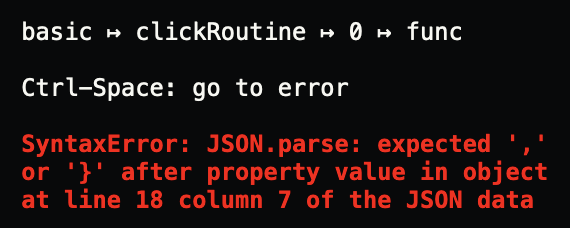
When this happens, entering Ctrl-space will move the cursor to the most likely location of the error. Generally this is a nesting error, or an extra or missing comma or quote mark.