Repository navigation
Selenium Testing
Before we start implementing our first selenium test case we need t to understand the below questions:
Why use Selenium
Selenium provides the way to automate the software testing. The selenium tool provides a rich set of testing functions specifically geared to the needs of testing of web applications of all types. These operations are highly flexible, allowing many options for locating UI elements and comparing expected test results against actual application behavior. One of Selenium’s key features is the support for executing one’s tests on multiple browser platforms.
How Selenium RC works
Automated testing with selenium requires selenium server and selenium client needs the binaries to write selenium commands. The client commands are communicated to the selenium server and the server then translates these commands into selenium core JavaScript commands. These core JavaScript commands are then forwarded to the browser. The JavaScript interpreter in the browsers executes the server provided JavaScript and runs the selenium action or verification you specified in your test script.
Selenium RC Architecture:
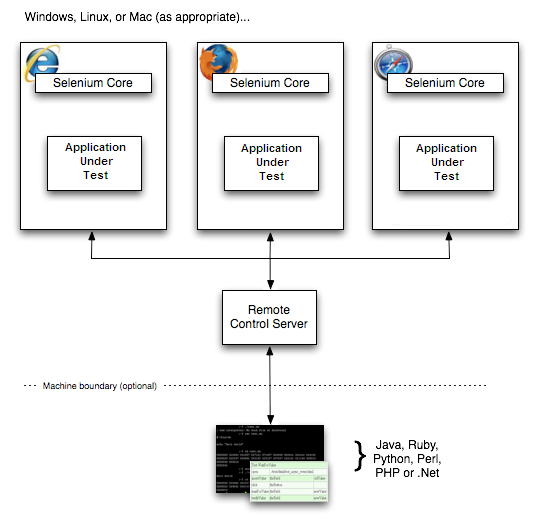
Implementation Steps
-
Project creation: Create a Maven project in eclipse or any IDE.
-
Setup selenium: To write the selenium code in the client side, we will need to selenium binaries. Add Maven dependency for latest selenium binary as below.
<dependency> <groupId>org.seleniumhq.selenium</groupId> <artifactId>selenium-java</artifactId> <version>${selenium.java.version}</version> </dependency> -
Setup selenium server: To translate the client request into the corresponding java-script we will need the selenium server. Add Maven dependency for latest selenium server as below.
<dependency> <groupId>org.seleniumhq.selenium</groupId> <artifactId>selenium-server</artifactId> <version>${selenium.server.version}</version> </dependency> -
Setup JUnit: We need to add JUnit testing framework. The JUnit test methods will have the selenium code inside. Add Maven dependency for latest JUnit as below.
junit junit ${junit.version} test -
Create selenium test: We need to write the code as per the test scenarios. Below is the test class for the same:
package selnium;
import org.junit.After;
import org.junit.Before;
import org.junit.Test;
import com.thoughtworks.selenium.SeleneseTestCase;public class SeleniumTest extends SeleneseTestCase {
@Before
public void setUp() throws Exception {
Server.startSeleniumServer();
super.setUp("http://www.google.com/", "*firefox");
}@SuppressWarnings("deprecation") @Test public void testSelenium() throws Exception { System.out.println("In testSelenium Method"); selenium.open("/"); selenium.type("q", "selenium rc"); selenium.click("btnG"); assertTrue(!selenium.isTextPresent("Selenium Remote-Control")); System.out.println("Out testSelenium Method"); } @SuppressWarnings("deprecation") @After public void tearDown() { Server.stopSeleniumServer(selenium); System.out.println("@After - tearDown"); }}
-
Server Start/Stop: The selenium server should be up while executing the test cases and should be shut down after the test cases executed. For this the server should be start and stop via code. Below is the code to start stop the server programmatically:
package selnium;
import java.net.BindException;
import java.net.ServerSocket;
import org.openqa.selenium.server.RemoteControlConfiguration;
import org.openqa.selenium.server.SeleniumServer;
import com.thoughtworks.selenium.Selenium;@SuppressWarnings("deprecation") public class Server {
public static SeleniumServer server;public static void startSeleniumServer() throws Exception { try { ServerSocket serverSocket = new ServerSocket(RemoteControlConfiguration.DEFAULT_PORT); serverSocket.close(); //Server not up, start it try { RemoteControlConfiguration rcc = new RemoteControlConfiguration(); rcc.setPort(RemoteControlConfiguration.DEFAULT_PORT); server = new SeleniumServer(false, rcc); } catch (Exception e) { System.err.println("Could not create Selenium Server because of: " + e.getMessage()); e.printStackTrace(); } try { server.start(); System.out.println("Server started"); } catch (Exception e) { System.err.println("Could not start Selenium Server because of: " + e.getMessage()); e.printStackTrace(); } } catch (BindException e) { System.out.println("Selenium server already up, will reuse..."); } } public static void stopSeleniumServer(Selenium selenium){ selenium.stop(); if (server != null) { try { selenium.shutDownSeleniumServer(); server.stop(); server = null; } catch (Exception e) { e.printStackTrace(); } } }}
-
Run Test: Run As Maven Test command will generate the file ‘selnium.SeleniumTest.txt’ which will provide the test report in txt file as below:
Tests run: 1, Failures: 0, Errors: 0, Skipped: 0, Time elapsed: 6.735 sec
The test results will also be shown in the console.
-
Add Surefire: Add dependency for maven plugin surefire to generate report in other formats.
org.apache.maven.plugins maven-surefire-report-plugin ${surefire.report.version} -
Generate Report: The maven ‘site’ command to generate the Html and other information.
For complete code, please visit https://github.com/AshutoshSharma10/SeleniumTest.git