Repository navigation
Settings
Open Settings at the bottom of the app navigation. The settings are grouped as:
| Section | |
|---|---|
| Board | The look of the board and pieces |
| Quantum display | How ghosts, percentages, links and the budget are shown |
| Moves | How moves are made and confirmed |
| Animation and sound | Animations, and the sounds of moves, captures and the end of the game |
| Coach and computer | The coach, hints and the computer player |
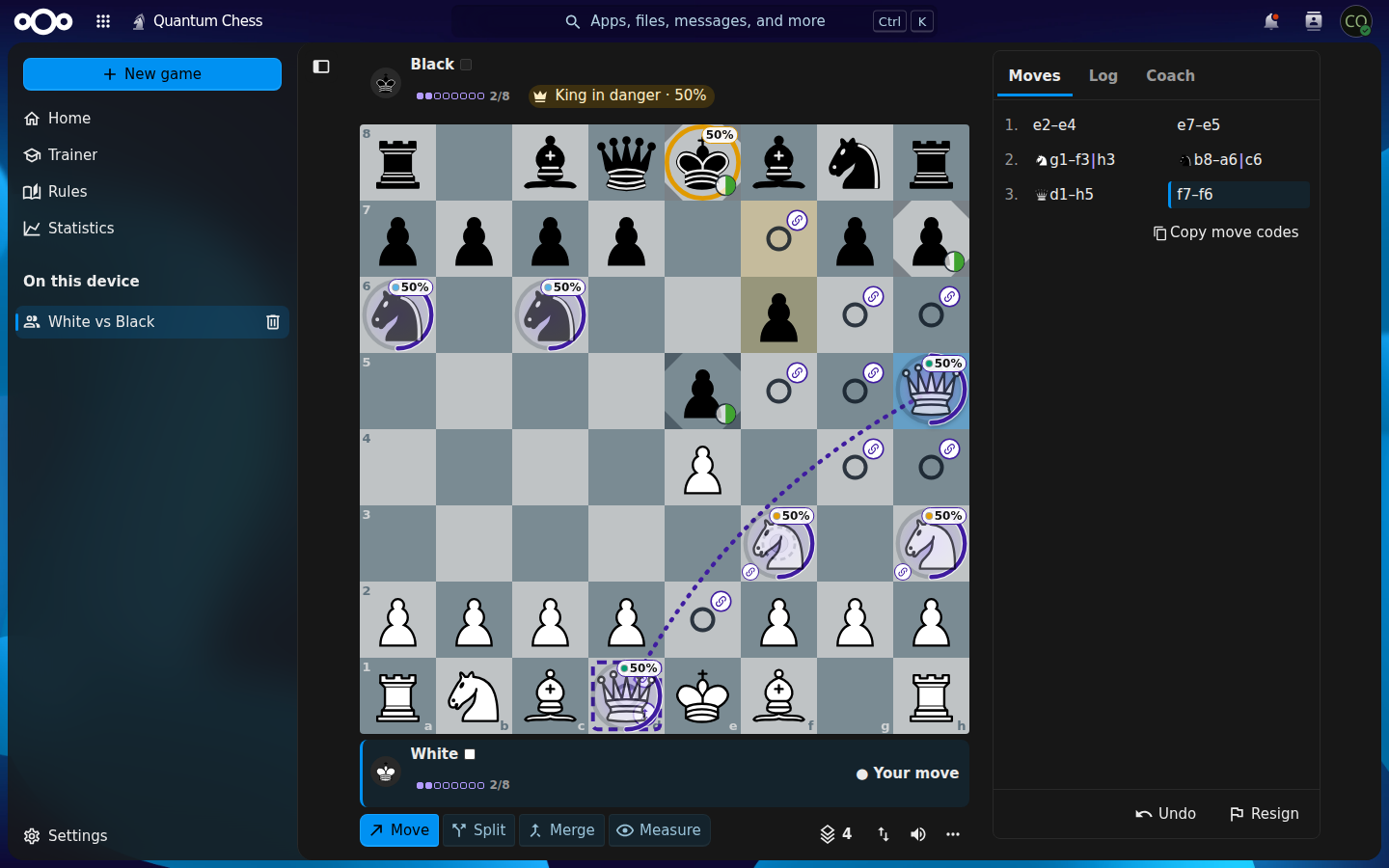
The light, dark and high-contrast themes follow your Nextcloud theme (Personal settings → Appearance and accessibility). The language follows your Nextcloud language.
Personal settings → Quantum Chess holds the options that concern your account:
- which notifications you get (invitations, your turn, draw offers, results, chat), and whether chat messages show a preview;
- whether you appear on the leaderboard, when your administrator leaves that choice to you;
- your own AI provider and key, when your administrator allows personal keys (see Computer and AI opponents).
Games against the computer, pass & play and the variants played locally are stored in your browser. They show under On this device, and only in that browser. Use Delete from this device to remove one.